
Updated on 2026-08-19
views
5min read
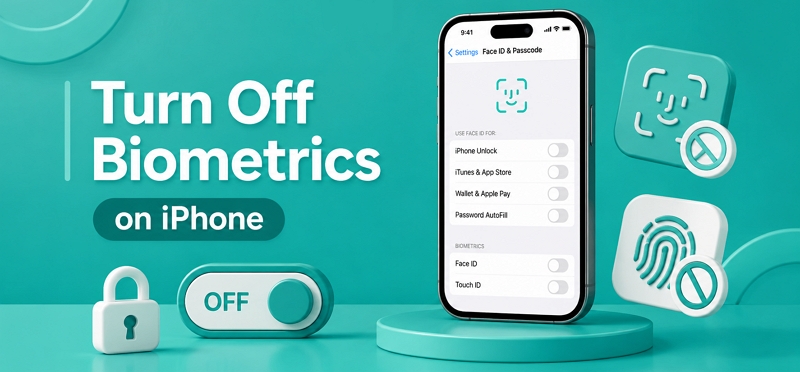
Face ID and Touch ID are convenient biometric authentication methods, but there are situations where you may prefer to use a passcode instead. You may want to disable biometrics for privacy, troubleshooting, or simply to have more control over how your iPhone is unlocked. This guide explains how to turn off biometrics on iPhone temporarily or permanently, depending on your needs. It also covers what to do if you cannot disable biometrics as expected, including common settings and security restrictions that may prevent you from turning them off.
How to Temporarily Turn Off Biometrics on iPhone
Temporarily disabling biometrics means reverting to the old way of unlocking the iPhone. Instead of the Face ID/Touch ID, you want the iPhone to ask for the device passcode for one-time use. This way, you're not removing your registered Face ID or Touch ID. This trick comes in handy for more practical reasons. For instance, when your biometric hardware isn’t working, you need to force the iPhone to authenticate via passcode and get in. Whatever the reason, the methods below can help.
Method 1. Restart iPhone
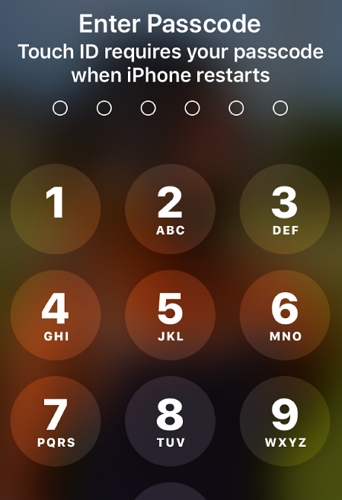
After restarting your iPhone, you’ll need to enter your passcode to re-enable Face ID or Touch ID. So, restarting your iPhone can also be a quick way to temporarily disable Face ID.
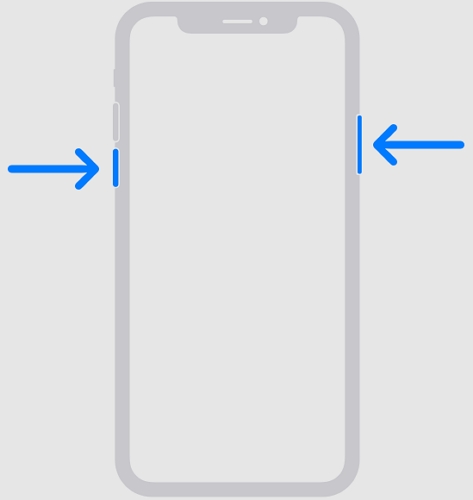
- Press and hold the Side button and either Volume button.
- Drag the power off slider to the right. Wait for your iPhone to turn off completely.
- Press and hold the Side button and release them when the Apple logo appears.
- Your iPhone will restart. Meanwhile, Face ID or Touch ID is unavailable until you input the screen passcode.
Method 2. Access Slide-to-Power-Off Screen
This is probably the quickest method. It is also the most discreet and works even if the phone is already in your pocket. The exact button combination will depend on your iPhone model:
- iPhones without a Home button: hold the Side button and one of the Volume buttons simultaneously.
- On iPhone with a Home button: hold down the Side or Top button.
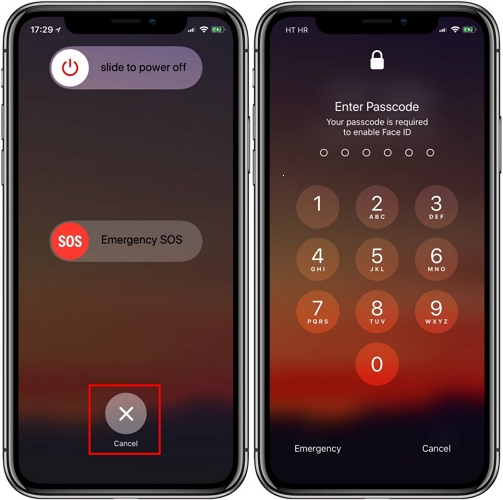
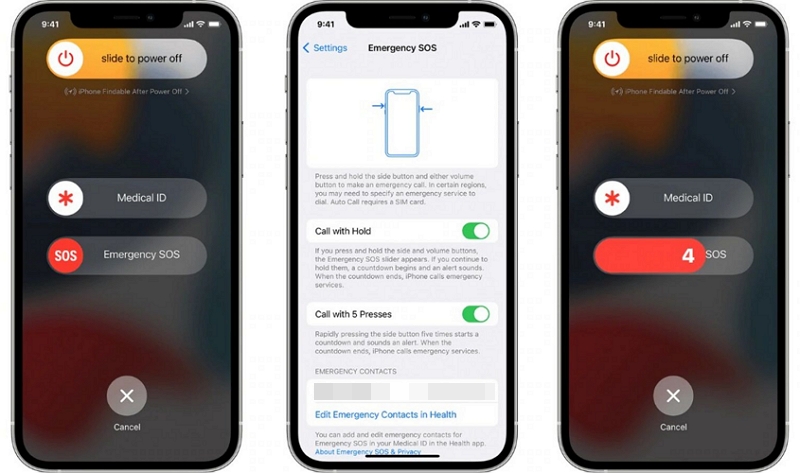
After pressing the corresponding buttons, you will be taken to the familiar slide to power off screen. Alongside it, you'll see other options for Medical ID and Emergency SOS. Simply tap Cancel or press the Side button again and leave the screen. iOS will temporarily disable biometric authentication.
Nonetheless, the passcode lockout will activate and you will have to unlock the iPhone with the passcode. Just enter the four-digit, six-digit, or custom alphanumeric code you’ve set, and your iPhone will unlock.
Method 3. Trigger Emergency SOS
On some iPhone models, the Side button and Volume button shortcut doesn't always work reliably. The iPhone SE lineup is one example and certain iOS versions (like iOS 14) also behave differently. So you can rely on this alternative method. And no matter the iPhone model, this method is the same.
But for this to work:
- You must enable the "Call with 5 Presses" toggle beforehand in the Settings menu.
To use this trick when needed:
- Simply press the Side button or Power button five times in rapid succession.
That’s it! This sequence will immediately bring up the Emergency SOS screen. At the same time, iOS will block biometric authentication. And you’ll have to enter the passcode to access the device again.
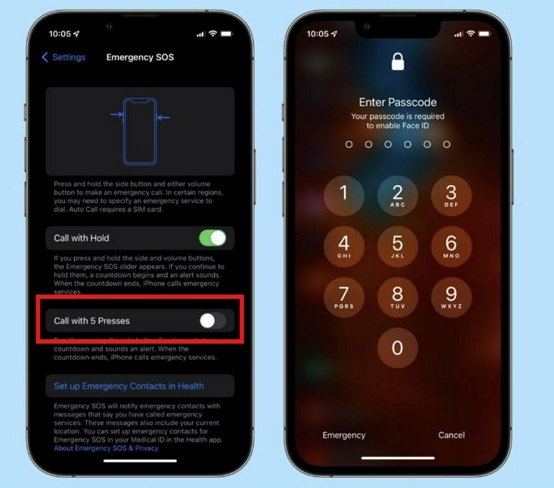
Keep in mind: By default, landing on the Emergency SOS screen triggers a loud siren and contacts local emergency services after a countdown. But you can change those settings. To do that:
1. Open Settings.
2. Tap Emergency SOS.
3. Turn off Call with Hold and Release and Auto Call options.
One more thing. Remember that you're disabling a feature that is very helpful in a real emergency. So, make changes to the Auto Call feature carefully.
Method 4. Use Siri Trick
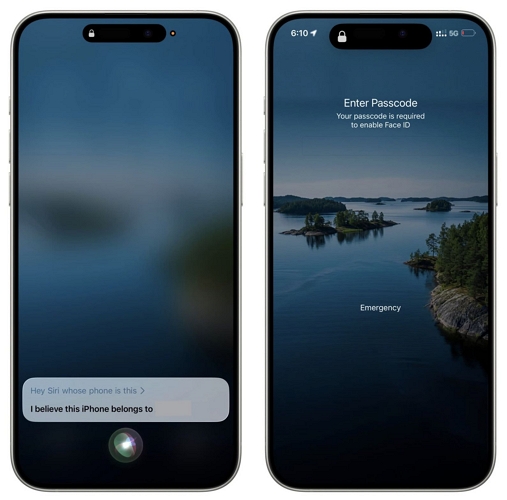
If your hands are tied, such as when driving or when your device is resting on a desk across the room, you can use Siri to trigger a temporary biometric lockout. For this, simply say: "Hey Siri, whose phone is this?" Siri will read out the iPhone’s owner's name and display the contact card (if one is linked). After that, biometrics are temporaily disabled. The next unlock will require the passcode.
This is the least reliable method of the three and does not work on all iOS versions. Test it on your device before relying on it.
How to Permanently Turn Off Biometrics on iPhone
The above methods only temporarily disable Face ID or Touch ID. If you want to stop using them long term, you'll have to make the change via the Settings app. And this can be really useful when your biometrics sensors aren’t working.
What Happens After You Completely Turn Off Biometrics on iPhone?
The biggest change is that you’ll need to enter your passcode every time you unlock your iPhone, which can be less convenient than using Face ID or Touch ID. You’ll also lose access to features that rely on biometric authentication. For example, you won’t be able to use Face ID or Touch ID to:
- Lock or unlock supported apps.
- Authorize Apple Pay purchases.
- Authorize App Store purchases and downloads.
- Autofill saved passwords with biometric authentication.
- Sign in to apps that support Face ID or Touch ID.
Steps to Permanently Disable Face ID/Touch ID on iPhone
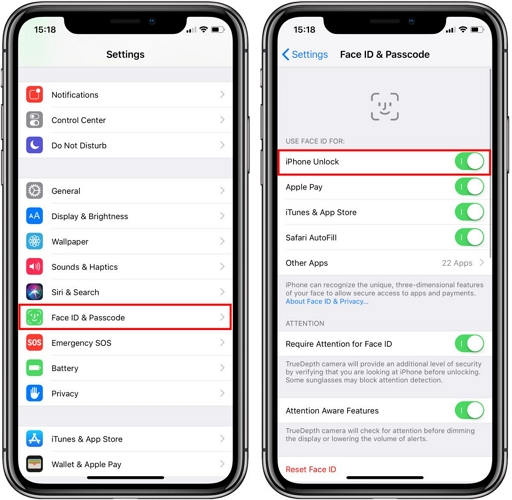
Step 1: Open the Settings app on your iPhone.
Step 2: Scroll down and tap Face ID & Passcode.
Step 3: Enter your iPhone passcode when prompted.
Step 4: Tap Reset Face ID. Face ID will be removed from your iPhone and you’ll need to set it up again if you want to use it in the future.
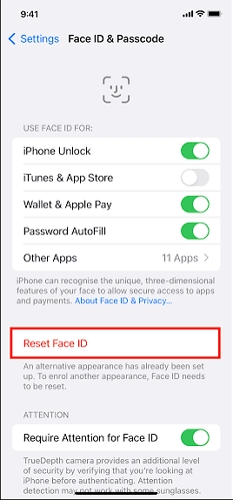
If you want to permanently disable Face ID for specific apps or features, follow the steps below.
Step 1. Head to Settings. Open Face ID & Passcode (or Touch ID & Passcode if you own a Home button model).
Step 2. Enter your 4/6-digit or alphanumeric passcode you’ve set to enter. Apple requires this before allowing you to adjust any settings in that menu.
Step 3. Turn off the toggle of unwanted options.
Can't Turn Off Biometrics on iPhone?
You usually cannot turn off the biometrics for these reasons:
- The Face ID & Passcode (or Touch ID & Passcode) menu is not visible in Settings.
- Other times, you can open the menu, but the options to turn off biometrics will be greyed out. And you cannot make any changes.
- And some of you will run into a Security Delay prompt.
- The biometric sensors on your iPhone are physically damaged, so your face or finger can’t be detected.
No matter the issue, though, don't worry. Let's look at how you can still turn off biometric.
Fix 1. Disable Stolen Device Protection
Trying to turn off biometrics will trigger a Security Delay message if you have set it as always or you are not currently be in a familiar location. This is a part of the Stolen Device Protection that was introduced with iOS 17.3. The purpose of this feature is simple. It is meant to add an extra layer of security (1-hour countdown) before allowing you to adjust certain sensitive changes, like changing Face ID and Touch ID settings.
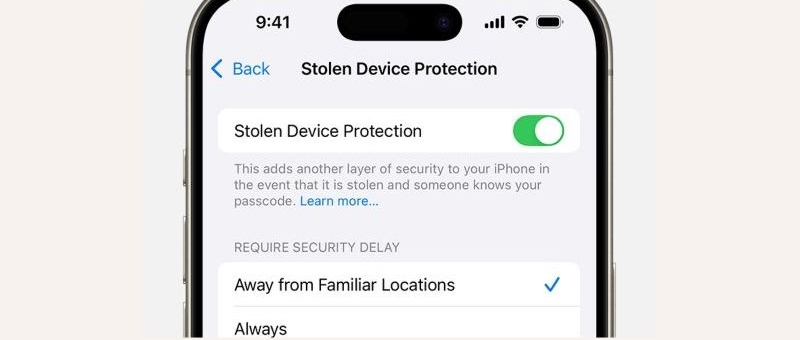
So you will need to use Face ID to pass the Stolen Device Protection verification first, wait one hour and authenticate with Face ID again. After that, you can turn off biometric unlocking using the steps discussed above.
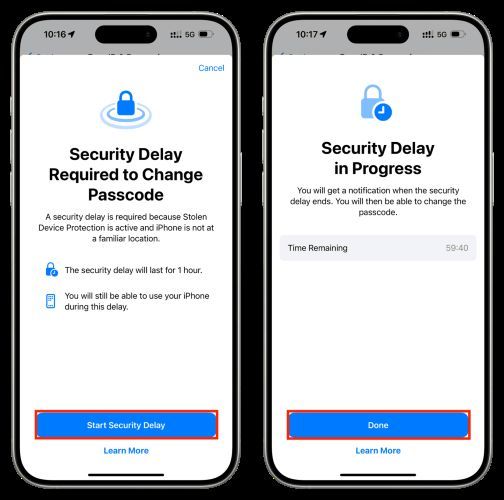
However, there is one complication. Turning off Stolen Device Protection requires Face ID or Touch ID. And if the biometric sensors are damaged, the device cannot complete the verification. As a result, you will end up in a situation where you can't turn off Stolen Device Protection and can't turn off biometrics unlocking either. At that time, you can return to a familiar location and use your screen passcode to verify Stolen Device Protection and turn off Face ID.
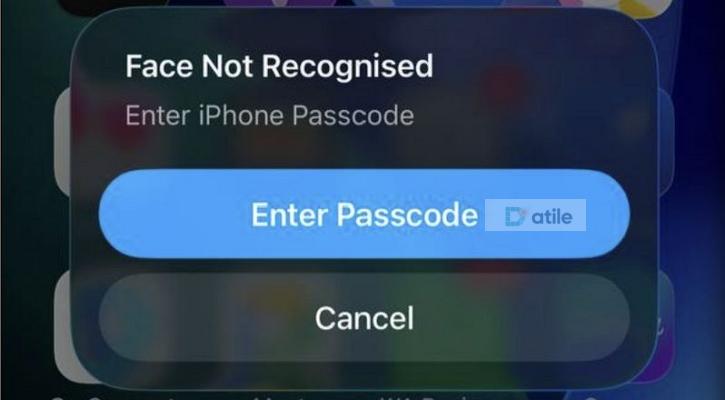
If screen passcode isn’t available to you, you can try erasing your iPhone, meaning data loss will happen here. One effective option is to use Datile PassAccess. Datile can remove both Face ID and Stolen Device Protection from your iPhone with its Unlock iOS Screen feature. After removal, you just need to enter your current Apple ID credentials to turn off iCloud Activation Lock. Then, you can use your iPhone without Face ID or Touch ID. Additionally, you can use Datile to unlock your iPhone when you can't turn off Face ID because you forgot your screen passcode.
Steps to Remove Face ID and Stolen Device Protection Using Datile
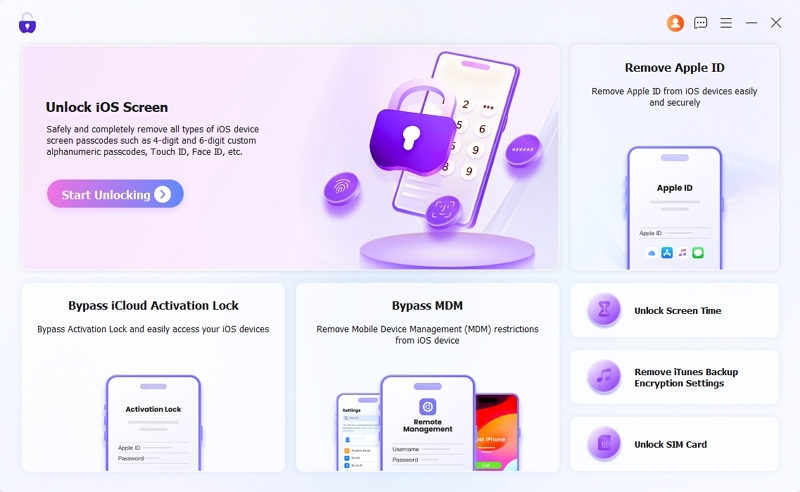
Step 1. Get Datile PassAccess on Windows or Mac. Choose Unlock iOS Screen from the home screen.
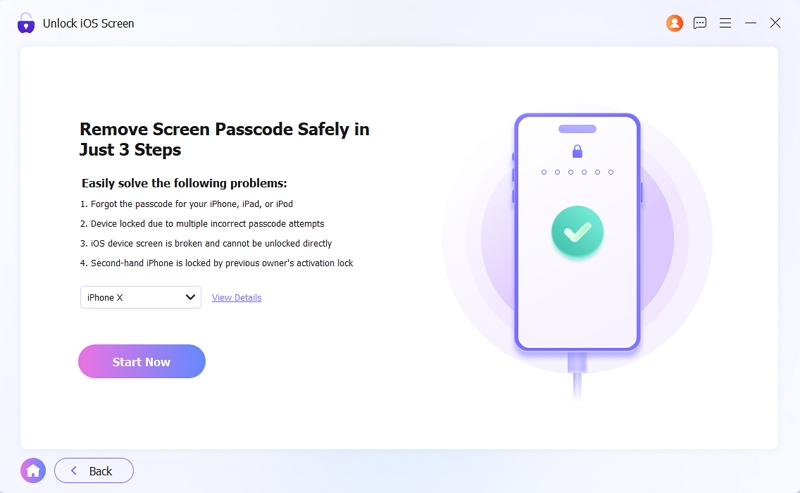
Step 2. Use a working USB cable to connect the iPhone. Datile will detect and display its model information. Give the details a quick check. Then, continue with the Start Now button.
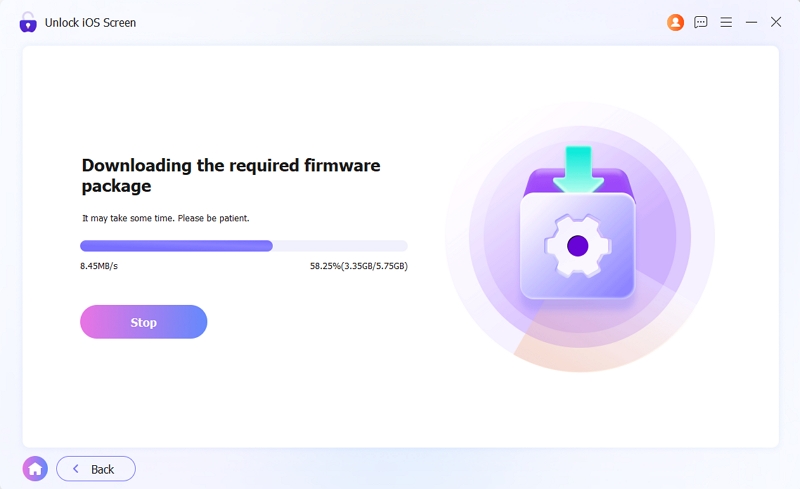
Step 3. Let the firmware package download and prepare. This is the package Datile needs before it can remove the screen lock like Face ID from the device.
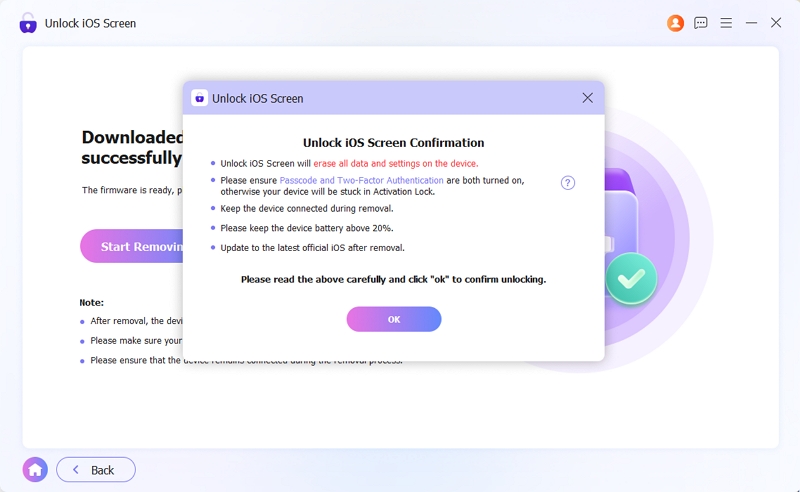
Step 4. Click Start Removing. A confirmation window will appear. Review the information shown there and click OK.
Step 5. Sit tight while Unlocking iOS Screen runs in the background. When you see the Unlocked iOS Screen Successfully, click Finish.
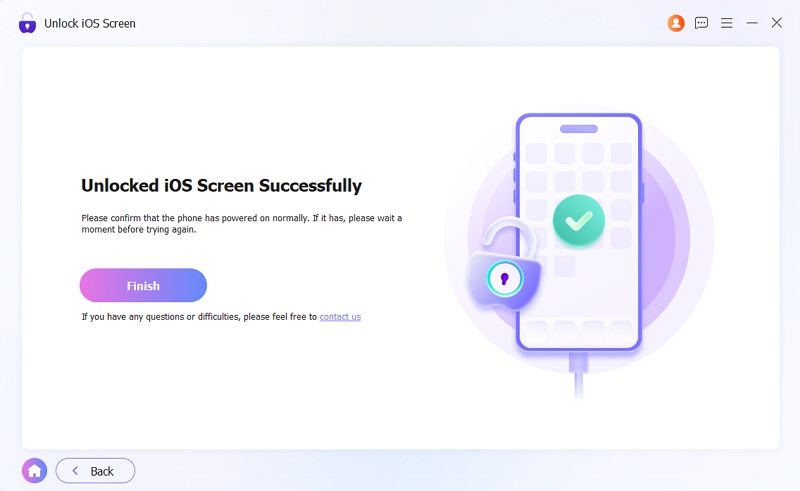
Now, just enter the Apple ID and password associated with your iPhone to turn off Activation Lock and then set up your iPhone as new.
Fix 2. Turn Off Screen Time
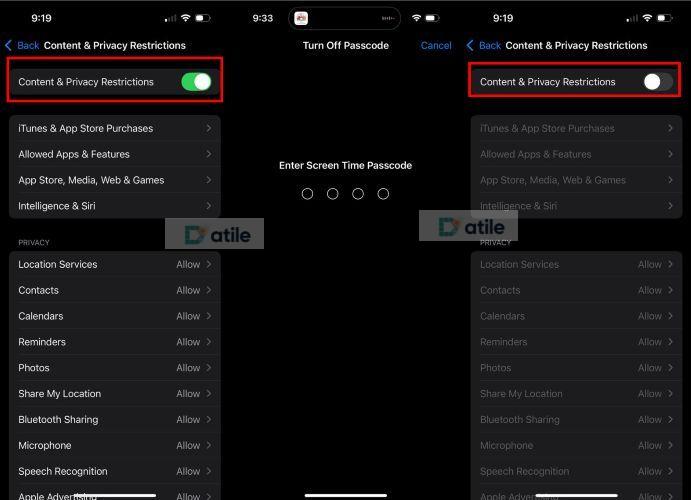
This fix is useful when the biometric settings are visible but appear greyed out or refuse to accept changes. The greyed-out options are caused by Screen Time restrictions. Don’t worry, you can handle this easily. You'll just need the Screen Time passcode for this.
Step 1. Open Screen Time from the Settings menu.
Step 2. Select Content & Privacy Restrictions. Enter the four-digit Screen Time passcode when prompted.
If you don't remember the Screen Time passcode, you can reset it with your Apple ID password (on iOS 14.3 or later).
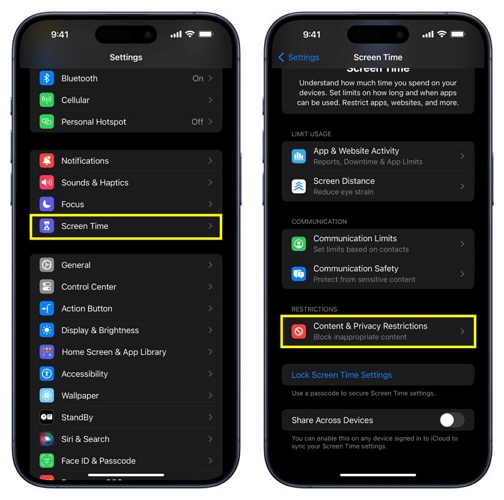
Step 3. Scroll to the Allow Changes To section. Find Passcode & Face ID (or Touch ID & Passcode) and tap it. Then change the setting from Don't Allow to Allow. On some iOS versions, this option will appear as Passcode Changes instead.
Step 4. Return to the Face ID or Touch ID menu options. And you will be able to turn off biometric unlocking.
FAQ: Can Someone Unlock Your iPhone with Face ID When You’re Sleep?
Not by default. But yes. This mainly depends on the status of “Require Attention for Face ID”. If it’s turned off, someone may be able to unlock your iPhone using your face while you are sleeping.
Apple has built safeguards into Face ID. The most important one is Require Attention for Face ID. You can enable it from the Settings menu. Once turned on, iPhone will only unlock with Face ID when it can actively detect that your eyes are open and directed at the screen. Apple uses infrared sensors to verify this. So with this feature on, even when someone points the iPhone at your face when you're asleep or not looking, the iPhone will remain locked.
To enable this protection:
- Go to Settings > Face ID & Passcode.
- Turn on Require Attention for Face ID.
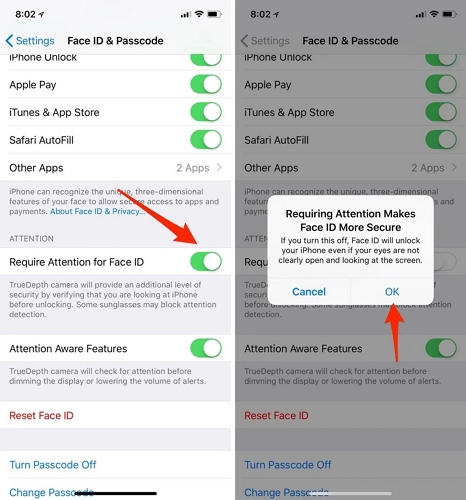
You can also leave Attention Aware Features enabled. This will allow iPhone to improve the overall reliability of Face ID's attention checks.
Note: This protection is only available on Face ID devices. Touch ID does not have an equivalent attention check. If a registered finger is placed, the iPhone will unlock regardless of whether you're awake or asleep, or even if someone forcibly presses your finger on the Home button.
Final Words
This guide showed you how to turn off biometrics on an iPhone. We covered both temporary and permanent methods, so you can decide which approach makes more sense for your situation.
And if you can't make the change because of Stolen Device Protection, a forgotten Screen Time passcode, or other restrictions, Datile PassAccess, an iOS unlocker can help. It is designed to remove those barriers and get you back into the device.