
Updated on 2026-03-10
views
5min read
Seeing the “Important Carrier Message” on your iPhone means your device may be locked to a specific carrier or experiencing activation issues. This alert often appears when your SIM card is unsupported, your iPhone is carrier-locked, or there’s a software/activation problem. Unlocking your iPhone not only resolves this issue but also allows you to:
- Use any compatible SIM card worldwide
- Access better plans from other carriers
- Travel internationally without network restrictions
This guide covers how to unlock iPhone with an Important Carrier Message, including official and trusted third-party methods.
Part 1: What Is the “Important Carrier Message” on iPhone?
The Important Carrier Message is a system notification from Apple that indicates issues with your cellular carrier or SIM card. Common scenarios include:
Common Causes
- SIM card not supported: Your SIM belongs to a carrier not allowed by your iPhone’s activation policy.
- iPhone locked to a carrier: The device is restricted to a single carrier; other SIMs won’t work until it’s unlocked.
- Software or activation issues: Incorrect carrier settings, activation errors, or outdated iOS versions may trigger the message.
How Users Experience It
Examples of notifications you might see:
- “SIM Card Not Supported”
- “The SIM card belongs to a carrier that is incompatible with the activation policy”
- “Important Carrier Message: Unlock iPhone to read message”
To resolve these issues, you may need to unlock your iPhone, adjust settings, contact your carrier, or use a compatible SIM.
Part 2: Why Does the “Important Carrier Message” Appear on iPhone?
Here’s why the “Important Carrier Message” appears on iPhone –
Carrier-specific restrictions
- Cause: Some iPhones are restricted to certain carriers due to contract or subsidy.
- Impact: You cannot use another carrier’s SIM; calls, texts, and data may be blocked.
Region-locked devices
- Cause: Device is limited to certain countries or regions.
- Impact: Foreign SIM cards may not work; roaming and network features may be unavailable.
Contract obligations or unpaid bills
- Cause: Active contract or installment plan with pending payments.
- Impact: Carrier may deny unlocking until obligations are fulfilled; selling or changing carriers can be restricted.
iOS update or activation errors
- Cause: Incorrect SIM, date/time, or missing carrier settings after an update.
- Impact: Activation fails; iMessage, FaceTime, or calls/data may not function.
Part 3: How to Unlock iPhone with “Important Carrier Message”
When this message appears, your iPhone is typically network-locked. Here are two main methods to unlock it:
Method 1. Official Carrier Unlock
First, check if your iPhone is locked to a carrier. Go to Settings > General > About and find the Carrier Lock section. If it says “No SIM restrictions”, your iPhone is already unlocked. If it isn’t, then follow these steps –
Step 1: Go to Settings > General > About and check Carrier Lock.If it says No SIM restrictions, your iPhone is already unlocked.
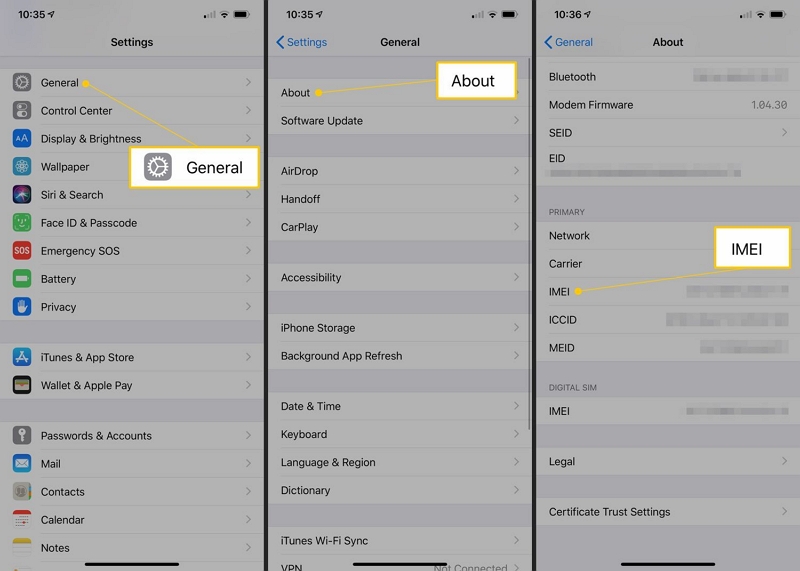
Step 2: If locked, contact your carrier with your IMEI number (*#06# or Settings > General > About).
Step 3: Verify eligibility:
- Device fully paid off
- Account in good standing
- Not reported lost/stolen
- Minimum active service period (e.g., 60 days)
Step 4: Wait for the carrier to process the unlock (usually 48–72 hours).
Pros
Official, Apple-approved.
Usually free if eligible.
Permanent unlock.
Cons
Not all devices eligible.
Processing time may vary.
Some carriers don’t offer unlocks.
Method 2. Unlock iPhone Using Trusted Third-Party Tools
Passixer is a reliable tool to remove SIM locks and activation restrictions without carrier involvement. It works for devices locked to T-Mobile, Verizon, EE, Rogers, and more.
Features:
- Remove SIM lock from iPhone without carrier intervention
- Unlock iPhone from popular carriers worldwide
- No data loss during the unlocking process
- Remove MDM lock and iTunes backup encryption
- Step-by-step guidance with jailbreaking support for unlocking
Tips After Unlocking:
- Verify new SIM compatibility
- Reset Network Settings (Settings > General > Reset > Reset Network Settings)
- Check APN settings
- Contact carrier if network issues persist
Part 4: Precautions Before Unlocking iPhone with Carrier Message
Before attempting to unlock your iPhone, it’s essential to take certain precautions to ensure a smooth, safe, and successful process. Ignoring these steps could result in data loss, security risks, or device issues.
1. Back Up Your Data
Always back up your iPhone before unlocking, even if the device is locked.
- iCloud Backup: If automatic iCloud backups were previously configured, you can back up your data directly to iCloud.
- iTunes/Finder Backup: If iCloud is unavailable, connect your iPhone to a trusted computer and use iTunes (or Finder on macOS) to create a backup. This requires that your device was previously synced with the computer.
Risk: Unlocking without a backup may lead to permanent data loss, including contacts, messages, apps, and media.
Verify the backup is complete before starting the unlock process to avoid any accidental data loss.
2. Risks of Unauthorized Unlock Tools
Using unapproved third-party tools or unreliable software to unlock your iPhone can compromise device security. Potential risks include:
- Jailbreaking Requirements: Most unauthorized tools require jailbreaking, which disables built-in iOS security features.
- Malware and Data Leaks: Jailbroken devices are more vulnerable to malicious software or data breaches.
- Software Instability: Unofficial unlock tools may cause crashes, system errors, or unexpected performance issues.
3. Warranty Considerations
- Officially, unlocking your iPhone via your carrier does not void Apple’s warranty.
- However, issues caused by unauthorized unlocking or jailbreaking may not be covered, potentially leaving you responsible for repairs.
- Unapproved modifications can also affect iOS updates, and in some cases, may permanently damage the device.
Stick to official carrier unlocks or reputable software to protect your warranty and device integrity.
4. What to Check Before Unlocking
Carrier policies
- Only your current carrier can officially unlock your iPhone.
- Contact customer support to submit an unlock request.
- Processing time varies from 48 hours to several days, depending on carrier policies.
- After approval, you can proceed with unlocking safely.
iPhone model compatibility
- Not all iPhone models are compatible with every carrier.
- Verify that your iPhone supports the network bands and technologies of the carrier you plan to use.
- For example, some older iPhones may not support certain 4G LTE or 5G bands in other regions.
Confirm network compatibility before unlocking to avoid connectivity issues post-unlock.
FAQs
Q. Why am I seeing “Important Carrier Message” on my iPhone?
It indicates carrier restrictions, SIM issues, or activation problems. Reboot, refresh carrier settings, or contact the carrier if the issue persists.
Q. How long does it take to unlock an iPhone?
Unlocking an iPhone usually requires several days to a week, based on your carrier’s rules and the device’s qualifications. For example, AT&T frequently handles unlock requests in 48 hours, whereas other carriers might require up to 72 hours or more. After the unlock is authorized, you might need to restore your iPhone to finalize the procedure.
Conclusion
The “Important Carrier Message” shows that your iPhone is locked or facing activation issues. Unlocking your device restores full functionality, allowing use with any compatible carrier.