
Updated on 2026-03-21
views
5min read
You're doing a quick cleanup—selecting a group of files, hitting Delete, emptying the Bin—and then realize the quarterly report you spent three days on just went with them. Or your finger slipped while moving files and pressed Delete instead. It happens to everyone, and the panic that follows is completely understandable.
Here's what actually matters: stop using your computer right now. Every file you save, every app you open, every download you run risks overwriting the storage space where your deleted file still physically exists. Windows doesn't immediately erase deleted data—it just stops tracking the file's location and marks that space as available. Until something new writes over it, recovery is possible.
This guide covers every recovery method for Windows 7 through 11, ordered by how fast and reliable they are.
Quick Diagnosis
| Your situation | Best method |
|---|---|
| Just deleted it, nothing else done | Ctrl+Z undo — takes 2 seconds |
| File still in Recycle Bin | Restore from Recycle Bin |
| Recycle Bin emptied, File History was on | File History restore |
| Recycle Bin emptied, had a backup | Backup and Restore / OneDrive |
| Recycle Bin emptied, no backup | Recovery software |
| Deleted from USB or external drive | Recovery software (bypasses Recycle Bin) |
How Windows Deletion Actually Works
Understanding this saves time and prevents mistakes during recovery.
When you delete a file normally, Windows moves it to the Recycle Bin—it's still fully intact and easily recoverable. When you empty the Recycle Bin (or use Shift+Delete to bypass it), Windows removes the file's entry from its directory and marks those storage blocks as available for new data. The actual file content stays physically on the drive until something new overwrites it.
This is why speed matters, and why "stop using the computer" is the single most important instruction. Every new file saved, every application update, every browser cache write is a potential overwrite.
HDD vs SSD: On older hard drives (HDD), deleted data can persist for days or weeks because the drive doesn't actively erase vacated space. On modern SSDs, Windows may begin clearing those blocks sooner due to the TRIM feature—recovery is still often possible but the window is shorter. Most Windows laptops from 2015 onward use SSDs.
Method 1: Ctrl+Z — Undo the Deletion Instantly
Success rate: ~100% if used within seconds Works: Windows 7, 8, 10, 11
This is the fastest recovery method, and the one most guides skip. If you just deleted a file in File Explorer and haven't done anything else since, press Ctrl+Z immediately. Windows tracks recent file operations and can reverse the deletion before anything else happens.
You can also right-click inside the folder where the file was and select Undo Delete from the context menu.
Important limitations:
- Only works if deletion was your most recent action — Ctrl+Z undoes the last thing you did, so if you've done anything else since deleting, it undoes that instead
- Doesn't work after restarting your computer
- Doesn't work for files deleted with Shift+Delete (permanent delete bypass)
- Works for files still in the Recycle Bin only — once the Bin is emptied, Ctrl+Z can't help
If Ctrl+Z doesn't work or the window has passed, move to the next method.
Method 2: Restore from the Recycle Bin
Success rate: ~100% Works: All Windows versions
Files deleted normally go to the Recycle Bin and stay there until you manually empty it or Windows auto-purges them (after 30 days by default, if auto-purge is enabled).
To restore a single file:
- Open Recycle Bin from the desktop (or search "Recycle Bin" in the taskbar)
- Find the file — you can sort by "Date Deleted" to find recent deletions quickly
- Right-click the file → Restore — it returns to its original location
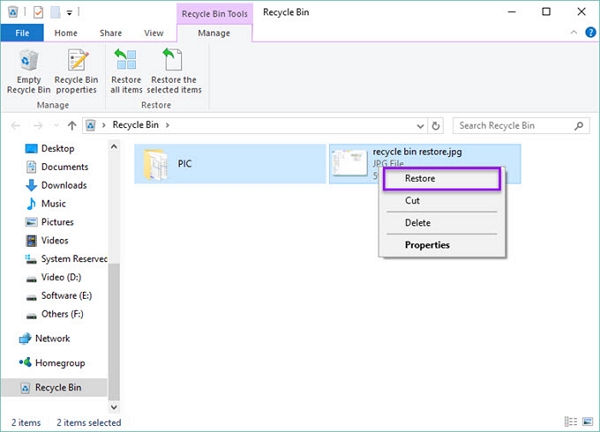
To restore multiple files: Hold Ctrl and click each file to select them, then right-click → Restore Selected Items. Or, on Windows 10/11, use the Restore All Items button at the top of the Recycle Bin window to restore everything at once.
Can't find the file? The Recycle Bin can get crowded. Right-click in an empty area → Sort by → Date Deleted to bring recent deletions to the top.
To disable the 30-day auto-purge: Right-click the Recycle Bin icon on your desktop → Properties → uncheck "Don't move files to the Recycle Bin" (make sure this is unchecked to keep the Bin active) and uncheck any automatic emptying option. Alternatively, open Recycle Bin → manage storage settings to control how much disk space it uses before auto-purging.
Method 3: File History (Windows 8, 10, 11)
Success rate: ~90% when File History was running before deletion
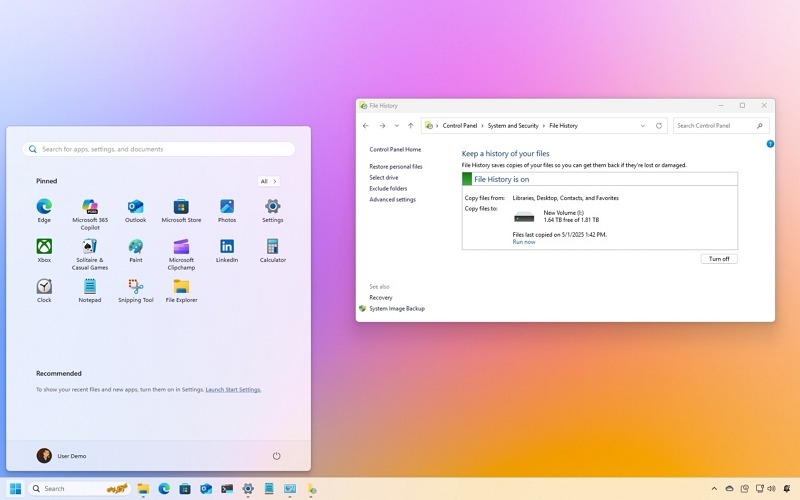
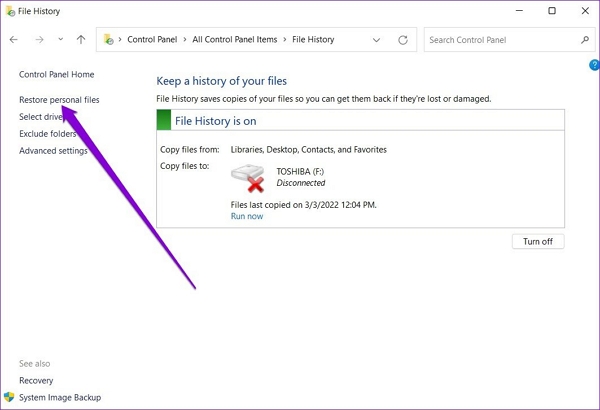
File History is Windows' built-in automatic backup feature. If it was enabled before the deletion, it periodically saved copies of files in your Documents, Music, Pictures, Videos, and Desktop folders to an external drive or network location.
Access File History:
- Windows 10/11: Settings → Update & Security → Backup → More options → Restore files from a current backup
- Windows 8: Control Panel → System and Security → File History → Restore personal files
Method 4: Previous Versions (Shadow Copy)
Success rate: Moderate — depends on whether Windows created restore points Works: Windows 7, 8, 10, 11
Windows sometimes automatically creates shadow copies of files as part of System Restore Points. This can give you access to previous versions of a file without any backup setup.
To check:
- Navigate to the folder where the file was stored
- Right-click the folder → Properties → Previous Versions tab
- If any restore points exist, select one and click Open to browse its contents
- Find the file and drag it out, or select it and click Restore
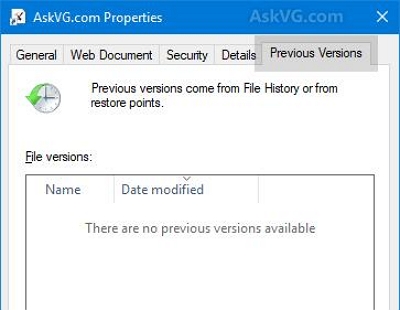
This method works for recovering earlier versions of a file you modified or accidentally overwrote, not just files deleted from the Recycle Bin.
Method 5: OneDrive and Cloud Backup
Success rate: ~90% for files that were synced before deletion Works: Windows 10, 11 (OneDrive); any version with Google Drive/Dropbox
OneDrive Recycle Bin: If the deleted file was stored in your OneDrive folder, it's also in OneDrive's own Recycle Bin for 30 days. Sign into onedrive.com → click Recycle Bin in the left sidebar → find and restore the file.
OneDrive version history: For files still in OneDrive, right-click any file → Version history to access previous saved versions.
Google Drive / Dropbox: Both services have their own Trash that retains deleted files for 30 days. Check the Trash section in each service's web interface.
Check messaging and email: As a last resort, search your sent emails, Slack messages, or any chat app where you may have shared the file. The recipient still has it, and you can ask them to send it back.
Method 6: Recovery Software (Recycle Bin Emptied, No Backup)
Success rate: 30–70% on HDD | 10–40% on SSD
When the Recycle Bin has been emptied and no backup exists, recovery software is the only remaining option. These tools scan your drive's raw storage for file entries and data blocks that haven't yet been overwritten.
Critical rule before installing anything: Install the recovery software on a different drive than the one you're scanning. Installing on the same drive risks overwriting the data you're trying to recover. Use an external USB drive or download to a second drive.
Recommended Tools: Datile Computer Recovery (widely used)
Step 1. Download and install recovery software to an external drive (not the drive you're scanning)
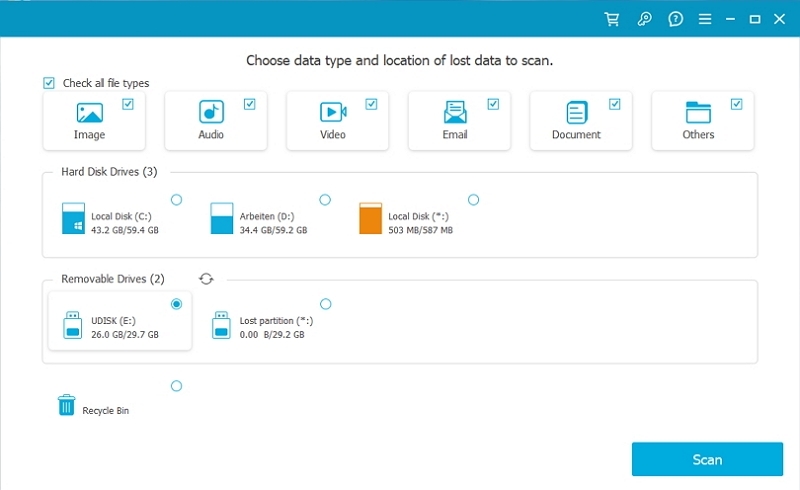
Step 2. Launch the software and select the drive where the deleted files were stored
Step 3. Run Quick Scan first — faster, works well for recently deleted files
Step 4. If Quick Scan doesn't find your file, run Deep Scan — slower but more thorough
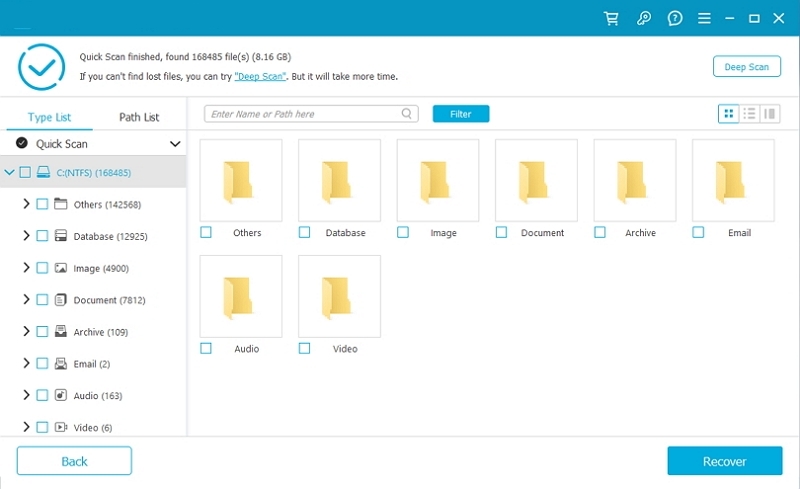
Step 5. Use the search bar or file type filter to locate your specific file
Step 6. Preview the file before recovering to confirm it's intact
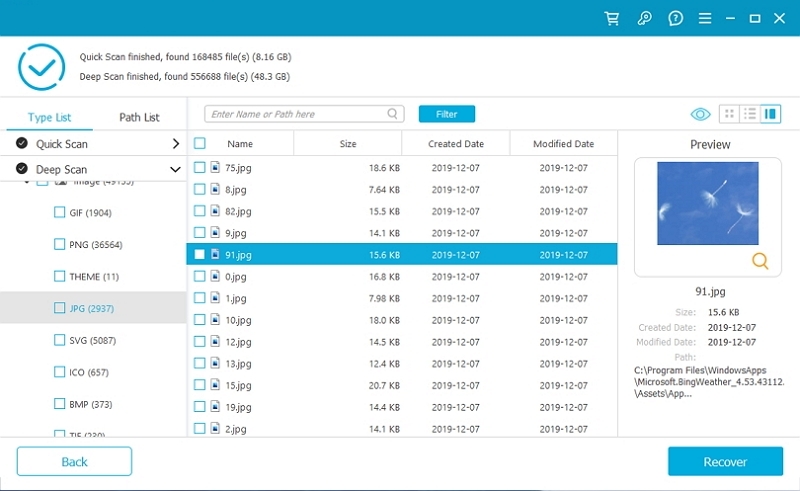
Step 7. Recover to a different location than the source drive
Note on USB drives and external storage: Files deleted from USB drives or external hard drives bypass the Recycle Bin entirely — they're immediately "permanently deleted" from Windows' perspective. Recovery software can still scan these drives using the same process above.
Special Scenarios
Files Deleted Using Shift+Delete
Shift+Delete bypasses the Recycle Bin and marks files for immediate deletion. Ctrl+Z won't work. Recovery software is your only option — act immediately before the storage is overwritten.
Files on USB or External Drive
These don't go to the Recycle Bin. Recovery software with external drive scanning support (Recuva and EaseUS both handle this) is needed. Connect the drive and select it as the scan target.
Recovering an Older Version of a File You Saved Over
If you accidentally overwrote a file rather than deleted it, check Previous Versions (right-click the file → Properties → Previous Versions), File History, or OneDrive version history. Recovery software won't help here — it recovers deleted files, not overwritten ones.
Possible Hidden File (Not Actually Deleted)
Before assuming a file is gone, check whether it's hidden. Open File Explorer → View → Options → Change folder and search options → View tab → select "Show hidden files, folders, and drives." If the file reappears, right-click it → Properties → uncheck Hidden.
For a more thorough check via Command Prompt (run as Administrator): ATTRIB -H -R -S /S /D C:\path\to\folder\*.*
This removes hidden, read-only, and system attributes from all files in the specified folder, making them visible again.
Recovery Success Rate Summary
| Scenario | Realistic success rate |
|---|---|
| Ctrl+Z used immediately | ~100% |
| File still in Recycle Bin | ~100% |
| File History backup exists | ~90% |
| OneDrive / cloud sync | ~90% if file was synced |
| HDD, Bin emptied, no backup | 30–70% |
| SSD, Bin emptied, no backup | 10–40% |
| Shift+Delete, no backup | 10–40% (act fast) |
| USB drive, deleted recently | 30–60% |
Windows Version Quick Reference
| Windows version | Best built-in options |
|---|---|
| Windows 7 | Previous Versions, Backup and Restore |
| Windows 8 | File History |
| Windows 10 | File History, OneDrive, Previous Versions |
| Windows 11 | File History, OneDrive, Previous Versions |
Prevention: Stop This From Happening Again
Enable File History now: Settings → Update & Security → Backup → Add a drive. Select an external drive. Set backup frequency to every hour (or more often for critical work files). Once enabled, Windows silently backs up your key folders continuously.
Use OneDrive for important files: Files stored in your OneDrive folder are automatically synced and have a 30-day Recycle Bin. If you delete something, you have a month to recover it from the web interface without any setup.
The 3-2-1 backup rule: Three copies of important data, on two different media types, with one stored off-site. In practice: original file + external drive backup + cloud backup. Any two of these being in sync means a single accident can't cause permanent loss.
Enable deletion confirmation prompts: Right-click the Recycle Bin → Properties → check "Display delete confirmation dialog." This adds a confirmation step before files move to the Bin, catching accidental deletions before they happen.
Consider increasing Recycle Bin size: Right-click Recycle Bin → Properties → increase the "Maximum size" allocation for your drive. A larger Bin means deleted files are retained longer before auto-purging.
FAQs
Q. Can I recover files from the Recycle Bin after emptying it?
Yes, if you act quickly. Once emptied, files are no longer visible to Windows but the data often still exists on the drive. Recovery software can scan for and restore these files, with higher success rates the sooner you try.
Q. Does Shift+Delete permanently delete files?
It bypasses the Recycle Bin, but "permanent" is relative. The data still physically exists until overwritten. Recovery software can often retrieve Shift+Deleted files if you act fast.
Q. Why can't I find a file in the Recycle Bin even though I just deleted it?
Several possibilities: you deleted it from a USB drive or network location (these bypass the Recycle Bin); the Bin was set to immediately delete files without storing them; or the file was deleted using Shift+Delete.
Q. Is Recuva really free?
Yes. Recuva's core functionality is free with no file size or quantity limits. A paid Pro version adds automatic updates and virtual hard drive support, but the free version handles most recovery scenarios.
Q. How long does Windows keep files in the Recycle Bin?
By default, Windows keeps files in the Recycle Bin until you empty it manually, or until the Bin reaches its storage limit (at which point older files are purged to make room). The 30-day auto-deletion is optional and not enabled by default in most Windows versions.
Q. Can I recover files deleted by someone else on the same computer?
Yes, if they used the same Windows account. Files deleted from a different user account on the same computer go to that account's Recycle Bin, which you'd need to access from that account.