
Updated on 2026-03-16
views
5min read
Forgetting your iPhone passcode can feel stressful, especially when your device contains photos, messages, work files, and app data you don’t want to lose. Fortunately, it is possible to reset your iPhone passcode without losing data in specific situations. Below, we’ll explain the exact cases where data loss can be avoided and guide you through the step-by-step process. We’ll also cover how to reset iPhone passcode when a factory reset is required.
When Can You Reset iPhone Passcode Without Losing Data
In most cases, iPhone passcode reset requires erasing the device, causing data loss. This is because Apple’s security design is based on encryption. Simply put, your passcode is not just a lock but it is the key to decrypting your data. However, there is an important exception - unlock your iPhone with old passcode.
Unlock Your iPhone with Old Passcode (No Data Loss)
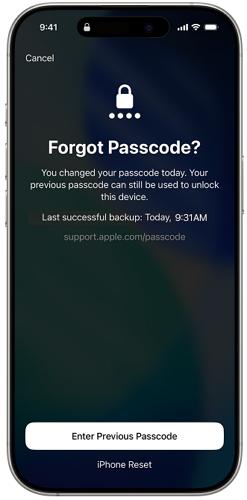
Apple introduced a temporary security feature “Enter Previous Passcode” that allows users to reset their device passcode using the previous one. Although this option is a lifesaver, it only can be used when the conditions below are met.
- Your iPhone is running iOS 17 or later.
- You changed your device passcode within the past 72 hours.
- You still remember the old passcode.
- You haven’t enabled “Expire Previous Passcode Now” in Settings.
If the way above doesn’t work for you, unfortunately, you will need to reset your iPhone, which means erasing all data and settings on the device. After the reset, the forgotten screen passcode will be removed, enabling you to create a new one. If you have backed up your iPhone before forgetting the passcode, the data loss can be minimized by restoring from a previous backup. That means not all data is permanently lost.
How to Reset iPhone Passcode Without Data Loss
This solution is especially useful for users who recently updated their iPhone passcode but forgot the new one. If it’s available to you, congratulations! Just follow the steps below to set a new device passcode using the old one.
Steps to Reset iPhone Passcode Without Device Reset
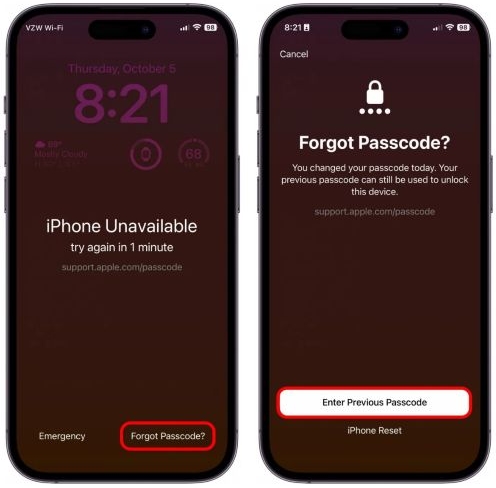
Step 1. Enter incorrect passcode several times. Then, tap Forgot Passcode? at the bottom screen.
Step 2. Choose Enter Previous Passcode.
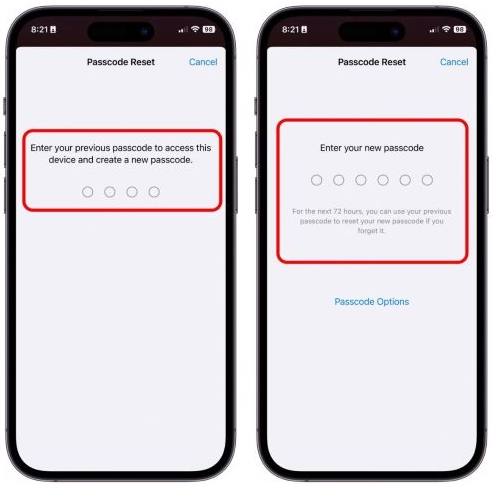
Step 3. Type in the old passcode. Once it’s verified, create a new one.
How to Reset iPhone Passcode (Data Loss)
If the above method is unavailable, you will need to erase your locked iPhone to set a new device passcode. Here is how the process works.
Step 1: Remove Forgotten iPhone Passcode
To reset your locked iPhone and remove the screen passcode, here are 5 methods you can choose from. You can compare them in the table below and select the one that works best for you.
| Method | Supported iOS | Find My Status | Apple ID Required | Computer Required | Estimated Time |
|---|---|---|---|---|---|
| Lock Screen Erase | iOS 15.2+ | On | Yes | No | 10–20 min |
| Datile PassAccess | iOS 26 or earlier | Off/On | No if Find My is off | Yes | 10–30 min |
| Find My App | All iOS | On | Yes | No | 10–20 min |
| iTunes/Finder Restore | All versions | On/Off | Yes if Find My is enabled | Yes | 15–30 min |
| iCloud Website | Any iOS | On | Yes | No | 10–20 min |
Note:
- Each way in the table will remove all content and settings from your iPhone.
- If you reset an iPhone with Find My enabled, you will need to enter your Apple ID and password to remove the iCloud Activation Lock that appears after the reset.
Way 1. Erase iPhone in Lock Screen
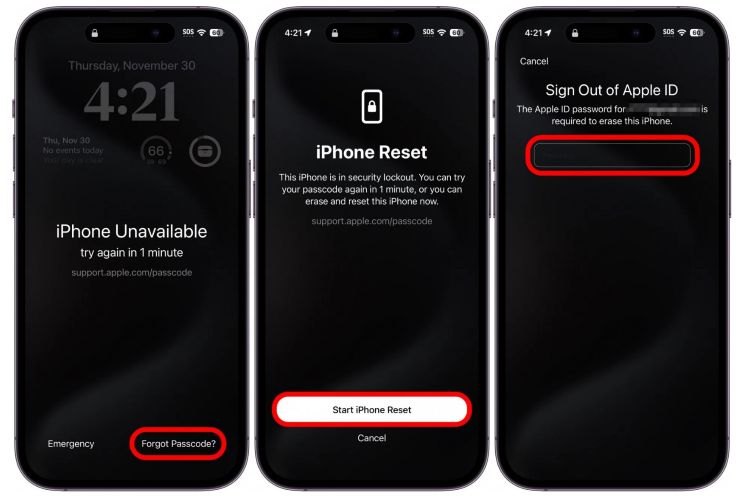
The Erase iPhone option appears on the lock screen on supported iOS versions - iOS 15.2 and later. It allows you to reset a locked and network-connected device without using a computer. After multiple incorrect passcode attempts, you can choose this option to erase all content and settings, including the forgotten passcode.
- Enter wrong passcodes several times. You will see Erase iPhone at the iPhone Unavailable screen. If you see Forgot Passcode? instead, tap it and choose iPhone Reset from the next screen.
- Tap Erase iPhone or Start iPhone Reset.
- Confirm the reset with the Apple ID currently signed in with the iPhone.
Way 2. Use Datile PassAccess on Computer
This way allows you to unlock your iPhone with the least limitations and a high success rate — up to 99%. Simply connect your locked iPhone to the computer with Datile PassAccess installed and follow the on-screen steps in the PassAccess interface. After a while, you will find the forgotten passcode removed from your iPhone.
PassAccess is a multifunctional iOS unlocking tool that can help you regain access to your iDevice under various scenarios, including a locked screen. It can remove screen locks like a 6-digit passcode and Face ID from your iPhone when you forget your screen passcode or buy a locked second-hand device. If you need to unlock an iPhone with a broken screen, PassAccess can help either.
Key Features
- Unlock your iPhone without forgotten passcode or unavailable Face/Touch ID.
- Remove locked Apple ID from your iDevice so you can sign in with a new Apple ID.
- Turn off iCloud Activation Lock when your Apple ID is disabled or you forget the Apple ID password.
- Compatible well with iPhone, iPad or iPod.
Steps to Unlock iPhone Passcode Without Apple ID
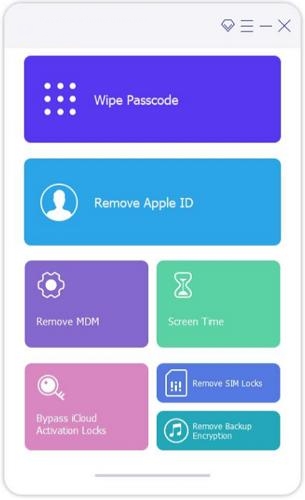
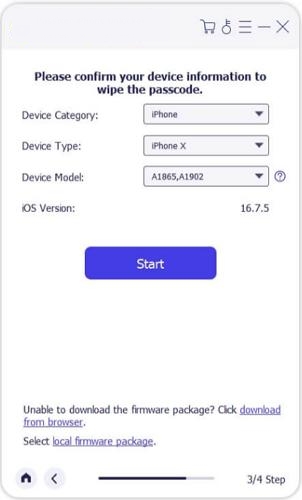
- Install and run Datile iOS PassAccess on your Windows or Mac device. Then, connect your iPhone to the computer and click Start.
- Begin downloading the corresponding firmware for unlocking iPhone.
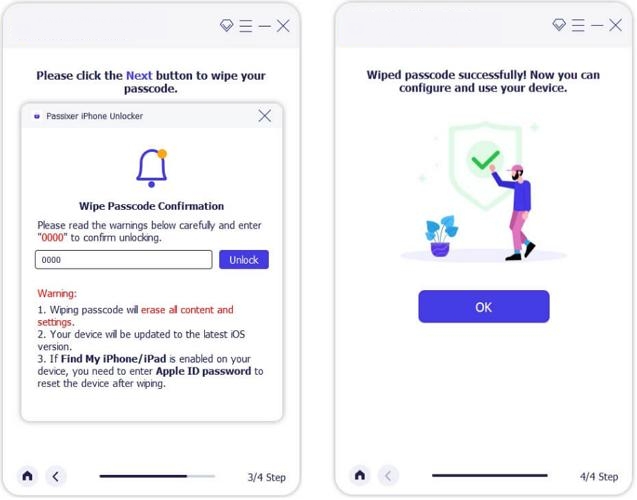
- Enter 0000 and hit Unlock to confirm the unlocking. After a while, your iPhone will be unlocked and you will see the Hello setup screen.
Way 3. Reset iPhone with Find My App
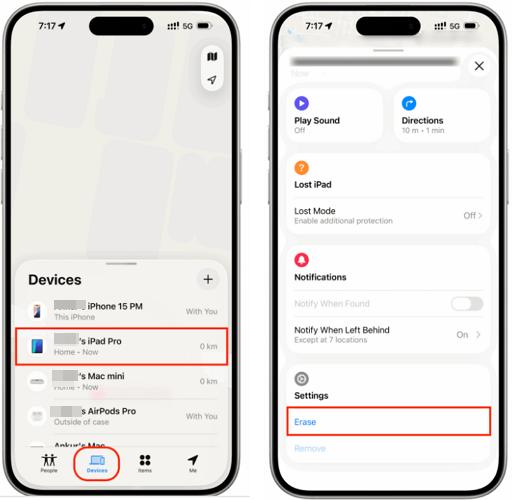
If Find My iPhone was enabled before the device was locked, you can use another Apple device to erase it. This method is convenient because it allows you to reset the device remotely. However, it requires your Apple ID credentials and an internet connection on the locked iPhone. To erase iPhone with Find My app, here is how.
- Open Find My app on another Apple device that is signed in with the same Apple ID used on the locked iPhone.
- Switch to Devices at the bottom pane and select your iPhone.
- Tap Erase. Input your Apple ID password when prompted. This will remotely wipe your phone.
Way 4. Restore iPhone Using iTunes/Finder
Restoring your iPhone using iTunes or Finder is a traditional method to remove a forgotten passcode. By connecting the locked iPhone to a computer and putting it into Recovery Mode, iTunes or Finder can reinstall iOS and erase the existing passcode.
Tip: If you are running Windows 10 or later, you can use the Apple Devices app instead of iTunes for a smoother restore.
To Factory Reset iPhone with iTunes/Finder:
1. Connect your locked iPhone to a secure computer and then open iTunes or Finder.
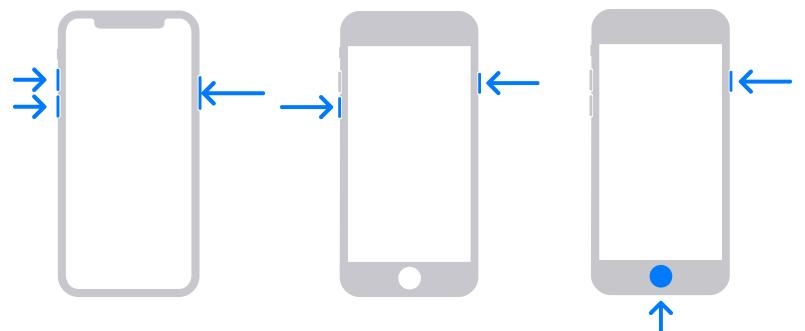
2. Put your iPhone into Recovery Mode.
- For iPhone 8 or later: Press and quickly release the volume up button. Do the same for the volume down button. Then, press the side button and release it when you see the Connect to computer screen.
- For iPhone 7 series: Press both the power and volume down buttons until the cable pointing to computer screen is shown.
- For iPhone 6s or earlier: Simultaneously press the Home and power buttons. Keep holding them until the Recovery mode screen is displayed.
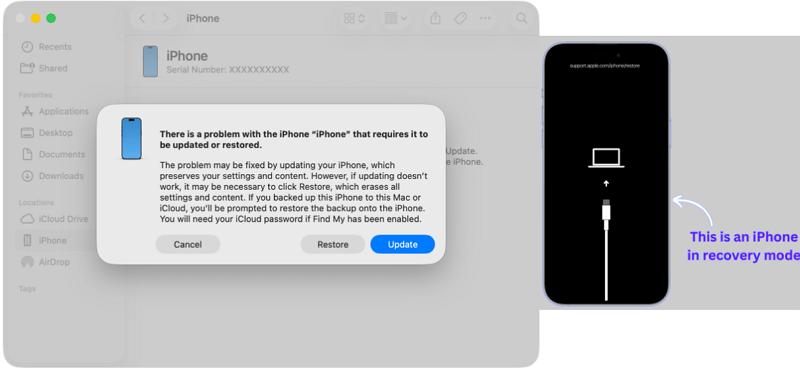
3. In the Restore or Update pop-up, choose Restore. Wait for firmware download and iOS reinstallation.
Feedback:
If this is your first time using iTunes or Finder to restore your iPhone, you may need to try a few times before successfully putting the device into Recovery Mode. The process involves multiple steps, and you must press the buttons quickly and in the correct order. It is also worth noting that if the firmware download fails, you will need to restart the entire process from the beginning.
Way 5. Wipe iPhone via iCloud Website
This method is the web-based version of the Find My app. With it, you can reset your iPhone from any device with a browser. It is a convenient option when you do not have another Apple device and the locked iPhone nearby.
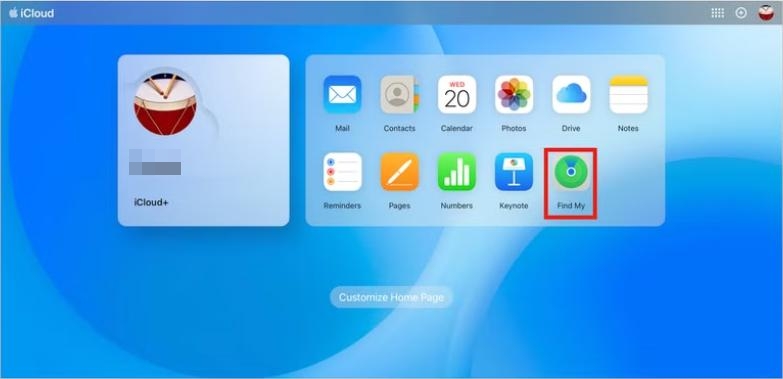
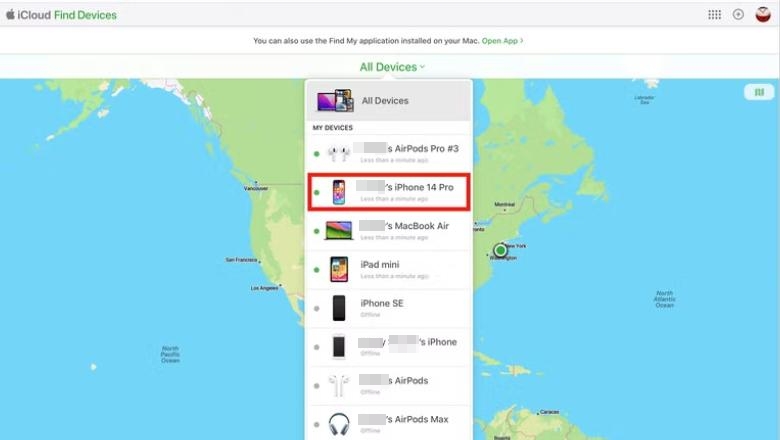
- Visit iCloud.com and sign in it with the Apple ID used on the locked iPhone.
- Open Find My in the iCloud webpage.
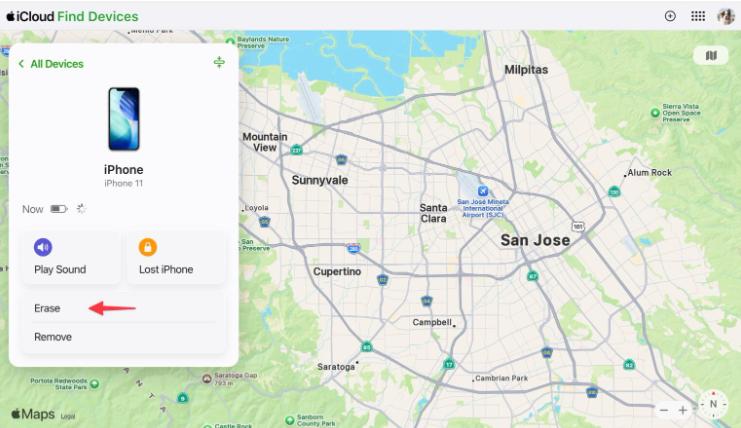
- Expand the All Devices list and choose your iPhone.
- Click Erase. Then, enter the Apple ID password and hit Erase to start the restore.
Step 2: Create a New iPhone Passcode
Now it's time for you to create a new screen passcode. You can do it during the setup process or after setup. Here we will explain them in detail.
During the Setup
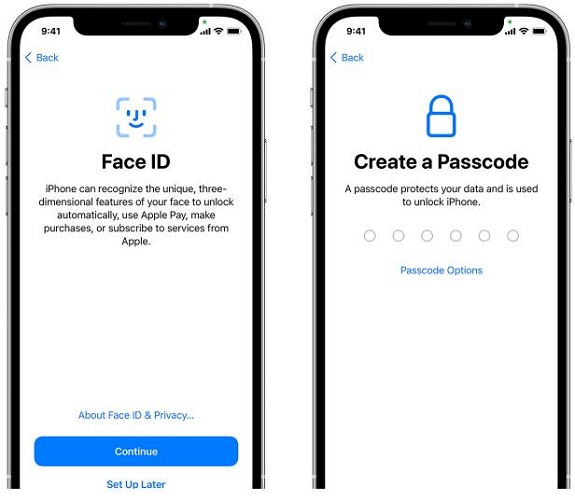
If you choose to create a new passcode during the setup process, follow the on-screen instructions after your iPhone has been erased. When you reach the Passcode screen, enter a new passcode, confirm it, and continue with the setup.
After Setup
If you skip creating a passcode during setup, you can add one later. To do this:
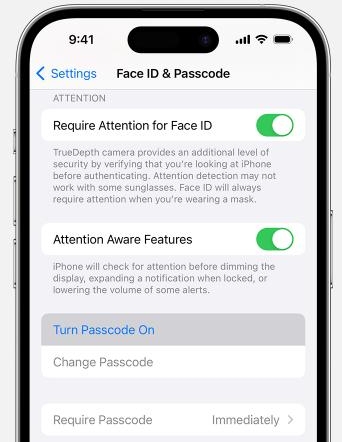
- Go to Settings > Face ID & Passcode (or Touch ID & Passcode).
- Then tap Turn Passcode On. Enter a new passcode and input it again for confirmation.
Conclusion
When you need to reset your iPhone passcode, enter incorrect passcodes and check whether the “Forgot Passcode?” option appears. If it does, tap “Enter Previous Passcode,” and you can set a new passcode without performing a factory reset. If this option does not work, you will need to remove the forgotten passcode by restoring your iPhone to factory settings and then create a new one.