
Updated on 2026-03-18
views
5min read
There are many situations where you might forget your iPhone passcode. Perhaps you rely almost entirely on Face ID and rarely type your passcode. Or maybe you haven’t used your old iPhone for a long time and simply can’t remember the correct code anymore.
When that happens, it’s natural to start trying different combinations in an attempt to unlock the device. However, repeated incorrect attempts will trigger Apple’s built-in security system. After too many failed entries, your iPhone may be locked for an extended period, eventually showing the message “iPhone Unavailable, Try Again in 1 Hour.”
Depending on your specific situation, there are several ways to regain access—some even without losing your data. In this guide, we’ll walk you through what to do when you see the “iPhone Unavailable” message and provide step-by-step solutions for different scenarios so you can safely unlock your device.
What to Do When You See iPhone Unavailable Try Again in 1 Hour
Before jumping into fixes, it's important to understand your exact situation. Here’s a quick decision table to help you choose the right path based on your case:
| Situation | Solution |
|---|---|
| If you recall the device passcode | Wait for the timeout |
| If you forget the screen passcode you changed just now | Reset iPhone passcode with old one |
| If you completely forget your iPhone passcode | Remove forgotten passcode with reset |
How to Fix iPhone Unavailable Try Again in 1 Hour
When you see the “Try Again in 1 Hour” message, it means your iPhone has temporarily blocked further passcode attempts due to too many incorrect entries. The most important step is to stop guessing immediately, as each additional wrong attempt can extend the lock time. Instead, wait for the countdown to finish, then carefully enter the correct passcode. If you no longer remember it, you’ll need to use recovery options such as resetting the device with your Apple ID or restoring it through a computer.
Heads-up:
- Reset your iPhone will remove all personal data and settings from the device.
- Make sure you know the Apple ID signed in on your iPhone if you need to reset a device with Find My enabled. You’ll need this Apple ID to remove the Activation Lock that appears after the reset.
Way 1. Wait for the Time Out
✨Highlights: You don’t need to do anything but wait patiently.
This is the simplest and safest method, if you still remember your iPhone passcode. Check if you have previously noted down your screen passcode somewhere. If you have, simply wait for one hour and enter the correct passcode to unlock your iPhone after the countdown ends.
If you’re unsure, stop trying and consider other methods below.
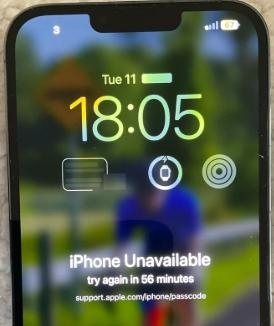
iPhone Stuck on Unavailable Try Again in 59 Minutes?
Sometimes the timer appears stuck (e.g., frozen at 59 minutes). This is a common glitch reported by users.
Why It Happens
- iOS UI bug
- System lag or crash
- Background process not refreshing
Fix 1: Force Restart Your iPhone
A restart refreshes system processes without affecting data.
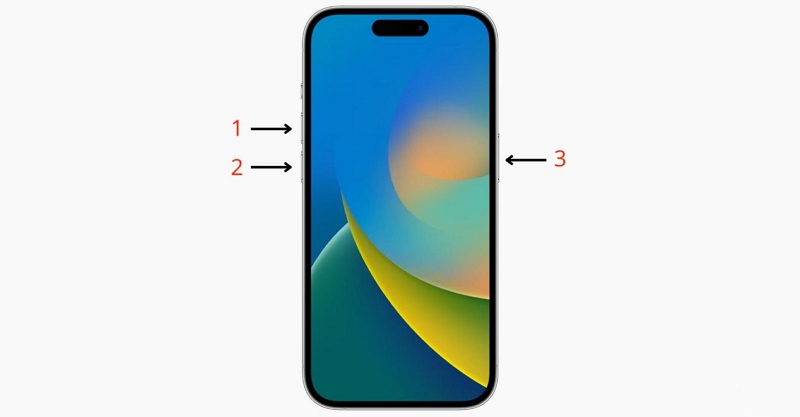
For iPhone 8 or later:
Quickly press the Volume Up button and release it. Repeat the same step for the Volume Down button. Then, hold on the Side button until you see the Apple logo.
Fix 2: Reset iPhone
If the timer never decreases after multiple restarts, your device may require a reset using other methods below.
Way 2. Reset iPhone Passcode with Previous One
✨Highlights: No data loss | No computer required | Easy to follow
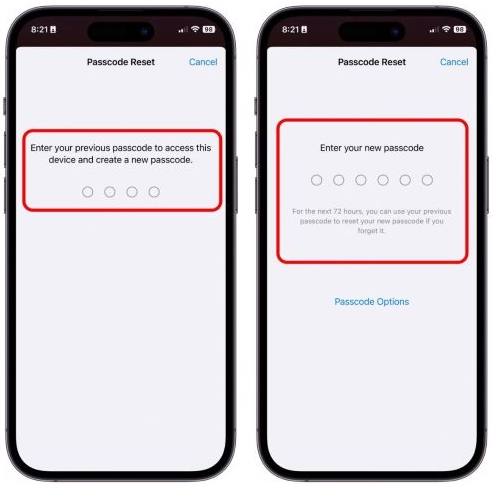
This is one of the least known but most valuable features introduced in iOS 17+. If you recently changed your passcode and forgot the new one, Apple allows you to temporarily use the old passcode to unlock your device.
Conditions
- Your iPhone runs iOS 17 or later.
- You changed your passcode within the last 72 hours.
- “Expire Previous Passcode Now” is NOT enabled.
Steps to Unlock Unavailable iPhone with Old Passcode
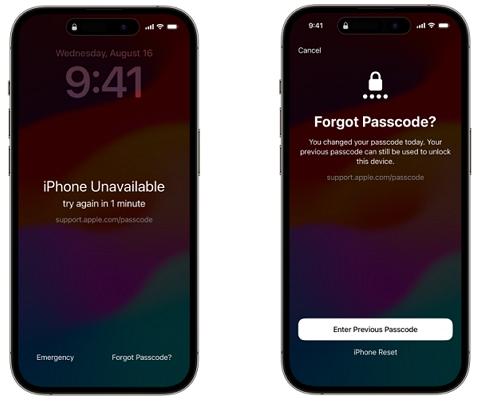
Step 1. Tap Forgot Passcode? on the unavailable screen.
Step 2. Select Enter Previous Passcode.
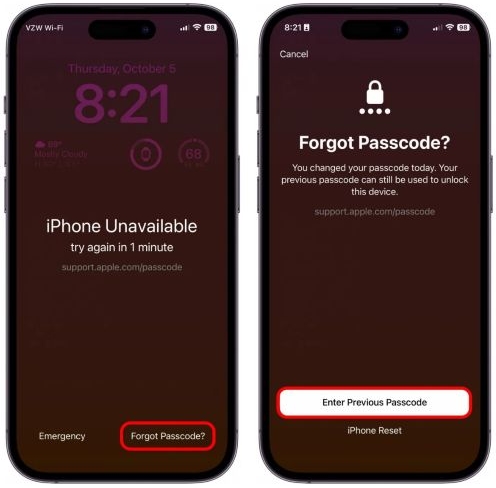
Step 3. Input your old passcode.
Step 4. Set a new passcode. Don’t forget this time.
Way 3. Unlock iPhone with Datile iOS PassAccess
✨Highlights: Detailed guidance | High success rate(99%) | Best iTunes alternatives
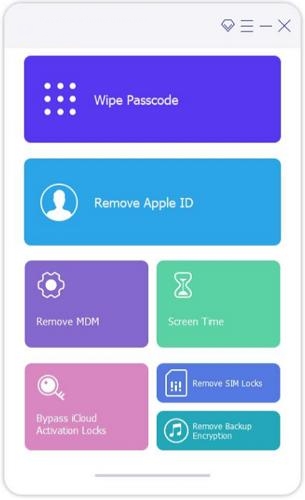
Using a professional unlocking tool can sometimes help you remove a forgotten iPhone passcode more quickly. Datile iOS PassAccess is one of these tools. It provides step-by-step guidance with text, images, and even videos to help you complete the entire unlocking process. If iTunes or other methods do not work for you, Datile is a good option.
It can remove a forgotten iPhone passcode, whether it is a 4-digit code, a 6-digit code, or a custom passcode. At the same time, it will also remove Face ID and Touch ID.
When you forget your iPhone passcode, purchase a second-hand iPhone, or cannot unlock your device due to a broken screen, Datile can help you easily regain access to your phone.
Key Features
- Unlock iPhone without iTunes and Apple ID.
- Remove Apple ID without password, even with Find My on.
- Bypass iCloud Activation Lock without disabled apple id.
- Turn off Screen Time without passcode and data loss.
Unlock Unavailable iPhone Within 3 Steps
Step 1. Connect your iPhone to Datile on your computer.
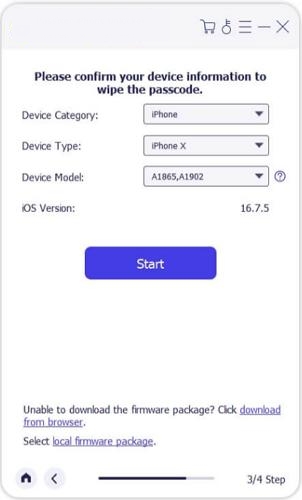
Step 2. Download the required firmware to unlock your iPhone.
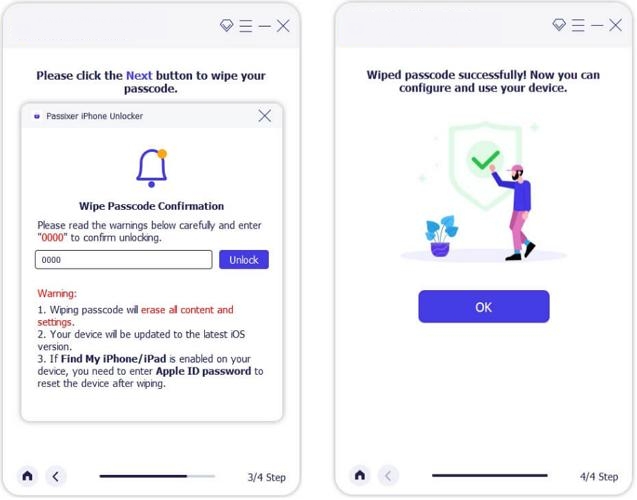
Step 3. Confirm your unlock action by entering 0000 and clicking Unlock.
Way 4. Erase iPhone in Unavailable Screen
✨Highlights: No computer needed | Direct reset on device
If you don’t remember your passcode at all, your iPhone gives you an option to erase itself directly from the lock screen. This feature is extremely useful when you need to reset your iPhone without computer.
Conditions
- iPhone must be connected to Wi-Fi or cellular.
- You must know your Apple ID and password.
- Find My iPhone is on.
- Your iPhone is running iOS 15.2 or later.
Steps to Unlock Unavailable iPhone via Erase Option
Step 1. Tap Erase iPhone at the bottom of the screen and confirm the action.
Step 2. Enter your Apple ID password. Wait for the reset process and set up your iPhone again.
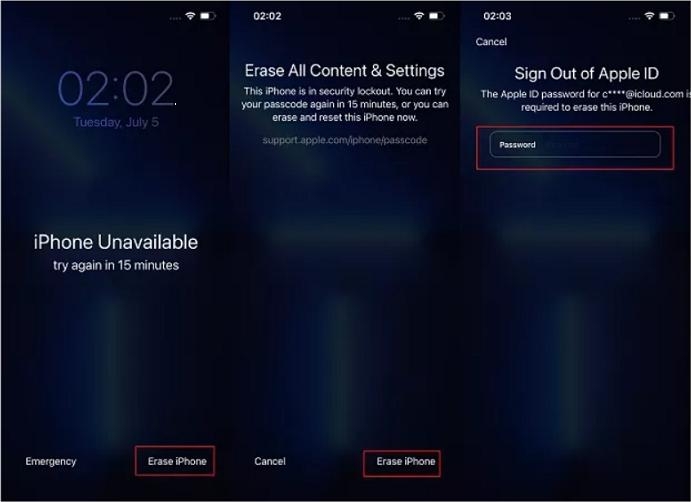
Note: If the requirements above are met but you can’t see the Erase option, it’s possibly that you are using iOS 17 or later. In such cases, you need to tap Forgot Passcode first and then you will see iPhone Reset option instead of Erase iPhone button.
Way 5. Factory Reset iPhone via Find My Feature
✨Highlights: Remote unlock | Work on any browser or Apple device.
This method is ideal if your iPhone is locked and you want to reset it remotely. It was originally designed to erase data when your iPhone is lost, but it is also an effective way to reset your iPhone without using computer or iTunes. If your iPhone screen is broken and thus you can’t erase it in lock screen, this way helps too. You can apply this way on either iCloud site or Find My app.
Conditions
- “Find My iPhone” must be enabled.
- iPhone must be connected to the internet.
- Apple ID credentials required.
Steps to Reset and Unlock Unavailable iPhone with Find My Option
Option 1: Use iCloud Website
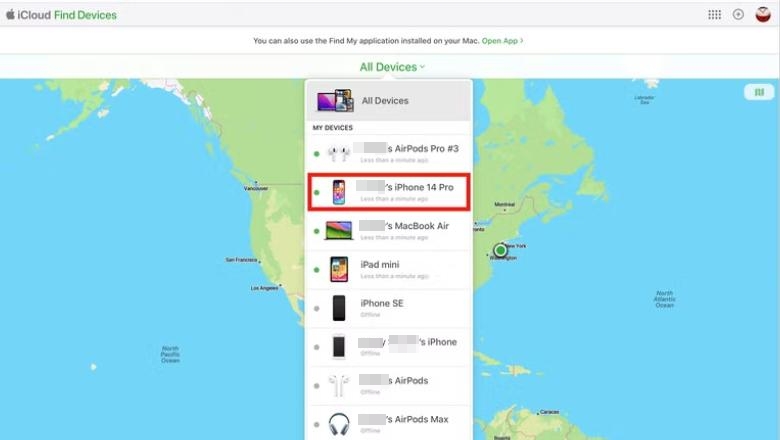
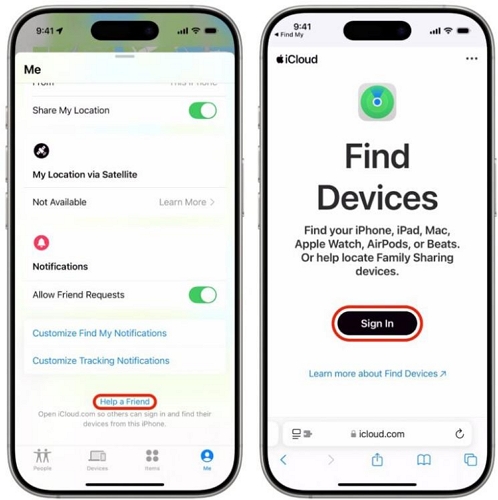
- Go to iCloud Find My and sign in with the Apple ID used on the unavailable iPhone.
- Open the device list and select your locked iPhone.
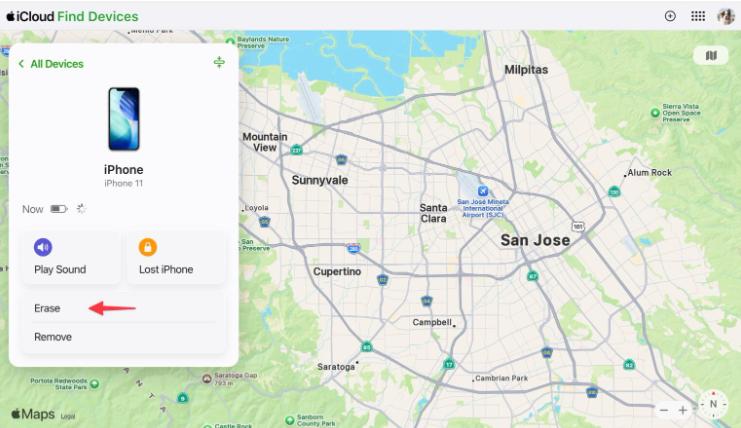
- Click Erase in the device window. You will need to confirm the action with your Apple ID password again.
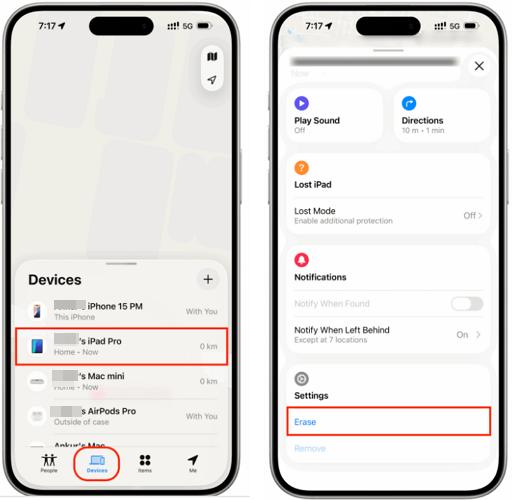
Option 2: Use Find My App
- Open Find My on another Apple device and make sure it’s signed in with the same Apple ID used on the unavailable iPhone.
- Tap Devices in the bottom pane and choose your locked iPhone.
- Choose Erase.
Tip: If the Apple device is borrowed from someone else, you don’t need to sign out of their Apple ID in Settings to sign in with yours. Simply open the Find My app, switch to Me and tap Help a Friend. From there, you can sign in with your Apple ID and erase your unavailable iPhone.
Way 6. Restore iPhone Using iTunes/Finder
✨Highlights: Deep system reset | Fix stubborn software issues while unlocking your iPhone | Work well with any iOS
Although this is the traditional way to unlock iPhone, it usually serves as a last resort because it requires a computer and can be time-consuming. In addition, you need to put the device into recovery mode for iTunes or Finder to identify it, which may feel complicated for some users. However, it is still worth trying, especially when other options are unavailable or fail to work.
Conditions
- A computer - Windows or Mac, is required.
- Latest version of iTunes/Apple Devices or Finder.
- A certified USB cable.
Steps to Restore and Unlock Unavailable iPhone
Step 1. Connect your locked iPhone to the computer.
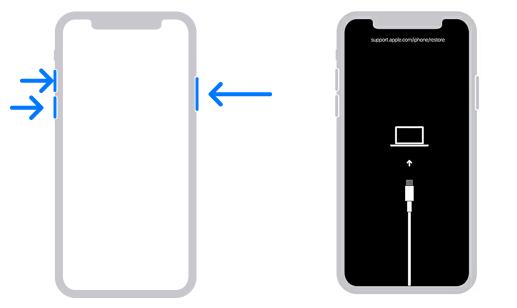
Step 2. Put iPhone into Recovery Mode.
For iPhone 8 or later:
- Press and release Volume Up fast.
- Quickly press and release Volume Down.
- Press Side until you see the Recovery Mode screen.
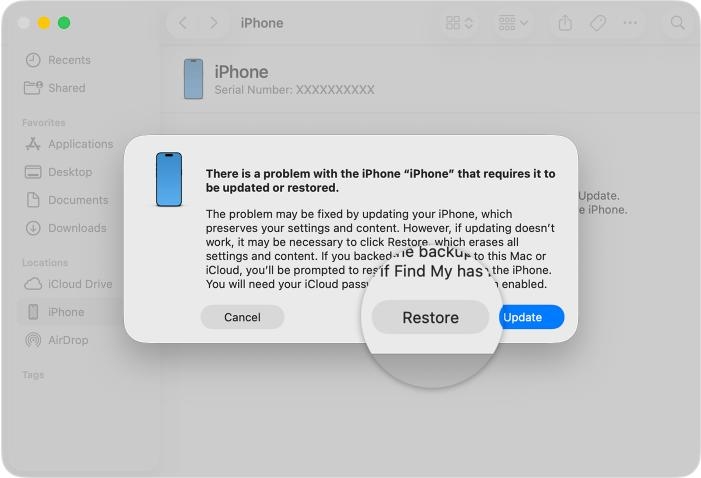
Step 3. Open iTunes or Finder. A pop up will be shown, asking you to restore or update your iPhone. Choose Restore here.
Conclusion
By now, you should have found the iPhone unlocking method that works for you. Using waiting and unlocking with the previous passcode are the most recommended options because they do not cause data loss, although their requirements can be somewhat strict. If you truly cannot remember your iPhone passcode, unfortunately, you will need to reset your device in order to regain access.