
Updated on 2026-02-24
views
5min read
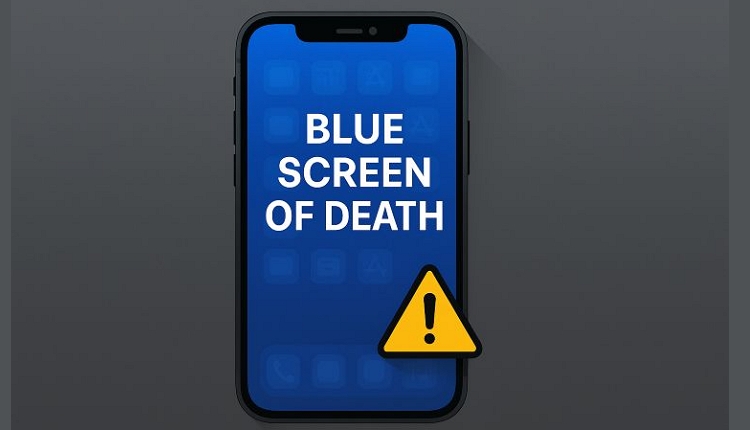
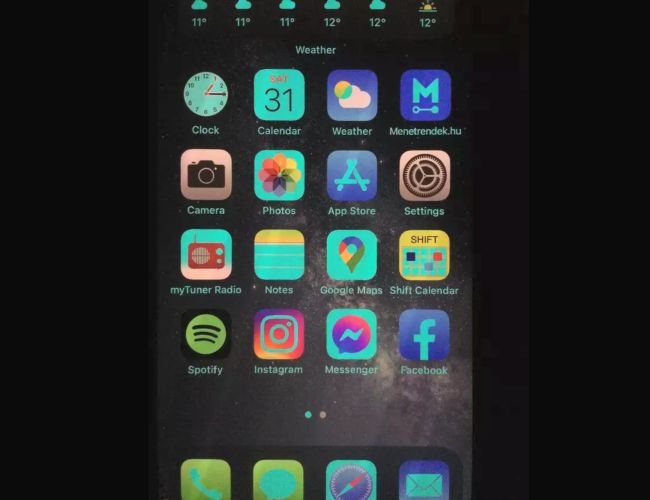
Unlike Windows, where a code at least hints at the cause. The problem with the iPhone turning an alarming shade of blue is that it doesn’t show any clear error messages. Here, you’re left guessing. The behavior can appear in many forms. Sometimes the entire screen turns blue, sometimes a faint cyan tint covers the display, and other times thin blue lines flicker while the iPhone still works underneath.
In this article, we’re breaking down every type of BSOD-level issue seen on iPhone. We’ll explain why it happens and show you how to fix the iPhone blue screen of death for good.
Understand the iPhone Blue Screen of Death Issue First
Before going to fixes, it’s important to know what causes the BSOD flashes. Identifying the real reason helps you apply the right fix and prevent it from happening again.
What Triggers Blue Screen of Death on iPhone?
Here are the common causes of a blue screen event on an iPhone:
Incomplete or Failed iOS Update:
Many things can interrupt an iOS update, such as weak network or low storage. When that happens, the device restarts into a corrupted state. And it’s common for the iPhone to show blue flashes or a full blue screen after rebooting.
Insufficient System Storage:
When storage space is nearly full, iPhone will struggle to allocate memory for essential processes. This can cause sudden crashes or a blue or blank screen.

Broken or Faulty Hardware:
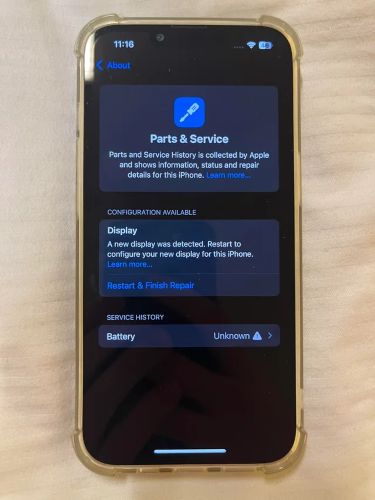
If your iPhone has been repaired using non-original parts, such as a third-party battery or display or has suffered a drop or liquid damage, graphics and logic board malfunctions are known to follow.
After such hardware changes, the iPhone will flash blue or crash during startup.
Heavy or Misbehaving Apps:
Tweak apps or iPhone jailbreaking can interfere with low-level APIs and cause the BSOD flashes. Removing such apps or unjailbreaking the device usually stops the problem right away.
Other Common Causes:
- Software bugs in the current iOS build (usually fixed after updating).
- Background process conflicts or corrupted cache data.
- Firmware errors after incomplete device restores.

How Serious Is the iPhone Blue Screen of Death?
A blue screen event on an iPhone depends on what’s behind it:
- Software issue: a failed update, buggy app, temporary overload, or deep system error. You can fix it yourself using advanced repair tools like Passvers iOS System Recovery.
- Hardware fault: a damaged logic board, non-genuine battery, or display issue. Then DIY methods won’t work and you’ll need professional repair.
In short, a blue screen looks bad but rarely means your iPhone is dead. Many users have restored their devices at home with simple troubleshooting steps.
Does Blue Screen of Death Mean Virus?
No. iPhone operates in a closed ecosystem, so viruses are not the cause.
That said, if your device is jailbroken or you’ve installed modified apps using tools like Sideloadly, errors can be triggered, including flashing blue screen or restart loops.
How to Tell If BSOD Is Caused by Software or Hardware?
Taking a screenshot helps you understand what’s going on. It can tell you two things:
- It gives you evidence to show at a repair center later.
- It helps you know whether the blue tint is from a software or hardware issue.
Here’s how to take it:
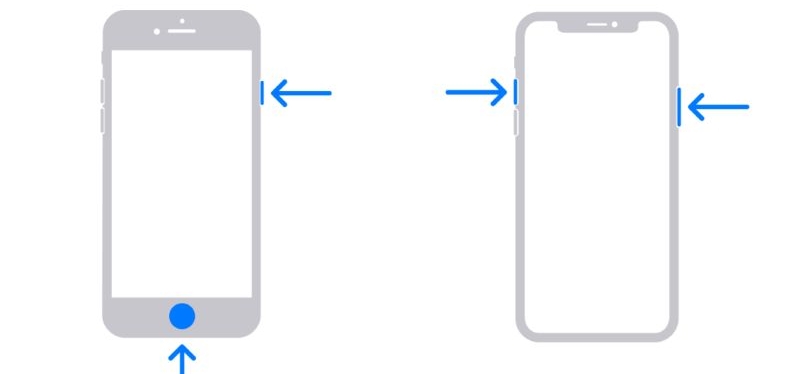
- Face ID models: Press the Side key and Volume Up together once, quickly.
- Home button models: Press the Home key and Top/Side key together, fast.
Now, view the screenshot on another device:
- If the blue tint still appears in the screenshot, it points to a software issue.
- If the image looks clean, your screen hardware is at fault.
Also, keep this photo for reference. If the iPhone is under warranty, this can help Apple replace or repair it.
How to Fix iPhone Blue Screen of Death
Here are the fixes to get rid of BSOD-level flashes, whether they are caused by temporary glitches or deeper system faults. We’ll also cover when it’s time to consider hardware repair and how much it costs.
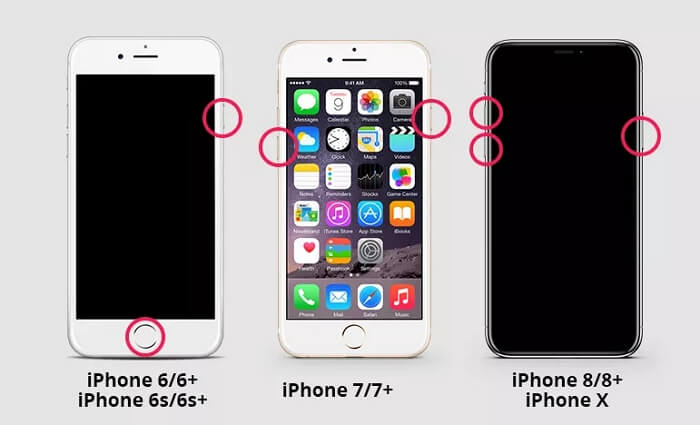
Fix 1: Force Reboot iPhone
A force restart cuts power at the hardware level. So, it gives your iPhone a clean reboot and stops brief blue flashes or frozen screen instantly.
Here’s what to try based on your iPhone model:
For iPhone 8 or later:
- Press and release Volume Up quickly.
- Press and release Volume Down quickly.
- Then, keep pressing the Side button for 10-20 seconds. Release it when you see the Apple logo.
For iPhone 7 or 7 Plus:
Press and hold the Side and Volume Down together until your iPhone reboots.
For iPhone 6, SE (1st gen), or earlier:
Press and hold the Home and Top/Side buttons together. Let go when the Apple logo appears.
Fix 2: Charge iPhone Properly
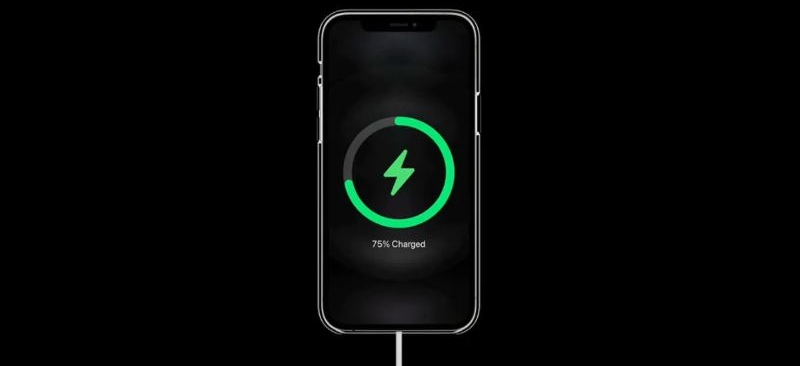
Charging problems can also trigger a blue screen event. So, here’s what to do:
- Use a reliable charger. Plug your iPhone into a known good charger and cable — preferably the original Apple one. And choose a wall outlet. Avoid weak sources like USB ports from computers or wireless models.
- Keep it plugged in for 30 minutes.
- Try powering it on normally after that.
Fix 3: Troubleshooting iPhone with Software
Passvers iOS System Recovery is the quickest and most effective way to fix blue screen issues on iPhone. It includes a dedicated “Screen Issues” category that is designed specifically to handle blue flashes and BSOD-level errors.
The best thing is Passvers automatically detects the fault and offers three repair modes to deal with iDevice display errors: Quick Fix, Standard Mode, and Advanced Mode. You can use its Standard Mode to repair blue screen issues without data loss, which solves the error most of time. Besides fixing the iPhone blue screen, Passvers also repairs iPhone green lines, the white screen of death, white dots on the screen, and more.
Key Features:
- Consistently support the latest iPhone models and iOS versions.
- You can use it on both Windows and Mac computers.
- Repair over 50 types of iOS system errors, including blue-screen freezes.
- Effortless to use.
How to Remove Blue Screen on iPhone Using Passvers
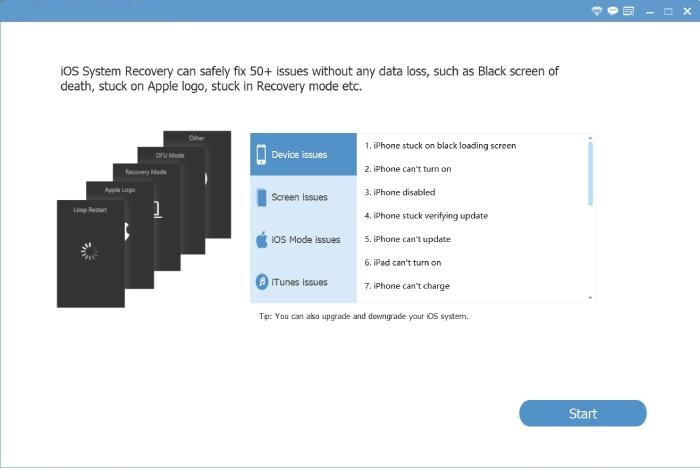
Step 1. Install Passvers iOS System Recovery on your Windows or Mac. Launch it and connect your iPhone using a cable. From the main screen, click Start at the bottom right.
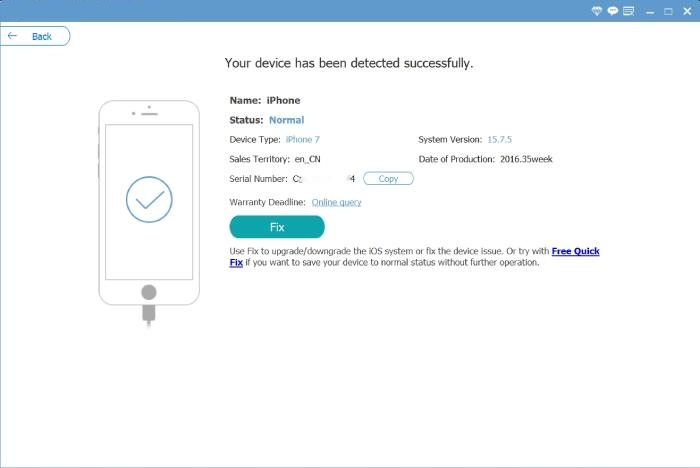
Step 2. Once Passvers detects your device, check the model details and click Fix.
Note: You can also try the Free Quick Fix link on the home screen. This option handles minor blue-screen issues instantly without setup.
Here, you’ll see two main repair modes — Standard Mode and Advanced Mode.
Try the Standard Mode first. It repairs blue-screen issues without erasing your data.
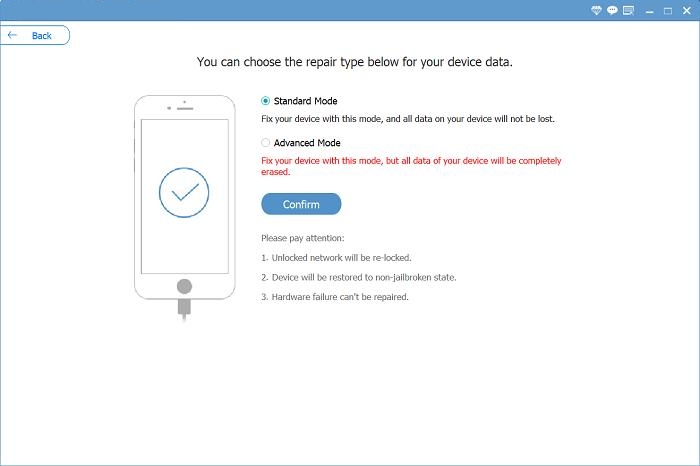
Follow the on-screen instructions. Click Next to start the repair.
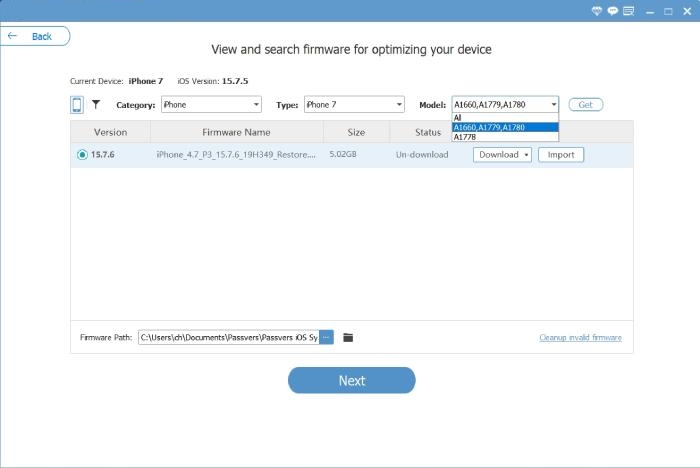
Step 3. Wait until your iPhone goes through the diagnosis and repair process. It will restart automatically and the blue screen will disappear.
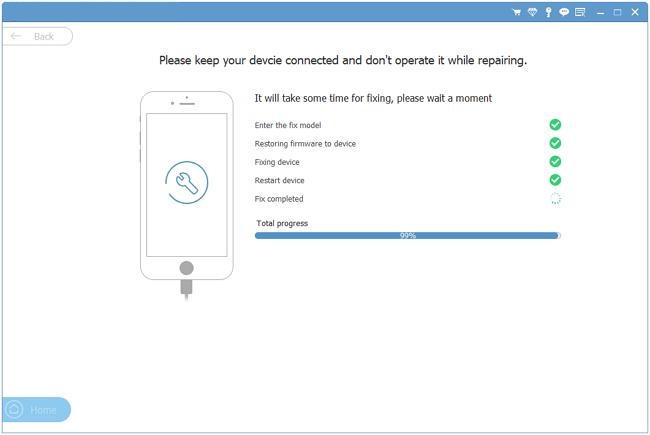
If the problem runs deeper, return to Step 2 and select Advanced Mode. This rebuilds the entire iOS system and removes the issue completely.
Fix 4: Update or Restore iPhone in Recovery Mode
Updating or restoring your iPhone through a computer can often fix a blue screen event. It works best when the issue is caused by:
- An incomplete or failed iOS update.
- Corrupted or missing system files.
- Conflicts between outdated apps.
You can use iTunes, Finder, or the Apple Devices app to perform this repair.
Here’s how to proceed:
Step 1. Back up your iPhone. For this:
- Open Settings.
- Tap your name at the top.
- Choose iCloud Backup.
- Tap Back Up Now.
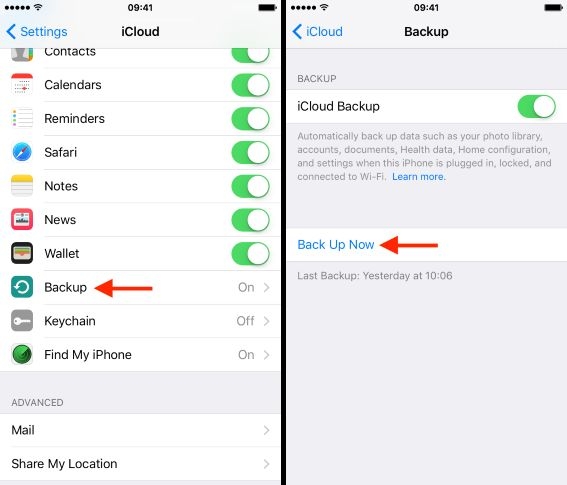
Step 2. Connect your iPhone to a computer. Make sure the computer is online. Then, put your iPhone into recovery mode.
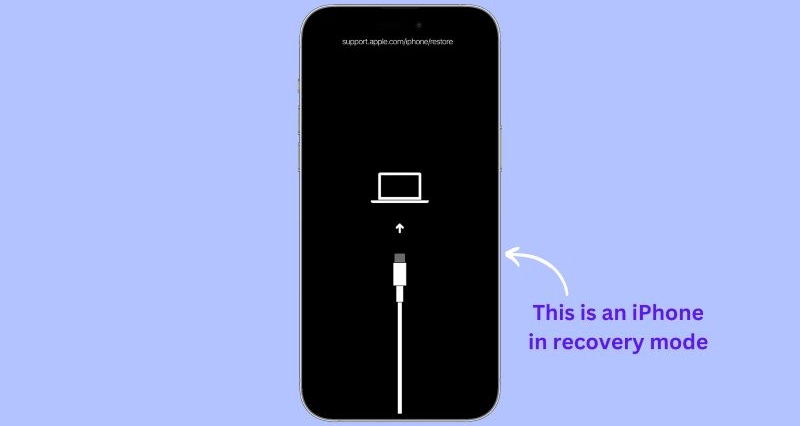
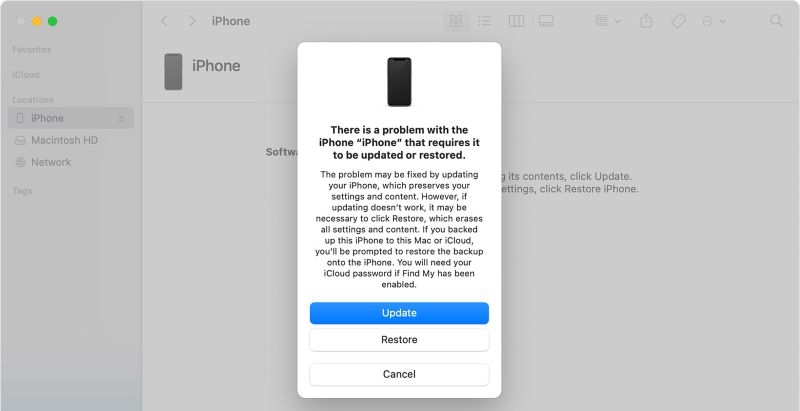
Step 3. Your computer will display two options:
- Update: Reinstalls iOS without deleting data. It usually fixes issues caused by failed updates.
- Restore: Use this if the update fails. It removes all data on the iPhone and then installs a clean iOS copy.
The blue screen issue will be fixed if it’s caused by system bugs or incomplete updates.
Fix 5: Contact Apple Support for Help
This route is for hardware-leaning blue-screen issues: post-drop, liquid contact, or overheating.
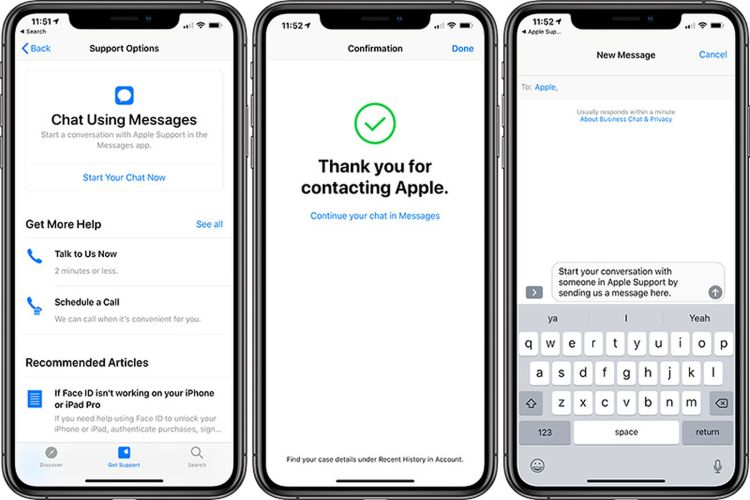
You can start a repair online — visit Apple’s Repair Portal, sign in, and log your issue. Apple will then route your case to the nearest Apple Store. This ensures the report is tracked formally and genuine parts are used. If the blue screen appeared after non-genuine repairs or board tampering, Apple will still replace the affected part.
How Much Does It Cost to Fix Blue Screen of Death
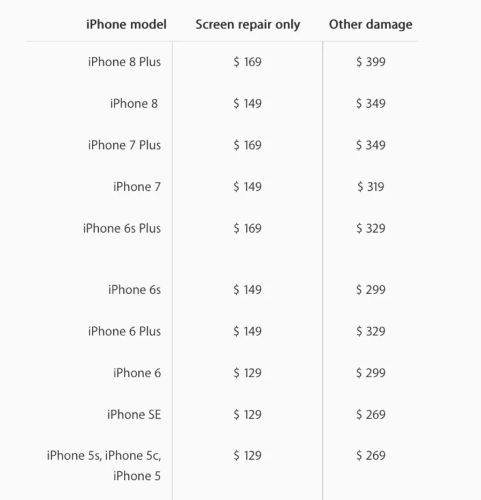
Now, about costs, which vary by model, damage type, and warranty coverage.
If you have paid the pre-incident service, it will be $29 for screen or back-glass issues and US$99 if it is caused by physical damage.
Without Apple Care+, you’ll need an on-site estimate. For reference, iPhone 16 display repair costs around US$279-US$379. Even the older models also fall in the same price range. So, if you’re using an iPhone X or earlier, replacement makes better sense.
After Fixing iPhone Blue Screen
These tips will help you avoid future blue-tint flashes on your iPhone.
Tip 1: Disable True Tone
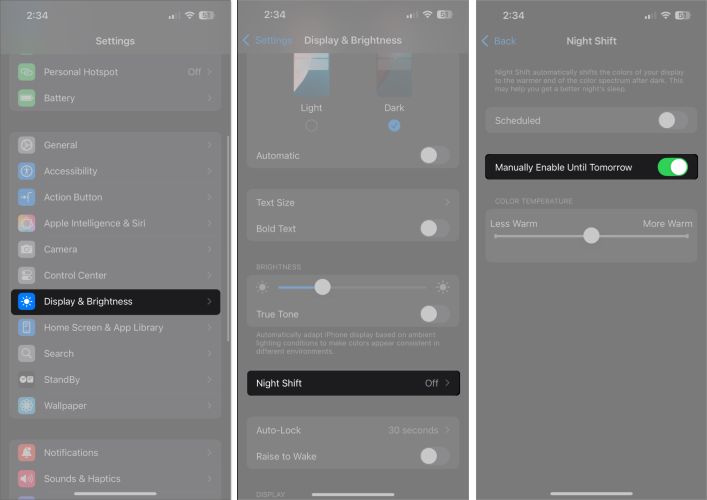
After major updates, many users notice a faint blue or grayish tint. This often happens because True Tone or Night Shift exaggerates color balance. You can switch them off easily.
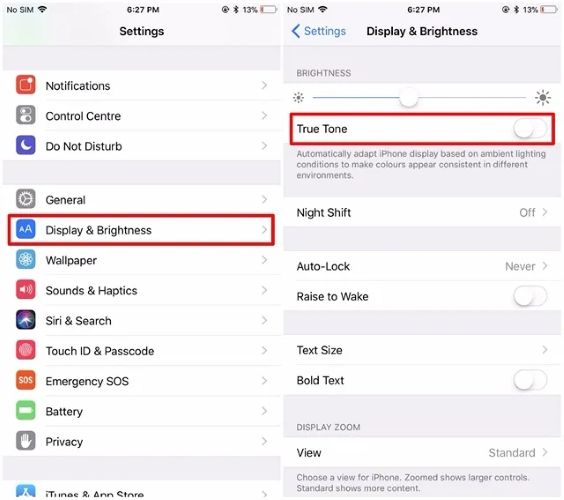
To turn off True Tone:
- Open Settings.
- Tap Display & Brightness.
- Turn True Tone off.
To adjust Night Shift and Auto-Brightness:
- Go back to Settings.
- Tap Accessibility > Display & Text Size.
- Scroll down and disable Auto-Brightness temporarily.
If the blue hue fades after these changes, you were only seeing display artifacts, not a BSOD-class crash or kernel panic. You can keep these options off for a natural tone, or re-enable them later to ease eye strain.
Tip 2: Uninstall Problematic Apps
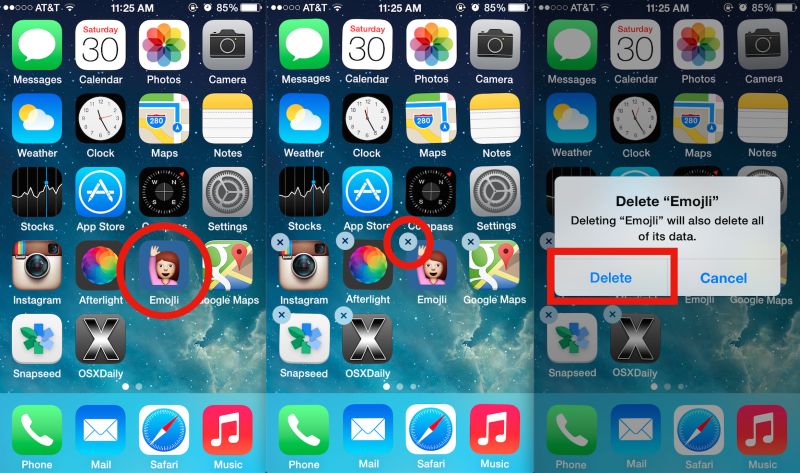
Some blue screens come from faulty or heavy apps. If the issue starts after opening a specific app, uninstall it right away.
Also, delete any sideloaded apps from tools like Sideloadly or AltStore.
Once you’ve done these, restart the iPhone. The screen will stay normal again.
Tip 3: Manage System Data
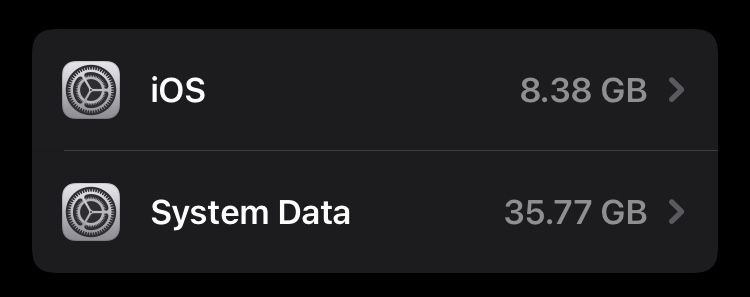
Another way to stop random blue flashes is by cleaning system data. Older iOS versions label this section as Other in storage. When this data grows too large, it can trigger background crashes and lead to a blue screen-like behavior.
Here’s how to check iPhone system data:
- Go to Settings.
- Tap General.
- Choose iPhone Storage.
- Look for System Data. If the number is big (e.g., several tens of GB on a 128 GB device), it’s time to clean.
To clean system data on iPhone:
- Back up your iPhone using iCloud or Finder/iTunes.
- Go to Settings.
- Tap General.
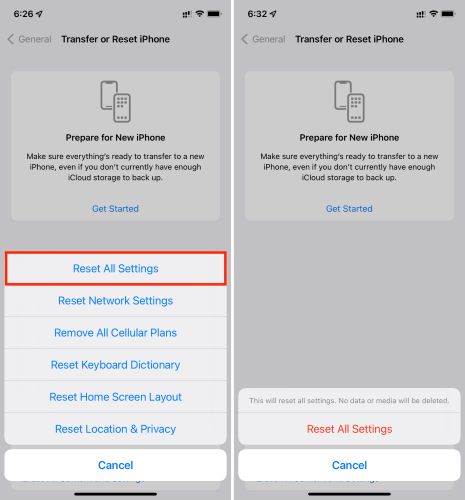
- Choose Transfer or Reset iPhone.
- Select Reset > Reset All Settings.
Tip 4: Reduce Background Load (For Older iPhone)
If you’re using an older iPhone, keep enough storage space for smooth performance. Here’s what to do:
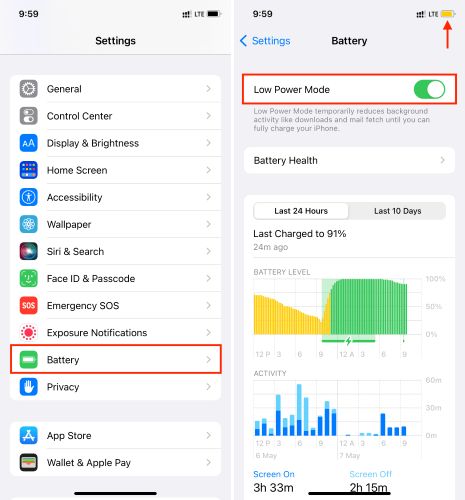
- Enable Low Power Mode.
- Turn off Background App Refresh temporarily.
- Back up important photos to free up storage space.
- Avoid heavy use, such as gaming or long video editing sessions.
To Sum Up
Most iPhone blue screen issues occur because of software faults. In such cases, following the basic troubleshooting steps can often bring the display back to normal.
When simple fixes don't resolve it, Passvers iOS System Recovery takes over. You can even skip the basics and start with its Free Quick Fix mode that scans the iPhone, finds the cause, and repairs it instantly. For stubborn system errors, its Standard and Advanced modes go deeper, rewriting the faulty layers that cause repeated blue flashes.