
Updated on 2026-03-25
views
5min read
Seeing the “Carrier Not Available” message on your iPhone can be confusing. Many users wonder whether this means their device is unlocked and can work with any network, or if there’s an issue with their SIM card or network connection. The truth is, this message doesn’t necessarily indicate your iPhone is unlocked—it could result from carrier restrictions or temporary network problems. In this article, we’ll explain what “Carrier Not Available” really means and how to check if your iPhone is unlocked.
Part 1: What Does “Carrier Not Available” Mean?
The message “Carrier Not Available” usually appears when your iPhone can’t detect a valid SIM card or connect to a mobile network. This prevents your device from making calls, sending texts, or using mobile data. Common reasons include:
1. No SIM Card Inserted
Without a SIM card, your iPhone cannot connect to any network. Simply inserting an active SIM card usually fixes this.
2. SIM Card Issues
A damaged or outdated SIM card may prevent your phone from recognizing the carrier. Replacing it with a new one from your provider can resolve the problem.
3. Carrier Lock Restrictions
If your iPhone is tied to a specific carrier, it may not accept SIM cards from other networks. Contact your original carrier to unlock the device.
4. Network Interruptions or Weak Signal
Temporary network problems or poor signal areas can trigger this message. Moving to an area with better reception or waiting for the network to stabilize usually helps.
5. eSIM Activation Problems
On iPhones using eSIM, activation errors may cause the “Carrier Not Available” message. Ensuring your eSIM is properly activated can solve the issue.
Part 2: Is “Carrier Not Available” Related to SIM Lock?
Many iPhone users wonder if seeing “Carrier Not Available” means their device is SIM locked. A SIM lock restricts your iPhone to a specific carrier until it is officially unlocked. To check, go to Settings → General → About. If you see “No SIM restrictions”, your iPhone is unlocked and can work with any compatible SIM or eSIM.
However, the “Carrier Not Available” message usually indicates a network, SIM, or configuration problem—such as poor signal, inactive SIM, or unrecognized SIM—not that your iPhone is locked. Even an unlocked iPhone may display this message if it cannot connect to a network.
Part 3: How to Check If Your iPhone Is Unlocked
If you’re unsure whether your iPhone is tied to a specific carrier, it’s easy to check—especially before traveling, switching providers, or buying/selling your device.
Method 1: Check in Settings
Step 1: Open the Settings app and go to General → About.
Step 2: Scroll down to find Network Provider Lock.
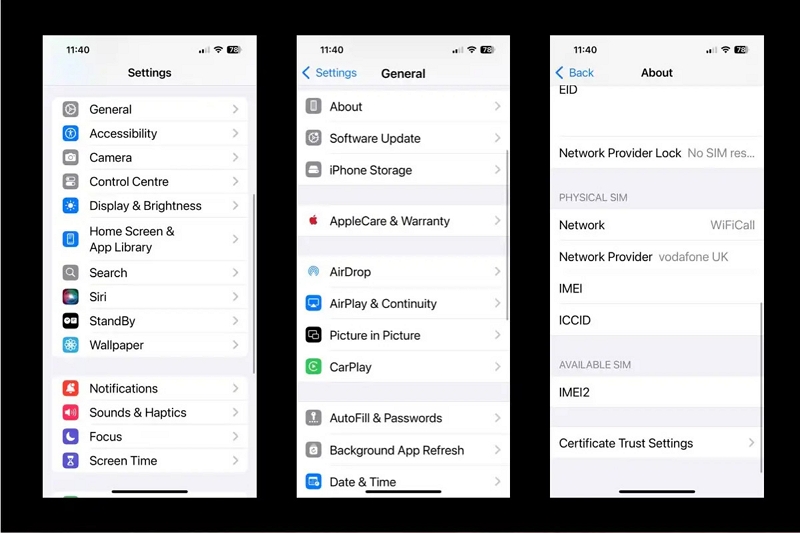
Step 3: Check the status:
- If you notice “No SIM restrictions”, your iPhone is unlocked and can utilize SIM or eSIMs from any compatible provider.
- If it instead reads “SIM locked” or displays a particular carrier name, your iPhone remains locked to that carrier.
Method 2: Insert a SIM Card from a Different Carrier
Step 1: Power off your iPhone completely to safely remove the SIM card.
Step 2: Use a SIM-eject tool or a small paperclip to eject the SIM tray and remove your current SIM.
Step 3: Insert a SIM card from a friend or relative who uses a different carrier.
Step 4: Turn on your iPhone and let it try connecting to the new network.
Step 5: Check the result-
- If you see “The SIM card currently in this iPhone seems unsupported” or “Invalid SIM”, your iPhone is still locked to the original carrier.
- If your iPhone connects properly, allowing calls, texts, or mobile data without any alerts, it is unlocked and can be used with other carriers.
Method 3: Check iPhone Unlock Status via IMEI
Step 1: Find your iPhone’s IMEI number by going to Settings → General → About, or dial *#06#. Write it down carefully.
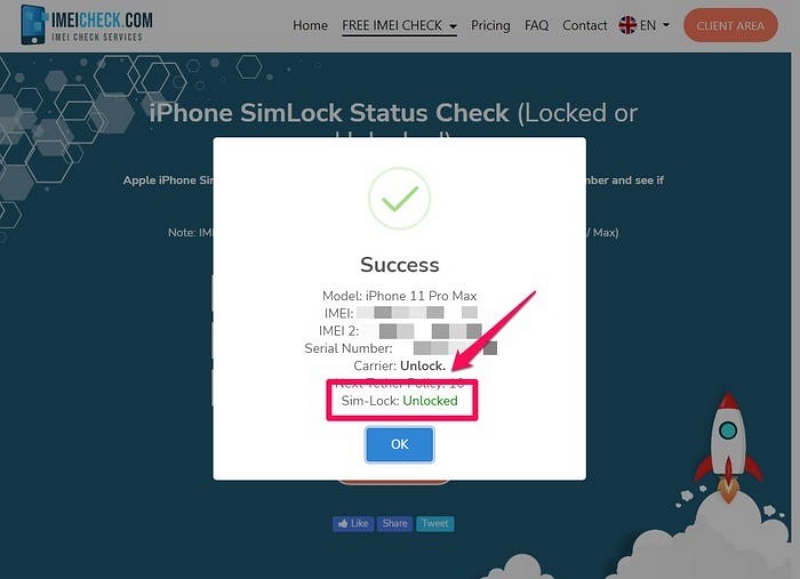
Step 2: Choose a trusted source to check the unlock status—either your carrier’s official website or a reliable third-party IMEI checker online— IMEIcheck.com.
Step 3: Enter your IMEI number into the provided field. Double-check the number for accuracy before submitting.
Step 4: Submit the request and wait for the result. The system will indicate whether your iPhone is locked or unlocked.
Step 5: If your iPhone is unlocked, you can use any compatible SIM. If it’s locked, the site may suggest contacting your carrier to request an official unlock.
Part 4: How to Fix “Carrier Not Available” Error
Encountering the “Carrier Not Available” message can be frustrating, but it’s often fixable with a few simple steps.
Scenario A: Network, SIM, or Settings Issues
Step 1: Check your SIM card – make sure it’s inserted properly. Try another SIM if needed.
Step 2: Toggle Airplane Mode on and off to refresh the network connection.
Step 3: Update carrier settings – go to Settings → General → About and install updates if available.
Step 4: Restart iPhone or update iOS – this can fix many network problems.
Scenario B: iPhone Is Carrier Locked
Step 1: Confirm device is locked using above methods
Step 1: Confirm your iPhone is locked using a different SIM or IMEI check.
Step 2: Contact your carrier for an official unlock.
Step 3: Optional: Use a trusted third-party tool like Passixer to remove SIM lock if the carrier can’t unlock it.
Note: Always use reputable tools and carefully follow the instructions to avoid errors.
Scenario C: Persistent Issue / Hardware Problem
Step 1: Check for hardware issues
- The SIM tray may be broken, crooked, or misaligned, preventing proper connection.
- The internal antenna or antenna connector could be defective or loose, affecting connectivity.
Step 2: Contact Apple Support for diagnosis
- If a hardware issue is confirmed, Apple Support or an authorized service center can repair or replace your iPhone.
- If your device is under warranty, repairs may be free. Even out-of-warranty devices can be diagnosed, and in some regions, local consumer rights may offer additional protection.
FAQs
Q. Will resetting or updating my iPhone cause the “Carrier Not Available” error again?
Sometimes. If your iPhone was previously unlocked using a third-party tool, you may need to repeat the unlocking procedure after a reset or major iOS update.
Q. Can I still use Wi-Fi if my iPhone shows “Carrier Not Available”?
Yes. This error only affects cellular services. Wi-Fi connections will continue to work normally.
Q. Will updating iOS help fix the “Carrier Not Available” error?
Often, yes. Updating to the latest iOS version can resolve software-related network issues and improve overall connectivity.
Conclusion
The “Carrier Not Available” alert doesn’t necessarily mean your iPhone is unlocked. It could be caused by SIM card issues, network problems, or carrier restrictions.