
Updated on 2026-03-02
views
5min read
In every iPhone, each SIM card comes with a unique ICCID (Integrated Circuit Card Identifier) number. While many users may never need to check it, knowing your iPhone ICCID can be essential for troubleshooting SIM issues, switching carriers, or verifying network compatibility.
If you’re wondering how to find ICCID on iPhone, this guide will walk you step by step:
Step 1: Open your iPhone’s Settings app.
Step 2: Tap General > About.
Step 3: Scroll down to locate the ICCID field—this is your SIM card’s unique number.
Step 4: Tap and hold to copy it if needed for carrier verification or technical support.
With your ICCID in hand, you can quickly check if your SIM is compatible, unlock your iPhone for a new carrier, or provide accurate information for support. In this guide, we’ll also cover common questions like “what is ICCID on iPhone?”, how to get ICCID for a locked iPhone, and tips for safely using this number without compromising your device.
Part 1: What Is the ICCID Number on iPhone?
Every iPhone with a physical SIM card or an eSIM has a unique identifier called ICCID (Integrated Circuit Card Identifier). Think of it as the “serial number” for your SIM.
The ICCID is usually a 19–20 digit number printed on your SIM card or stored digitally if you use an eSIM. It contains information about the country, mobile network, and the SIM itself.
To avoid confusion: ICCID vs. IMSI vs. IMEI vs. MEID
| Acronym | Purpose | Identifies | Typical Length |
|---|---|---|---|
| ICCID | SIM card or eSIM profile | SIM chip | 18–22 digits (usually 19–20) |
| IMSI | Mobile subscriber | User’s subscription via SIM | Usually 15 digits |
| IMEI/MEID | iPhone hardware | Device | 15 digits (or 16 with software version) |
Together, these numbers help your iPhone connect securely to a mobile carrier.
Part 2: Why Do iPhone Users Need ICCID? (Real-World Use Cases)
Knowing your ICCID isn’t something you check every day, but it becomes useful in certain situations:
- Switching to a new carrier – When you port your phone number, carriers usually need the ICCID to complete the transfer.
- Activating or transferring an eSIM – Many mobile providers ask for your ICCID when setting up an eSIM profile.
- Buying or selling a used iPhone – Checking the ICCID helps confirm that the SIM or eSIM is valid and hasn’t been tampered with.
- Traveling abroad – If you insert a local SIM or use dual SIM features, you may need the ICCID during setup.
- Customer support and repairs – Apple or your carrier may ask for the ICCID to troubleshoot network problems.
- Business and IoT devices – Companies that manage many phones or IoT devices rely on ICCID numbers to keep track of SIM cards.
So while ICCID may sound technical, it plays a very practical role in managing your iPhone’s network connection.
Part 3: How to Find ICCID on iPhone (Step-by-Step)
Finding the ICCID on your iPhone is easy, whether you use a physical SIM, an eSIM, or need alternative ways if your device is locked or damaged. Below are four practical methods to locate it.
Method 1. Check ICCID in iPhone Settings
This is the quickest way and works for both SIM cards and eSIM profiles.
Step 1: Launch the Settings application on your iPhone.
Step 2: Tap General > About.
Step 3: Scroll down to ICCID—this is your SIM card’s unique number.
Step 4: Tap and hold to copy it, or write it down for future use.
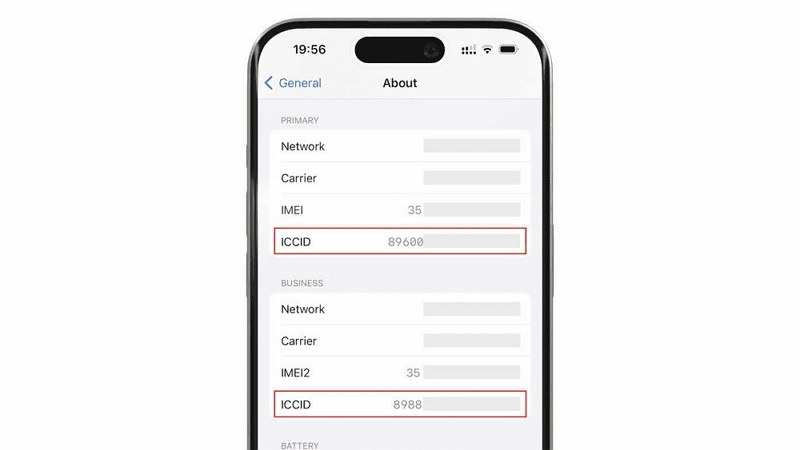
Use Case: Best for daily checks, troubleshooting, or when switching carriers.
Tip: Keep the ICCID private; don’t share it publicly.
Method 2: Get ICCID via iTunes (Windows) or Finder (macOS)
This method is ideal if you prefer using a computer or want all device identifiers (ICCID, IMEI, MEID) in one place.
Step 1: Install or update iTunes on Windows, or use Finder on macOS.
Step 2: Link your iPhone to the computer through a USB cable.
In iTunes (Windows): choose your iPhone’s name from the left sidebar, then click on the Summary tab.
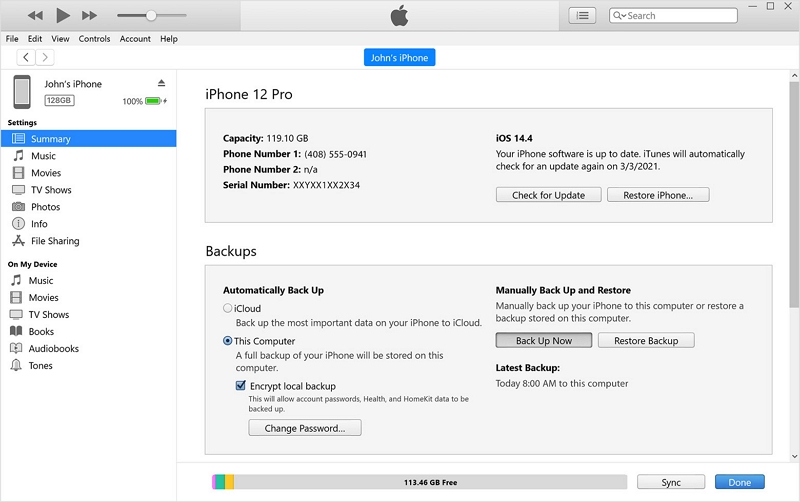
In Finder (macOS): choose your iPhone from Devices, then select the General tab.
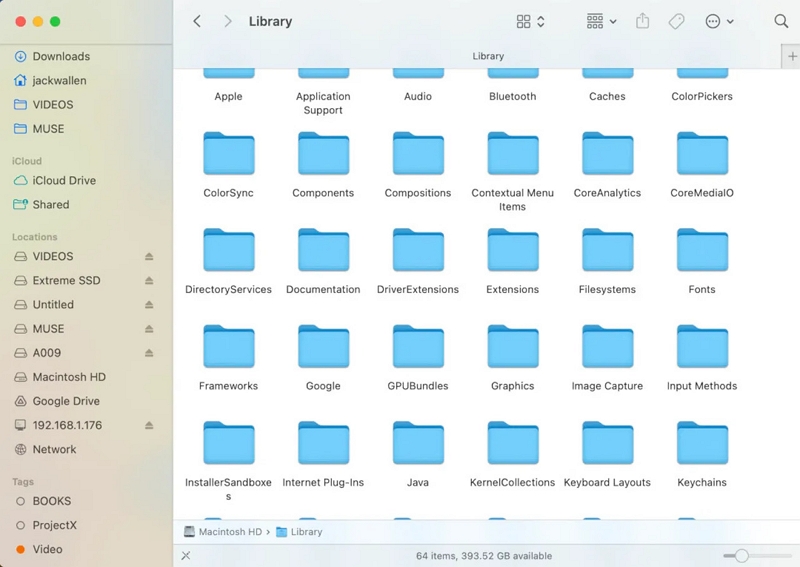
Step 3: Locate ICCID, IMEI, MEID—your SIM card ICCID will be displayed there.
Use Case: Useful when managing multiple identifiers or backing up device info.
Method 3. Find ICCID on the SIM Card
If your iPhone doesn’t turn on or you can’t access Settings, you can check the ICCID directly on the SIM card.
Step 1: Turn off your iPhone. Locate the SIM tray (usually on the side).
Step 2: Insert a SIM-eject tool or paperclip into the pinhole to remove the tray.
Step 3: Carefully remove the SIM card.
Step 4: Look for the longest printed number (typically 19–20 digits) on the SIM card or its original plastic holder. This is the ICCID.
Step 5: Write it down carefully—accuracy is important for carrier use.
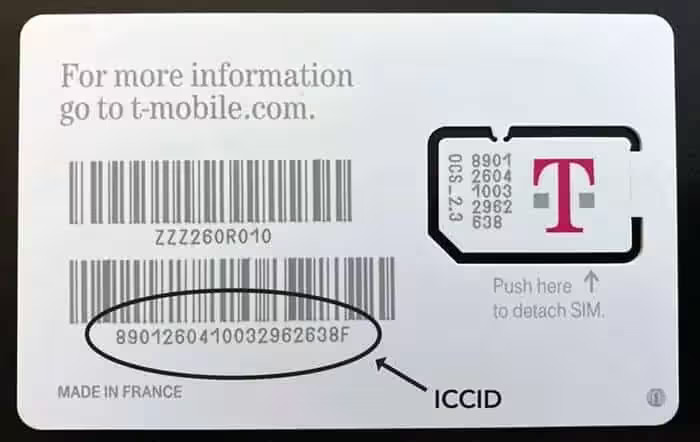
Use Case: Ideal for damaged phones or when transferring the SIM to another device.
Method 4. Use Carrier or Account Page
If your iPhone is locked or damaged, your carrier’s online portal may provide the ICCID.
Step 1: Visit your carrier’s official website and log in to your account.
Step 2: Navigate to My Devices or Line Information.
Step 3: Locate the ICCID associated with your SIM or line.
Use Case: Especially useful when your iPhone is unavailable, locked, or you want ICCID remotely for unlocking or number porting.
Pro Tips for All Methods
- Keep ICCID secure: Avoid sharing publicly.
- Copy accurately: Providers require the exact ICCID for activation or troubleshooting.
- Use for multiple eSIMs: Each eSIM profile has its own ICCID—track carefully if you have several.
- Combine methods: If one method fails, try another to ensure you get the correct ICCID.
By following these 4 methods, you can reliably find your iPhone’s ICCID in any situation, troubleshoot SIM issues, manage eSIM profiles, and handle carrier tasks confidently.
Part 4: What Is an ICCID Lock on iPhone?
Sometimes, when inserting a SIM, users encounter the message “SIM Not Supported”. This usually isn’t about the ICCID itself but about carrier locks.
An ICCID lock means the iPhone is tied to one carrier, and simply entering ICCID codes won’t bypass it. Apple tightened restrictions on ICCID unlock tricks, so relying on random codes isn’t safe or permanent.
Part 5: Safe Solutions for ICCID Lock
If your iPhone is locked, you have two safe options:
Option 1: Contact your carrier
The official way. Carriers can unlock your iPhone if you meet their requirements.
Option 2: Use a professional unlocking tool
If carrier help isn’t possible, tools like Passixer provide a safe and reliable way to remove SIM restrictions. Unlike risky ICCID code methods, this approach is permanent and doesn’t require technical expertise.
Features:
- Unlock SIM and remove carrier limitations from iPhone.
- Bypass the passcode for the iPhone screen and the restrictions set by Screen Time.
- Disable iCloud Activation Lock and Apple ID.
- Turn off the encryption password for iTunes backups.
- Compatible with iPhone 4 through iPhone 16
FAQs
What can I do if I’m unable to locate the ICCID on my iPhone?
If you can’t see the ICCID, try these quick fixes:
- Make sure your SIM or eSIM is active.
- Restart your iPhone.
- Update to the latest iOS version.
- Check for carrier settings updates.
If the ICCID is still missing, contact your carrier or Apple Support for further assistance.
Is the ICCID identical to the IMEI number?
No. The ICCID identifies your SIM card or eSIM profile, while the IMEI identifies your iPhone’s hardware. Think of ICCID as the ID for your SIM, and IMEI as the ID for your phone itself.
Does the ICCID change when I switch SIM cards?
Yes. Each SIM card or eSIM profile has its own unique ICCID. When you replace or activate a new SIM, the ICCID on your iPhone will update accordingly.
Why do carriers or Apple ask for the ICCID?
Carriers and Apple use the ICCID to verify your SIM/eSIM details, activate network services, and troubleshoot connectivity issues. Providing the correct ICCID helps speed up support or transfer processes.
Conclusion:
The ICCID number may look like a random string of digits, but it plays an essential role in managing SIM cards, switching carriers, and fixing connectivity problems.