
Updated on 2026-03-11
views
5min read
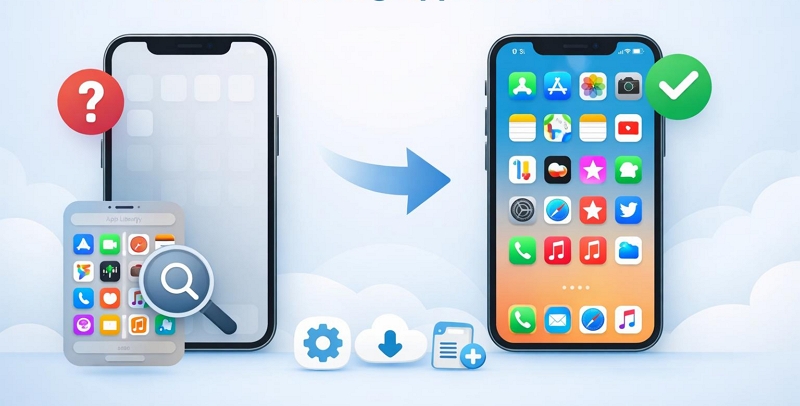
Have you ever unlocked your iPhone only to find that some apps have suddenly disappeared? Maybe the App Store is gone, a whole page of apps vanished, or a newly downloaded app isn’t showing on the Home Screen. Don’t worry. In most cases, the apps are not actually deleted but hidden due to your settings. Next, this guide will explain why apps disappear on iPhone and how to restore them easily based on different scenarios, so you can find the right solutions quickly and effectively.
Understand the Scenario of Your Missing Apps on iPhone
Before trying to fix the problem, it's important to identify which situation you are dealing with, helping you pick up the proper solutions. The table below summarizes the most common missing app scenarios on iPhone and why they happen.
| Case | What Happens | Possible Reasons |
|---|---|---|
| Case 1 | A whole group of apps is missing from the Home Screen. | The Home Screen page is hidden. |
| Case 2 | App Store disappears from iPhone. | App installation is restricted in Screen Time. Installing App feature is disabled. |
| Case 3 | An app disappears from the Home Screen suddenly. | You hide the app in App Library. The app is accidentally deleted. The app is offloaded. You remove the app from Home Screen. |
| Case 4 | A newly downloaded app isn’t showing on the Home Screen. | New apps are set to appear in the App Library only. |
How to Restore a Group of Missing Apps on iPhone(for Case 1)
When a whole group of apps suddenly disappears from your iPhone, it usually doesn’t mean the apps were deleted. Instead, it’s possible that the entire Home Screen page that contains those apps has simply been hidden.
The “Hide Home Screen page” feature is introduced in iOS 14, enabling users to customize their layouts and hide pages they don’t use often. However, this can also happen accidentally when editing the layout, which makes it seem like your apps have disappear. In the following section, we’ll show you how to check whether your Home Screen page is hidden and how to restore the missing apps in just a few simple steps.
Steps to Unhide iPhone Home Page to Make Apps Visible Again
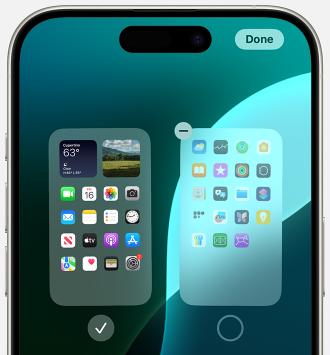
Step 1. Long-press any empty space on the iPhone Home Screen.
Step 2. Tap the page indicator dots at the bottom. You will see all Home Screen pages.
Step 3. Check the empty circle to display the hidden page and tap Done. Instantly, all apps on that page will reappear.
How to Recover a Missing App on iPhone (for Case 2 & 3)
When an app goes missing on your iPhone, the cause can vary, from restrictions affecting the App Store to hidden or offloaded apps. This section walks you through solutions for both the App Store and other apps, showing how to restore apps that are still installed, redownload missing ones, and prevent future disappearances.
For App Store
App Store is essential for downloading and updating apps, so its disappearance can disrupt your iPhone use. At the same time, its disappearance can be quite surprising, especially knowing that it is a built-in system app that cannot be deleted. Don’t worry, you can easily get back App Store by adjusting Screen Time Settings.
Fix 1. Enable Installing Apps
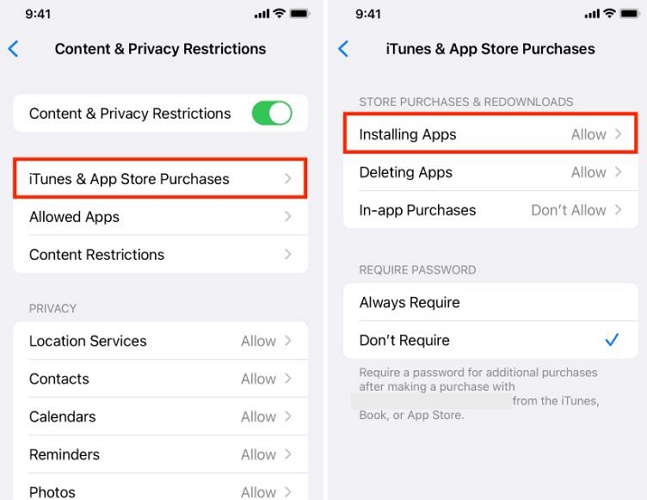
If the App Store disappears from your Home Screen, a common reason is that the ability to install apps has been disabled in your iPhone settings. When “Installing Apps” is turned off in iTunes & App Store Purchases under Screen Time, iOS automatically hides the App Store as a protective measure, preventing users from attempting to download apps when installations are blocked. To restore App Store and its download function, simply turn on Installing Apps with the steps below.
Step 1. Go to Settings > Screen Time > Content & Privacy Restrictions.
Step 2. Tap iTunes & App Store Purchases.
Step 3. Select Installing Apps and set it to Allow.
The App Store icon should appear immediately.
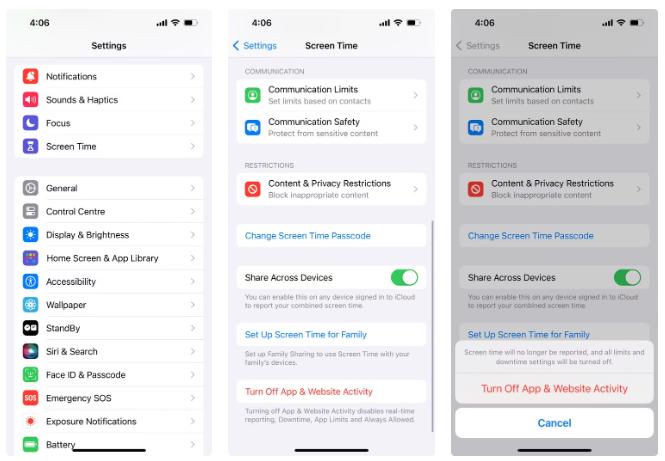
Fix 2. Disable Share Across Devices
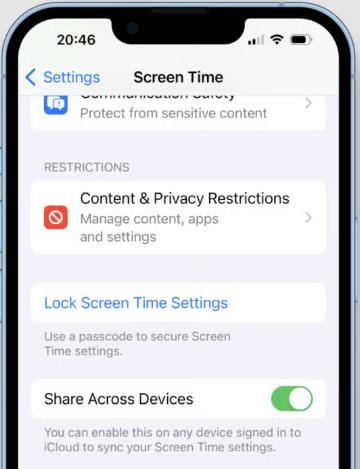
Enabled “Share Across Devices” setting in iCloud is another common cause. When this feature is on, certain app settings and restrictions can sync across all your Apple devices. If installing apps is restricted on another device connected to the same Apple ID, iOS may hide the App Store on your current iPhone as part of the synced restrictions.
Steps to Turn off Share Across Devices
Step 1. Access the Settings app and select Screen Time.
Step 2. Scroll down the screen to locate Share Across Devices and turn it off.
After disabling it, restart your iPhone and check if the App Store returns.
Fix 3. Turn off Content Restrictions
If the above two methods still don’t bring the App Store back to your iPhone Home Screen, you can try turning off Screen Time completely. When turning it off, you will need to enter your Screen Time passcode.
Step 1. In iPhone Settings, choose Screen Time.
Step 2. Tap Content & Privacy Restrictions and input your passcode.
Step 3. Hit the same option to confirm your operation.
For Other Apps
If apps other than the App Store are missing, there are several reasons and solutions depending on whether the app is still installed or completely missing.
If the app is still installed but disappears from Home Screen
Simply swipe down on the Home Screen and search for the missing app using Spotlight. If the app appears in the search results, it means the app is still on your iPhone, generally on the App Library, but does not show on the Home Screen. This could happen because your remove the app from the Home Screen before. In this case, all you need to do is restore it to the Home Screen.
Step 1. Swipe left to open App Library.
Step 2. Search for the missing app.
Step 3. Press and hold the found app and choose Add to Home Screen.
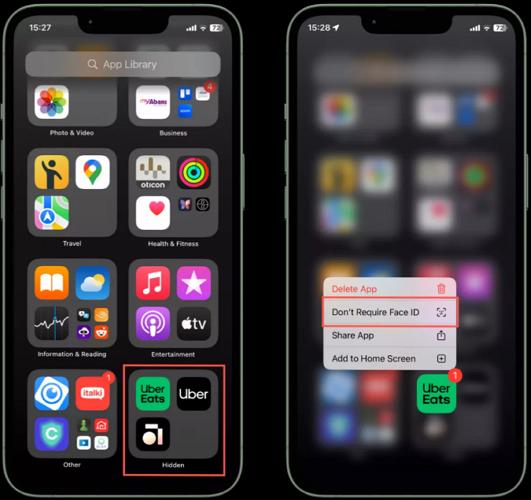
Note: Sometimes, you might accidentally add an app to a hidden folder in the App Library, which is why it doesn’t appear on your Home Screen. If you notice a hidden section in your App Library, unlock it using Face ID, then tap Don’t Require Face ID or Add to Home Screen to make the app reappear on your Home Screen.
If you can’t find the app on your iPhone
If the app cannot be located on your iPhone or in the App Library, it may have been deleted by accident. You need to download the app again from App Store.
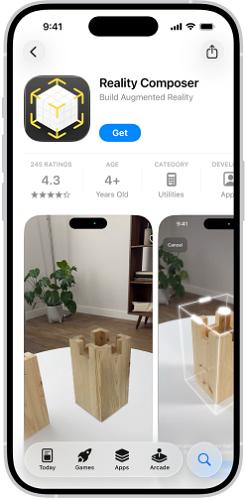
Step 1. Open App Store and search for the deleted app.
Step 2. Tap the Get icon to reinstall it.
Tip: App hasn’t been used for a long time disappears?
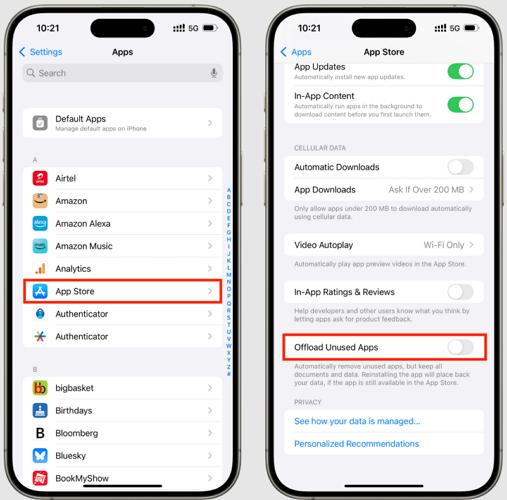
Here, “disappearance” doesn’t mean the app is completely missing. Instead, you can still see its icon, but there’s a small cloud download symbol next to its name. To use the app, you need to tap it to redownload. So, why does this happen? It occurs because the Offload Unused Apps feature is enabled. This feature will automatically remove apps you rarely use to free up storage space, while keeping their data intact. When you redownload an offload app, everything will be restored.
Turn off Offload Unused Apps
- Run Settings and access App Store section.
- Toggle Offload Unused Apps off.
Bonus: Recover Deleted Apps and Data with Datile iOS Recovery
If an important app and its data have been completely deleted, redownloading alone won’t restore previous content. At that time, you can use Datile iOS Recovery to recover deleted apps and associated data safely.
Datile iOS Recovery is a professional data recovery tool for iDevices, which can restore your iOS content, like app, photos, videos and contacts with 98.6% success rate. Whether your data is deleted due to accidental deletion, factory reset, incomplete iOS update or other reasons, this software can retrieve it for you with or without backup. When you want to restore selective data from your iCloud or iTunes backup, Datile comes to help either.
To restore deleted app and data with Datile:
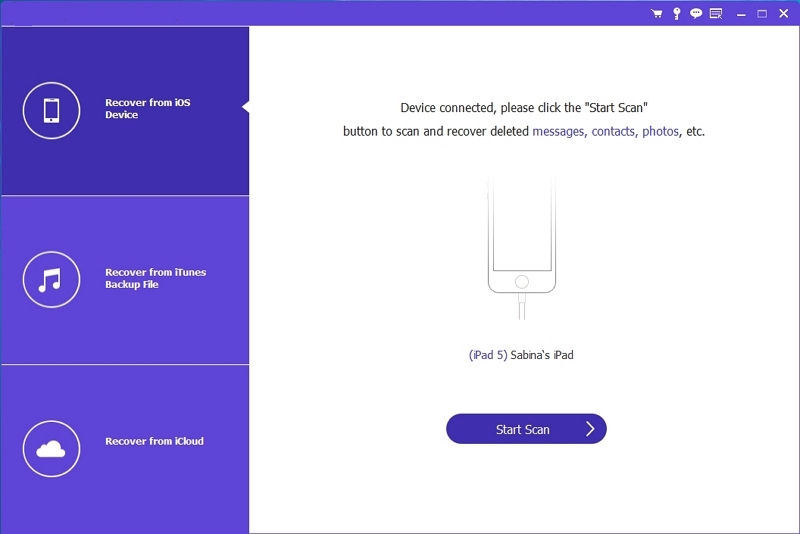
- Install and run Datile iOS Recovery on your computer and connect your iPhone via USB.
- Choose Start Scan in the main screen. The software will scan your iPhone deeply for finding out lost data.
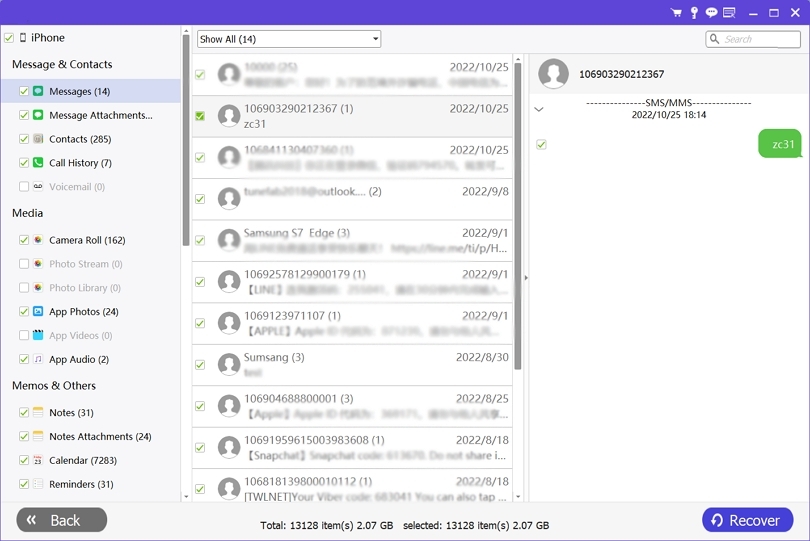
- Look through the left menu and locate the app whose data you want to recover. Lastly, hit Recover in the bottom right to export the data to your iPhone directly.
How to Show a Missing Newly Downloaded App on the Home Screen (for Case 4)
If you find that newly downloaded apps don’t appear on your iPhone Home Screen and seem “missing,” even though they are installed. This usually happens because your iPhone is set to store new apps in the App Library only, a feature designed to keep Home Screens uncluttered. As a result, the app is fully functional but doesn’t show among your main app icons. This part shows you how to adjust your settings to add newly downloaded apps back to the Home Screen for easy access.
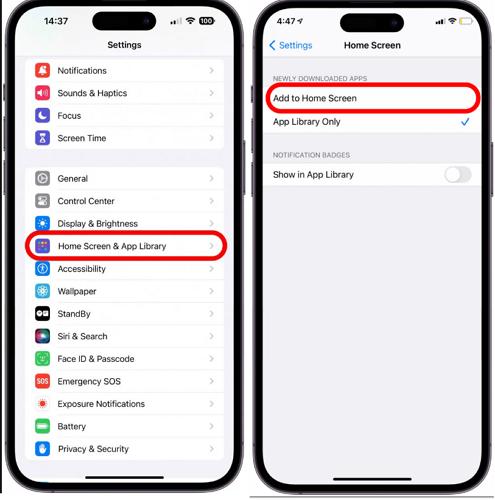
Step 1. Open Settings.
Step 2. Tap Home Screen & App Library.
Step 3. Under Newly Downloaded Apps, select Add to Home Screen.
After changing this setting, all future downloads will appear on the Home Screen automatically.
Note: After changing the setting to download apps to the Home Screen, apps you previously downloaded to the App Library will not automatically appear on the Home Screen. If you want to move apps that were previously added to the App Library back to the Home Screen, you can simply press and hold the app in the App Library and then select Add to Home Screen.
Conclusion
Missing apps on an iPhone usually happen because of system settings rather than actual deletion. In most cases, restoring missing apps takes less than a few minutes once you identify the correct cause. If you want to recover apps that are removed by accident to your iPhone, Datile iOS Recovery is a good option which can restore 36 types of data from iOS devices easily with high success rate.