
Updated on 2026-03-08
views
5min read
Want to restore the iCloud backup from your old iPhone X to your new iPhone 17 but don’t know how? This is a common situation, especially if iPhone X is your first Apple device that you originally set up as a new and have never restored an iCloud backup later. Don’t worry. In this guide, you’ll learn how to restore iCloud backup on a new iPhone step by step. We’ll show you how to complete the restore during setup, and also what to do if you already skipped the restore option and need to recover your iCloud backup after set up, with or without resetting your device.
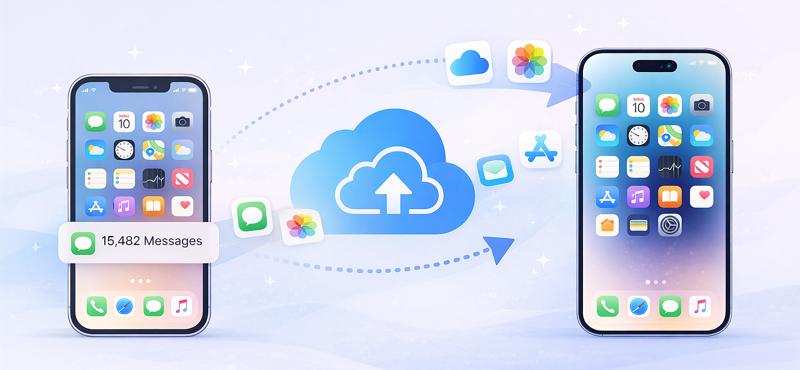
How to Restore iCloud Backup on New iPhone During Setup
When you get a new iPhone, restoring an iCloud backup is not difficult. You can follow the setup guide and then patiently wait for the restore process to complete. However, before starting the restore, it is helpful to understand a few things, such as how long the process may take, so the restoration can go more smoothly.
1. Things to Know You Need to Know First
What iCloud Backup Includes
An iCloud backup contains most of the important data stored on your device. However, it does not include everything. Understanding what is included helps set the right expectations during the restore process. Here’s a quick overview:
| Data Type | Included in iCloud Backup |
|---|---|
| Photos and videos | Yes |
| Messages (SMS & iMessage) | Yes |
| Contacts and calendars | Yes |
| App data | Yes |
| Device settings | Yes |
| Home screen layout | Yes |
| Apple Pay information | No |
| Face ID/Touch ID data | No |
It’s also important to note that data already synced with iCloud services is not included in backups. For example:
- iCloud Photos
- iCloud Contacts
- iCloud Calendars
These items automatically sync when you sign in with your Apple ID on the new device.
How Long It Takes to Restore an iCloud Backup
The restore time depends mainly on backup size and internet speed. Below is a general estimate:
| Backup Size | Estimated Restore Time (100 Mbps Wi-Fi) | Estimated Restore Time (20 Mbps Wi-Fi) |
|---|---|---|
| Under 5 GB | 3–8 minutes | 5–15 minutes |
| 5–20 GB | 8–20 minutes | 15–30 minutes |
| 20–100 GB | 20–60 minutes | 30 minutes – 2 hours |
| Over 100 GB | 1–2 hours | Several hours |
2. Start iCloud Backup Restore
Before starting, make sure you have the following ready:
- Your Apple ID and password
- A stable Wi-Fi connection
- The latest iCloud backup from your previous iPhone
Step 1 (Optional But Suggested): Manually Back Up iPhone with iCloud
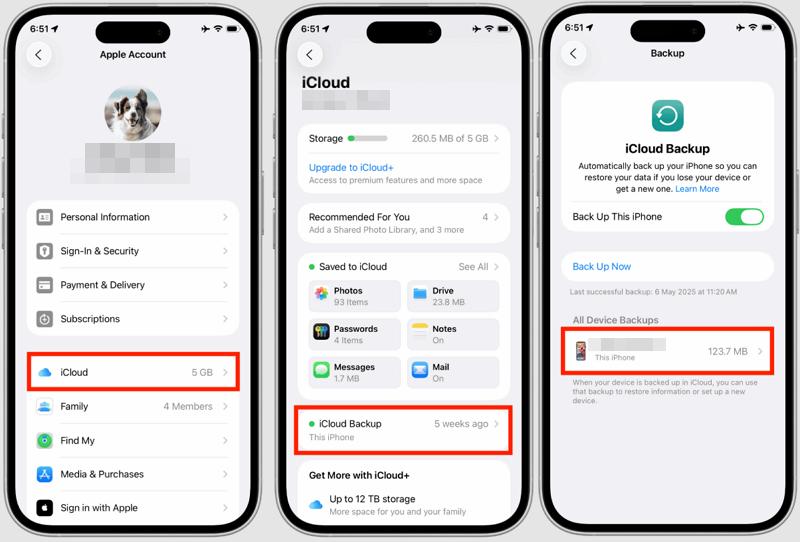
Although iCloud automatically backs up your iPhone if you have enabled the feature, it’s a good idea to create a fresh iCloud backup on your old device before switching to your new iPhone. This ensures that your most recent messages, photos, app data and device settings are included. To create a manual iCloud backup, follow these steps:
1. Open Settings on your old iPhone and tap your Apple Account name.
2. Select iCloud > tap iCloud Backup.
3. Tap Back Up Now.
Step 2: Restore iCloud Backup on New iPhone
Now you can restore the backup when setting up the new device.
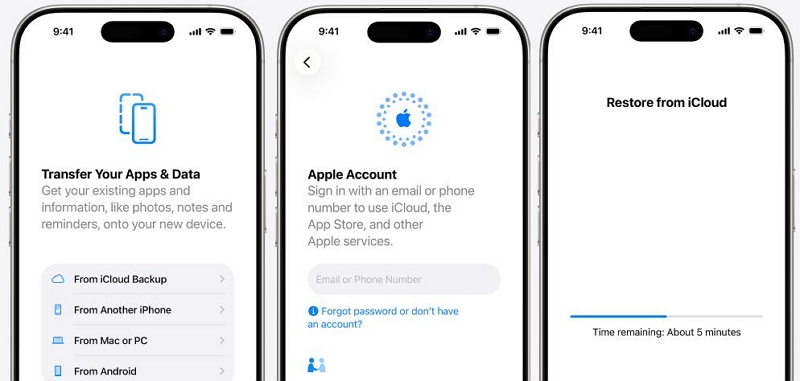
- Turn on your new iPhone.
- Follow the setup instructions until you reach the Apps & Data screen.
- Select Restore from iCloud Backup.
- Sign in with your Apple ID used on the old iPhone.
- Choose the most recent backup from the list.
- Wait for the restoration process to complete.
FAQ: Will Some Data Be Restored Before Others When Restoring an iCloud Backup?
Yes, the full restoration process may continue in the background. Apps, photos, and media files often download gradually after the device becomes usable. This staged approach allows you to start using your phone sooner, even while the remaining data continues syncing.
Simply put, iCloud restoration happens in stages. Typically, the restore process works like this:
- Essential system data and settings restore first.
- Contacts, messages, and basic app information appear next.
- Apps begin downloading from the App Store.
- Photos, videos, and large media files continue downloading in the background.
Other Ways to Transfer Everything from Old iPhone to New One
If you find the iCloud backup method a bit troublesome, you can use other data transfer options supported by Apple. There are 2 additional methods for transferring data between iPhones. Below is a quick comparison of them.
| Method | Required Time | Difficulty | Pros | Cons |
|---|---|---|---|---|
| iTunes Backup | 20–60 minutes | Medium | Work without storage limits. Suitable for large backups. Traditional backup method. |
Require computer and lightening cable. Could fail sometimes. |
| iPhone to iPhone Transfer | 10–30 minutes | Easy | Direct wireless transfer. Migrate data without backup. |
Both devices must be nearby. Only available during setup. |
Tip: Estimated time may vary depending on backup size and Wi-Fi speed. Editor’s Note: iCloud backup has long been a reliable way to move your data to a new iPhone without losing anything from your old device. However, the Phone-to-Phone Transfer feature in Quick Start is often more convenient today when setting up a new iPhone, as it allows you to transfer data directly between the two devices.
How to Restore iCloud Backup on New iPhone After Setup
Sometimes, users realize they missed the iCloud restore option during setup. This often happens when the “Transfer Your Apps & Data” screen is skipped or the wrong option is selected. Or you may have originally set up your new iPhone as a new, but later decided that you actually want to restore an iCloud backup instead.
In these cases, restoring an iCloud backup becomes slightly more complicated because the device has already been configured. There are two main solutions:
- Restore the backup without resetting the device (using specialized software): This way is especially useful when you only want to restore certain data from an iCloud backup.
- Reset the iPhone and repeat the setup process to restore iCloud backup: If you have just set up your new iPhone and haven’t used it much yet, meaning there isn’t much data stored on it and you don’t mind going through the iPhone setup process again, this method can work well for you.
Way 1. Restore iCloud Backup with Datile Software
If you prefer not to reset your new iPhone, specialized recovery software can help restore data directly from an iCloud backup. One commonly used option is Datile iOS Recovery, which allows users to download and restore iCloud backup files selectively.
Datile iOS Recovery is a professional data recovery tool designed to help users recover lost or deleted data from iPhone and restore iCloud or iTunes backup on iDevice. You can sign in to your iCloud account, view the available backup files, and choose to restore the entire iCloud backup or extract only specific types of data, such as photos, contacts, messages, and other app data. Unlike Apple’s official restore process, this tool allows you to recover data from an iCloud backup without resetting your iPhone. This means the data currently on your iPhone will not be lost while you recover data from the iCloud backup. It is helpful if your iPhone is already set up, you only want to recover specific data or you want to preview the backup before restoring.
Key features
- Recover photos, contacts, messages, WhatsApp data, notes, call history, and more from your iPhone or backups.
- Recover iPhone data via the local storage, useful when you don’t have any iPhone backup.
- Effectively get back your iPhone data lost under various scenes, such as accidental deletion, iOS updates, factory reset, or device issues.
- Support iPhone 17 and iOS 26 or earlier.
Steps to Restore iPhone from iCloud Backup When Already Signed In
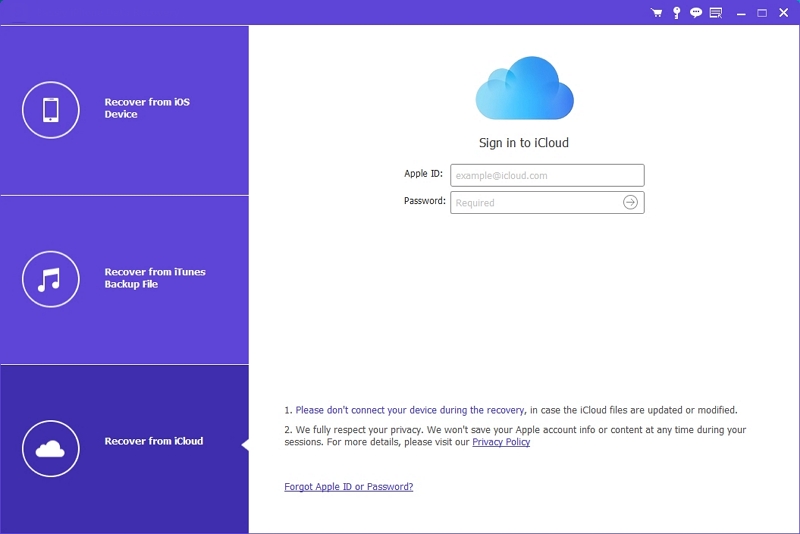
Step 1. Install and launch Datile iOS Recovery on your computer. Then, select Recover from iCloud in the left pane.
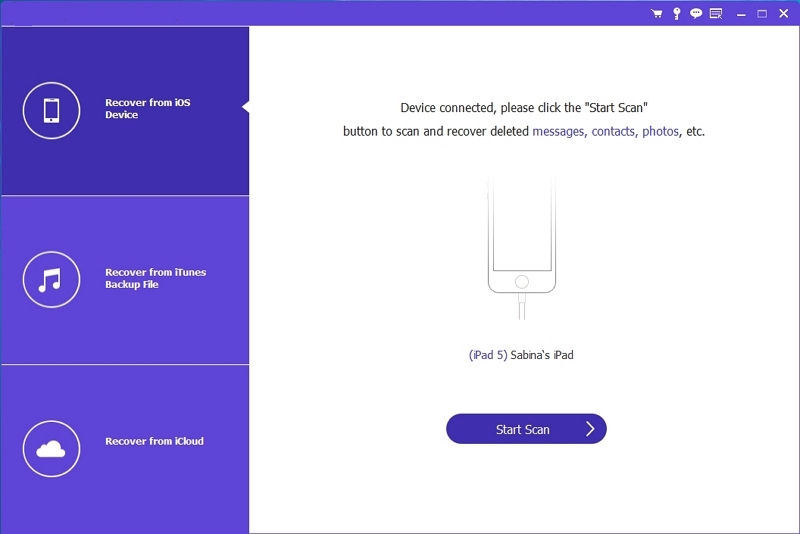
Step 2. Log in the iCloud site within the Datile software screen.
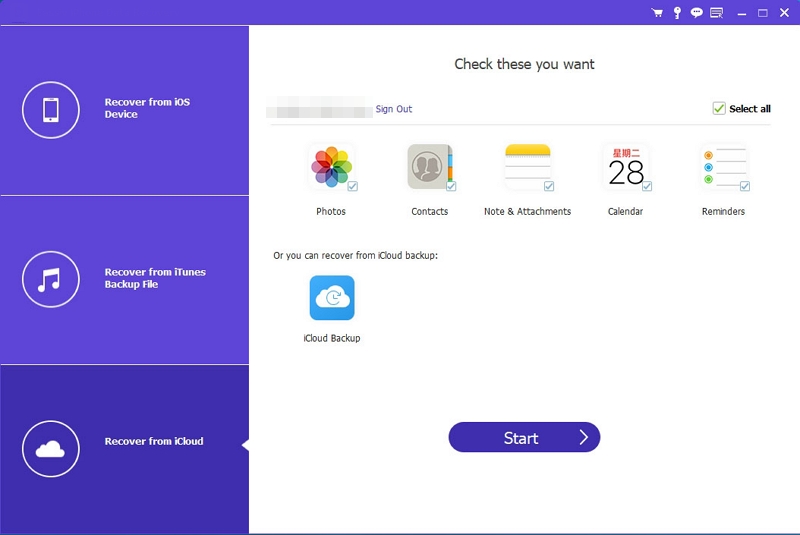
Step 3. Choose iCloud Backup in the middle section and hit Start. Step 4. All your iCloud backup versions will be listed. Click the Download button next to the desired backup file.
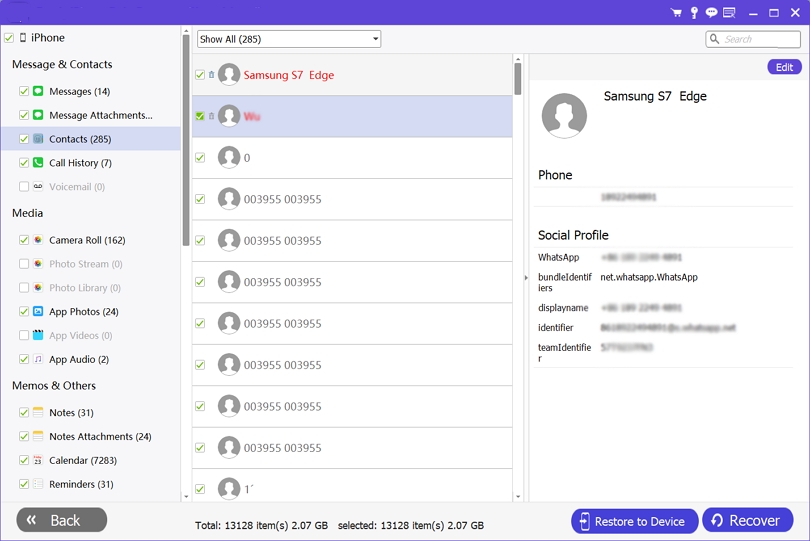
Step 4. In the pop-up, choose the items you want to recover and click Next to download them.
Step 5. Once the selected data is downloaded, check and choose it in the sidebar. Finally, hit Recover. Instantly, you will find the wanted data in your phone storage.
Way 2. Restore iCloud Backup After Reset
Resetting your iPhone and then restoring the iCloud backup is the official method recommended by Apple. Since your device is new, resetting it usually won’t have much impact, especially if you set up the phone but haven’t really started using it yet. Here’s how:
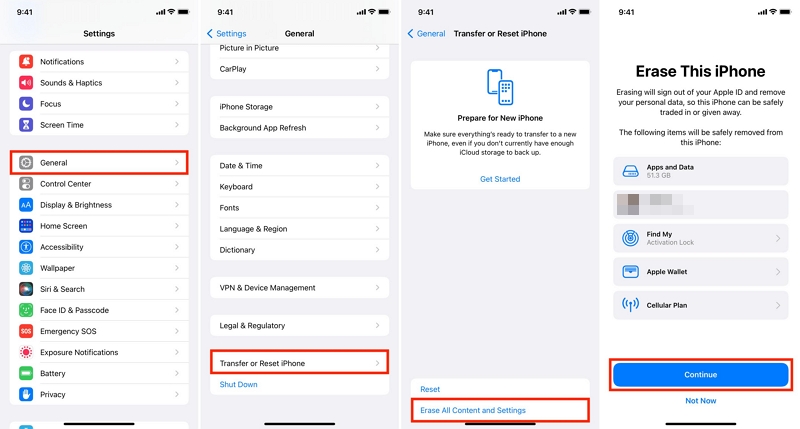
Step 1. Open Settings. Then, go to General > Transfer or Reset iPhone.
Step 2. Select Erase All Content and Settings. Enter your screen passcode if prompted.
Step 3. When you see the Hello screen. Repeat the steps in Part 1 above to finish the setup. Note that choose Restore from iCloud Backup on the Apps & Data screen at this time.
iCloud Backup Failed? How to Fix It Fast
When restoring an iCloud backup on your iPhone, you may encounter a few issues. The table below will help you identify and solve the most common problems.
| Common Issue | Possible Cause | Solution |
|---|---|---|
| iCloud backup not showing | Wrong Apple ID or backup not created | Sign in with the correct Apple ID. In the old iPhone, go to Settings > iCloud > Manage Storage > Backups and confirm a backup exists. |
| Restore taking too long | Slow or unstable Wi-Fi connection | Connect to a faster and stable Wi-Fi network. Large backups may take hours depending on internet speed. |
| Not enough iPhone storage | Backup size is larger than device storage | Delete unnecessary data or choose a smaller backup before restoring. |
| Restore failed or stuck | Network interruption or server issue | Restart the iPhone, reconnect to Wi-Fi, and try restoring again. |
| Some data not restored | Certain apps or data not included in the backup | Check iCloud backup settings in the old iPhone to confirm which apps were included in the backup. |
Conclusion
Restoring an iCloud backup is one of the easiest ways to move your data to a new iPhone. In most cases, the best time to do this is during the initial setup, because Apple will guide you through the restore process step by step.
If you’ve already finished setting up your iPhone, don’t worry, you still have a couple of options. You can reset the device and go through the setup again to restore the backup, or use specialized tools like Datile iOS Recovery that allow you to recover data directly from an iCloud backup without resetting your iPhone.