
Updated on 2026-02-11
views
5min read
When you delete a photo from the Photos app on your iPhone, it moves to the Recently Deleted folder, where it stays for 30 days. This gives you a chance to recover photos if you delete them by accident or change your mind later. What if the photos disappear from the Recently Deleted folder after 30 days or because you’ve emptied the folder? Does that mean they’re gone forever? Not at all. In this post, we’ll show you how to recover permanently deleted photos from your iPhone, even after 30 days, whether or not you have a backup.
Where Do Photos Go When Permanently Deleted on iPhone
When photos disappear from Recently Deleted, they aren’t immediately erased. Their fragments still sit in the iPhone’s storage until new data overwrites them. That’s where data recovery tools like Datile come in — they can scan the hidden storage areas and bring those photos back. In other words, if you want a recovery tool to retrieve your deleted photos, stop using your iPhone right away and start the recovery process as soon as you can.
How to Recover Permanently Deleted Photos from iPhone After 30 Days [Without Backup]
This is the toughest scenario: you haven’t backed up your iPhone photos before. However, there are still ways to recover permanently deleted images from your iPhone. Below are four methods you can try.
Way 1. Resync iCloud Photos
Success%: The success rate is high if you have previously synced your photos to iCloud and iCloud sync hadn’t started when you deleted the photos.
iCloud Photos not only lets you access the same content across all your Apple devices, but it can also help you retrieve photos in some cases, even when the Recently Deleted folder is empty. However, this method only applies when your iPhone photos haven’t been synced to iCloud. Below are two related cases and their corresponding recovery solutions.
Case 1: iCloud Photo Sync is paused due to no internet
Your iPhone was offline when you deleted the photos from the Recently Deleted folder. As a result, the deletion wasn’t synced to iCloud and the photos may still be available there. You can download the photos from iCloud to your computer and then sync them to your iPhone using iTunes.
Note: Keep your iPhone offline until you have fully recovered the photos from iCloud. If your iPhone goes online with sufficient battery, iCloud Photos will start syncing, and the deleted images may disappear from iCloud, making this recovery method unavailable.
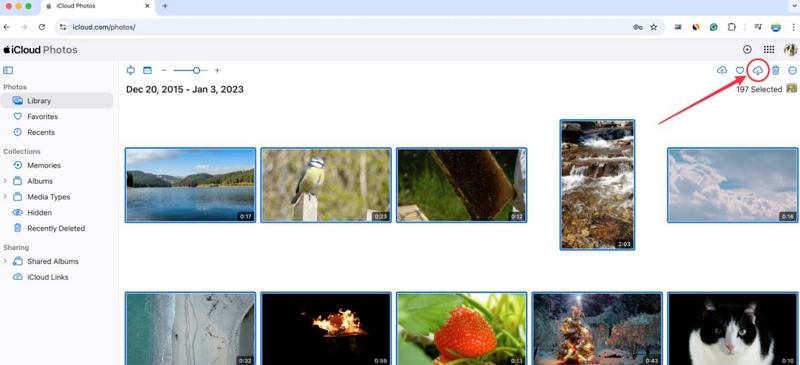
Step 1: Go to iCloud.com/photos on your computer browser and sign in with your Apple ID.
Step 2: Select the photos you want to recover and click the Download icon in the top-right corner.
Step 3: The photos will be downloaded to your computer. Simply add them to iTunes or Finder and then sync them to your iPhone using a USB cable.
Case 2: iCloud Photos was off when the photos were deleted
You turned off iCloud Photos before deleting the photos from Recently Deleted. In this case, the images may still be found on the iCloud. You can turn iCloud Photos back on to download the images from iCloud to your iPhone.
Step 1: Open Settings and tap your Apple ID at the top.
Step 2: Tap iCloud, then select Photos.
Step 3: Toggle on Sync this iPhone to start downloading the images to your device.
Way 2. Contact Apple for Help
Success%: It heavily depends on Apple’s policies and timing. Some users on Reddit report getting their images restored within minutes, while others were told nothing could be done. If only a day or two has passed since the images were wiped, chances are higher. However, if it’s been weeks, recovery becomes very unlikely.
If your photos were just deleted past the 30-day mark, such as day 31 or so, your quickest bet is to call Apple Support.
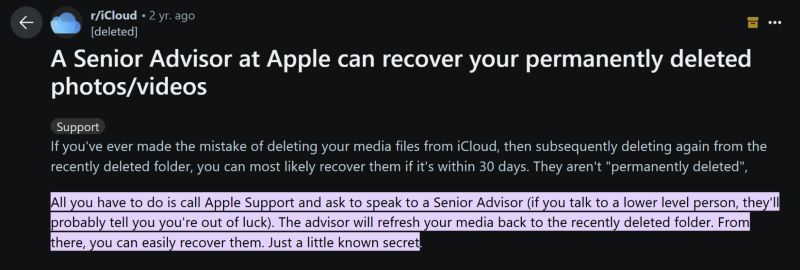
Apple doesn’t openly advertise this option, but in certain cases, technicians have helped users retrieve their recently deleted photos. This is possible because sometimes Apple has a server-side copy of those deleted photos and once you make a request, they will appear back in your Recently Deleted folder.
Steps to Retrieve Deleted Photos via Apple Support
Step 1. Use the Apple Support app or visit Apple’s support website to find your local phone number.
Step 2. Call Apple Support directly, as phone calls work best for this request.
Step 3. Ask specifically for a senior advisor and explain that you need help with deleted iPhone photos.
Step 4. If the advisor can do it, they will refresh the images back into your Recently Deleted folder. Once the deleted images reappear, you can recover them using the same steps covered earlier.
Way 3. Use Datile iOS Recovery
Success%: There’s also a very high chance of recovering your deleted photos with Datile iOS Recovery. That’s because the fragments of removed photos usually remain sitting in the iPhone’s storage sectors, requiring professional tools for recovery. The only time your chances drop is if the phone has recently been cluttered with a huge amount of new data.
Datile iOS Recovery is designed to deeply scan your iPhone storage sectors (its memory chip) for data recovery. It can trace the hidden fragments of the deleted photos that are still present but invisible to you on your iOS device. Simply put, Datile makes it possible to get back your deleted iPhone images until they are overwritten.
Datile’s photo recovery capability is outstanding, which fast scans and finds more than 1000 images in seconds and retrieves lost images with the highest success rate in the industry. In addition to photos, Datile supports recovering the deleted videos, messages, call history, calendars, WhatsApp chats and other types of data.
Steps to Recover Deleted Photos from iPhone Without iCloud or iTunes
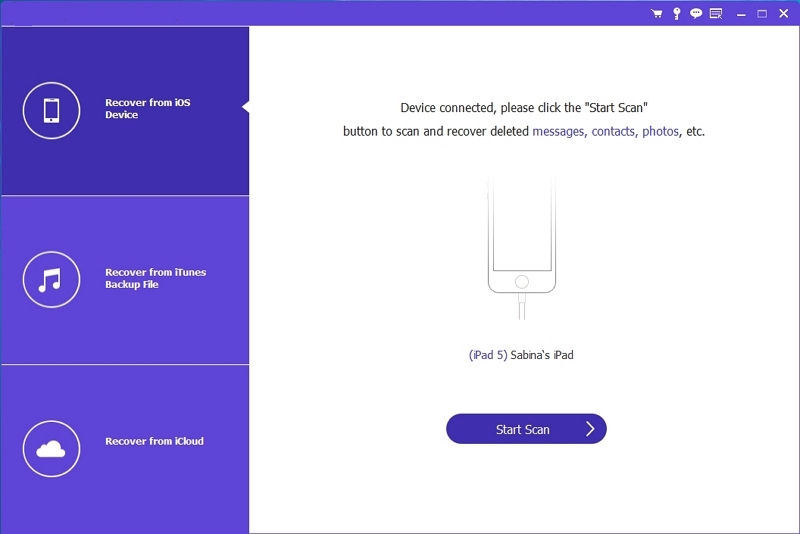
Step 1: Install Datile and Connect iPhone
Connect your iPhone to the computer with Datile iOS Recovery installed and launch the software. Ensure that Recover from iOS Device is selected on the left panel. Then press Start Scan to begin.
Step 2: Scan Your iPhone for Lost Photos
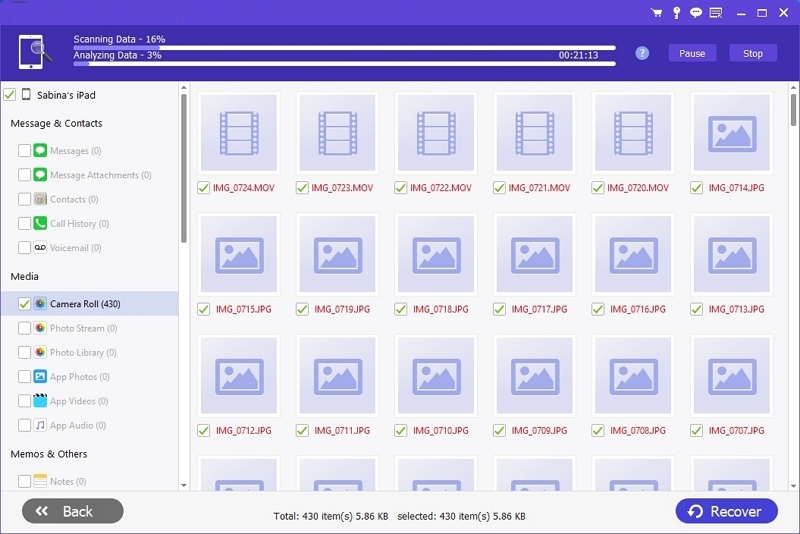
The tool will scan through your iPhone’s storage, analyzing photos along with other data. Let the progress bar finish, which will just take a few minutes, depending on your device size.
Step 3: Choose Wanted Images to Recover
Once the scan is done, look at the left pane and choose Camera Roll to view your deleted images. At the top, you can also switch the filter to show only deleted files.
Highlight the images you wish to bring back and then tap Recover at the bottom right. They’ll be saved straight onto your computer. Alternatively, you can choose Restore to Phone to send the retrieved photos directly to your iPhone.

Way 4. Look Through Sharing Platforms
Success%: It depends entirely on your usage. If you’ve shared the photo, you can usually find it. If not, this way isn’t available to you.
An often overlooked option to regain deleted images is your social media and messaging apps, such as WhatsApp, Telegram, Instagram, iMessage and email. These platforms keep shared media for a long time.
The only catch is image quality. On some platforms, you can re-download the photo in full resolution. On others, like WhatsApp, the image will be compressed. Still, a slightly lower-quality copy is far better than losing the photo forever.
Steps to Recover Deleted Photos from iPhone for Free
Step 1. Check all messaging and social apps where you could have shared the missing photos.
Step 2. Restore images via the photo-sharing platform.
- WhatsApp: Open the conversation with the person you sent it to. Tap their name at the top and then choose Media, links and docs. You’ll see all the shared photos lined up.
- Viber: Go into the chatroom and select Media, Links and Files from the contact menu. This lets you scroll through every shared image and file.

How to Recover Permanently Deleted Photos from iPhone After 30 Days [With Backup]
If you diligently create backups, either via iCloud/iTunes/Finder or a third-party service, and the backup was made before those photos got deleted, then you can restore that backup version and get them back. Let’s look at each method.
Way 1. Via iCloud/iTunes/Finder Backup
iCloud, iTunes and Finder fall under Apple’s official backup methods. The main drawback of these ways is that they require you to erase the entire device first. Although you can restore the backup to your iPhone, you will lost the recent content not included in it.
If you want to avoid that: use Datile iOS Recovery instead. Datile lets you selectively recover only the deleted photos from your iCloud or iTunes data.
Still, if you prefer going the Apple way, here’s how to restore deleted photos from iCloud, Finder or iTunes backup.
Option 1: Via iCloud Backup
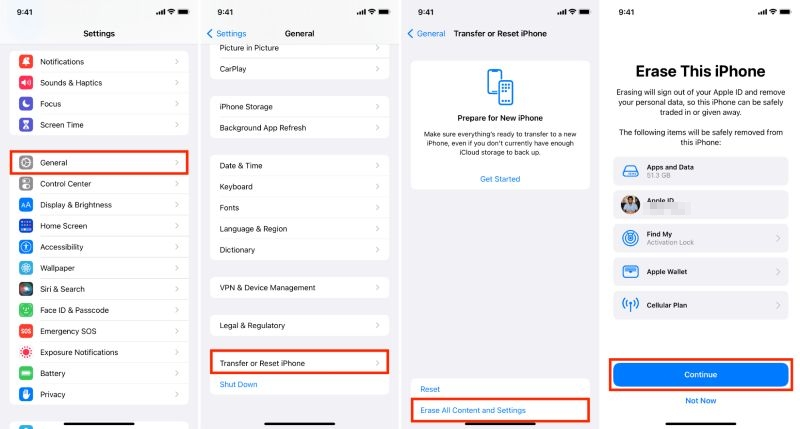
First, you will have to erase the iPhone. For this:
Go to Settings > General > Transfer or Reset iPhone. Then select Erase All Content and Settings.
When the phone reboots:
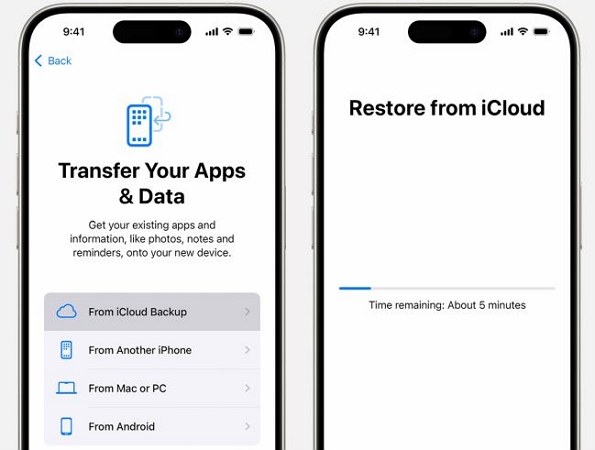
- Go through the initial setup and choose: language and Wi-Fi.
- On the Transfer Your Apps & Data screen, choose Restore from iCloud Backup.
- Sign in with your Apple ID. Then, select the backup that includes your deleted photos.
- Wait while the device is restored.
That’s it — the method is complete.
Option 2. Via Finder
If you’ve used Finder on macOS Catalina and later as your backup method, then here’s the method to restore the deleted photos from its backup:
Step 1. Connect your iPhone to a Mac using an MFi-certified cable.
Step 2. Open Finder and look at the left sidebar under Locations. Your iPhone will appear here.
Step 3. On the right panel, under General, find the Backups section. Click Restore Backup….
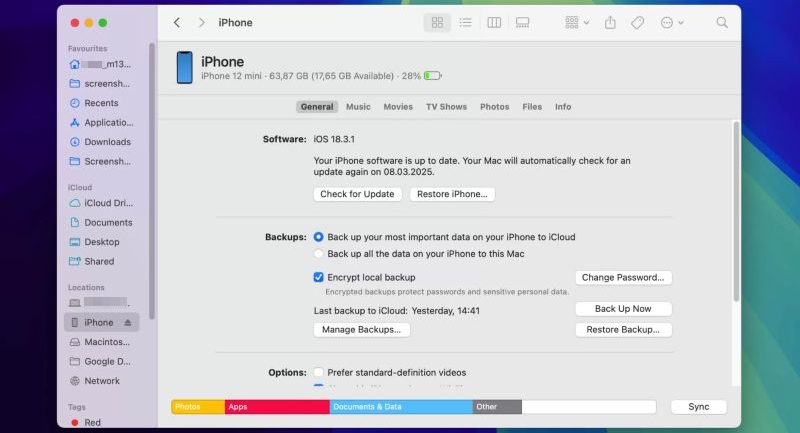
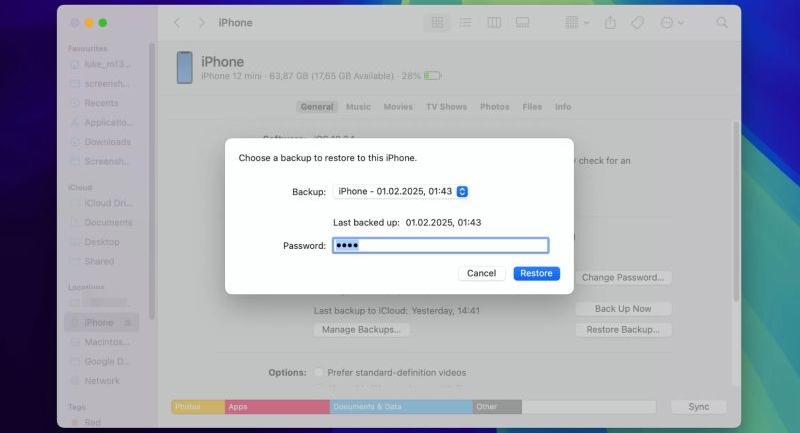
Step 4. A small pop-up appears. From the drop-down, select the backup date you want. Enter the encryption password if required.
Step 5. Hit Restore and wait as Finder syncs that snapshot back onto your device.
Option 3. Via iTunes
If you backed up your iPhone with iTunes, the restore process is almost the same as Finder. This method applies if you’re using Windows or macOS Mojave/earlier.
Step 1. Launch iTunes and plug in your iPhone.
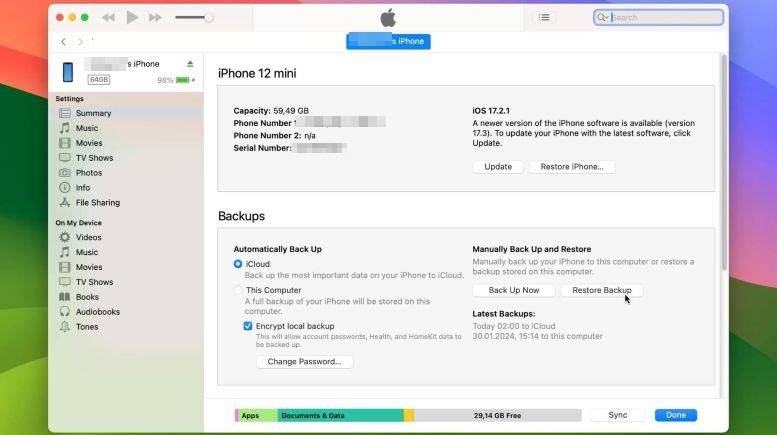
Step 2. From the top-left, select your device. Then go to the Summary tab.
Step 3. In the Backups section, click Restore Backup.
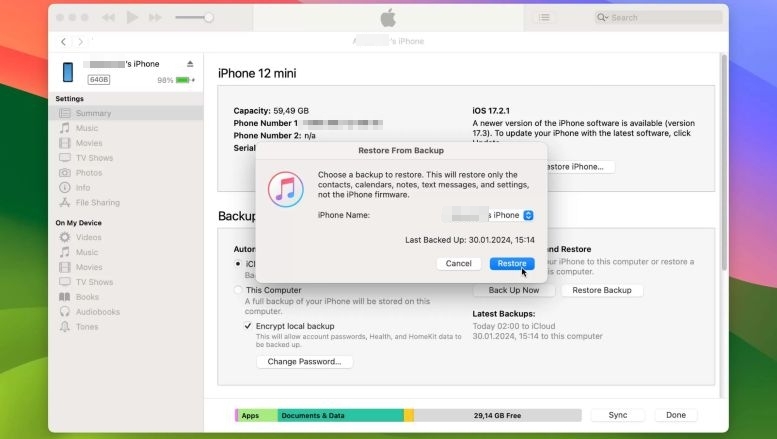
Step 4. A window will appear, listing all your backups. Choose the one dated before the deletion, enter the password if it’s encrypted and click Restore.
Step 5. Let the restore finish. The iPhone will reboot with data, including any photos preserved in that backup.
Way 2. Check Online Backup
When you step away from Apple’s own services and use backups like Google Photos, Dropbox, OneDrive, or Amazon Photos, you’re in luck. These platforms let you restore photos selectively and the best part — they don’t remove the uploaded copies even if you delete them from your iPhone.
Take Google Photos as An Example:
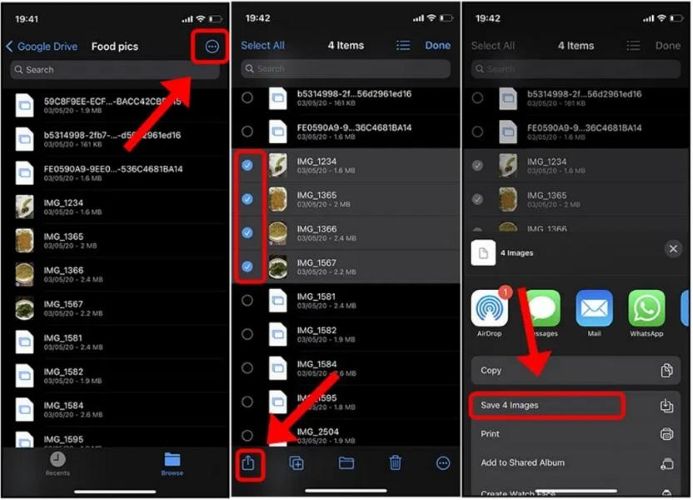
Step 1. Launch the Google Photos app on your iPhone.
Step 2. Browse through the timeline around the date when the photo was originally taken.
Step 3. Select the images you want. Tap Save Images to bring them back onto your iPhone’s storage.
How to Recover Deleted Photos from iPhone Before 30 Days
If it’s been less than 30 days since the photos were removed on iPhone, you can get them back from the Recently Deleted folder in just minutes.
Steps to Recover Photos from Recently Deleted
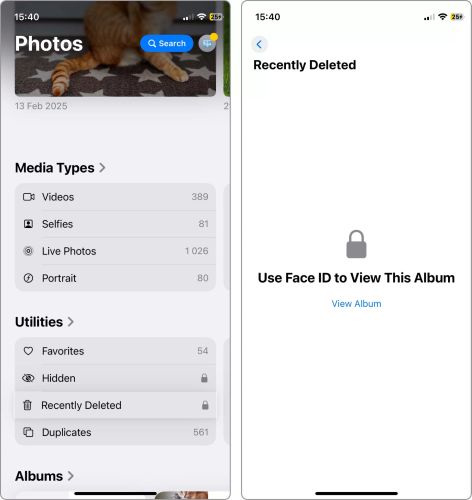
Step 1. Go to the Photos app.
Step 2. Tap on Albums.
Step 3. Scroll down. Under Utilities, select Recently Deleted. On iOS 16 or later, this folder is locked with Face ID or Touch ID. So, tap View Album and scan to open.
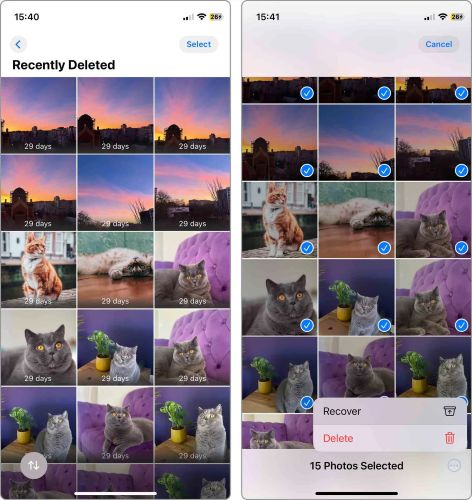
Step 4. Once inside, tap Select at the top-right and mark the photos you want back in your library.
Step 5. At the bottom-right, tap the three-dot icon and choose Recover or Recover All.
That’s it. Your photos will instantly move back to the Library/Camera Roll, restored to their original place and date. In all, this 30-day window is your easiest chance to get them back.
How to Keep Your Precious iPhone Photos Forever
It’s important to prevent losing photos in the future. So, here are some preventive measures you should start taking right away.
Trick 1. Set a Screen Lock
This one usually goes without saying: set up an iPhone passcode, Face ID, or Touch ID. That’s your first line of defense.
If it’s a shared device, you can also use options like Hide Photos or rely on the Recently Deleted section, which itself is protected with Face ID in iOS 16.1 and later.
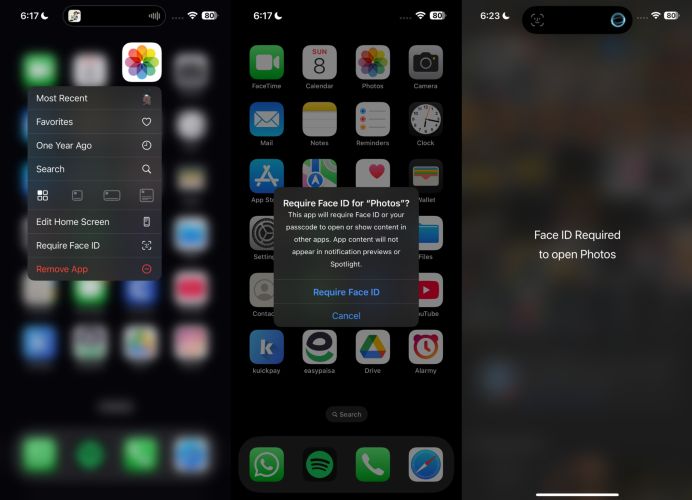
On iOS 18 and later, you can lock individual apps with Face ID or passcode. Yes, that includes the Photos app. Here’s how it works:
- Long-press the Photos app until the quick action menu appears.
- From the list, tap Require Face ID.
- A confirmation box will show up. Select Require Face ID and then scan your Face ID to authenticate.
From now on, opening the Photos app will require Face ID, giving your pictures an extra layer of protection.
Trick 2. Back up Your Photos to a Reliable Cloud Service
Apple’s backup system isn’t perfect when it comes to safeguarding photos like in situations where you delete the photos by mistake. That’s why relying on a third-party cloud service can be a lifesaver.
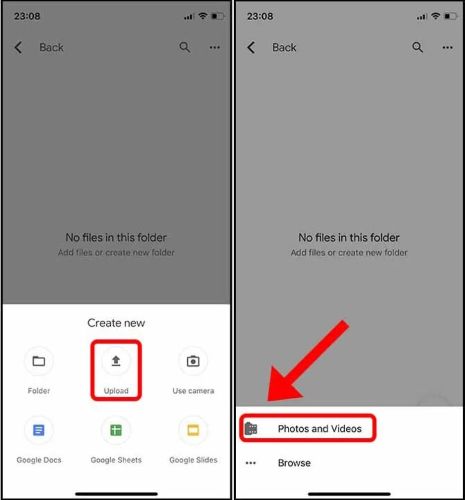
Google Drive is a solid choice here. You get 15 GB of free storage that’s three times more than iCloud’s free tier, enough for thousands of photos. Once uploaded, these copies are independent, meaning that deleting them from your iPhone won’t touch what’s safely sitting in Drive.
The backup process is simple, too:
- Install Google Drive from the App Store and sign in.
- Choose Upload.
- Select Photos and Videos.
- Pick the photos you want and tap Upload.
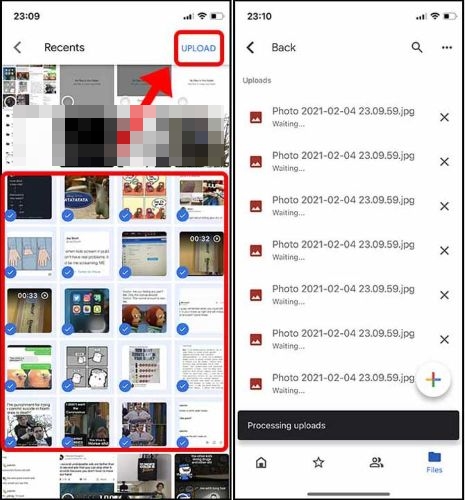
Your pictures are now backed up online. And when you ever need them again, you can open Drive, select the image and download it to your device without restoring the whole iPhone.
Final Words
That is everything on how to recover deleted iPhone photos. We’ve walked through each possible solution. The clear thing is this: recovering your photos through Apple’s own methods are not always guaranteed and convenient. That’s why we introduced Datile iOS Recovery that scans your iPhone for images deeper and pulls them back from the storage sectors before they vanish for good. Even if copies exist in iCloud or iTunes backups, Datile lets you selectively restore only the photos you need.
And remember: The clock is ticking. Every second matters in data recovery. Install Datile now, scan quickly, and get your memories back before they’re gone forever.