
Updated on 2026-02-14
views
5min read
Can you recover deleted voicemails on iPhone? The short answer is YES. In fact, there are several methods to retrieve the deleted iPhone voicemails. However, the method for you will depend on a variety of factors. For example, how long ago was the voicemail removed? Or who is your carrier?
We will factor in every case and show you all the methods to retrieve deleted voicemails on the iPhone, increasing your chances of successful recovery. We will also look at advanced methods like Datile iOS Recovery , which can restore the voicemails by deeply scanning your iPhone’s storage.
Important Note: Minimize using your iPhone until recovery is done. Every new activity risks overwriting those deleted voicemail fragments, lowering the chance of getting your voicemail back using Datile.

How to Recover Deleted Voicemails on iPhone for Free
These three recovery methods come with their own set of conditions. Follow them only if you meet them, because they involve using your iPhone. That means you risk overwriting the voicemails that could still be sitting in the iPhone’s storage sectors. If you don’t meet the conditions, skip to the next section.
Way 1. Use Inbuilt Recovery Feature
Work on:
iPhone running iOS 10 or later
Requirements:
The voicemail must have been deleted recently — within 30 days. Another requirement is your specific carrier policies.
Introduction:
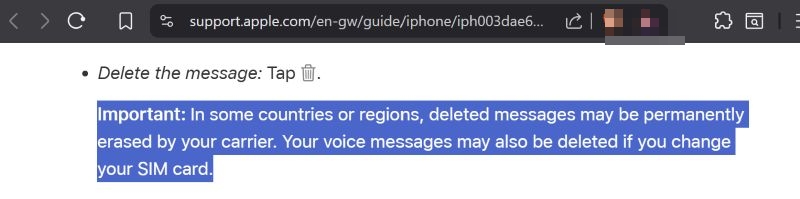
The iPhone only stores a copy of the original voicemail pulled from your carrier’s network and it must follow the carrier’s rules on how long that copy can stay. For some users, the voicemail may remain in the main folder indefinitely. For others, carriers cap it at 48 hours, 7 days, or 30 days before removing it.
The same goes for the deleted copy. Normally, it will sit in the Recently Deleted folder for up to 30 days, just like any other deleted data on the iPhone. However, certain carriers do not permit Apple to keep that copy for long. In those cases, the moment you hit Delete, the voicemail is gone for good.
Steps to Use:
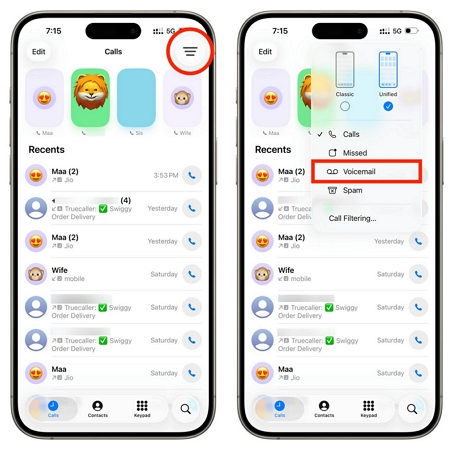
Step 1. Open the Phone app.
Step 2. Tap Voicemail. On iOS 26, first open the three-line menu at the top right and select Voicemail from the Unified View. On iOS 18 or earlier, you’ll find Voicemail at the bottom right.
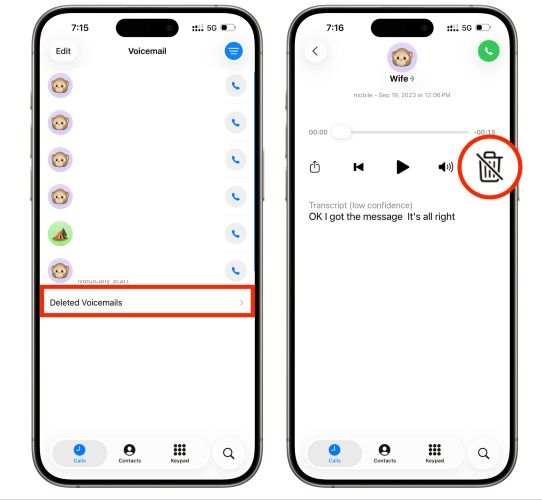
Step 3. Scroll down and tap Deleted Voicemails. This shows the recordings you have recently removed.
Step 4. Pick the voicemail you want. Tap the restore option — it may appear as Undelete on some versions or as a red trash icon with a line through it on others.
Step 5. Go back to the main Voicemail menu. The message you just restored will now be there again, ready to play.
Limitations:
- Work only if the voicemail is still in Deleted Messages.
- Depend on carrier policies — some allow Apple to keep copies while others direct it to erase them instantly.
- Syncing with iTunes or Finder for a backup clears the deleted list.
- Changing your SIM refreshes the Phone app and may wipe deleted voicemails.
Way 2. Restore from iCloud Backup
Works on:
Any iPhone with iCloud Backup enabled (iPhone 5 or later).
Requirements:
- An iCloud backup dated before the visual voicemail was deleted.
- Willingness to erase the iPhone and restore it to that backup snapshot.
- Stable Wi-Fi for the restore.
Introduction:
iCloud backups keep a full snapshot of your device. So, if that backup was created when the visual voicemail was still present in the Phone app, it gets saved as part of the backup.
However, restoring from iCloud means your iPhone will roll back to that older state. All newer apps, settings, and data created since then will be removed.
Tip: Datile iOS Recovery makes this process far easier by letting you open your iCloud or iTunes backup directly. So, you can preview its contents, including visual voicemails, and then restore only what you need. Many people use it for this reason because it saves time, avoids erasing your phone, and gives you the exact file you are after.
Steps to Use
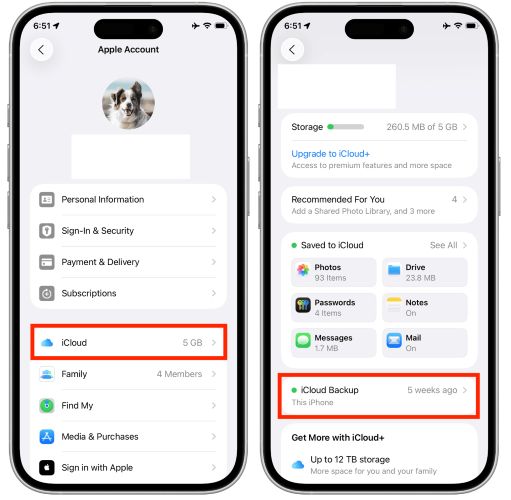
Step 1. Go into Settings, tap your name, open iCloud.
Step 2. Choose Manage Storage > Backups. See the listed backups and confirm whether one was created before the visual voicemail was deleted. Note the date and time of the backup.
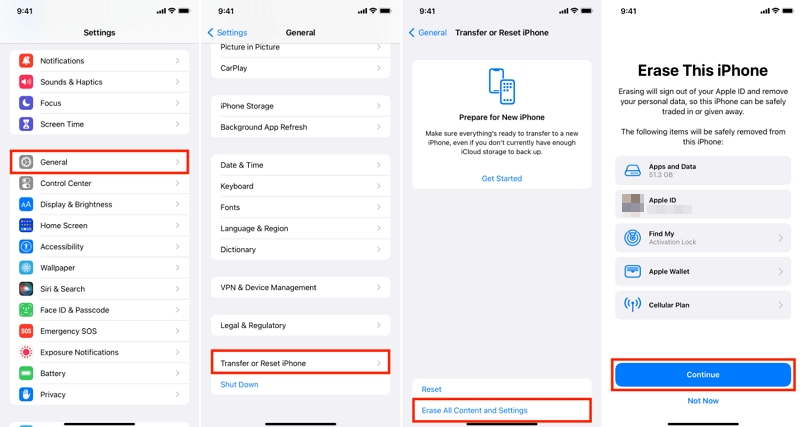
Step 3. From the main Settings menu, pick General this time. Choose Transfer or Reset iPhone, tap Erase All Content and Settings and confirm. Wait while the device wipes itself and restarts.
Step 4. After the restart, follow the on-screen steps, such as choosing your language, Wi-Fi and region.
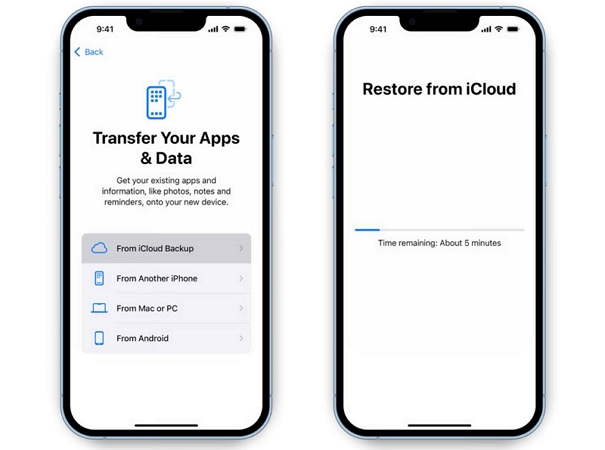
Step 5. On the transfer options screen, pick Restore from iCloud Backup.
Step 6. Sign in with your Apple ID and password. From the list, choose the backup you wrote down earlier.
Step 7. Once setup completes, open the Phone app and tap Voicemail. Your visual voicemail should now be waiting inside.
Limitations:
- iCloud backups don’t include the Recently Deleted voicemail. Folder.
- Restoration erases any data created after the backup date. Make a fresh backup first if you need to preserve recent items.
- Restoration requires time and a strong Wi-Fi connection.
- Carrier policies can prevent recovery in some regions.
Way 3. Perform iTunes Backup Restore
Works on:
All iPhone models, as long as you previously created a iTunes or Finder backup on your PC or Mac.
Requirements:
An iTunes or Finder backup file created when the visual voicemail was still present on the iPhone.
Introduction to the Way:
This method mirrors the iCloud restore but uses your computer instead. Restoring from an iTunes or Finder backup rolls your iPhone back to the date of that backup.
Steps to Use
Step 1. Open iTunes or Apple Devices app if you are on Windows. On a Mac, open Finder instead. Plug your iPhone into the computer with a USB cable.
Step 2. You will now see your iPhone appear in the sidebar. In iTunes, it shows under Devices. In Finder, it appears under Locations.
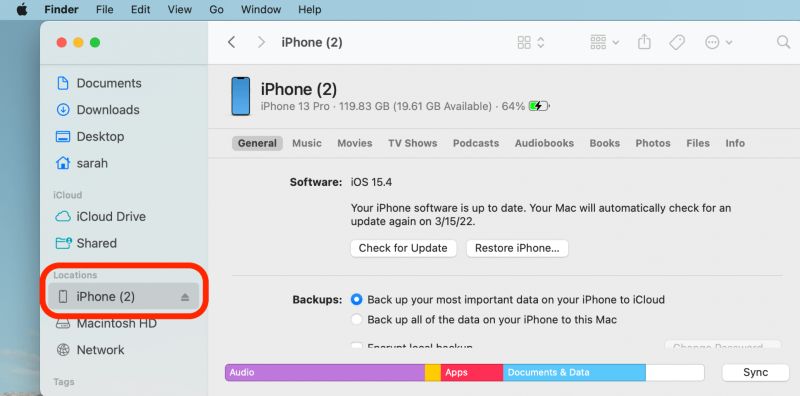
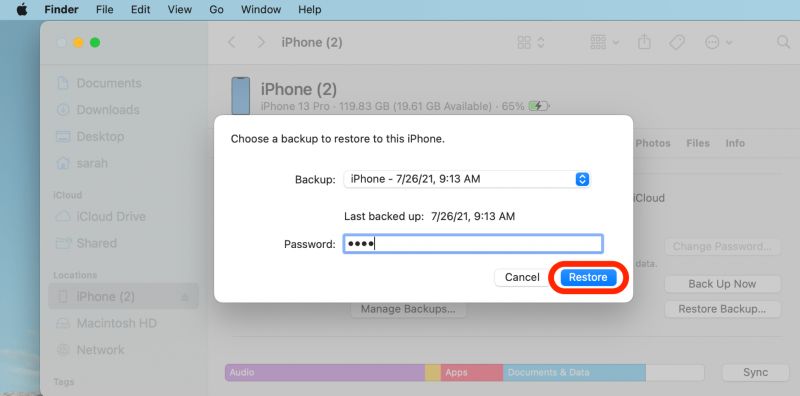
Step 3. In iTunes, go to the Summary section. On Finder, it will be the General tab. And click the option that says Restore Backup.
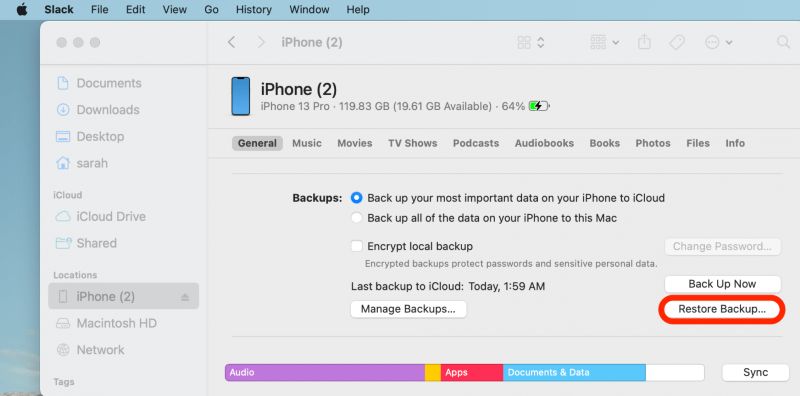
Step 4. A list of backups will appear. Choose the one dated before you deleted the visual voicemail.
Step 5. Type the encryption password (if one was set), then click Restore.
Step 6. You’ll find the voicemail in the Phone app once the process is completed.
Limitations
- You must already have a computer backup that contains the voicemails.
- Restoring is a complete overwrite of your iPhone. Your current apps, settings, messages, and photos will be replaced by the older snapshot.
- The process takes time.
How to Retrieve Permanently Deleted Voicemails on iPhone
Sometimes, your visual voicemail has been permanently deleted. For instance:
- It’s not in the Deleted Messages folder.
- You don’t have any backup.
- You even changed your SIM and it disappeared on its own.
In such cases, you can rely on these two methods. They’re universal, which means they’ll work on any iPhone model you have. Just follow along.
Way 1. Use Professional Data Recovery Tool
A professional recovery tool like Datile iOS Recovery scans and searches every corner of the iPhone’s storage sectors for traces of data that lives there. And it will show you everything it finds — the visible files (the ones still on your device) and the invisible fragments (the ones you thought were gone). If your voicemail hasn’t been overwritten by new data, Datile will allow you to see it again.
Datile also sorts and categorizes each recovered file. Voicemails sit in their own dedicated category, so you don’t have to search through the recoverable data. You simply open the voicemail folder, pick the one you want, and bring it back with minimal effort.
Apple’s own support teams point people toward third-party recovery tools when nothing else works and Datile is the most powerful option in the market.
Key Features:
- Recover voicemails plus other file types(36+): texts, notes, photos, videos, and more.
- Offer three recovery modes — direct iPhone scan, iTunes backup extraction, and iCloud backup exploration.
- Allow you to preview before restoring, so you only recover what’s needed.
- Work across all iPhone models, including the latest iPhone 17 on iOS 26.
- Compatible with both Mac and Windows systems.
- Deliver rapid but deep scans and maintain a high recovery success rate.
Steps to Use Datile to Recover Deleted Voicemails from iPhone Storage:
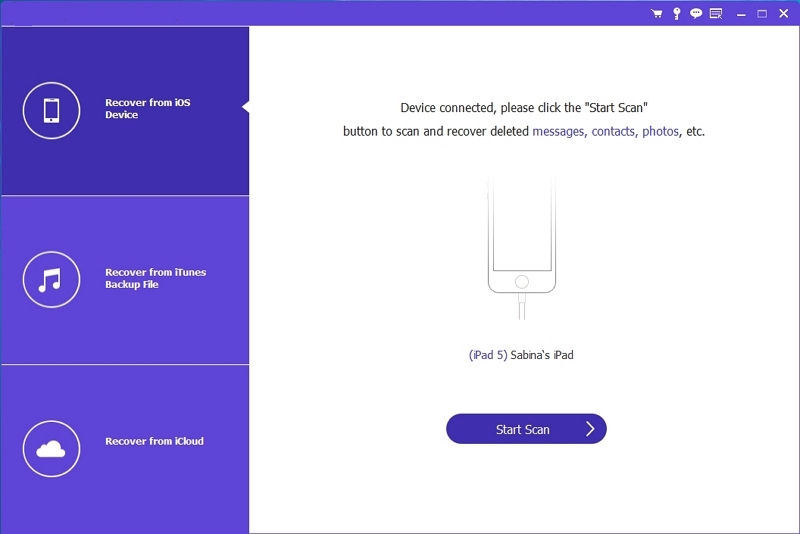
Step 1. Install the program on your Windows or Mac. Connect your iPhone. On the first screen, pick Recover from iOS Device and press Start Scan.
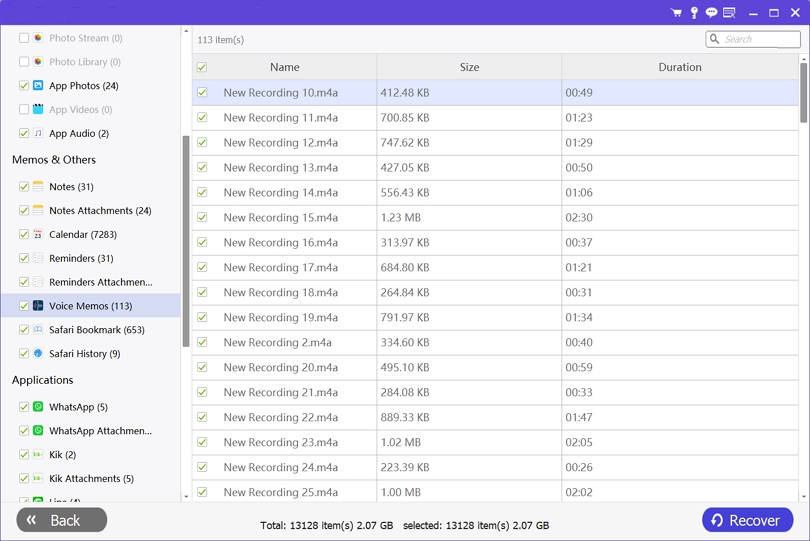
Step 2. After the scan finishes, look at the left panel. Select Voicemails, preview the files and then tick the ones you want back.
Step 3. Press Recover or Restore to Device in the bottom corner. The voicemails you chose will be saved to your computer or your iPhone.
Way 2. Contact Your Carrier
Carriers have the original voicemail files on their servers. According to the policy, most carriers keep it for a limited window before it’s gone forever.
The length of that window varies wildly:
- Verizon wipes the server copy as soon as you hit Delete on your iPhone.
- AT&T often keeps it for around 48 hours.
- T-Mobile and Sprint have their own timeframes, ranging anywhere from a few hours to several weeks.
- Some networks even stretch that period up to 60 days.
Just call them for voicemail recovery. If the voicemail hasn’t been scrubbed from their server, they can usually resend it to your device or provide another way to retrieve it. You may need to pay a small fee to recover it.

Here’s a quick list of the major US carriers and how to reach them:
| Carrier | Customer Support Number | Website |
|---|---|---|
| Verizon | 1-800-922-0204 | www.verizon.com |
| AT&T | 1-800-331-0500 | www.att.com |
| T-Mobile | 1-800-937-8997 | www.t-mobile.com |
| Sprint (now part of T-Mobile) | 1-888-211-4727 | www.sprint.com |
| US Cellular | 1-888-944-9400 | www.uscellular.com |
Bonus: How to Retrieve Deleted Voicemails on Samsung
On Samsung phones, the ability to bring back a deleted voicemail rests on your carrier’s system. As explained earlier, carriers often keep a server-side copy for a limited time, and whether you get it back depends entirely on their policies. If your carrier keeps them for a short period, here’s the usual path:
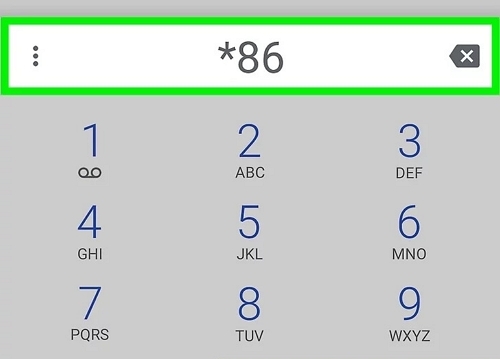
Step 1. Dial into your voicemail system. On AT&T, you can do this by pressing and holding 1. For Verizon Wireless or US Cellular, the shortcut is ✱86#.
Step 2. Enter your voicemail password if the system asks for it.
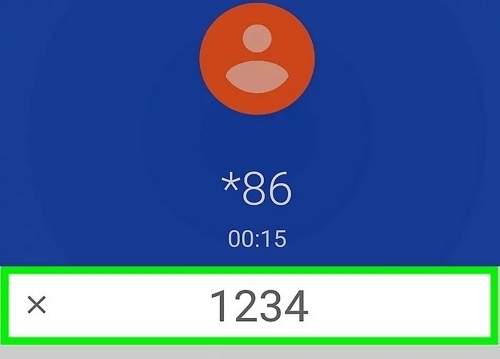
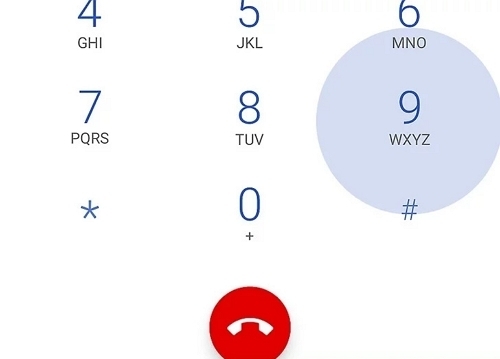
Step 3. Press 9 to check erased messages.
Step 4. Press 9 again to save it back into your active voicemail box.
Another path is to rely on a professional recovery tool such as Datile Android Data Recovery. Datile can recover 16+ lost data on your iPhone and supports Google Pixel, Huawei, and many other brands.
Final Words
Apple’s built-in methods to recover deleted voicemails on iPhone are limited. You need to be within the 30-day window.
Datile iOS Recovery works in all the other situations.
- If you have iCloud or iTunes backups, you can let Datile scan them selectively. That way, you recover only the voicemails you want and avoid wiping the whole device.
- Or you can run a direct scan of your iPhone’s storage. Datile digs into the hidden sectors, finds the deleted fragments still sitting there, and lets you restore them before they are overwritten.