
Updated on 2026-02-22
views
5min read
Summary: This article focuses on recovering deleted voice messages from iMessage. If you are looking for ways to retrieve deleted voicemails from the Phone app, we have also included solutions for that. You can find them in Part 2.
iMessage voice messages allow you to communicate faster than text messages. Sometimes, you may accidentally delete an unread audio message or regret deleting one. Whatever your situation, don’t worry, we’re here to help. In this post, we share 6 ways to recover deleted iMessage voice messages on your iPhone. Additionally, we also explain how to retrieve deleted iPhone voicemails, which many users are often confused about.
How to Recover Deleted iMessage Voice Messages on iPhone
The methods for recovering iMessage voice messages here work best for different situations. Whether you have a computer, have a backup, or how the voice messages were deleted, you can find the right solution here.
| Recovery Method | Best for Audio Messages Deleted Within | When This Way has the Highest Success Rate | Estimated Time (About) |
|---|---|---|---|
| Way 1. Through Recently Deleted Folder | 30 days | The deleted audio messages are still in the Recently Deleted folder, usually within 30 days. | Several minutes |
| Way 2. Resend Audio Messages | One day | The sender is contactable and they haven’t deleted the voice messages. | A few minutes |
| Way 3. Use Datile iOS Recovery | No specific time limit | You recover the audio messages as soon as possible. | Commonly 5 to 30 minutes, depending on the size and number of your audio messages. |
| Way 4. Via iCloud iMessages | Within minutes | Your iPhone’s network was off or unstable when the voice messages were deleted. | 10 minutes |
| Way 5. Restore iCloud Backup | Within 24 hours | You want to recover the messages deleted a few moments ago. | 10 minutes to a few hours |
| Way 6. iTunes Backup Restoration | Within 24 hours | You have backed up your iPhone just now. | 10 minutes to several hours |
Way 1. Recover from Recently Deleted Folder
When to Use This Way: Your device is running on iOS 16 or later providing the Recently Deleted folder and you want to get back voice messages deleted within the last 30 days. Also, you haven’t emptied your Recently Deleted folder yet.
Similar to the Photos app, Apple added a Recently Deleted section to Messages in recent iOS versions. If you’ve just deleted voice messages, this is the fastest way to recover them.
How to Recover Audio Messages from Recently Deleted
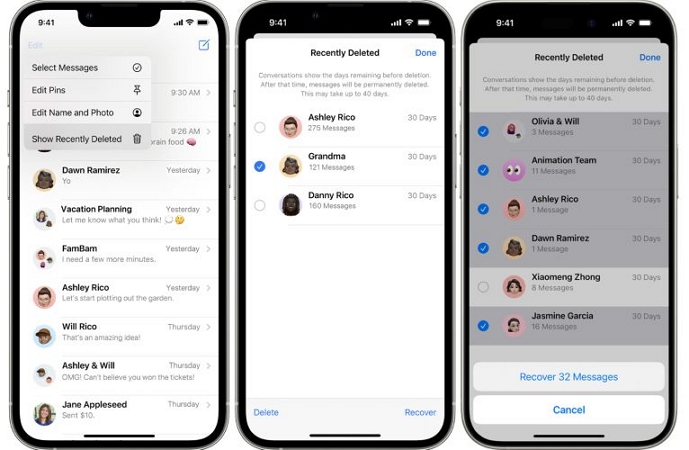
Step 1. Open the Messages app and tap Edit at the top left. If message filtering is turned on, tap Filters instead.
Step 2. Select Show Recently Deleted.
Step 3. Look through the list of conversations and pick the one containing the deleted audio message.
Step 4. Tap Recover and then confirm with Recover Messages.
The conversation will return to your inbox and the audio message will be playable again.
Tip: How to Keep Audio Messages in iMessage Forever
If you notice that your audio messages disappear automatically, it’s likely because the Expire After 2 Minutes option is enabled. Expired messages won’t be moved to the Recently Deleted folder—only the ones you delete manually can be recovered from Recently Deleted.
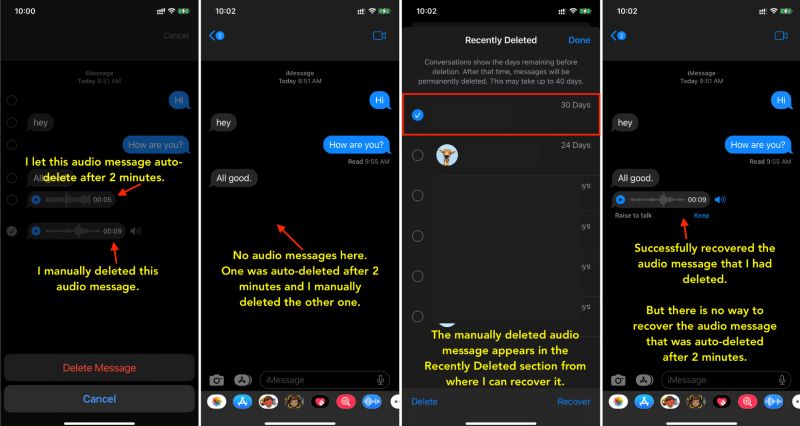
To keep all or specific voice clips from vanishing after a couple of minutes, Apple gives you two ways:
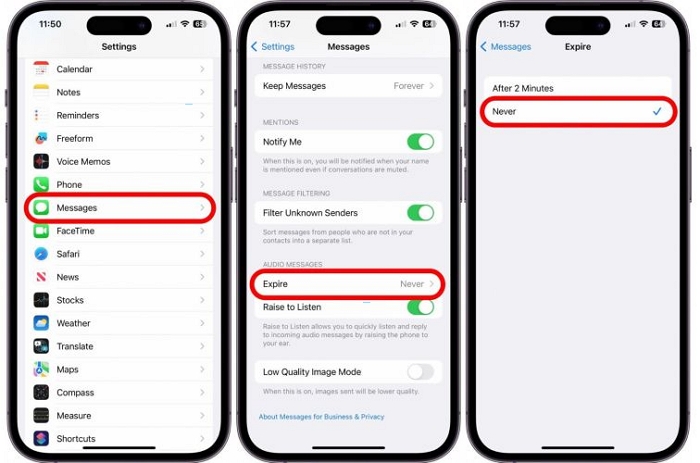
- Change the default setting: Open Settings > Messages > Expire under Audio Messages, and set it to Never. Every voice message you receive will now stay in your conversations until you delete it yourself.
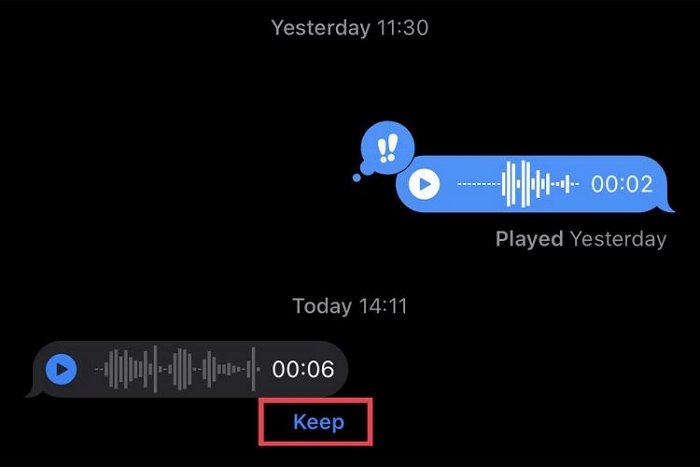
- Save individual messages manually: When listening to a voice clip in iMessage, tap Keep. This locks that specific recording in place while others will still follow the normal expiration rules.
Way 2. Resend Audio Messages
Best for: The sender is reachable and happy to help. Meanwhile, the audio message is about personal matters but not work.
This method is easy to follow, but it may make others think you’re unprofessional, especially if the sender is your work partner.
Steps to Resend a Voice Message
Have the sender follow the steps below to resend the message to you.
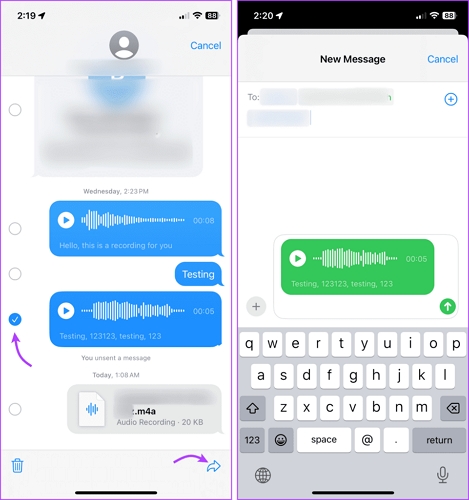
Step 1: Locate and long-press the target audio message, then choose More.
Step 2: Select the voice message and tap the Forward button.
Step 3: Choose yourself as the recipient and tap the Send icon.
Way 3. Use Datile iOS Recovery
Available to: Turn to this method when you want your deleted voice messages back with a high guarantee and a higher success rate.
A data recovery software is helpful because anything played on your device leaves a record pointing to the audio file (somewhere on the iPhone’s data disk). So, while iOS unlinks that record from your access, the file itself still remains there. That’s why Datile iOS Recovery can scan iPhone directly and restore what the system hides. So, this method will be useful regardless of your iOS version. And it works whether audio clips disappeared automatically after the two-minute rule or were deleted more than forty days ago.
Datile isn’t limited to recover voice messages. The tool supports 36+ file types, covering deleted photos, contacts, calendars, text conversations, and more. Whether the data loss is caused by expiration, factory reset, manual deletion, a misstep with backups or other reasons, Datile gives you a straightforward way to recover it quickly.
How to Recover iMessage Voice Messages with Datile
Step 1: Choose Proper Recovery Mode in Datile
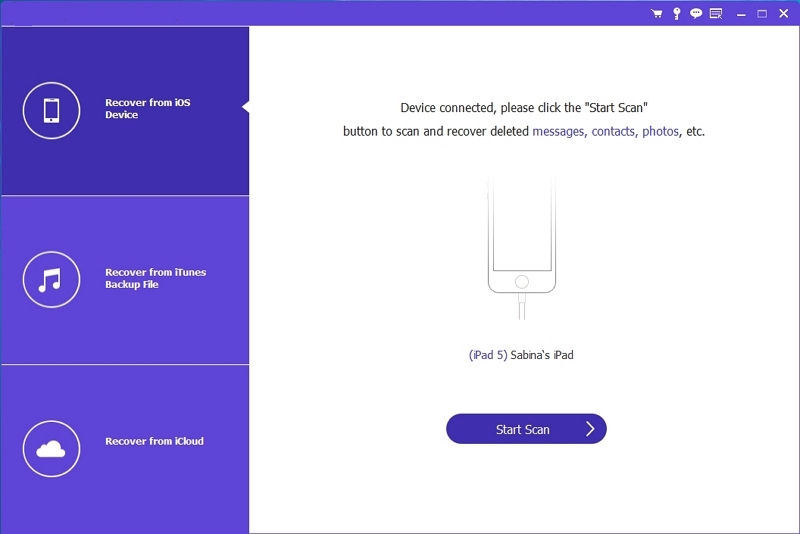
Open Datile iOS Recovery. Choose Recover from iOS Device (or iTunes/iCloud) and then click Start Scan.
Step 2: Scan Out Lost Files on iPhone
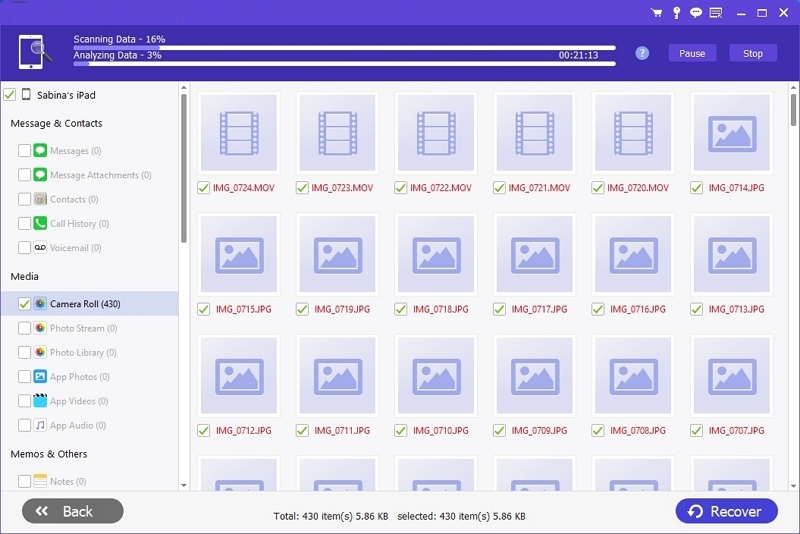
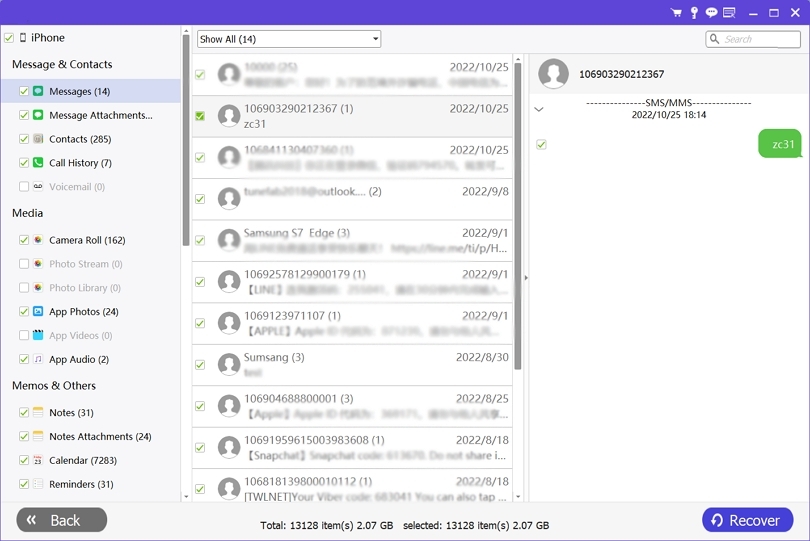
Datile will scan and list all the recoverable files.
Step 3: Start Recovering Deleted Messages
Click Messages in the left panel to see your lost audio iMessage. Choose the audio iMessage you want and hit Recover.
Step 4: Retrieve Losted Messages Successfully
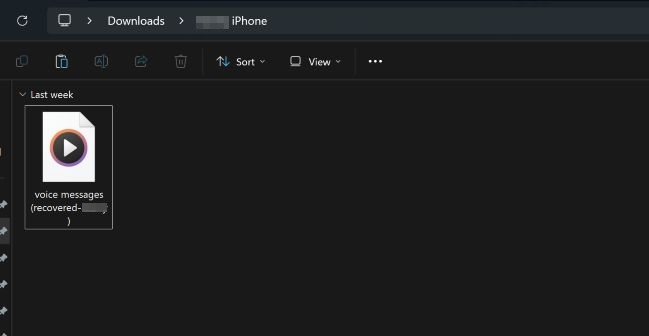
The recovered audio message will be saved to your computer. You can listen to them. And if you prefer, you can even move them to your iOS devices.
Way 4: Use iCloud Messages
When to Apply: Your local messages haven’t been synced to iCloud yet.
To check whether iCloud Messages has started syncing, open another Apple device using the same Apple ID and with iCloud Messages enabled. If the message you deleted on one device still appears on the other, it means iCloud sync hasn’t taken place yet. In that case, follow one of the two options below to recover the disappeared audio messages.
Option 1: Send Audio Messages from Another Device
Open Messages on another device where the audio message still exists and resend it to the iPhone where it was deleted. The steps are similar to those described in Way 2 above.
Option 2: Turn off/on iCloud Messages to Recover Audio Messages
Step 1: Go to Settings and tap your avatar.
Step 2: Choose iCloud > Messages.
Step 3: Turn on Use on this iPhone.
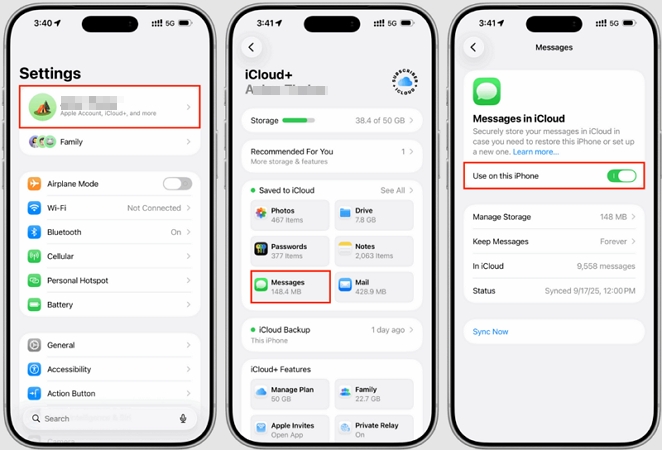
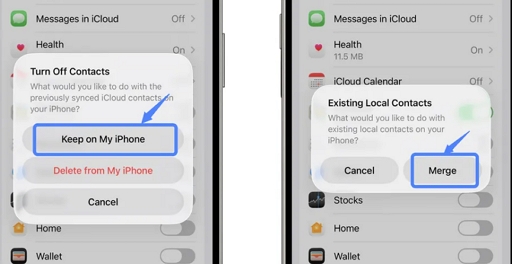
If the Use on this iPhone option is enabled, disable it and choose Keep on my iPhone. After a while, turn on the same option and select Merge. This will keep both your local messages and the messages synced with iCloud on your iPhone.
Way 5. Restore from iCloud Backup
Suitable for: You didn’t enable iCloud for Messages, but you had backed up your iPhone to iCloud before deleting the voice messages. Also, you don’t mind that your iPhone will be restored to the state of the backup.
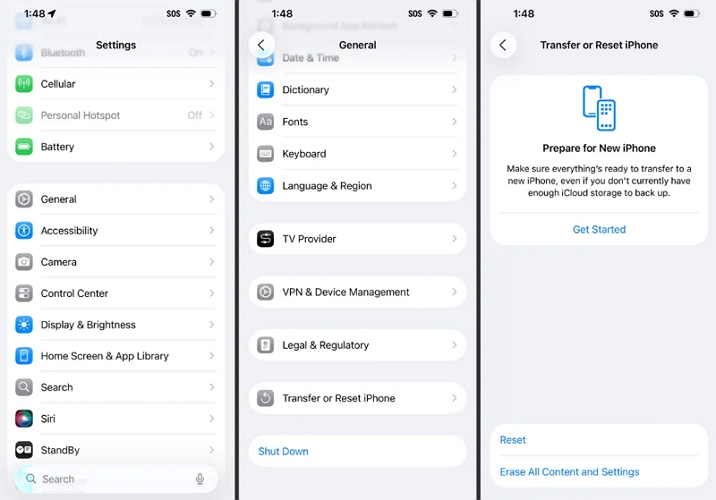
To restore an iCloud backup to your iPhone, you first need to factory reset it, which means all data and settings on the device will be erased. Here is how this way works.
Step 1: Open Settings on your iPhone and select General.
Step 2: Scroll down and tap Transfer or Reset iPhone.
Step 3: Tap Erase All Content and Settings, then confirm with your screen passcode.
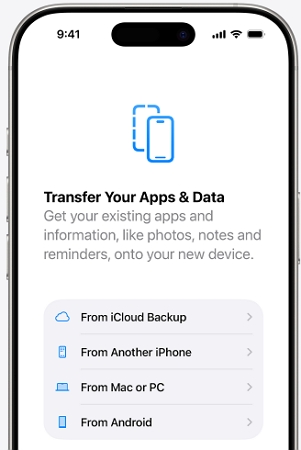
Step 4: Set up your iPhone as new. When you reach the "Transfer Your Apps and Data" screen, tap From iCloud Backup. Then, sign in with the Apple ID that contains the iCloud backup with your Messages.
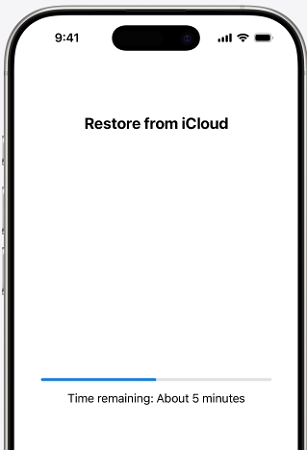
Step 5: Select the appropriate backup and follow the on-screen instructions to complete the restoration and setup.
Way 6. Restore from iTunes Backup
When This Method Works: Use this method if none of the ways above are available to you and you have backed up your iPhone with iTunes before.
This method works similarly to iCloud, but the main difference is that it is performed on your Windows PC or Mac, rather than directly on your iPhone.
Step 1: Open iTunes or Apple Devices app on Windows or Finder on Mac. Then, connect your iPhone to the computer.
Step 2: Locate your connected iPhone in iTunes, Finder, or Apple Devices.
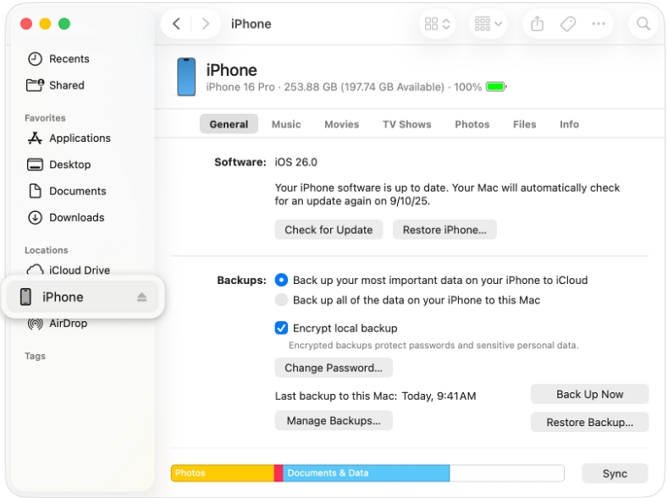
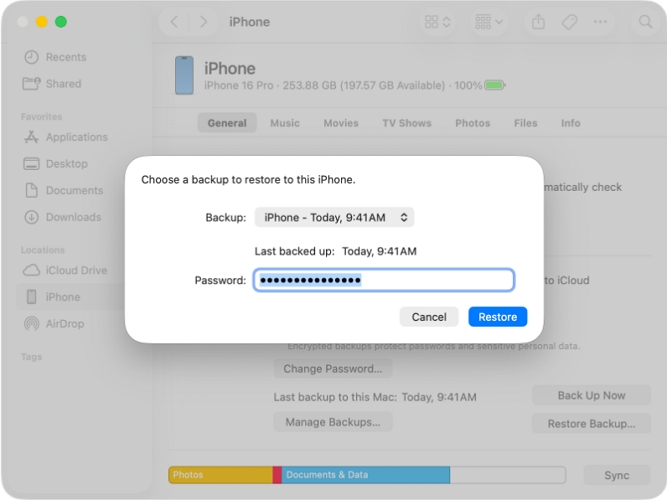
Step 3: Click Restore Backup, select the backup that contains the audio messages you want to recover, and then click Restore to start the process.
Bonus: How to Recover Deleted Voicemails on iPhone Without Backup
Voicemails are a different kind of voice message. Instead of being sent in the Message app, they’re left in the Phone app by callers. The good thing is that they don’t vanish after two minutes. Instead, they stay on your device until you delete them yourself. We’ll walk through two ways to get them back without an backup.
Way 1. Through Phone App
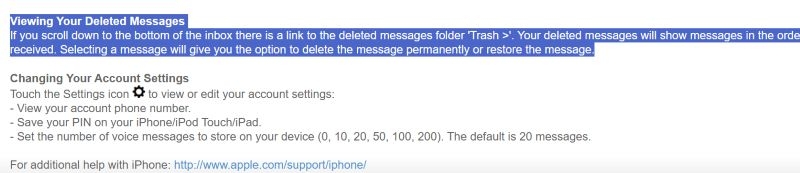
Once you play a voicemail on your iPhone, it gets cached for a limited time — usually anywhere from 24 hours up to seven days. After that window, the cached copy expires.
If you delete one yourself, though, it moves into the Deleted Voicemails folder inside the Phone app, where you still have a chance to bring it back — for a longer period than the cached copy would survive.
Here’s How to Recover Voicemails via the Phone App:
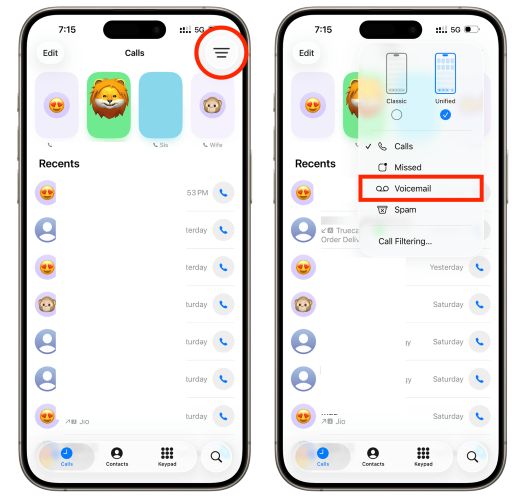
Step 1. Open the Phone app and head to the voicemail section.
- On iOS 26 or later, tap the three lines in the top-right corner, switch to Unified view and pick Voicemail from the list.
- On iOS 18 and older, just tap the Voicemail tab at the bottom right.
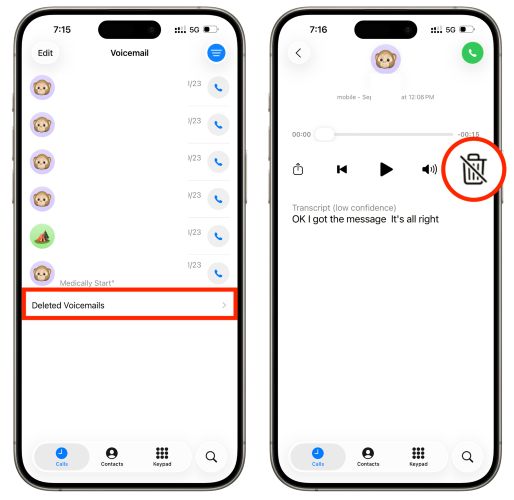
Step 2. Select Deleted Voicemails. You’ll see a list of recently removed voicemails still sitting there.
Step 3. Tap the caller’s voicemail you want to restore. An undelete option appears, shown as a crossed-out trashcan. Select it and the voicemail returns to your main voicemail inbox.
You can repeat these steps for other voicemails available in that folder.
Way 2. Via Carrier
Voicemails aren’t really stored on your iPhone. They live on your carrier’s servers for a limited window — often 24 hours to seven days, even after you play them. That means the other place to turn for voicemails recovery is your carrier. The outcome depends entirely on carrier policy. Most providers keep server backups for only 7 to 30 days. Policies also shift over time.
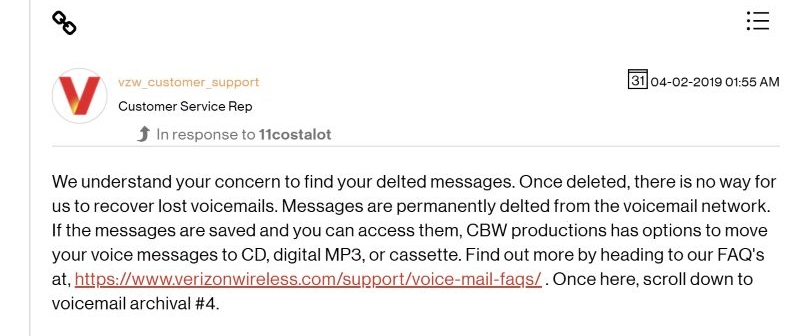
Verizon is a clear example: in 2017, their support guides said you could call technical support within 24 hours and restore a deleted voicemail.
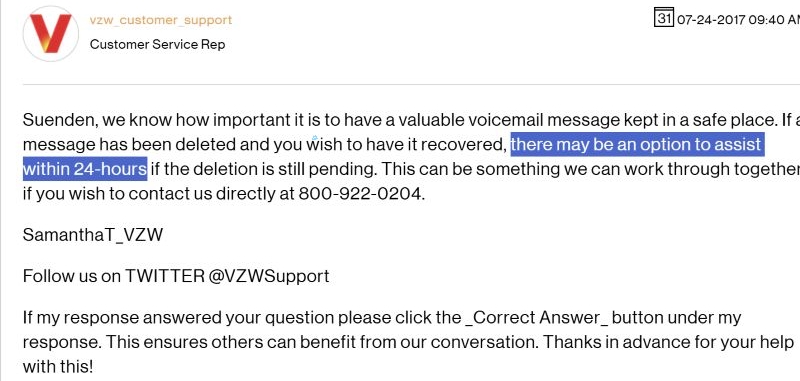
By 2019, that changed. Till now, Verizon’s position remains the same. Once a voicemail is gone from both the iPhone and their servers, it cannot be recovered.
Still, it’s worth trying:
Step 1. Sign in to your carrier’s website or mobile app. Some providers like AT&T’s Voicemail Viewer (compatible with iOS 11 and later) allow you to recover the voicemails easily.
Step 2. If you don’t see recovery options on the app or their website, you can call the carrier’s support team. In some cases, they can re-push the voicemail to your inbox, provided it’s still stored on their servers.
If neither the Phone app nor your carrier can help, the final option is Datile iOS Recovery. Just like with iMessage audio, it scans your iPhone’s data disk for voicemail fragments that haven’t yet been overwritten. So, you can connect your device, run a scan and bring the voicemails back with Datile easily.
External Tip: How to Listen to Old Voice Messages in iMessage
If you set your iPhone to never expire voice messages or you tapped Keep on certain audio clips, those voice messages will remain in your iMessage conversations. You can scroll back through the chat and play them again whenever you want.
Unfortunately, neither iOS 18.4 nor the iOS 26 beta has introduced a search function for audio messages. So, you’ll need to remember roughly when the message was sent or received. And scroll back to that date in the conversation to find it.
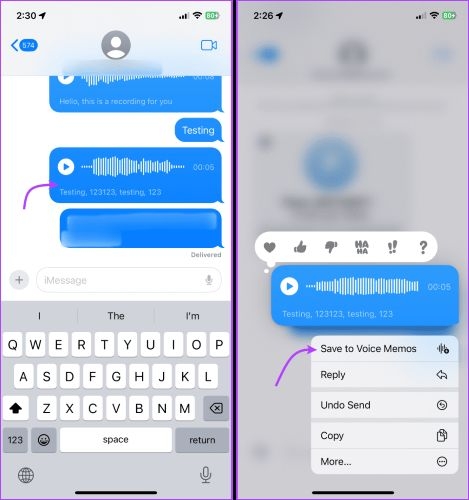
For future reference, it helps to save important clips outside of iMessage:
- You can long-press a message, copy it, and paste it into the Files app or save it to Voice Memos.
Final Words
Recovering deleted voice messages on an iPhone is not as complicated as it first appears. Apple’s built-in method is straightforward, provided you’re on iOS 16 or later, the message was deleted within the past 30 days and it hasn’t auto-expired.
When those conditions aren’t met, Datile iOS Recovery steps in. It scans the iPhone’s data disk and allows you to recover auto-expired iMessage audios, erased voicemails, missing photos, videos, and other older files you thought were gone for good.