
Updated on 2026-03-15
views
5min read
Losing videos on your iPhone isn’t a good experience, especially when those videos capture important memories—family moments, travel clips, or work-related recordings. Fortunately, deleted videos are often recoverable, and the success rate can be surprisingly high if you take the right steps quickly. Next, this post will show you how to recover deleted videos from iPhone with the highest possibility, from using built-in recovery options and iCloud sync method to professional recovery tools and backup-based options.
Recover Deleted Videos from iPhone with High Success: Choose the Right Method and Act Quickly
When a video disappears from your iPhone, the recovery method you choose can make a huge difference. Some solutions work only for recent deletions, while others can retrieve permanently deleted videos.
The table below helps you quickly identify which method fits your situation.
| Recovery Method | Best For | Estimated Success Rate |
|---|---|---|
| Shared Album | Videos that were previously uploaded or shared in iCloud Shared Albums. | Medium (70–80%) |
| Recently Deleted Folder | Recover videos deleted within 30 days. | High (90–100%) |
| Professional Data Recovery Tool - Datile | Retrieve videos deleted after 30 days. You haven’t backed up your videos before. Only restore videos from your iCloud or iTunes backup. |
Very High (98-100%) |
| iCloud Sync Recovery | Videos still stored in iCloud or another device. | Medium (70–80%) |
| iCloud Backup Restore | Videos backed up to iCloud previously. | Medium–High (60–85%) |
| iTunes Backup Restore | Users with local computer backups. | Medium–High (60–85%) |
Another key factor is timing. When videos are deleted, the storage space they occupy becomes available for new data. If you keep using your iPhone like taking photos, downloading apps, or recording videos, the chances of successful recovery decrease.
How to Recover Recently/Permanently Deleted Videos from iPhone
Before trying any recovery methods, you can check if your videos are hidden first. Many people assume their videos are gone when they are actually locked in the Photos app.
Quick Checks Before Trying Recovery Methods
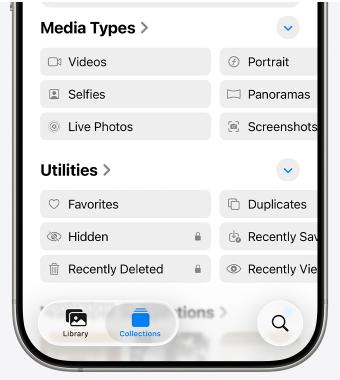
- Open Photos on your iPhone and tap Collections at the bottom left corner of the screen.
- Swipe up the screen. Locate Utilities section and tap Hidden here.
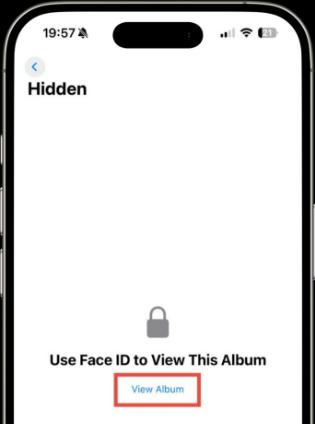
- Tap View Album and unlock your Hidden album with Face ID or Touch ID.
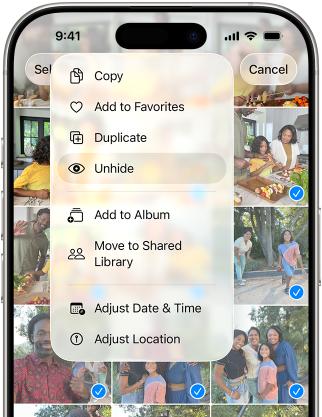
- Check if the videos you are looking for are there. If there are, congratulations! just choose the video and hit More.
- Select Unhide. Your videos have now been recovered.
Although this check is easy, it’s worthy trying, which can save you from unnecessary recovery steps sometimes.
Way 1. Check Shared Album to Recover Videos
If the videos you lost are family videos and you have created Shared Albums before, don’t miss this way.
A Shared Album is part of iCloud Photos, allowing you to conveniently share multiple photos and videos with friends and family. Videos in a Shared Album are stored as independent copies, separate from your main iPhone library. So there is a chance that the videos you deleted from library are still available in Shared Albums.
To check if the deleted videos are still in Shared Album
Step 1. Switch to Albums at the bottom of the Photos app.
Step 2. Scroll down to Shared Albums.
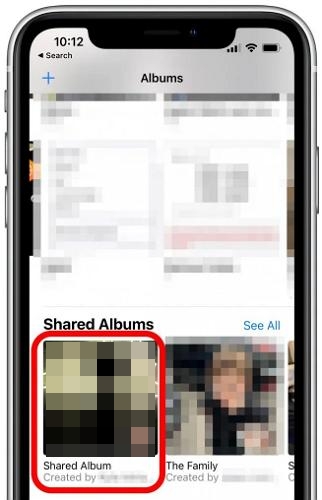
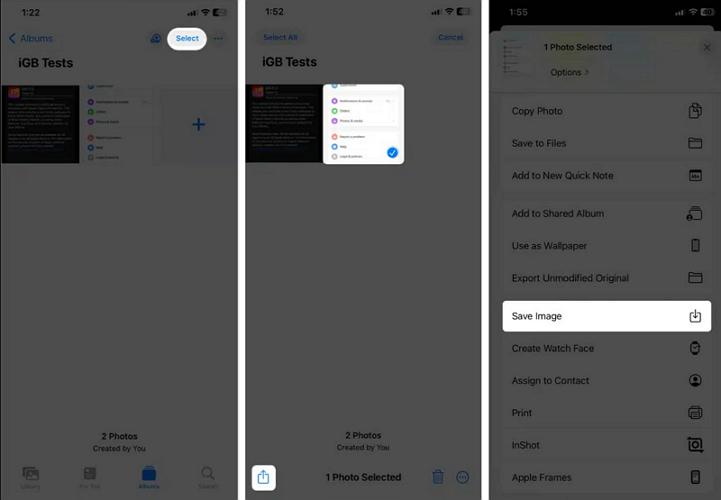
Step 3. Enter the shared album where the video might have been uploaded. Then, browse to locate the wanted video.
Step 4. Tap the menu icon at the top right corner and select Share. Finally, hit Save Video to restore it back to your main library.
Way 2. Restore Deleted Videos from Recently Deleted
If you can’t find the removed videos in Hidden Albums or Shared Albums, move to the Recently Deleted folder, where they may be there. When you delete a photo or video on an iPhone, it will be moved to the Recently Deleted album first for your convenient recovery. After 30 days, the items here will be removed.
Steps to Recover Videos from Recently Deleted
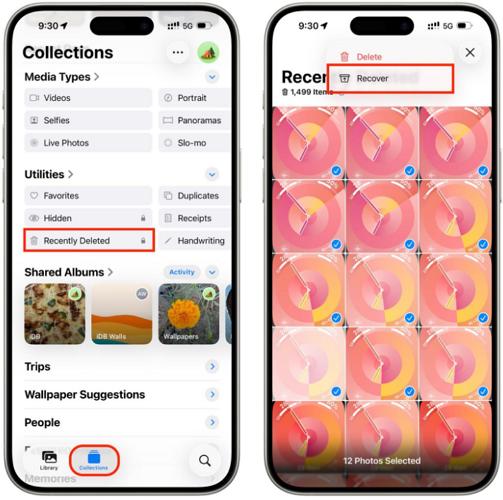
Step 1. Run Photos app and tap Collections.
Step 2. Locate Utilities and choose Recently Deleted. Then, access it with your Face ID or Touch ID.
Step 3. Look through the deleted media and select the video you want to recover.
Step 4. Tap the 3 dots in the upper screen. From the pop-up, choose Recover.
Tip: If your phone storage is nearly full, iOS may automatically clean the Recently Deleted folder earlier. So you may not find the deleted videos in Recently Deleted even they are removed within the last 30 days.
Way 3. Use Professional Tool to Recover Permanently Deleted Videos
If your videos are no longer in the Recently Deleted folder, they may still exist in the device's internal storage but just not visible to the system anymore. This is where professional data recovery tools like Datile iOS Recovery become useful.
Datile can scan deep system storage and retrieve deleted files before they are overwritten. It recovers over 36 types of iPhone data, including videos, photos, contacts, messages, WhatsApp chat and more. Datile is not only useful when you need to recover iPhone data without a backup but also helpful when you want to restore iCloud or iTunes backup without a factory reset.
Key Features
- Recover deleted photos or videos after 30 days.
- Support selectively restore iTunes backup and iCloud backup.
- Deep scanning technology for higher success rates - up to 98.6%.
- Preview deleted files before restoring.
- Retrieve data lost due to accidental deletion, factory reset, failed update, and more.
Steps to Use Datile to Recover Permanently Deleted iPhone Videos
Step 1. Run Datile iOS Recovery on your Windows or Mac device after installation. Then, use a workable USB cable to connect your iPhone to the computer.
Step 2. Locate Recover from iOS Device section, the default option after you run the app. Then, start a deep scan by hitting Start Scan.
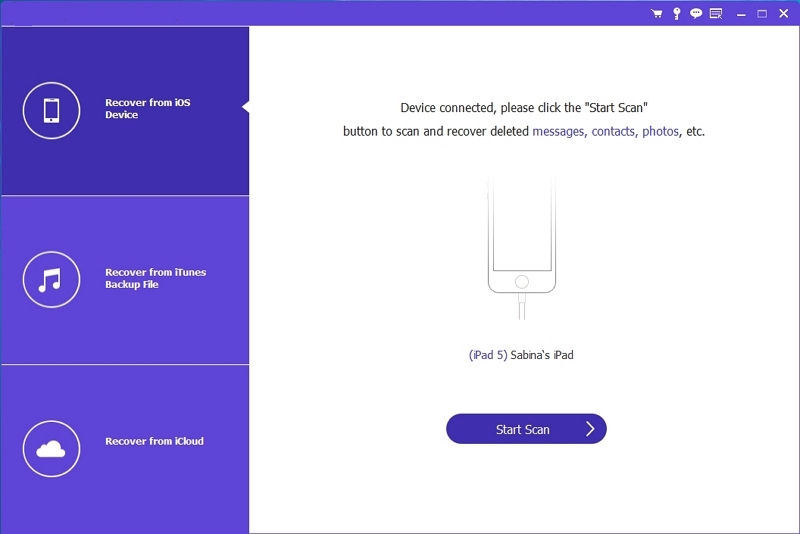
Step 3. Select Camera Roll in the left pane. Preview the detected videos. Select the videos that are deleted and invisible on your iPhone and click Recover.

Way 4. Get Back Lost Videos via iCloud Sync
Many users don't realize that iCloud synchronization can sometimes help restore deleted videos.
This way works because local storage and cloud storage do not always update at the same time, especially when iCloud Photos is disabled on one device. Below are two common scenarios where video recovery is possible by using iCloud sync.
Case 1: Two Apple Devices Using the Same iCloud Account
If you have two Apple devices signed with the same iCloud account, this way could work for you.
Take the iPhone as an example here. You have iPhone A with iCloud Photos turned off and iPhone B with iCloud Photos turned on. When you you accidentally delete a video on iPhone A, the deletion only affects its local storage because iCloud Photos is disabled. The original video still exists in iCloud on iPhone B. In this case, to recover deleted videos on iPhone A, just open the Photos app on iPhone B, locate the video, and then use AirDrop or other sharing options to send it back to iPhone A.

Case 2: Deleted While iCloud Photos Was Disabled (One iPhone)
Another interesting scenario occurs on a single iPhone. If videos are deleted on your iPhone while syncing is disabled, the originals remain safely stored in iCloud. Once you turn iCloud Photos back on, the system automatically compares your local library with the cloud. Any videos that exist in iCloud but are missing locally will be downloaded back to your device, effectively restoring them.
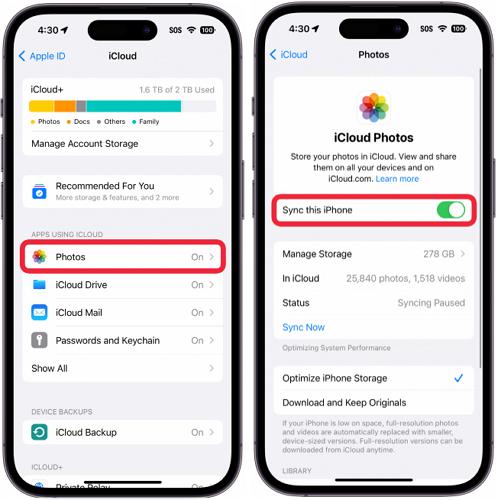
To Turn on iCloud Photos for Video Recovery
Step 1. Enter Settings and tap your Apple account avatar.
Step 2. Go to iCloud > Photos.
Step 3. Slide the iCloud Photos toggle from left to right(On).
Step 4. Select Merge when a pop-up slides up.
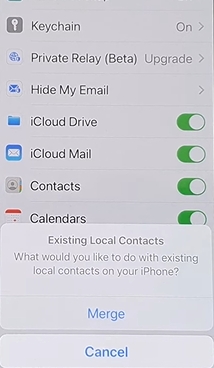
After that, any videos deleted from your iPhone while iCloud Photos is off will automatically download back to your device.
Way 5. Retrieve Lost Videos Using iCloud Backup
Restoring an iCloud backup is a method worth trying if you have backed up your iPhone with iCloud but not enabling iCloud Photos. While this method can help you recover lost videos, it also has some drawbacks. You need to reset your iPhone to factory settings to restore the backup, and any current data on your device that is not included in the iCloud backup will be lost.
Tip: Before restoring, you can create a current backup of your device. This allows you to recover recent data later if needed.
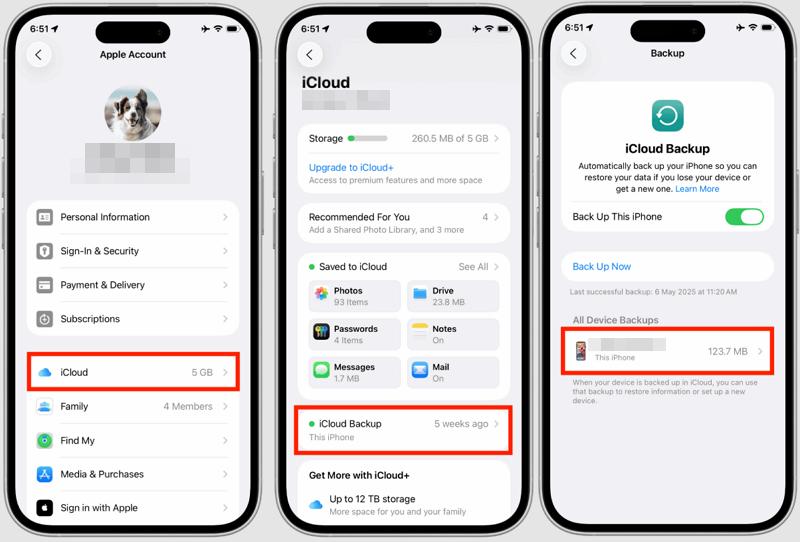
Steps to Restore Videos from iCloud Backup
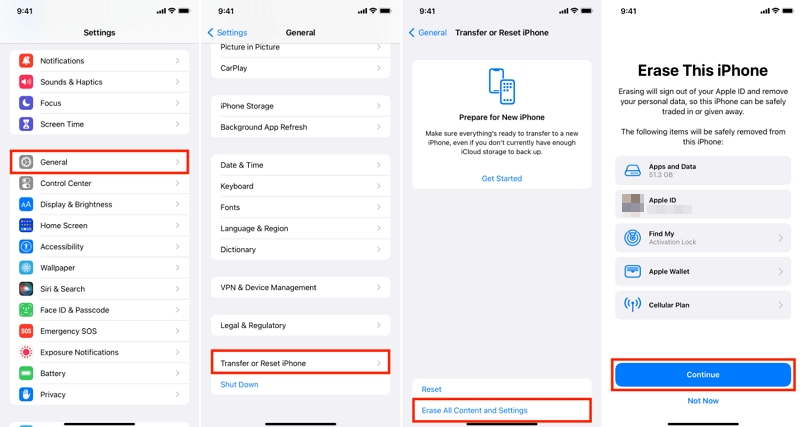
Step 1. Factory Reset Your iPhone
- In Settings, go to General and then Transfer or Reset iPhone.
- Scroll down the screen to choose Erase All Content and Settings. You will need to enter the screen passcode to confirm the reset. Also, don’t forget to turn off Find My iPhone if it’s on before reset.
Step 2. Restore iCloud Backup to iPhone
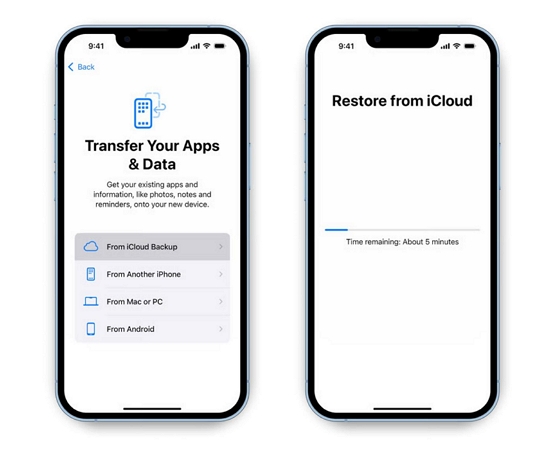
- Once your iPhone starts, follow the onscreen steps to set up your device. In the “Transfer Your Data & App” screen, select Restore from iCloud Backup.
- Choose a backup created before the video was deleted. After the restore completes, your lost videos will reappear.
Way 6. Restore iTunes Backup to Regain Lost Videos
This way is for users who usually back up their iPhone with iTunes or Finder and haven’t turned on iCloud sync or iCloud backup before. By restoring an iTunes backup, you can bring back deleted videos along with other data from the point in time when the backup was made.
Steps to Restore iTunes Backup to Get Back Lost Videos
Step 1. Connect your iPhone to your desktop with USB and open Finder (Mac) or iTunes/Apple Devices (Windows).
Step 2. Select your device and click Restore Backup.
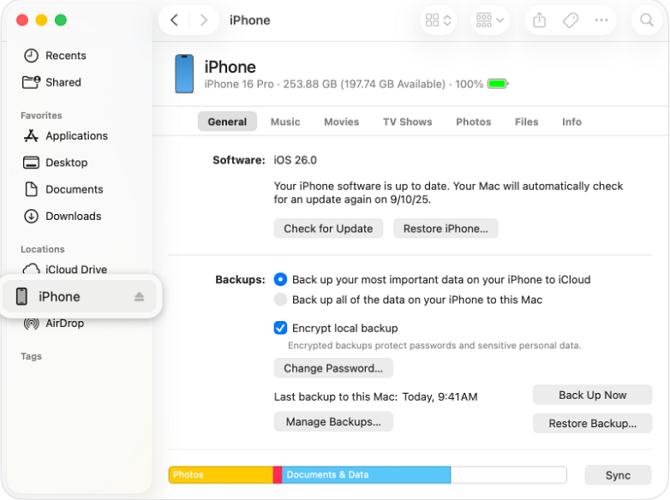
Step 3. Choose the backup that includes the removed video, enter the iTunes backup password if prompted and hit Restore to start the restoration.
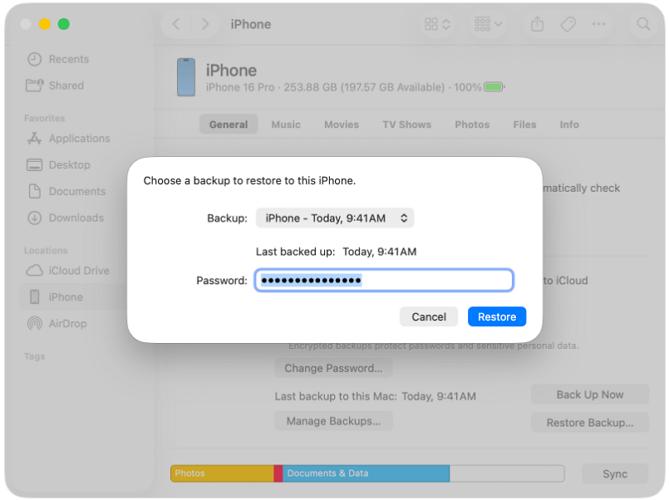
Step 4. Once the restore process finishes, disconnect your iPhone and open its Photos app. Your video files will return to the library.
Tip: Back Up Your iPhone
Both iCloud Backup and iTunes Backup are official Apple methods. You can use the table below to compare them and choose the method that best suits your needs.
| Feature | iCloud Backup | iTunes (or Finder) Backup | Which to Choose |
|---|---|---|---|
| Storage Location | Cloud (require purchasing more iCloud space generally). | Local computer storage (Mac/PC). | Choose iCloud if you want automatic cloud storage and access anywhere. Choose iTunes if you prefer local storage and offline recovery. |
| Internet Required | Yes, for backup and restore. | No, works offline. | Choose iTunes for offline restores or slow/limited internet. |
| Data Types Covered | Most iPhone data except iCloud-synced items (like iCloud Photos, iMessages in iCloud). | Almost all device data including photos, messages, app data, settings, except iCloud items. | iTunes is better if you want a complete snapshot including app data. |
| Ease of Use | Automatic daily backup when connected to Wi-Fi. | Manual backup via computer. | iCloud is easier for beginners. iTunes is suitable for advanced users who want full control. |
| Speed | Depends on internet speed. | Usually faster; local processing. | iTunes is faster for large backups. iCloud may be slow if backup is large or internet is slow. |
| Data Quality | May compress videos and photos if iCloud storage is limited. | Often retains original, higher-resolution videos and photos. | Choose iTunes if you want maximum quality for videos or photos. |
Conclusion
Simply put, to recover videos deleted within 30 days, restoring them from Recently Deleted folder should be your first option. When you need to recover videos that disappear from Recently Deleted or are removed after 30 days, iCloud Sync trick and Datile iOS Recovery are recommended.