
Updated on 2026-03-18
views
5min read
You cleared Safari history, or it disappeared after an update, and now you need it back. Whether it's a recipe, a research link, or a site you visited last week, the situation feels more urgent once the history is gone.
The honest answer: recovery depends almost entirely on how the history disappeared and how quickly you act. This guide covers every legitimate option, free methods first, with clear success rates and zero guesswork about what actually works.
One rule before you start: stop using Safari immediately. Every new page you load can overwrite fragments of deleted history in the underlying database. The faster you act, the better your chances.
What Determines Whether Recovery Is Possible
Safari stores browsing history in a SQLite database file called History.db, located in a protected area of iOS that normal users can't access. When you clear history through Settings → Safari → Clear History and Website Data, iOS wipes both the local database and the synced iCloud history simultaneously.
However, the underlying database file isn't always fully overwritten right away. Recovery tools work by scanning History.db and related cache files for fragments that haven't yet been overwritten—which is why acting quickly matters, and why some paid tools can recover history that iOS no longer shows you.
The three scenarios and their realistic recovery odds:
| How history disappeared | Recovery likelihood |
|---|---|
| Manually cleared, acted within hours | Moderate — free methods first, then tools |
| Disappeared after iOS update | Good — check for automatic backup created pre-update |
| Private/Incognito browsing | Zero — never written to disk |
| Cleared weeks ago, phone used heavily since | Unlikely — database likely overwritten |
Step 1: Check These Free Places Before Doing Anything Else
Work through these in order. Several of them have high success rates and require no tools or backups.
Check Open Safari Tabs First (Success Rate: 80–90%)
This is the most overlooked recovery method—and the most reliable one when it works. Clearing Safari history does not close open tabs. If you had the page open in a tab, it's still there.
Open Safari → tap the tabs button (two overlapping squares, bottom right) → scroll through all open tabs. If you use Tab Groups, check each group separately.
If the tab is there, save the URL to your bookmarks immediately before doing anything else.
Safari's Built-In History View
Open Safari → tap the book icon (bottom toolbar) → tap the clock/History tab. Scroll all the way down—Safari often retains considerably more history than the "Recent" section suggests, and older entries appear further down the list.
Settings → Safari → Advanced → Website Data
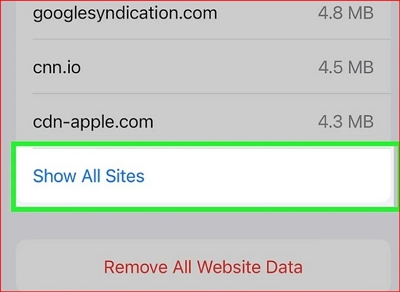
Go to Settings → Safari → Advanced → Website Data → Show All Sites. This section survives a history clear in some cases. It only shows root domain names and storage sizes—not specific page URLs or timestamps—but it's useful for confirming which sites you visited even when the full history is gone.
Check Safari on Your Other Apple Devices
If iCloud Safari Sync is enabled, your browsing history syncs across iPhone, iPad, and Mac on the same Apple ID. Sync conflicts and timing delays sometimes leave history intact on one device after it's been cleared on another.
- On Mac: open Safari → History menu → search or scroll.
- On iPad: open Safari → book icon → History tab.
If you find history here, export or screenshot it before it syncs the deletion.
iCloud.com Bookmark Archive (Overlooked Free Method)
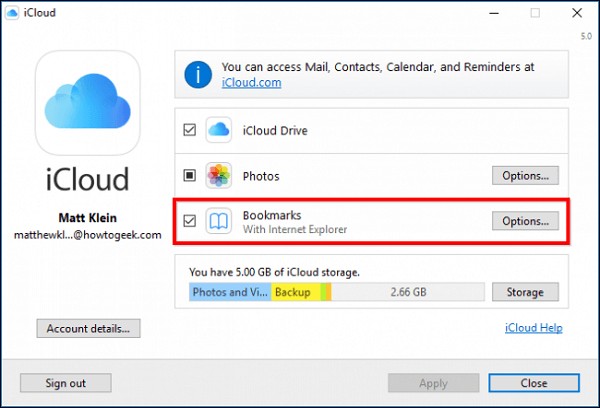
Even after clearing history, iCloud sometimes retains archived Safari bookmark data. Sign into icloud.com in a browser → click Settings → scroll to the bottom → look for Restore Bookmarks under the Advanced section. A list of dated archives appears. This won't restore full browsing history, but it can recover bookmarks and Reading List items that were lost alongside the history clear.
Spotlight Search
Swipe down from the home screen and search for a keyword you remember from the page. Spotlight maintains its own separate search index that can surface cached content from pages you visited, independent of Safari's history database. It's not guaranteed, but it costs nothing to try.
Google / Search Engine Account History
If you were signed into Google in Safari, your search queries are stored in myactivity.google.com entirely independent of Safari. Even if Safari history is gone, the searches that led you there are still logged in your Google account. Log in and check My Activity → Web & App Activity.
Method 1: Restore from iCloud Backup (Free — Full Restore)
Best for: History that disappeared after an iOS update, or cases where you have a confirmed backup from before the deletion.
iCloud backups include Safari history as part of the full device backup. The first step is confirming a pre-deletion backup actually exists.
Go to Settings → [Your Name] → iCloud → Manage Storage → Backups → your device. Check the backup date. If it predates when the history disappeared, this method is worth attempting.
Steps:
- Settings → General → Transfer or Reset iPhone → Erase All Content and Settings
- When the phone restarts, choose Restore from iCloud Backup
- Sign in with your Apple ID
- Select the backup dated before the history deletion
- Wait for the restore to complete
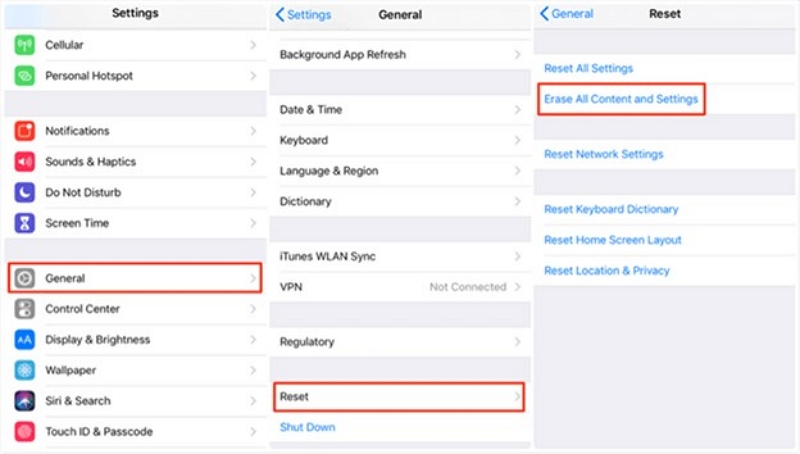
The significant downside: This replaces your entire phone with the backup state. Everything added since the backup—messages, photos, app data—is gone. Back up your current phone first if any of that data matters to you.
Success rate: ~90% if a pre-deletion backup exists and was created when iCloud backup was actually enabled.
Method 2: Restore from iTunes / Finder Backup (Free — Full Restore)
Best for: Users who regularly sync their iPhone to a Mac or PC.
The process is nearly identical to iCloud restore but pulls from a local backup instead. Local backups are often more recent than iCloud backups because they're triggered manually during syncs.
Check your backup date first:
- On Mac: open Finder → select your iPhone in the sidebar → check the backup date shown
- On Windows: open iTunes → click the device icon → Summary tab → Backups section
Steps:
- Connect iPhone to the computer
- Open Finder (Mac) or iTunes (Windows)
- Select your device → click Restore Backup
- Choose the backup dated before the history was deleted
- Click Restore and wait
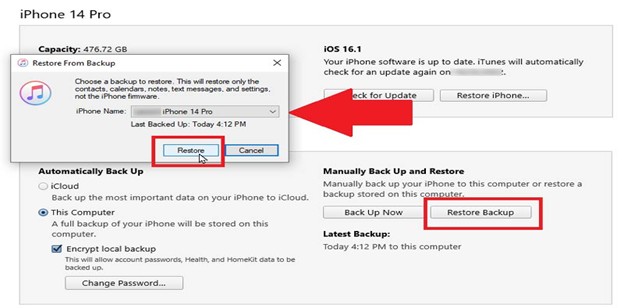
The same full-restore trade-off applies: all data since the backup is overwritten. The advantage over iCloud restore is that local backups are typically faster and don't require an internet connection.
Success rate: ~90% if a pre-deletion backup exists.
Method 3: Extract Safari History Without Wiping Your Phone (Paid Tools)
Best for: Two specific situations—you have a backup but don't want to erase your current phone, or you have no backup at all and need to scan the device directly.
Paid recovery tools do something that free methods can't: they access History.db directly, scanning for URL fragments, timestamps, and domain data that iOS no longer surfaces but hasn't yet overwritten. They can also extract Safari history selectively from an iCloud or iTunes backup without requiring a full device restore.
What These Tools Actually Scan
- History.db — the primary file containing visited URLs and timestamps
- Webpageicons.db — sometimes reveals additional domain traces
- Cache files — may contain fragments of deleted entries
This is why recovery is sometimes possible even after manual deletion: the data is removed from iOS's visible index but the underlying file fragments can persist until new data overwrites them.
Recommended Tool: Datile iOS Recovery is widely used and has a dedicated Safari history recovery module. It supports direct device scanning without a backup, and selective extraction from both iCloud and iTunes backups. Available for Mac and Windows.
Step 1: Download and install the tool on your Mac or PC. Connect your iPhone via USB and trust the connection when prompted.
Step 2: Choose your recovery mode:
- Recover from iOS Device — direct scan, no backup needed
- Recover from iTunes Backup — selective extraction from local backup
- Recover from iCloud Backup — selective extraction from iCloud, no phone wipe required
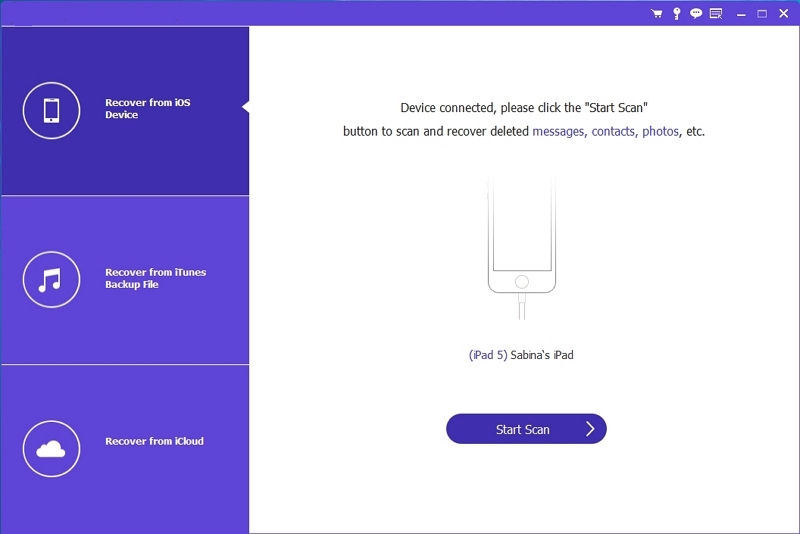
Step 3: Run the scan. For direct device scans, this typically takes 5–15 minutes depending on storage size.
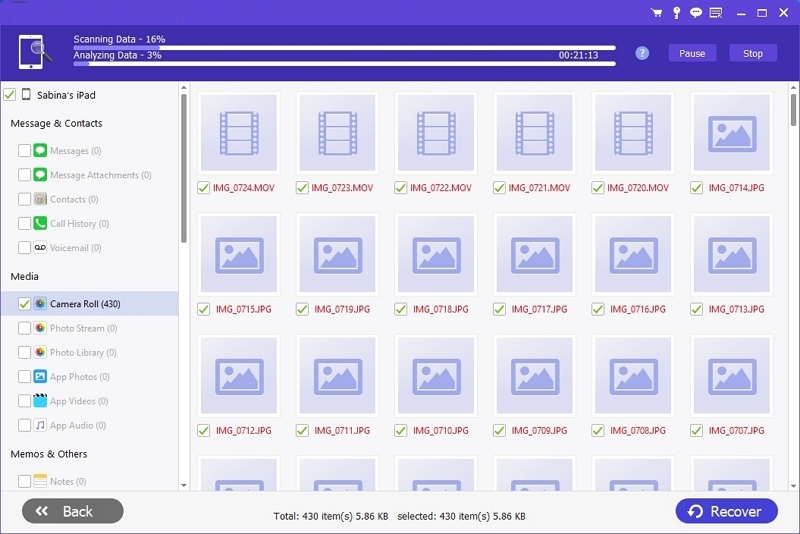
Step 4: In the results, filter for Safari History. You'll see recovered URLs and timestamps. Select what you want to recover.
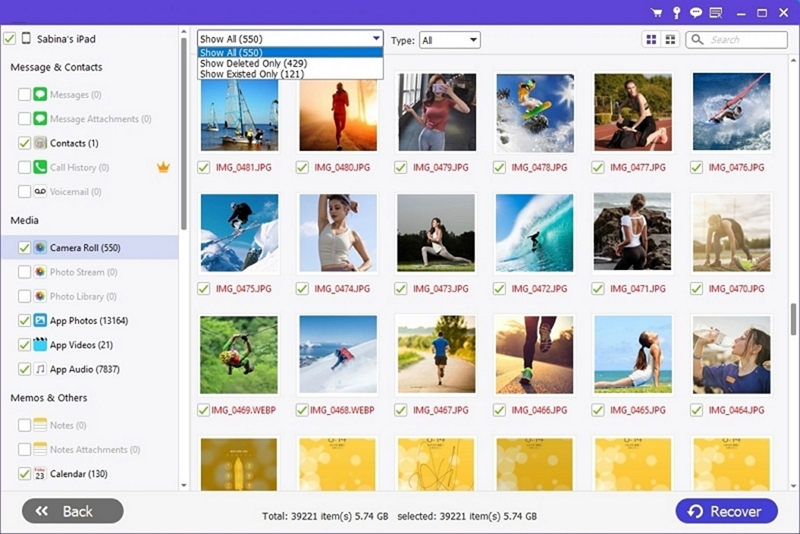
Step 5: Export to your computer as an HTML file, or restore directly to the device.
Success rate: High if history was recently deleted and the phone hasn't been used heavily since. Decreases significantly if the phone has been used extensively after deletion.
Cost: Paid. Both Dr.Fone and PhoneRescue offer free trials that let you preview what's recoverable before purchasing.
What Cannot Be Recovered — Ever
| Situation | Recoverable? |
|---|---|
| History cleared today, acted immediately | Possibly — try free methods first |
| History cleared weeks ago, heavy phone use since | Very unlikely |
| Private / Incognito browsing history | No — never written to disk |
| History deleted after iOS update, no backup | Unlikely |
| iCloud sync propagated the deletion to all devices | Depends on timing — check other devices immediately |
Private browsing is genuinely unrecoverable. iOS never writes private browsing sessions to History.db or any cache file. No tool—paid or free—can recover what was never stored. If someone tells you otherwise, they're either mistaken or selling something that doesn't work as described.
Special Scenarios
A. Safari History Disappeared After iOS Update
- When you update iOS, it may reset Safari's history database. Older entries can be lost.
- Check for an automatic iTunes/Finder backup created right just before the update – macOS often triggers one during the update process.
- iCloud backup timestamp checks are critical here to determine whether a pre-update exists.
- If either backup predates disappearance, recovery chances are high.
B. Safari History Deleted by Someone Else
If someone else uses your iPhone or shares your Apple ID, they can clear Safari history remotely.
iCloud Safari Sync means a deletion on one device can propagate to all devices
To prevent this
- Turn off sync for shared accounts: Settings → [Your Name] → iCloud → Safari.
- Or stop sharing Apple IDs across multiple people.
C. Need Safari History for a Specific Date / Legal Purpose
- Third-party tools can filter recovered history by date range, making it easier to isolate activity for a specific day.
- Google My Activity is the most reliable source for search-based history.
- Screenshot and document recovered history immediately before it can be overwritten again.
How to Never Lose Safari History Again
The recovery scramble is avoidable with a few settings that take under five minutes to configure.
- Enable automatic iCloud backup: Settings → [Your Name] → iCloud → iCloud Backup → toggle on. This runs daily when your phone is charging, locked, and on Wi-Fi. Safari history is included in every full backup.
- Keep iCloud Safari Sync on: Settings → [Your Name] → iCloud → Safari. Syncing history across your devices creates a passive redundancy—if history disappears from your iPhone, it may still be accessible on your Mac or iPad briefly.
- Bookmark pages you'll need again: Reading List and bookmarks survive history clears. If you find something important, bookmarking takes one tap. Reading List also works offline, which makes it useful beyond just preservation.
- Set a Screen Time passcode on shared devices: If children or others use your iPhone, a Screen Time passcode prevents accidental history clears through Settings.
FAQs
Q. Is there a completely free tool that can deep-scan Safari's History.db?
No. Free options cover iCloud/iTunes restores, iCloud sync artifacts, and Google My Activity. Deep scanning of the device's internal database requires paid software.
Q. Can I recover Safari history without any backup?
Yes, but only with a paid recovery tool that scans the device directly. Free methods are exhausted once history is manually cleared and no backup exists.
Q. Can private browsing history be recovered?
No. iOS never writes private sessions to disk. No tool can recover data that was never stored.
Q. Does iCloud automatically back up Safari history?
Yes—Safari history is included in full iCloud device backups. It is not backed up as a standalone category, only as part of a full device backup.
Q. Why did my Safari history disappear by itself?
The most common causes: iOS update migrating the history database, an iCloud sync conflict, low-storage automatic cleanup, or history being cleared on another device sharing the same Apple ID.
Q. How far back does Safari normally store history?
Safari retains browsing history for up to one month by default on iPhone. There's no native setting to extend this—regular backups are the only way to preserve older history.
Q. Can I recover history from months ago?
Only if you have an iCloud or iTunes backup from that period, or if a recovery tool can still read fragments in History.db. If the device has been used heavily since, recovery is unlikely.