
Updated on 2026-02-11
views
5min read
Whether you have accidentally deleted a note or it has just disappeared on its own on your iPhone, there are ways to bring it back. We will show you multiple ways to recover deleted notes on iPhone, from the built-in options to advanced methods like Datile iOS Recovery. With these powerful ways, you can retrieve the important iPhone notes with or without an backup.
Before Recovering Deleted Notes on iPhone
The very first rule is simple: stop using your iPhone the moment you realize a note is missing. Every action you take, from writing a new note to saving a file, risks overwriting the deleted data (the “Note” in question).
Understand this: when a note is deleted and disappears on your iPhone, it doesn’t vanish immediately. Instead, it sits in the phone storage, marked as “unallocated”. This means best-in-class recovery tools like Datile iOS Recovery software can still trace and restore it easily, if a new data doesn’t overwrite those unallocated sectors. To sum up, if you keep using your device, that recovery window will close too.
Now, let’s assess your situation. Were your notes synced to iCloud or linked to an email account? Or were they kept locally in the “On My iPhone” folder? Each of these paths opens different recovery options. Here’s a quick overview of all the methods we’ll cover, so you can jump straight to the method that fits your case:
| Recovery Method | Requirements | Conditions | Success Rate |
|---|---|---|---|
| Recently Deleted folder (Notes app) | iOS 11 or later with upgraded Notes app | Note deleted within 30 days and not manually cleared | Very High – almost 100% if inside 30-day window |
| Email Trash (e.g., Gmail, Yahoo) | Notes synced to a third-party email account | Deleted note could still be inside the email | High – good chance if checked in time |
| Datile iOS Recovery | Install Datile on Mac or Windows, USB cable | Deleted note still present in device storage (not overwritten) | Extreme High – recover notes without backup |
| Shared Notes recovery | Note shared with other iCloud users | If only your access was removed, others can re-send it to you | Moderate – depend on sharing status |
| Restore from iTunes/Finder Backup | Backup created before deletion | Must restore entire device | High – reliable if relevant backup exists |
| Contact Apple Support | Notes synced with iCloud | Depend on Apple’s support scope | Uncertain – some reports of success, many cases denied |
| Restore from iCloud Backup | iCloud backup created before deletion | Require device erase and restore | High – effective if backup includes the missing note |
How to Recover Deleted Notes on iPhone Without iCloud Backup
iCloud Backup is a common way to retrieve deleted notes. As long as you’ve allowed iCloud to back up Notes and have enough iCloud storage, your notes will be backed up automatically. Sometimes, this method may not work for you. In this section, we’ll cover 5 ways to recover deleted notes on an iPhone when you don’t have an iCloud backup.
Way 1. Recover Deleted Notes in Recently Deleted Folder
Apple Notes has a built-in safety net: the Recently Deleted folder. Any note you delete sits there for 30 days (and sometimes up to 40) before being marked for “Permanent Deletion”. So, if your note disappeared within the last month, this folder should always be your first stop.
Steps to Recover Notes from Recently Deleted:
Step 1. Open the Notes app and tap the back arrow at the top-left corner to see the full Folders view. Under iCloud orOn My iPhone, you’ll see the Recently Deleted folder.
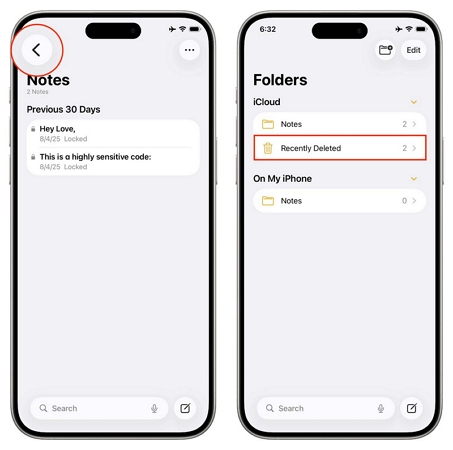
Step 2. Open the Recently Deleted folder. Your deleted notes will appear here in a list:
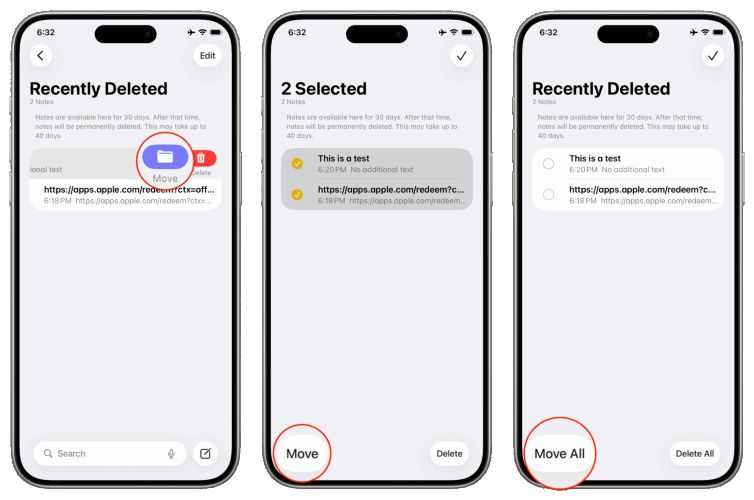
- To bring back a single note, swipe right to left on it and tap the purple Move icon. Then, pick a destination folder and the note will instantly come back.
- To rescue multiple notes, tap Edit (top-right). Then, select each one you want, hit Move at the bottom and choose where they should go.
- To recover all notes to the same folder, use Move All at the bottom and select the target folder.
That’s it! The move is completed.
No Recently Deleted Notes Folder on iPhone [Fixes]
Sometimes, you open Notes but only to find that the Recently Deleted folder doesn’t appear at all or you tap into the Recently Deleted folder but find that it’s just empty.
A few common reasons explain this:
- The Recently Deleted feature was introduced with iOS 9, you are running an older system version that doesn’t support it.
- Outdated or buggy iOS builds can cause the folder to vanish.
- After the 30-day grace period (sometimes 40), notes are permanently erased.
- Your notes are tied to a third-party account (not the device itself).
- The note was part of a shared folder.
How to fix it:
- Go with Datile and try to recover notes from your iPhone’s storage.
- Restart your iPhone to clear minor app glitches.
- Update your iPhone to iOS 9 or later. However, this won’t bring back the deleted notes but can help you recover notes in the future.
Way 2. Retrieve Deleted Notes via Mail
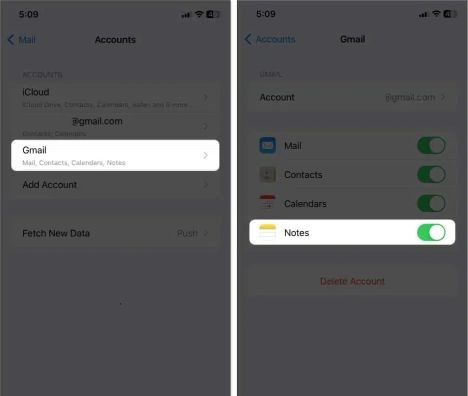
If you recently unlinked or removed an account from the iOS, like Gmail, Yahoo or even iCloud Mail, and your Notes were synced there before, the notes will disappear from the Notes app. Luckily, they aren’t really gone and you can get them back simply by re-syncing the account. Here is how:
Step 1. Open Settings on your iPhone and tap Mail.
Step 2. Inside Mail, choose Accounts. You’ll see all the accounts connected to your iPhone.
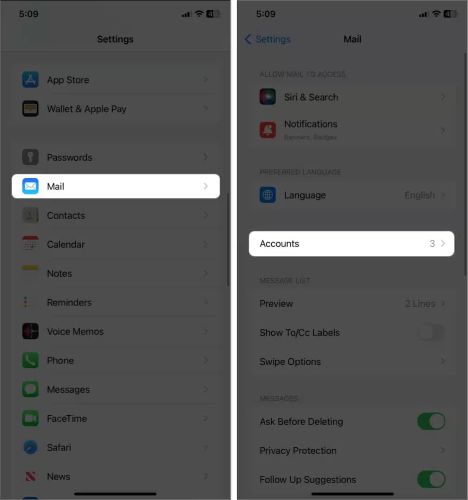
Step 3. Select the account that had your Notes—Gmail, Yahoo, or iCloud Mail.
Step 4. On the next screen, look for the Notes toggle and turn on it. Your notes will sync back and appear in the Notes app again.
Way 3. Get Back Deleted Notes Using Datile Software
Datile iOS Recovery is built for those moments when Notes is not visible anywhere. It scans your iPhone’s storage and gives you a way to pull notes back while there’s still a chance. It doesn’t matter if it’s the note is permanently deleted after 30 days, manually removed from the Recently Deleted folder or wiped accidentally due to a factory reset or other reasons, Datile can usually find it.
Key Features
- Work on all iPhones and all iOS versions, right up to iPhone 17 running on iOS 26.
- Recover more than 36 file types, including WhatsApp chats, photos, videos, contacts, call logs and more.
- Selectively restore data from iTunes and iCloud backups without factory reset.
- Preview scan-out data before recovery.
How to Recover Deleted iPhone Notes with Datile iOS Recovery
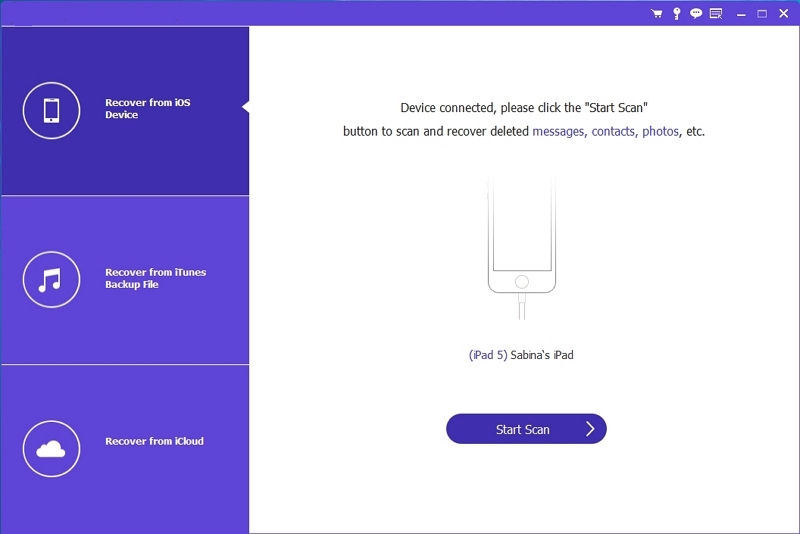
Step 1. Install Datile on your Mac or Windows computer and connect your iPhone with a cable.
Step 2. Ensure Recover from iOS Device is chosen and then hit Start Scan.
Step 3. Datile will start finding out the all deleted iPhone content for you. Once the scan is done, select Notes and Notes Attachments under Memos & Others in the left pane.
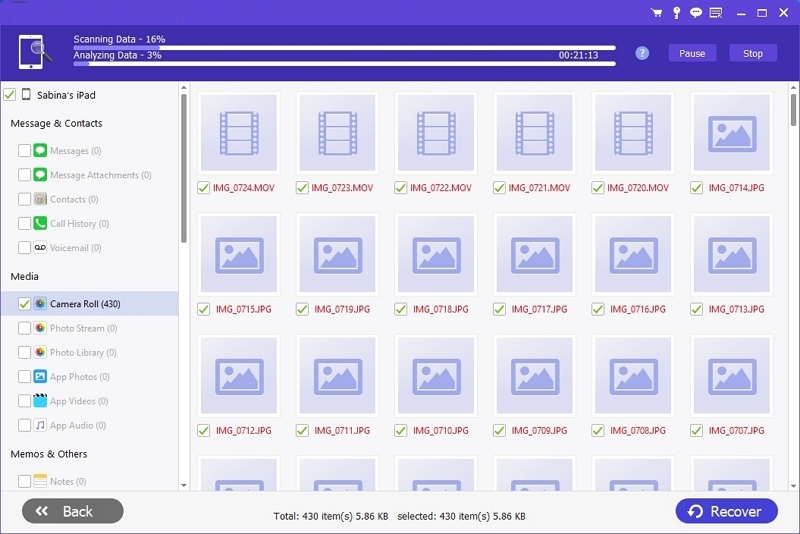
Step 4. Select the notes you want and click Recover at the bottom right. The desired notes will be output to the folder on your computer and you can sync them to your iPhone via iTunes.

Way 4. Check Shared Notes to Find Deleted Ones
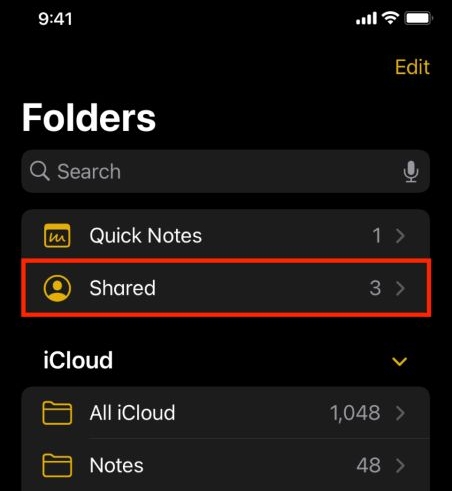
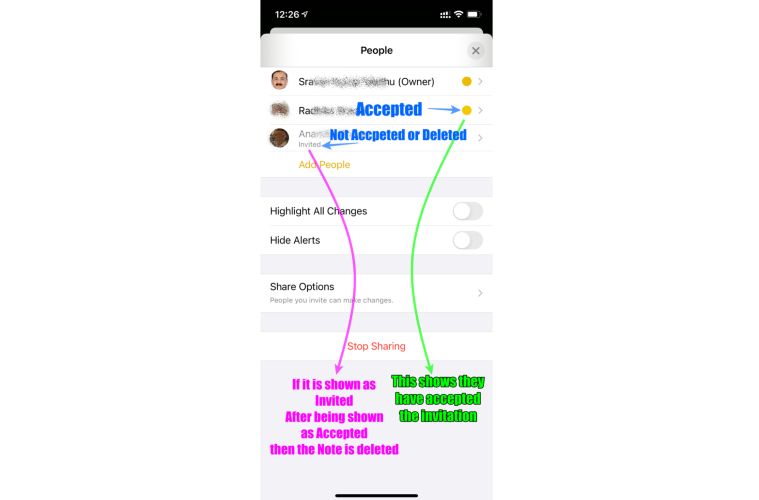
When you use iCloud’s Shared Notes feature, a new folder called Shared appears inside the Notes app. All collaborative notes are collected here. Whether you can recover the notes depends entirely on your role: were you only a participant or the original owner?
- If you were just a participant: deleting the note from your iPhone removes it only from your device. The original note still exists with the owner and other participants. All you need to do is ask the owner to re-invite you. Once they do, the note will appear in your Shared folder again.
- If the owner deleted the note: the note disappears for everyone at once. You can confirm this under the People section of the note. Instead of showing Accepted (with a yellow dot), your status will switch back to Invited. That means the note is gone from the source. The only option here is to request the owner to restore it from their Recently Deleted folder and share it again.
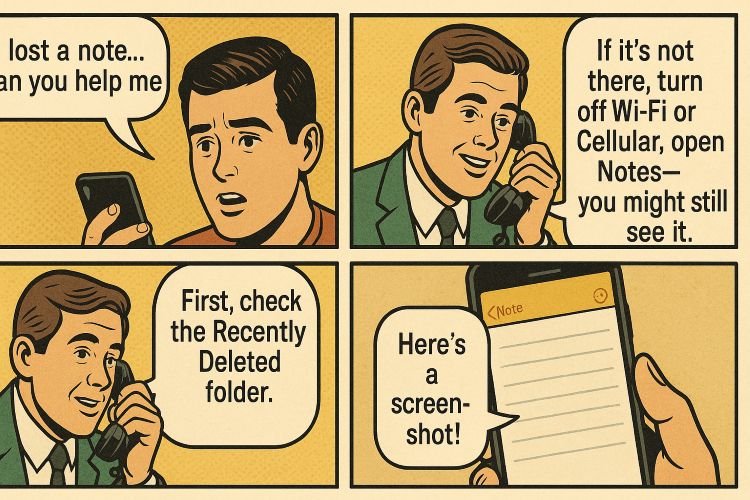
- If you were the owner: first check the Recently Deleted folder, as explained in Way 1. If it’s not there, you can also ask your participants to share the notes as screenshots or texts with you.
Way 5. Regain Deleted Notes with iTunes Backup
Having a backup of your iPhone on the computer with iTunes or Finder means one thing: any notes that existed at the time of that backup can still be brought back.
Keep in mind: Apple’s restore process is all or nothing. Restoring an old backup means your iPhone will roll back completely to the day the backup was created.
That is why many users prefer to go with Datile iOS Recovery. It lets you scan an iTunes (or Finder) backup and view all the backup contents by category, like Notes, Photos, Messages and so on. So, you can selectively restore only the notes you want and avoid rolling back your iPhone to an earlier state.
Still, if you want to stick with Apple’s method, here’s how it works:
Step 1. Fire up iTunes or Finder. Next, plug the iPhone into the computer.
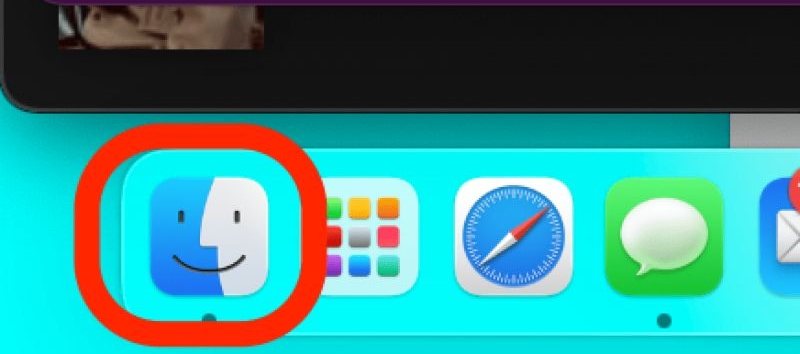
Step 2. Pick your device from the sidebar list.
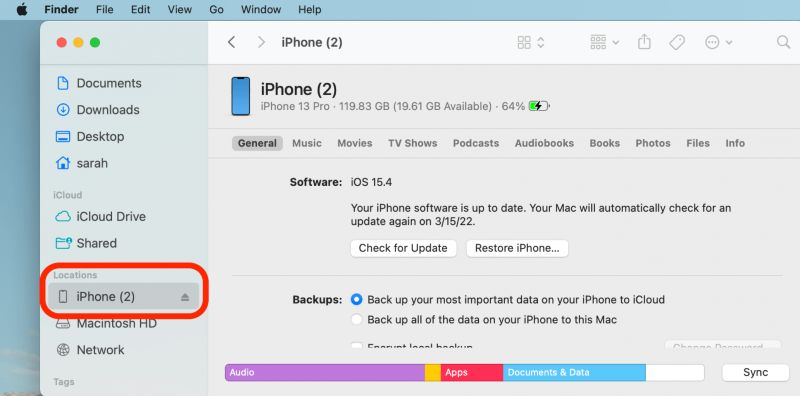
Step 3. In iTunes, head into the Summary tab. In Finder, stay in the General section. Then, look for and click the option called Restore Backup.
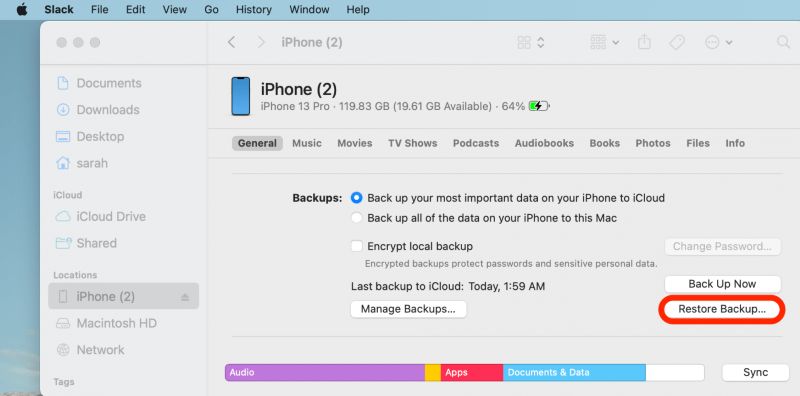
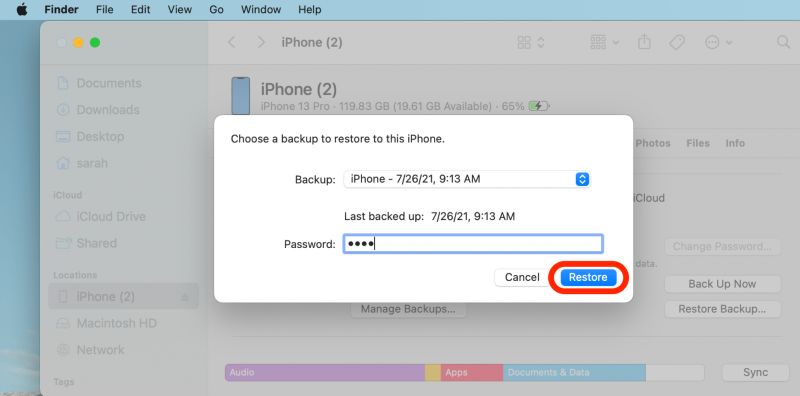
Step 4. Select the wanted backup. Type in the encryption password if one was set. Then, press Restore.
Step 5. Wait for the restore to finish. Your iPhone will reboot and the deleted notes should reappear in your Notes app.
Way 6. Contact Apple to Undelete Notes
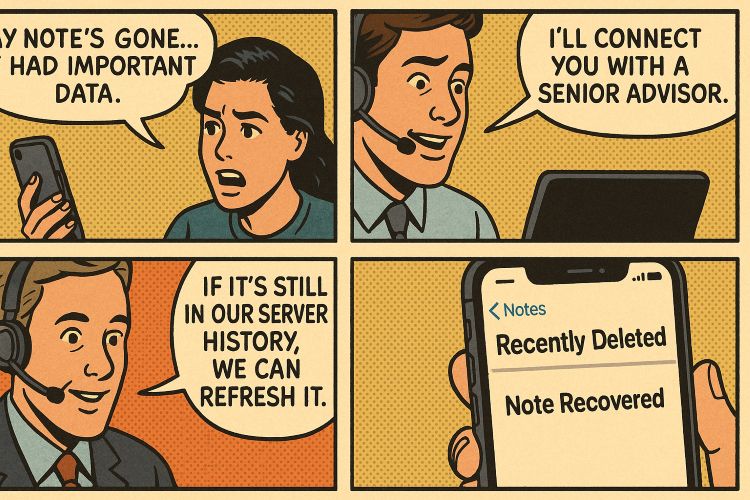
If you’ve gone through every option above and your notes are still missing, the last door to knock on is Apple Support. This step makes the most sense when iCloud sync was turned on for Notes. If iCloud was enabled, then there’s the possibility that the file is sitting on Apple’s servers. So here is what to do:
- Contact Apple Support.
- Ask to be connected with a senior advisor.
- Explain clearly that your deleted note contained important data and require their helps for note recovery.
If the note exists on their server-side history, they will trigger a refresh and you can find it in the Recently Deleted folder. In all, this way is not guaranteed, but it’s worth making the call when the data is critical.
How to Restore Deleted Notes on iPhone from iCloud Backup
iCloud backup works in the same way as a computer backup (iTunes or Finder). So, when you restore from iCloud, the phone has to be wiped first, meaning that anything new on the iPhone will be erased. In return, the earlier backup will be restored on the iPhone.
Here’s how you restore an iCloud backup:
Step 1. Open Settings > General > Transfer or Reset iPhone. Tap Erase All Content and Settings and confirm it.
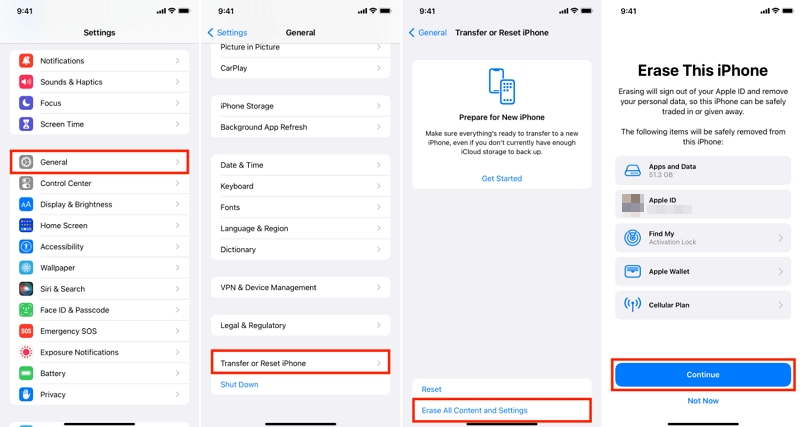
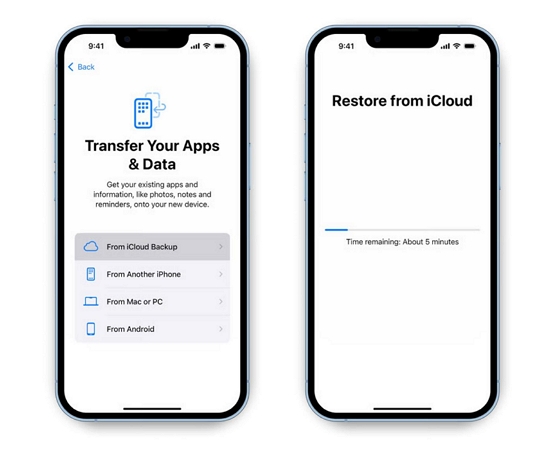
Step 2. When the Hello screen shows up, follow the setup steps until you reach the Transfer Your Apps & Data page. Select Restore from iCloud Backup, sign in with the same Apple ID and wait for the list of backups to appear.
Step 3. Choose the backup where the deleted notes were still on your device. Then let the restore completes over Wi-Fi.
Step 4. Once your iPhone reloads, open Notes and you should find the missing note restored alongside everything else from that backup date.
Conclusion
Recovering an iPhone note isn’t complicated. However, the ideal method for you will change, depending on the situation. That’s why we’ve shown you all the possible options. When you think the note has gone for good, don’t lose hope. Try Datile iOS Recovery. Let it scan your iPhone, find the fragments and restore notes via the device storage, iCloud/iTunes backup easily.