
Updated on 2026-03-17
views
5min read
Lost your iPhone call history? Before you panic — take one action right now:
Stop using your iPhone for calls immediately. Every new call you make overwrites data iOS hasn't fully deleted yet. This single step is what separates successful recoveries from failed ones.
This guide covers every real path to recovery: from free built-in options you can try in 60 seconds, to carrier records that go back 18+ months, to what to do when you need call logs for legal purposes. No fluff, no padding — just the methods that work, and when to use each one.
Why Did My iPhone Call History Disappear?
The cause directly determines which recovery method will work. Spend 30 seconds here before jumping to a solution.
| Cause | What Happened | Recovery Outlook |
|---|---|---|
| Manual deletion | You (or someone else) deleted entries in Phone → Recents | High — act fast |
| iOS 100-call limit | iPhone only keeps the last 100 visible calls in Recents | Older ones may still exist in backup |
| iCloud sync wipe | Another device on the same Apple ID deleted logs and synced the change | Backup or carrier required |
| Failed iOS update/restore | Update caused database migration failure | Check for pre-update backup |
| Older device storage pressure | iPhone 6-era devices silently purge logs when storage is tight | Carrier records are most reliable |
| Screen Time / parental controls | Restrictions may hide (not delete) call history | Fix settings first — data may still be there |
A call log "deleted" from your screen is not the same as data permanently erased from storage. iOS marks the space as available but doesn't immediately overwrite it. The window where recovery is possible varies from minutes to days depending on how heavily you use the phone.
60-Second Self-Diagnosis: Find Your Path
Answer these three questions to skip straight to the right method.
1. How long ago did this happen?
- Within the last few hours → Method 1 first, then Method 4
- Days to weeks ago → Method 2 or Method 3
- More than a month ago, or you need very old records → Method 5
2. Do you have a backup?
- iCloud backup enabled → Method 2
- iTunes or Finder backup on your computer → Method 3
- No backup at all → Method 1, then Method 4
3. Why do you need these records?
- Personal use, accidental deletion → Start at Method 1 and work down
- Legal, court, fraud, or billing dispute → Method 5 + see Special Cases
- Family device, parental monitoring → Check Screen Time settings first, then Method 1
Method 1: Check These Built-In Places First
Cost: Free | Time: 5 minutes | Best for: Recent deletions
Before installing anything or wiping your phone, check every place iOS might still have your call history.
A. Phone App → Recents
Open the Phone app and tap Recents. Toggle between All and Missed.
If you're on iOS 18 or later, use the search bar at the top of Recents — type a contact name or phone number to filter all logs for that person, including ones that might be buried.
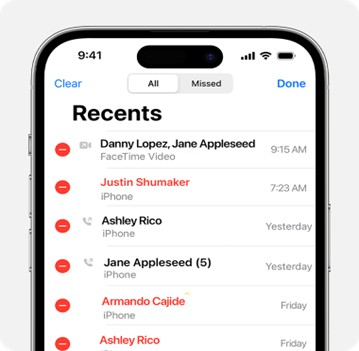
On iOS 26 (if your device supports it), tap any entry, then tap "Call History" on the contact card to see an extended per-contact log beyond the usual 100-call list.
Important: iOS shows only the last 100 calls in Recents by default. But it may store more than that internally — which is why third-party tools (Method 4) can sometimes surface calls that aren't visible in the app.
B. Check Your Other Apple Devices
If you use the same Apple ID on an iPad, Mac, or second iPhone, open the Phone or FaceTime app on each device. iCloud syncs call logs across devices, and a device you haven't used recently may still have entries that were deleted on your main phone.
C. Check Apple Watch — The Most Overlooked Source
This is the step almost every recovery guide skips. Apple Watch maintains its own independent call log, separate from your iPhone.
On your Apple Watch: open the Phone app → Recents, then scroll with the Digital Crown.

In many cases, the Watch still shows calls that have disappeared from the iPhone. This is especially useful if deletion happened recently.
D. FaceTime App → Recents
FaceTime stores its own call history separately from the Phone app. Open FaceTime → Recents and scroll through. Some entries deleted from the Phone app may still appear here.
E. Search Messages for Missed Call Notifications
Missed call notifications sometimes leave traces in message threads. Open Messages and search the contact's name. You won't get the full log, but you might confirm dates and numbers you need.
Method 2: Restore from iCloud Backup
Cost: Free | Success rate: ~90% if backup predates deletion | Best for: Recent-to-moderate deletions with backup enabled
What This Method Does — and What It Costs You
Restoring from iCloud is one of the most reliable ways to recover call history. But there's a trade-off that matters: a full iCloud restore replaces your entire iPhone with the state it was in when the backup was made. Anything you've added since that backup — photos, messages, apps, files — will be gone.
This is not a surgical recovery. It's a full rollback.
If you only want call history and don't want to roll back your entire phone, jump to Method 4 instead, which extracts call logs selectively from an iCloud backup without wiping your device.
When to Use It
Use this method when: the backup clearly predates the deletion, and you don't have much recent data you'd lose.
Steps
Step 1: Confirm a pre-deletion backup exists.
Go to Settings → [Your Name] → iCloud → Manage Storage → Backups. Select your device and check the last backup date. If it's before the call history was deleted, you're in good shape.
Step 2: Erase and restore.
Go to Settings → General → Transfer or Reset iPhone → Erase All Content and Settings.
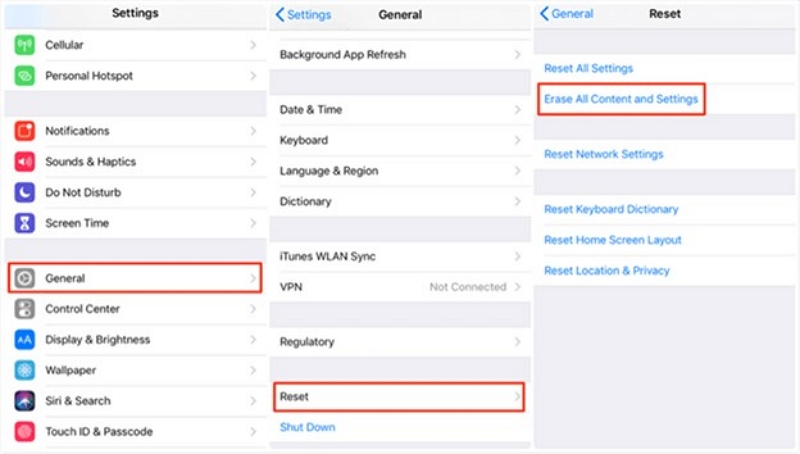
When the phone restarts and shows the setup screen, choose Restore from iCloud Backup, sign in with your Apple ID, and select the backup that predates the deletion.
Tip: If your most recent backup already reflects the deleted state (because iCloud synced after the deletion), look for an older backup listed under your device. iCloud sometimes retains a previous backup.
Method 3: Restore from iTunes or Finder Backup
Cost: Free | Success rate: ~90% if backup predates deletion | Best for: Users who regularly back up to their Mac or PC
iTunes vs. Finder — What's the Difference?
- iTunes: Used on Windows and macOS Mojave (10.14) and earlier
- Finder: Used on macOS Catalina (10.15) and newer
Both contain the same data, including call history. The process is functionally identical.
The Same Trade-Off as iCloud
Just like Method 2, this is an all-or-nothing restore. Your entire phone reverts to the backup state.
One advantage of local backups: if you previously enabled encrypted backups, your backup contains more data — including Health information, saved passwords, Wi-Fi settings, and a more complete call log. Encrypted backups give you a better chance of full recovery.
Steps
Step 1: Check the backup date.
Connect your iPhone to your computer. Open iTunes (Windows/older Mac) or Finder (newer Mac). Select your device and look under Backups for the last backup date.
Step 2: Restore.
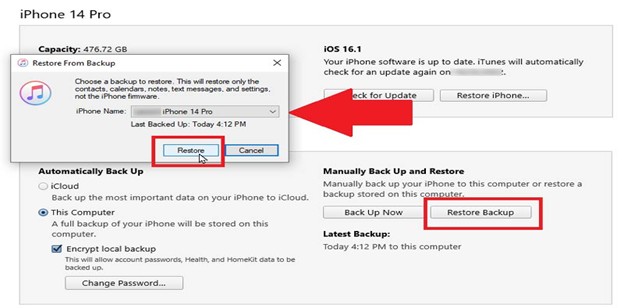
- In Finder: Select your iPhone → click Restore Backup → choose the correct backup by date.
- In iTunes: Select your device → Summary → Restore Backup.
Wait for the device to restart. Your call history should be restored along with everything else from that backup point.
Quick check after restoring: Go to Phone → Recents immediately and screenshot or export the logs before anything overwrites them..
Method 4: Extract Call History Without Wiping Your Phone
Cost: Paid (varies) | Success rate: High when backup exists | Best for: Users who have a backup but don't want to lose recent data
When This Actually Makes Sense
Third-party recovery software is often pushed as the first step in guides like this. It isn't. Here's when it actually earns its cost:
- You have an iCloud or iTunes/Finder backup, but you don't want to erase your phone just to get call history
- You want to extract only call logs, not restore the entire device
- You want to preview backup contents before committing to a full restore
- You want to scan the device directly for database fragments that may still be recoverable after a recent deletion
What These Tools Actually Do
Good iOS recovery software works by parsing the SQLite database that stores iPhone call logs. Deleted entries in SQLite aren't immediately overwritten — the rows are marked as free but the data remains until new data is written over it. Recovery tools read these fragments directly.
This is why speed matters: the sooner you run the scan after deletion, the less of that database space has been reclaimed.
How to Use Recovery Software (General Steps)
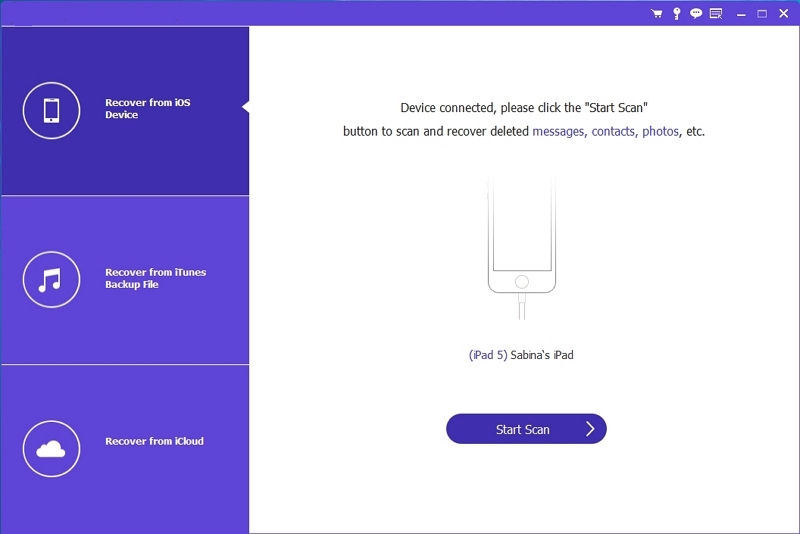
Step 1: Download the Datile iOS Recovery tool on your PC. Install the software and open it. Connect your PC to your iPhone. Go to the main interface and select iPhone Data Recovery.
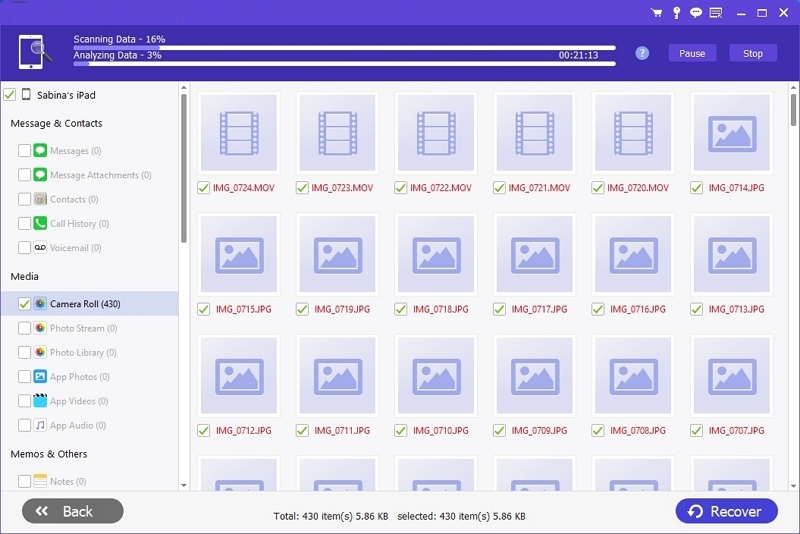
Step 2: Click “Start Scan.” It scans your iPhone for missing data.
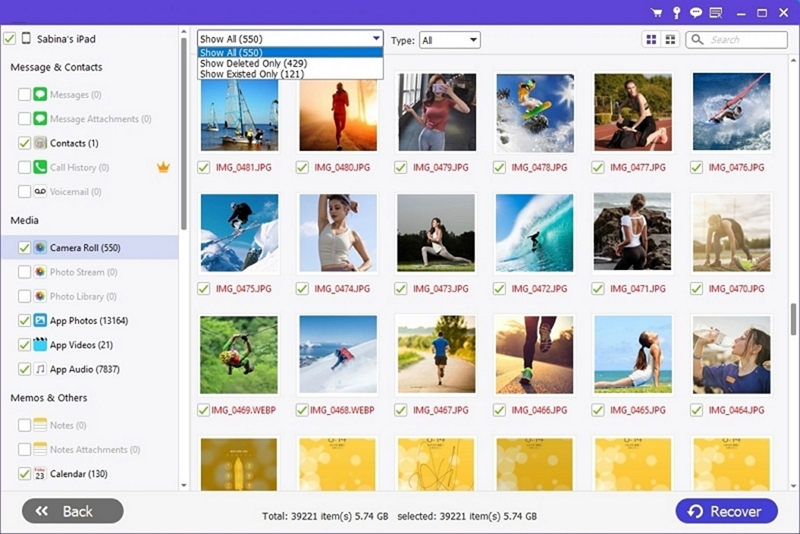
Step 3: You get the details on your PC screen. Select the appropriate data you wish to recover. Click “Recover” to save it on your device.
Recommended tools to evaluate: Datile iOS Recovery
Before buying: Check that the tool explicitly supports your iPhone model and iOS version. Older devices (iPhone 6/iOS 12 and below) require specific software. Most reputable tools offer a free preview before you pay to export.
Method 5: Request Records from Your Phone Carrier
Cost: Free (sometimes a small admin fee) | Success rate: ~95% for cellular calls | Best for: Calls older than 30 days, legal needs, lost/wiped devices
Why This Method Is Underused (and Shouldn't Be)
Your carrier keeps detailed call records for billing and regulatory compliance. These logs typically go back 12 to 18 months — far longer than anything stored on your iPhone. And they're tied to your SIM and account, not your device, so they survive phone replacements, wipes, and data loss of any kind.
What Carriers Store (and What They Don't)
Carriers keep:
- Incoming and outgoing phone numbers
- Date and time of each call
- Call duration
- Billing metadata
Carriers do NOT keep:
- Call audio or content
- FaceTime calls (Apple-to-Apple)
- Wi-Fi calling via apps like WhatsApp, Skype, or Signal
How to Request Records by Carrier (US)
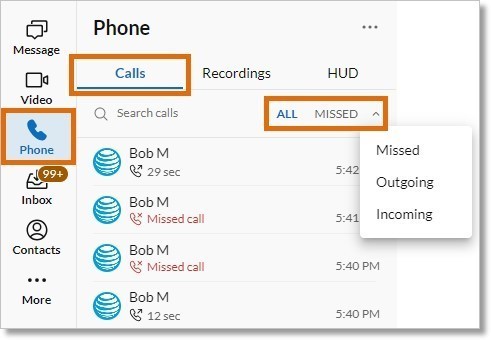
AT&T Open the myAT&T app → Usage → Call Details. Up to 18 months of logs available. Account holder login required.
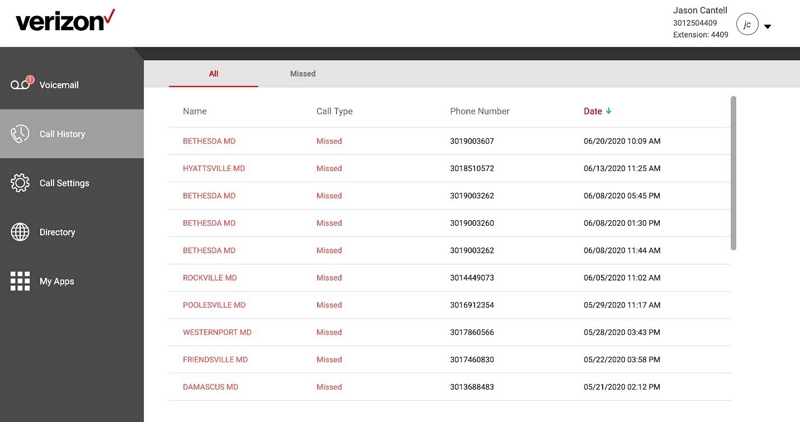
Verizon Open My Verizon → Account → Calls. Usually shows up to 18 months. Can also be accessed at verizon.com.
T-Mobile Open the T-Mobile app → Account → Usage History. Detailed call logs tied to your line.
Sprint / other carriers Contact customer service directly. Have your account number and a form of ID ready. Some carriers will email or mail records.
Prepaid vs. Postpaid: Both types of accounts have access to call records. Postpaid users can usually download instantly; prepaid users typically need to request them manually.
For Legal or Court Purposes
If you need call records as evidence, carrier self-service downloads may not be sufficient. Courts and legal proceedings typically require records obtained via formal subpoena or legal hold request, which produces certified records with chain-of-custody documentation. See Special Cases for more.
Special Cases
Recovering Call History After an iOS Update
Updates occasionally cause call history to disappear due to a failed database migration. When iOS updates the call-log database, a failure can result in the system creating a new empty database — erasing the old one.
What to try:
- Connect your iPhone to your computer. iTunes and macOS sometimes create an automatic backup immediately before a major update. Check the backup list for a timestamp right before your update date.
- Contact Apple Support. If an update caused data loss, Apple can review diagnostic logs and confirm whether a migration failure occurred — this can sometimes lead to escalated recovery options.
Someone Deleted Your Call History
If a partner, family member, or someone who had access to your device deleted call history, your options depend on the situation.
The account holder (the name on the carrier account) can request call detail records directly from the carrier, regardless of who physically used the phone.
For family device management: parental control apps like Screen Time (built into iOS) can be configured to prevent call log deletion. For third-party options, look for tools that are transparent about data access and legally compliant in your jurisdiction.
Note: Accessing another person's call logs without their consent may violate privacy laws depending on your location. Account holder rights and individual device user rights are separate legal considerations.
iPhone 6 and Older Devices
Older devices are harder to recover from for two reasons: limited RAM and storage cause iOS to purge call-history databases more aggressively, and older iOS versions (iOS 12 and below) limit compatibility with modern recovery tools.
What works best: Carrier records (Method 5) remain equally effective regardless of device age. For software-based recovery, look for tools that explicitly list iOS 10–12 support — not all modern tools still support legacy iOS versions.
FaceTime Call History vs. Phone Call History
These are stored in separate databases on your iPhone and recovered differently.
FaceTime keeps its own call log that syncs through iCloud. Some third-party recovery tools don't scan FaceTime logs at all, so check this capability before purchasing.
For FaceTime-specific recovery: always check the FaceTime app → Recents first. If iCloud sync was enabled, a backup-based restore (Methods 2 or 3) is the most reliable path.
Honest Success Rate by Scenario
| Your Situation | Best Method | Realistic Success Rate |
|---|---|---|
| Deleted today, iCloud backup exists | Method 2: Restore from iCloud | ~90% |
| Deleted today, no backup | Method 1: Built-in checks + Method 4: Device scan | 20–50% |
| Deleted weeks ago, iTunes/Finder backup | Method 3: Restore from computer | ~85% |
| Need records older than 30 days | Method 5: Carrier request | ~95% |
| Legal/court purposes | Subpoena + carrier formal records | ~99% |
| iPhone 6, no backup, deleted months ago | Method 4: Third-party tool | ~20% |
| iCloud deleted logs across all devices | Method 5: Carrier records | ~95% |
How to Export & Save Recovered Call History
Once you've recovered your call logs, preserve them immediately. Don't assume they'll stay there.
Screenshots (quickest method): Open Phone → Recents and take screenshots. They save automatically to Photos and back up to iCloud. Best for small sets of calls you need right away.
After restoring from backup: Screenshot or export to a note or spreadsheet immediately. Sync to your computer to create a preserved copy before anything overwrites the restored logs.
From recovery software: Most tools let you export as CSV, HTML, or PDF. CSV is best if you want to sort or filter later. Save to both your computer and cloud storage.
From carrier records: Download as PDF or CSV from your carrier account dashboard. These records include numbers, timestamps, and durations — and are the most useful format for legal or billing needs.
How to Never Lose Call History Again
Tier 1 — Takes 2 Minutes
Enable iCloud backup: Settings → [Your Name] → iCloud → iCloud Backup → On.
If your iCloud storage is nearly full, the backup will silently fail. Either delete old data or upgrade to iCloud+. A failed backup is the same as no backup.
Tier 2 — Takes 5 Minutes
Create a monthly local backup: Connect your iPhone to your Mac or PC and run an encrypted backup in Finder or iTunes. Encrypted backups store more data, including call history, and give you a copy that doesn't depend on iCloud.
Set Screen Time restrictions to prevent others from deleting call history on shared or family devices.
Tier 3 — Ongoing Habits
Screenshot important calls periodically. Once you exceed 100 calls (the visible Recents limit), older entries stop being accessible without third-party tools.
Save important numbers to Contacts immediately so they're not lost when logs roll over.
Know your carrier's retention window. Most carriers keep records for 12–18 months, but this varies. If you have an ongoing legal matter, request records before they expire — you can always ask for them again later, but you can't recover records that have aged out.
Frequently Asked Questions
Can I recover deleted call history without a computer?
Yes, in some cases. If the deletion was very recent, Method 1 (built-in places like Recents, Apple Watch, and FaceTime) often works without any tools. You can also restore from an iCloud backup directly on the device — though this will wipe and reset your phone. For older or already-overwritten logs, you'll need either a computer-based recovery tool or carrier records.
How far back can iPhone call history be recovered?
Your iPhone itself only shows the last 100 calls in Recents. iCloud and iTunes/Finder backups can recover whatever existed at the time of the backup. For long-term history — going back 12 to 18 months — carrier records are the most reliable source, and they exist even if your iPhone was lost or replaced.
Is there a free way to recover deleted call history?
The free options are the built-in methods: checking Recents, synced devices, Apple Watch, the FaceTime app, and restoring from iCloud or iTunes/Finder backups. There's no legitimate free third-party app that can recover call history beyond what's already visible on your device. Paid tools are only necessary when you need selective extraction from a backup without wiping your phone.
Can Apple retrieve deleted call logs?
No. Apple does not store your call history on its servers in a retrievable format. Apple Support cannot pull deleted call logs from iCloud or Apple servers. The only parties that maintain long-term call records are your cellular carrier and any third-party apps (like WhatsApp) where calls were made.
How do I get call records for court or legal purposes?
Contact your carrier and request a formal call detail record. For court use, these typically need to come via a subpoena or official legal hold request to ensure they're properly certified. Self-service carrier downloads may not meet chain-of-custody requirements depending on your jurisdiction and the nature of the case.