
Updated on 2026-02-15
views
5min read
If your iPhone has a completely black screen and won’t respond at all—and you don’t have a backup—your first question is probably: is my data gone forever?
The honest answer is: not always. A black screen can mean either a broken display or a much more serious power/logic board failure. The difference determines whether your data can still be recovered.
Because iPhones use full-disk encryption, data cannot be “scanned out” like a USB drive. Recovery is only possible if the device can still power on at a basic level—or if it can be temporarily revived through hardware repair.
In this guide, you’ll learn:
No false promises—just the safest path based on how iPhone storage and encryption really work.
What Does “Black Screen” on an iPhone Actually Mean?
Not all black screens are the same. From a data recovery perspective, there are two completely different scenarios that look identical from the outside.
Case 1: The iPhone Is Still On, but the Screen Is Not Working
In this situation, the display is dead, but the phone itself is still running.
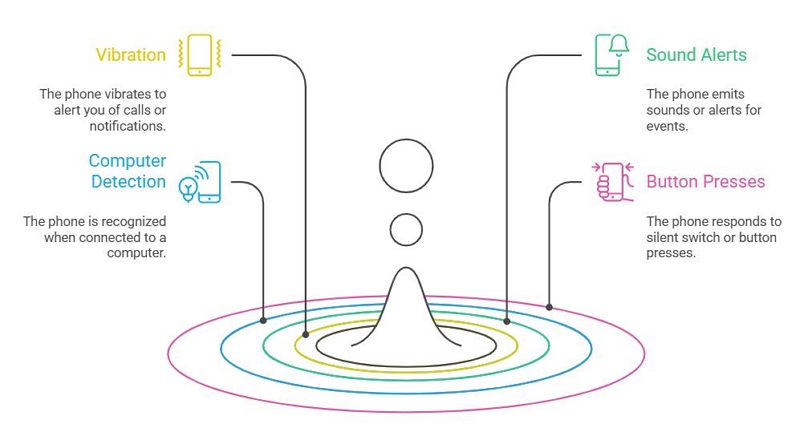
You may notice things like:
- The phone vibrates when you receive calls or notifications
- You hear sounds or alerts
- The device is detected when you connect it to a computer
- The phone reacts to the silent switch or button presses
From a data perspective, this is the best-case scenario. The system is still working, your storage is still accessible, and your data can usually be:
- Backed up to a computer
- Synced to iCloud
- Or exported directly (for example, photos via DCIM)
Even though the screen is black, this is not a data loss situation. It is primarily a display or minor hardware issue.
Case 2: The iPhone Is Completely Dead (No Power, No Response)
In this case, the phone shows no signs of life at all:
- No vibration
- No sound
- No detection by computer
- No reaction to charging or button presses
This is not a screen problem. This is a power or logic board level failure. Your data is still physically stored inside the device, but because iPhones use full-disk encryption, the storage cannot be read or accessed unless the phone itself can partially boot. There is no software that can simply “pull the data out” of a completely dead iPhone.
In this scenario, data recovery becomes a hardware problem, not a software one. The only real path is:
- Board-level repair to restore power temporarily
- Or advanced component-level work so the phone can boot long enough to decrypt and export the data
Why This Difference Is So Important
Many online guides and tools treat “black screen” as one simple problem. In reality:
- If the phone still works internally, your chances of recovery are very high.
- If the phone is truly dead, recovery depends entirely on whether hardware repair is possible.
Understanding which category your iPhone falls into will save you: Time, Mone, and, most importantly, the risk of making the data unrecoverable
Before trying any fixes, restores, or tools, you need to know which situation you are actually in.
What You Should NOT Do (To Avoid Permanent Data Loss)
When an iPhone shows a completely black screen, many people instinctively start trying random fixes. Unfortunately, some of the most common actions can permanently destroy your data.
Here is what you should not do:
1. Do not restore the iPhone in Finder or iTunes.
Restore means wiping the device and reinstalling iOS. Because iPhone storage is encrypted, once the system area is overwritten, your original data becomes mathematically unrecoverable.
2. Do not update iOS blindly.
Even an “Update” can fail on unstable hardware and turn into a forced restore. On damaged devices, this is a real risk.
3. Do not reflash, reset, or erase the device.
Any operation that rewrites system partitions increases the chance of permanent data loss.
4. Do not keep force-restarting a possibly shorted or water-damaged phone.
If the logic board has a short circuit, repeated power attempts can cause cascading damage and kill components that were still repairable.
Why is this so dangerous?
Because iPhones use full-disk encryption. Your data is not stored as readable files that can be “rescued later.” Once critical system areas are overwritten or corrupted, the encryption keys are gone—and so is your data.
Quick Non-Destructive Checks (5–10 Minutes Only)
Before assuming the worst, spend a few minutes checking whether this is just a display issue or a deeper failure.
1. Check If It’s Only a Display Issue
Try these simple checks:
- Call your iPhone and see if it rings or vibrates
- Toggle the silent switch and see if you feel haptic feedback
- Plug it into a computer and see if Finder or iTunes detects it
- Connect it to a charger and watch for any sound or vibration
If the phone reacts in any way, there is a good chance the device is still running internally and the problem is mainly the screen or display circuit.
2. Force Restart (Safe, Non-Destructive)
A force restart does not erase data. It only forces the system to reboot.
If the issue is caused by a system crash or frozen state, this may bring the phone back to life.
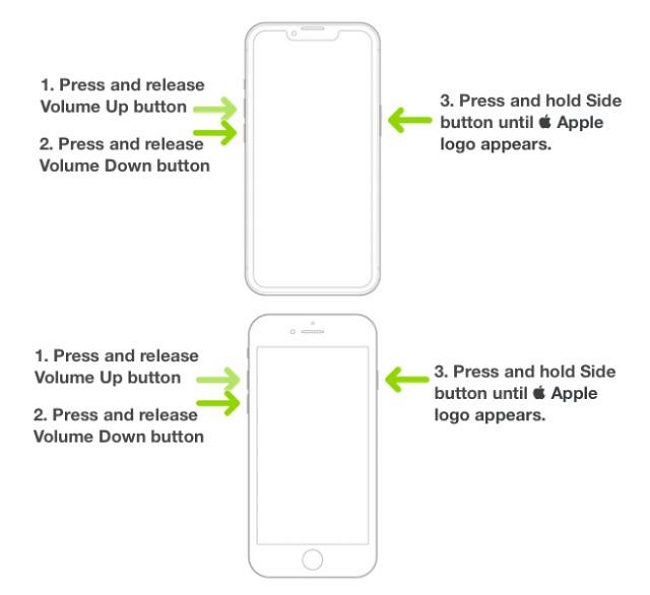
The button combination may vary depending on your iPhone device model.
3. Try a Different Cable, Charger, or Computer
This sounds basic, but it matters. A dead cable or port can make a working phone look completely dead.
What to conclude from this step:
- If the iPhone is detected by a computer or shows any signs of life → go to the next section.
- If the iPhone is completely dead and shows no response at all → skip ahead to the hardware recovery section.
If the iPhone Is Still Detected by a Computer
This is a good sign. It means the system is still running at some level, and your data is likely still accessible.
Try Finder / iTunes “Update” (Not Restore)
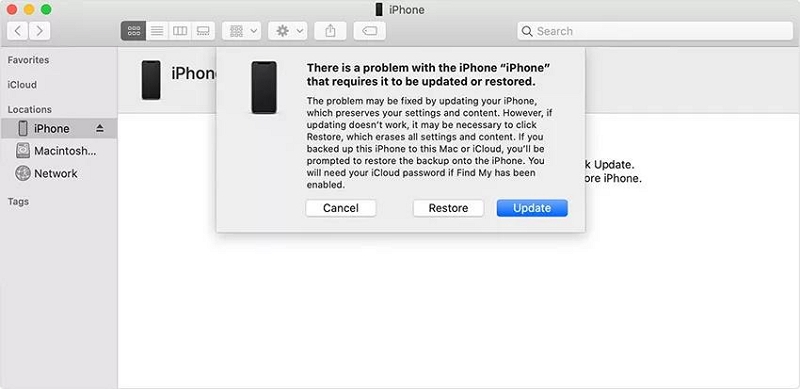
When Finder or iTunes detects a problem iPhone, it may offer two options:
- Update = tries to fix iOS while keeping your data
- Restore = wipes everything
Always try Update first. Never choose Restore if your goal is data recovery.
How to Try an iTunes / Finder Update Safely
1. Connect your iPhone to your computer using a USB cable
2. Open: Finder (on macOS Catalina and later), or iTunes (on Windows or older macOS)
3. If a message appears saying the iPhone has a problem, choose Update
4. Wait for the process to finish and see if the phone can boot normally
Do not choose Restore. Restore will erase the device and destroy your data.
If You Can Unlock It Even Once
If you manage to get the phone to respond even briefly, do this immediately:
Option 1: Create a full local backup on your computer
This is the safest and most complete way to preserve your data.
On Windows or macOS:
Step 1: Use a working USB cable to connect your iPhone to the computer.
Step 2: On macOS (Catalina and later): Open Finder; On Windows or older macOS: Open iTunes
Step 3: If the iPhone is detected, you will see it appear in Finder or iTunes.
Step 4: If the phone screen still responds, unlock the iPhone and tap “Trust This Computer” if prompted.
Step 5: On the device summary page: Select “Back up all data on your iPhone to this Mac/PC”
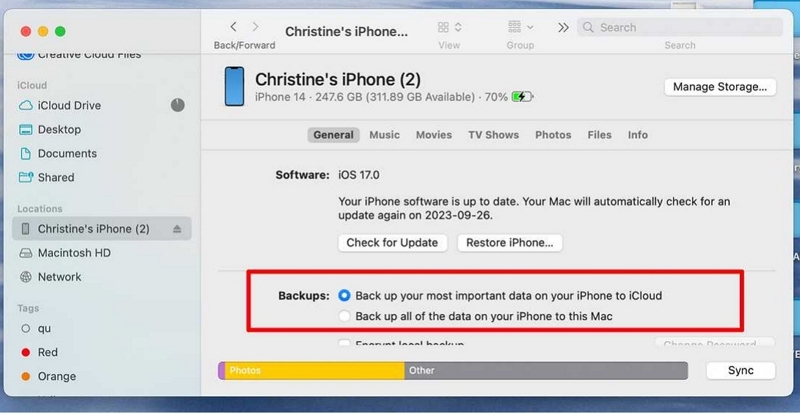
(Optional but recommended) Check “Encrypt local backup” to include Health data and passwords
Step 6: Click “Back Up Now” and wait until the backup finishes completely. Do not disconnect the cable during the backup.
Once this backup is done, your data is safe — even if the phone dies completely afterward.
Option 2: Export important photos via the DCIM folder
This is the fastest way to save photos and videos if the system is unstable.
On Windows:
Step 1: Connect the iPhone to your PC using a USB cable.
Step 2: Open This PC → You should see Apple iPhone as a device.

Step 3: Open Apple iPhone → Internal Storage → DCIM
Step 4: Copy all folders inside DCIM to your computer. These folders contain all photos and videos.
On macOS:
Step 1: Connect the iPhone to your Mac.
Step 2: Open Photos app or Image Capture.
Step 3: Select the iPhone from the sidebar.
Step 4: Click Import All (or select the most important photos first).
This method only saves photos/videos, not app data, messages, or system data.
Option 3: Let iPhone sync to iCloud if you have enough space
Use this only if the phone is still usable and stable for a while.
Step 1: Make sure the iPhone is connected to Wi-Fi and charging.
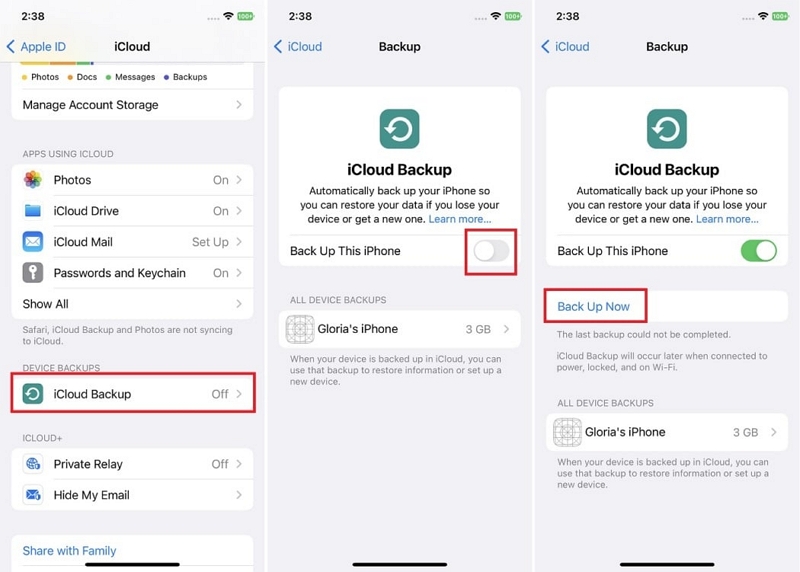
Step 2: Go to Settings → [your name] → iCloud → iCloud Backup
Step 3: Turn on iCloud Backup
Step 4: Tap Back Up Now
Step 5: Wait until the backup finishes. Do not lock or disconnect the phone during the process.
You can check progress here: Settings → [your name] → iCloud → iCloud Backup
Do not try to “fix” the phone first. Secure the data first.
A Reality Check About “iPhone Data Recovery Software”
Be very clear about this:
- These tools cannot bypass iOS encryption
- They cannot read data from a completely dead phone
They only work if:
- The iPhone can power on, and
- Or it was previously trusted by the computer
Any software claiming it can magically extract data from a totally dead iPhone is simply not being honest.
When Tools Like Datile Can Actually Help
Tools like Datile iOS Recovery are designed for situations where the iPhone is still detectable by the system, but: the screen is not usable, the system is unstable or crashes or you cannot reliably complete a normal backup in time
In these cases, Datile can help you:
- Read data from the device once it is detected by the computer
- Extract important files such as photos, videos, messages, and notes
- Or recover data from an existing iTunes/Finder backup without restoring it to another iPhone
A typical safe workflow looks like this:
Step 1: Connect the iPhone to your computer and check whether it is detected.
Step 2: Try Finder or iTunes Update first to stabilize the system.
Step 3: If the device is still unstable but detectable, use Datile iOS Recovery to scan the device or its local backup.
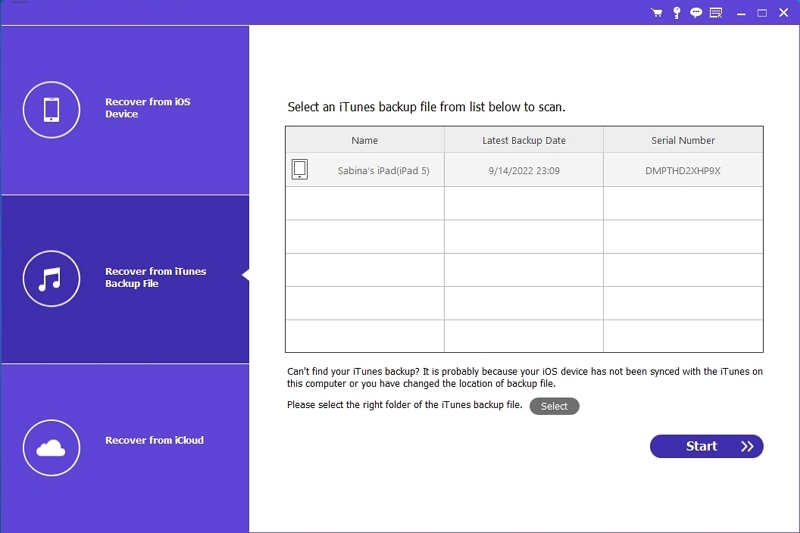
Step 4: Preview important data before recovery.
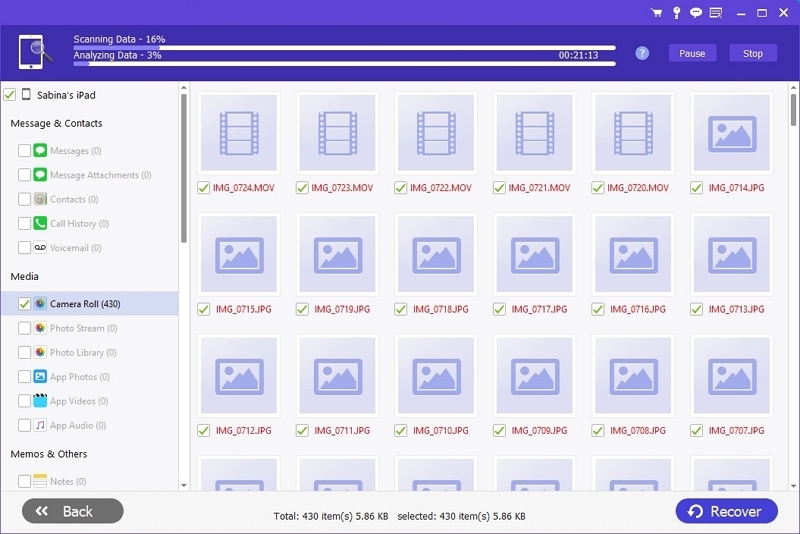
Step 5: Recover and export critical files to your computer before the phone fails completely.

Datile does not and cannot recover data from an iPhone that has no power and is not detected at all. In those cases, only hardware-level repair can help.
If the iPhone Is Completely Dead (No Power, No Detection)
The Truth: This Is a Hardware Problem, Not a Software Problem
Your data is stored on an encrypted NAND chip inside the iPhone.
- It cannot be “scanned” like a USB drive
- It cannot be read outside the phone in any simple way
- The phone must partially boot to decrypt the storage
If the device cannot power on at all, software solutions are useless in this scenario.
What Professionals Actually Do
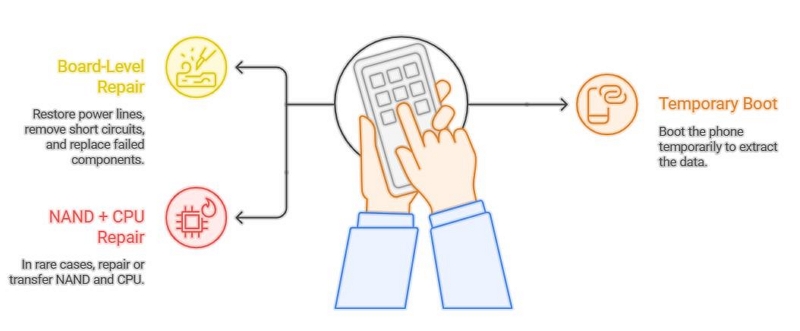
Professional data recovery labs don’t “hack the storage.” They: Perform board-level repair to:
- Restore power lines
- Remove short circuits
- Replace failed components
The goal is to temporarily boot the phone long enough to extract the data. In rare, model-dependent cases, this may involve: NAND + CPU paired repair or transfer
| Situations Where This Often Works | Where Recovery May Be Impossible |
|---|---|
| Water damage | Both CPU and NAND are damaged |
| Power IC failure | Severe corrosion inside storage layers |
| Shorted capacitor | The device was already wiped or restored |
| Drop or impact damage | |
| “Black screen of death” cases |
Being honest about this is important: not every device can be saved.
“But I Have No Backup” — What Data Can Still Be Saved?
Not having a backup does not automatically mean your data is lost. If the iPhone can be successfully revived through hardware repair, you can usually recover most or even all of your personal data, including:
- Photos and videos
- Messages and call history
- Notes and contacts
- App data and most user files
In this case, the phone is able to decrypt its own storage, and the data can be exported normally.
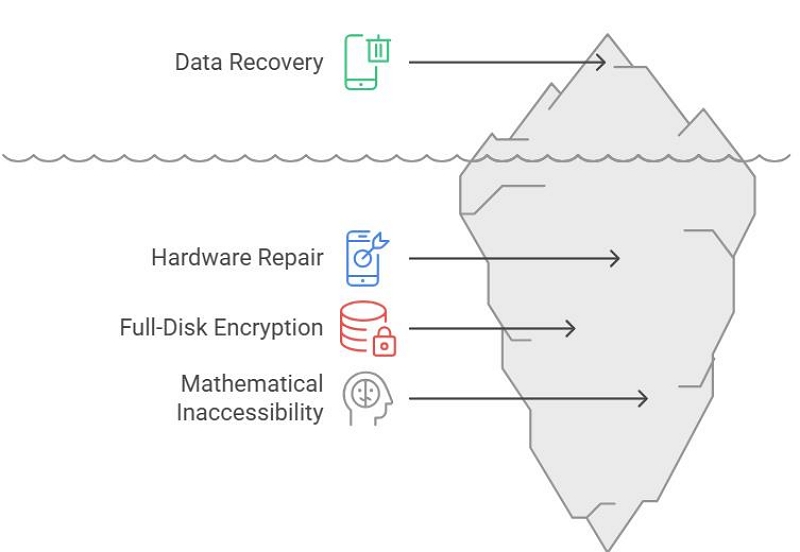
However, if hardware recovery fails, the situation changes completely. Because iPhones use full-disk encryption, the storage cannot be read like a normal drive. Even though the data may still physically exist on the chip, it becomes mathematically inaccessible without a working device.
Should You Go to Apple Support?
Apple’s policy is simple:
- They replace parts or replace the device
- They do not perform data recovery
- A logic board replacement = your original data is gone
If your data matters, you should not treat Apple repair as a data recovery solution.
How to Choose a Real Data Recovery Service
Look for:
- True board-level repair capability
- Microsoldering equipment
- Experience with your exact iPhone model
- Clear pricing logic (not “guaranteed recovery” marketing traps)
Avoid services that promise success without even inspecting the device.
How to Prevent This in the Future
- Enable iCloud Backup
- Or make periodic encrypted local backups
Especially important for:
- Travel phones
- Work phones
- Older devices with aging hardware
FAQ
Q. Is recovery possible with no backup?
Sometimes. It depends entirely on whether the device can still be powered on or repaired to boot.
Q. If the phone is totally dead, is software useless?
Yes. This becomes a hardware recovery problem.
Q. Does replacing the screen risk data?
No. Screen replacement does not touch storage.
Q. How much does board-level recovery cost?
It varies widely by damage and model, from moderate to expensive.
Q. Is my data still there even if the phone won’t turn on?
Usually yes—but encryption means it may still be inaccessible.
Conclusion
A black screen does not automatically mean your data is gone. In many cases, it’s only a display or temporary system issue. Even in more serious failures, your data is usually still stored inside the device. What really matters is what you do next.
- If the iPhone still shows any sign of life, secure the data first before trying to fix anything.
- If the phone is completely dead, stop random attempts and treat it as a hardware recovery case.