
Updated on 2026-03-12
views
5min read
Losing contacts after iOS update can be frustrating, especially if those contacts include business partners and important clients or they have been accumulated over many years. The good news is that in most of cases, your contacts are not actually deleted. Instead, they may be hidden due to sync issues, account settings, or temporary iOS bugs that occur after an update. As a result, you may find some of the contacts are missing or contact names don’t show. Don’t worry, in this post, we will tell you how to recover contacts missing after an iPhone update, no matter what situation you are facing.
Understand Your Situation: Contacts Missing After iPhone Update
Understanding the exact situation helps you avoid unnecessary steps, such as restoring backups when a simple setting adjustment may solve the problem. The table below outlines common contact problems after an iOS update, possible causes, and which fixes to try first.
| Case | What You See | Possible Reasons | The First Fix to Try |
|---|---|---|---|
| Case 1 | Some of my contacts are missing. | iCloud sync paused, account conflicts, or partial sync failure during update | Try Fix 1 first, then Fix 3 |
| Case 2 | Exchange contacts disappear from my iPhone. | Exchange account disabled or sync settings reset after update | Try Fix 2 first |
| Case 3 | Contact names disappear from iPhone while numbers still show. | Contact database indexing bug or sync delay | Try Fix 1, then Fix 7 |
| Case 4 | iPhone isn’t showing all contacts. | Contact group filter disabled or default account changed | Try Fix 2, then Fix 3 and Fix 4 |
How to Recover iPhone Contacts Missing After iOS Update
Although you can’t find contacts you need or your contacts appear incomplete after updating iOS, the data still exists somewhere, either on your iPhone, in your iCloud account, or in a backup.
Below are 8 practical methods to recover or restore missing iPhone contacts. The first few solutions focus on fixing common sync and account issues. If those don’t work, you can move on to more advanced solutions such as restoring backups or using professional data recovery software.
Way 1. Enable iCloud Contacts
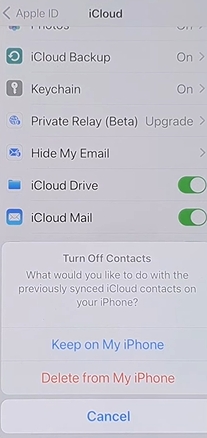
If iCloud Contacts sync gets turned off, you will notice that some of your contacts are missing. This can happen due to an iOS bug or if the wrong option was selected during system prompts. For example, some users accidentally tap “Delete from My iPhone” when iOS asks how to handle existing contacts. This removes local contacts from the device but keeps them stored in iCloud. Re-enabling iCloud Contacts often restores the entire contact list within a few minutes.
Steps to Turn on iCloud Contacts
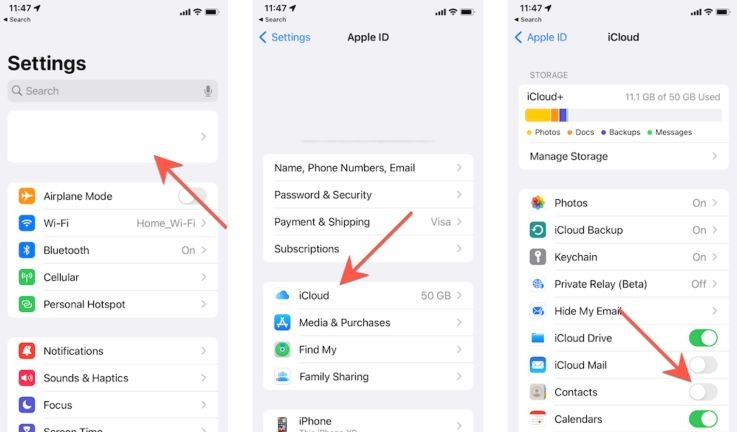
Step 1. Open Settings on your iPhone and tap your Apple account name at the top.
Step 2. Select iCloud.
Step 3. Find Contacts and toggle it ON.
Step 4. Choose Merge if prompted.
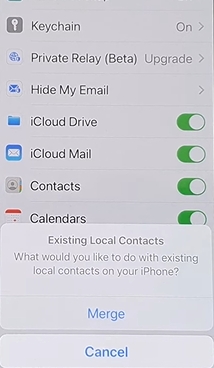
Once enabled, iCloud will sync your contacts again and you will find the missing contacts back.
Tip:
- If you have more than 1,000 contacts stored in iCloud, the sync process may take 2–5 minutes depending on your internet speed.
- If iCloud Contacts is on, you can turn it off and back on to force a fresh sync, which could help restore missing entries.
Way 2. Check Contact Account Group
Your iPhone can store contacts from multiple sources, including iCloud, Gmail, Outlook, Exchange, Yahoo and other corporate accounts. After an iOS update, some of these accounts may be temporarily turned off and thus you can’t locate some contacts on your device. For instance, if you use Exchange contacts for work, disabling that account will make those contacts disappear from your phone.
Steps to Enable Contact Accounts in iPhone
Step 1. Open Settings and locate Contacts.
Step 2. Select Accounts.
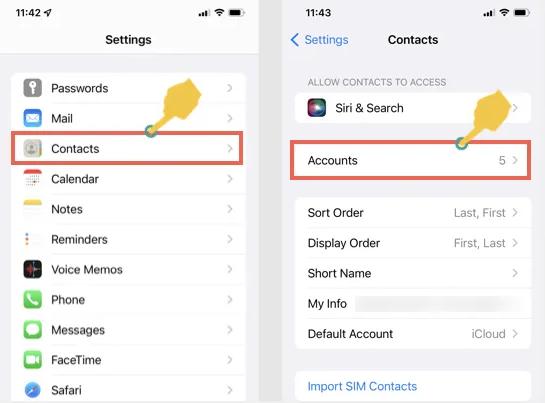
Step 3. Access each account and ensure Contacts is ON.
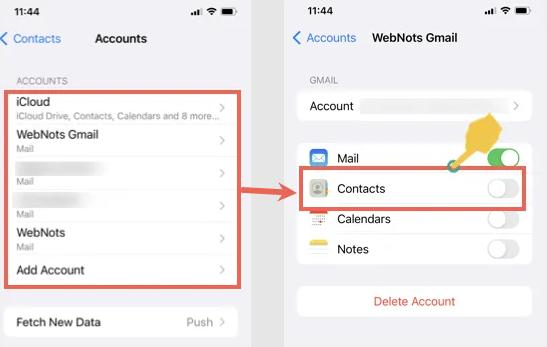
If you have multiple accounts enabled, turning all back on should immediately restore the missing contacts.
Way 3. Confirm Default Contact Account
If you save a new phone number but it doesn’t appear on the Contacts app, then this way can help you out. Every time you save a new contact on your iPhone, it is stored in the default contact account—this could be iCloud, Gmail, Exchange, or another linked account. The default account determines where new contacts are saved and which contacts are displayed by default.
After an iOS update, the system may automatically change the default account. This usually happens because iOS resets certain preferences during the update to optimize syncing with iCloud. As a result:
- Contacts originally saved under Gmail or Exchange may no longer appear immediately.
- Your device may only display contacts from the newly assigned default account (often iCloud).
- This can create the impression that contacts were lost, even though they remain in the original account—they are just hidden from view.
Note: If you have enabled the option to show all contact accounts in the Contacts app, meaning turning on all contact accounts, the default account setting does not affect which contacts are displayed.
How to Confirm Default Contact Account
Step 1. Go to Settings > Contacts > Default Account.
Step 2. Choose the correct account. Once the correct account is selected, your full contact list should appear again.
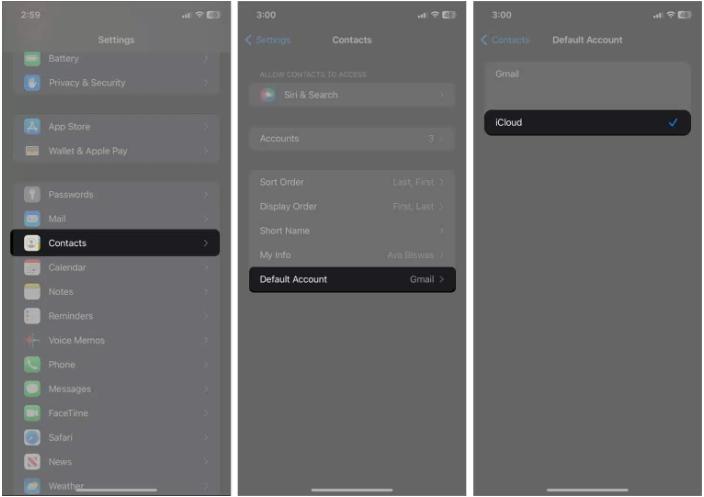
Tip: iCloud is the recommended account contact, because it integrates directly with iOS backups and sync.
Way 4. Retrieve Contacts Using Data Recovery Software
If your contacts are no longer available in iCloud or any synced account, they may still exist in your iPhone internal storage. You can use a professional data recovery tool to scan the device and retrieve deleted data. One reliable option is Datile iOS Recovery, which is designed to recover lost iOS data after system updates, factory reset, accidental deletion or other scenarios. It’s extremely useful when you haven’t backed up your iPhone before or want to recover iTunes/iCloud backup without reset.
Key Features
- Recover contacts, photos, videos and 30+ other types of data with high success rate(98.6%).
- Support restoring selected data or an entire iTunes or iCloud backup.
- Support preview before recovery to ensure accuracy.
- Compatible with iPhone/iPad/iPod and work on Windows and Mac.
Guide to Recover Missing Contacts Using Datile iOS Recovery
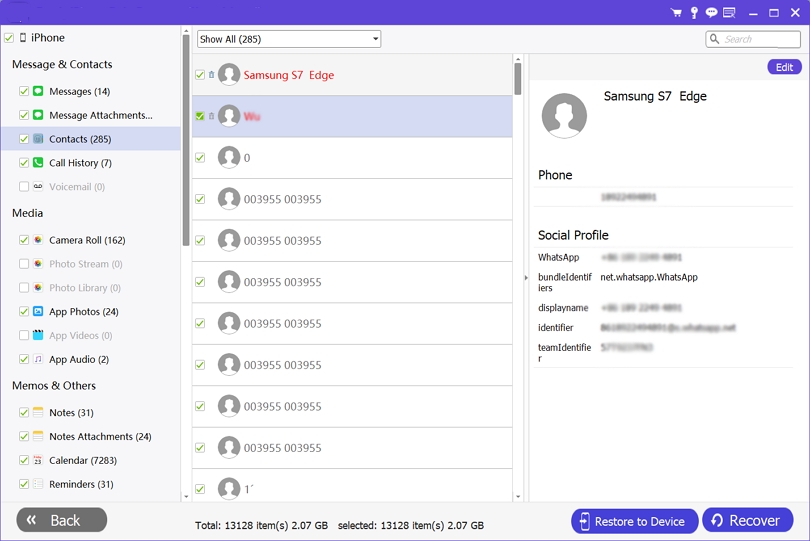
Step 1. Run Datile iOS Recovery on your computer and use a certified USB cable to connect your iPhone to the same desktop.
Step 2. Locate the side bar and ensure Recover from iOS Device is chosen. Then, click Start Scan in the right pane.
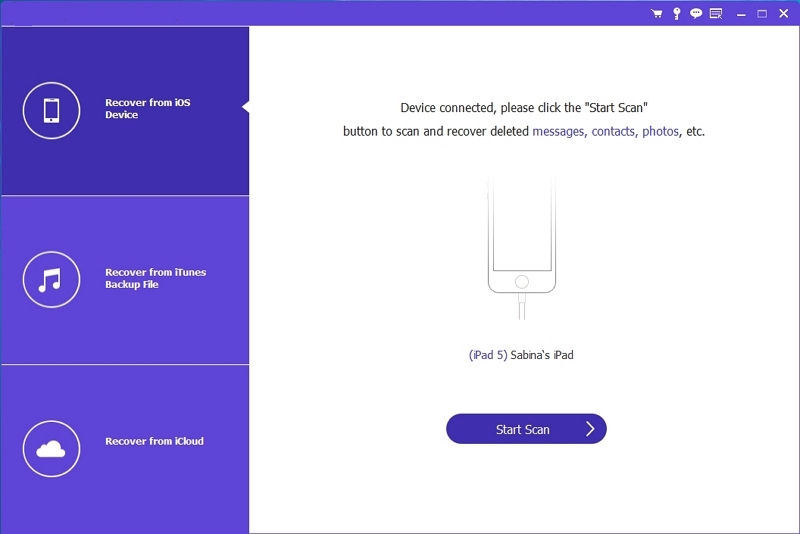
Step 3. After scanning, choose Contacts from the left menu. Preview and select the contacts you want to restore.
Step 4. Click Recover at the bottom right corner of software screen. After a while, open Contacts app on your iPhone and you will find your missing contacts restored.
Way 5. Restore Contacts via iCloud Site
If your contacts were synced with iCloud, Apple provides a built-in feature that allows you to restore an earlier version of your contacts database. This method works particularly well when contacts disappear due to sync errors, accidental deletion, or system glitches. The principle behind this method is that iCloud automatically archives your contacts periodically, usually daily, and keeps these archives for up to 30 days. This means that even if contacts are missing on your iPhone, you can restore a previous version from within the past 30 days that is safely stored in iCloud.
Tip: This way doesn’t work on phones.
Steps to Restore Contacts Through iCloud Archives
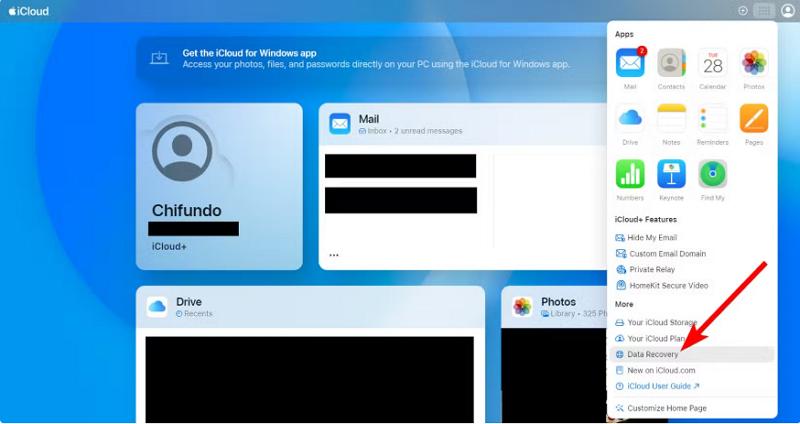
Step 1. Visit the iCloud website and sign in with your Apple ID.
Step 2. Click your profile name and select Data Recovery.
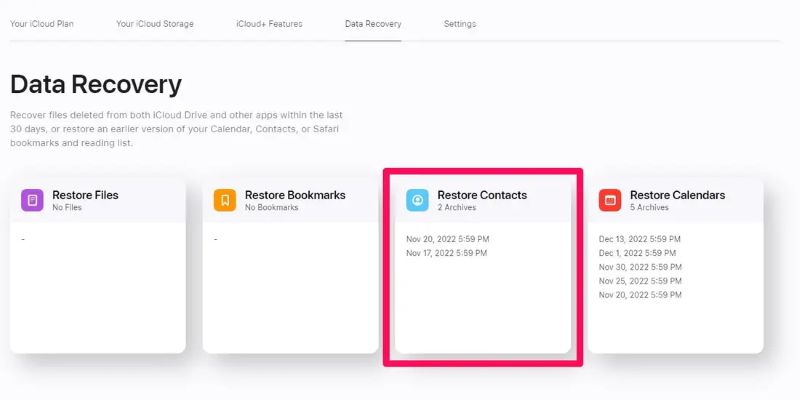
Step 3. Under Data Recovery, choose Restore Contacts.
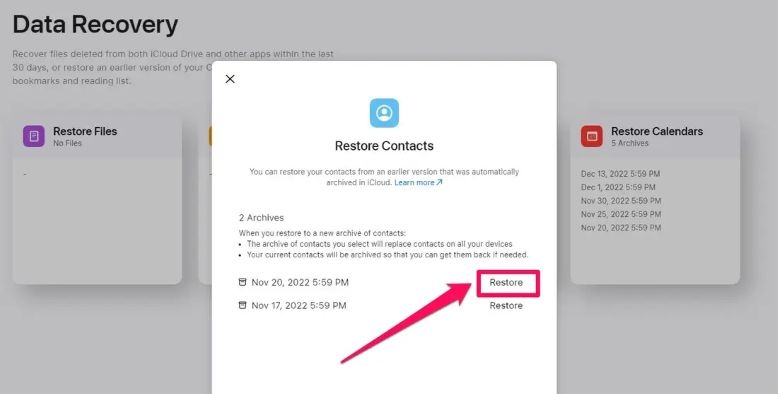
Step 4. Select a restore date before the contacts disappeared. Then, click Restore. Note that this process replaces the current contact list across all synced devices.
Way 6. Restore iCloud Backup
If you hadn’t enabled iCloud Contacts sync, your contacts might still be safely stored in an iCloud backup. iCloud automatically creates full-device backups whenever your iPhone is connected to Wi-Fi and power, saving not only contacts but also messages, app data, and settings. By restoring one of these backups, you can recover lost contacts. Keep in mind that you will need to reset your iPhone in order to restore the backup.
Steps to Restore iCloud Backup on iPhone
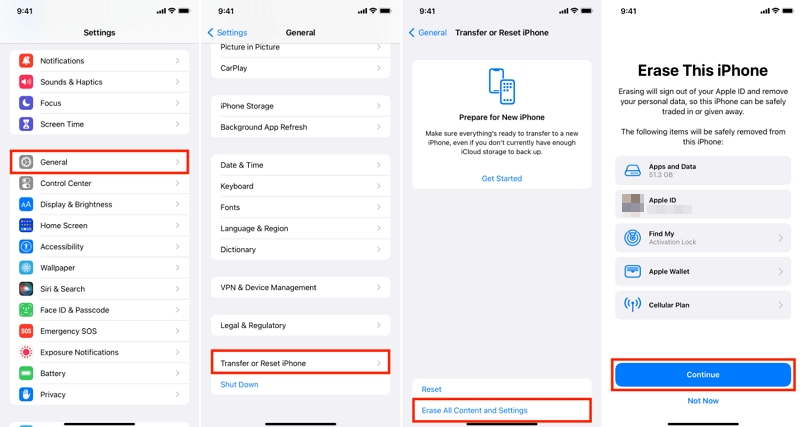
Step 1. In the Settings app, choose General, followed by Transfer or Reset iPhone.
Step 2. Tap Erase All Content and Settings and enter the device passcode if asked.
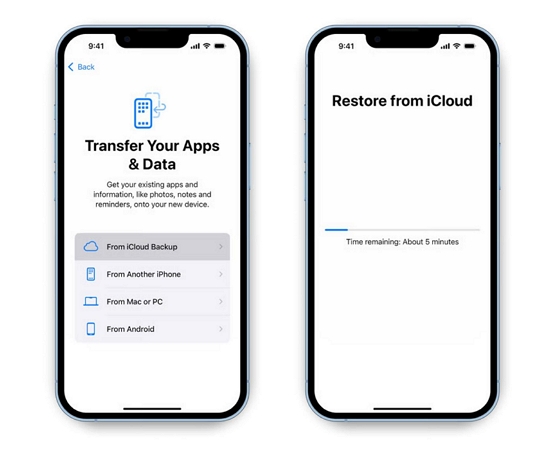
Step 3. Restart the setup process. In the setup screen, choose Restore from iCloud Backup and select the backup created before the update.
Bonus: You can use Datile iOS Recovery to restore contacts from an iCloud backup without having to reset your iPhone.
Way 7. Repair iOS
As the contact issue can be caused by an iOS system bug, repairing the system may solve the problem. Tools like Passvers iOS Repair can fix common iOS issues such as update errors, system glitches, and data display problems without deleting your data. The software offers Standard Mode, which repairs system problems while keeping your files intact.
Way 8. Wait for the Next iOS Version
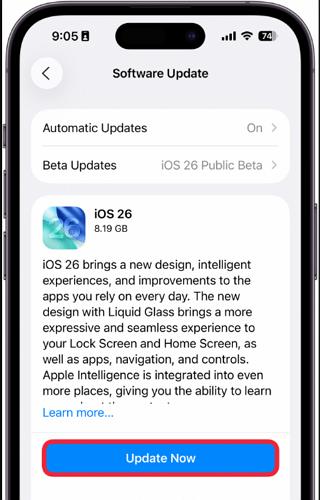
Sometimes contact issues appear because of temporary bugs in newly released iOS versions. Apple usually releases follow-up patches quickly to fix these problems. If your contacts exist in iCloud but don’t appear on the device yet, waiting for the next update may solve the problem automatically.
You can check for updates by going to Settings > General > Software Update. Installing the latest patch may restore normal sync behavior.
Final Words
Contacts disappearing after an iPhone update can happen for many reasons, including sync errors, account changes, system bugs, or incorrect settings. Fortunately, most cases do not involve permanent data loss.
Start by checking simple settings like iCloud Contacts, account groups, and default contact accounts. These fixes solve the majority of cases. If the contacts still do not appear, you can try restoring from iCloud archives, backups, or using professional recovery software like Datile to scan the device and get back lost contacts.