
Updated on 2026-02-26
views
5min read
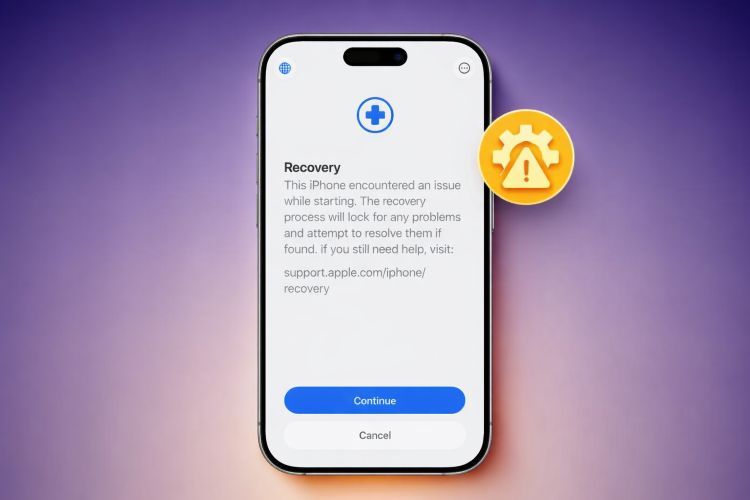
You were trying to update your iPhone to iOS 26 to get new features. Instead, you are stuck on the recovery assistant screen, with a message that says: "This iPhone encountered an issue while starting iOS 26." Tapping the Continue button is supposed to fix the issue and boot the device normally. However, for many, the iPhone simply restarts and lands back on the same Recovery screen again and again.
Don’t worry. This guide explains why this problem happens and shows you multiple ways to fix iPhone stuck in recovery mode loop after the iOS 26 update. We cover different methods so you can break the loop, reach the Home screen, and do it without losing your data.
Why Is iPhone Stuck on Recovery Mode Loop After iOS 26 Update
The black or white screen titled "Recovery" or "Recovery Assistance" with the message saying "This iPhone encountered an issue while starting" is a feature introduced in the recent iOS 26 beta version itself.
This screen usually lets you self-repair the device and often without the help of a computer. However, many times, clicking "Continue" just reboots the phone back to the same error.
Here is why it is happening:
1. Insufficient Storage
This is the most common cause. During the iOS 26 installer, the installer needs temporary free space to replace system files. Remember that the download only needs 6 to 8 GB for iOS 26 (whether beta or normal updates).
But the installation process also requires "breathing room" to unpack and swap the files. A general rule of thumb from Apple is to make sure that at least 20 GB of free space is available for a safe over-the-air (OTA) update.
2. iOS 26 Beta Bugs (Specific Builds)
Another major factor is iOS 26 beta–specific bugs. Continuous “Recovery Assistant” cycle was common after installing certain iOS 26 beta builds like 23A5297m. And this affected many iPhone models from iPhone 12 to iPhone 15 Pro users.
3. Interrupted Update
A Wi-Fi drop or a battery drain during the "Verifying update" stage is again a classic trigger for this. If that is the cause, you must have seen the update bar hang at around 60% or 90% for hours before finally crashing to the recovery screen.
Here, the problem is that the bootloader files were being written, but the process stopped. So the phone couldn't start the operating system.
4. System File Corruption
Corruption in system data from a prior update is preventing the new iOS files from mounting itself. So instead of loading Home Screen, it will get stuck in the recovery restart pattern.
5. Hardware, Cable, and Connection Issues
If you were trying to restore via the computer and got Error 4013 or Error 9, well, this indicates a data transfer was corrupted by a faulty cable or port. You should always try to update via a standard cable. A simple way to tell if the cable is good or not is to simply connect another iPhone and see that both data transfer and charging are happening with it. Also, disable any firewall or VPN on your PC before updating the software.
How to Fix iPhone Stuck on Recovery Mode Loop After iOS 26 Update
Fix 1. Force Restart iPhone When Connected to Mac
The problem with the iOS 26 Recovery Assistance screen is that the usual “Restart iPhone" option after hitting the Continue button only works for some. Even normal power controls are disabled, so holding the Side button does not bring up Slide to Power Off. Trying a standard force restart will drop the iPhone straight back into the same recovery screen.
Connecting the iPhone to a Mac before restarting changes this behavior. When plugged in, the Finder will establish a recovery session with the iPhone, which allows iOS to safely restart instead of staying trapped in recovery mode.
Here’s what to do:
Step 1. Connect the stuck iPhone to a Mac using a reliable cable.
Step 2. Open Finder on the Mac.
Step 3. If Finder shows an Update or Restore prompt, do not click anything. Just leave it open.
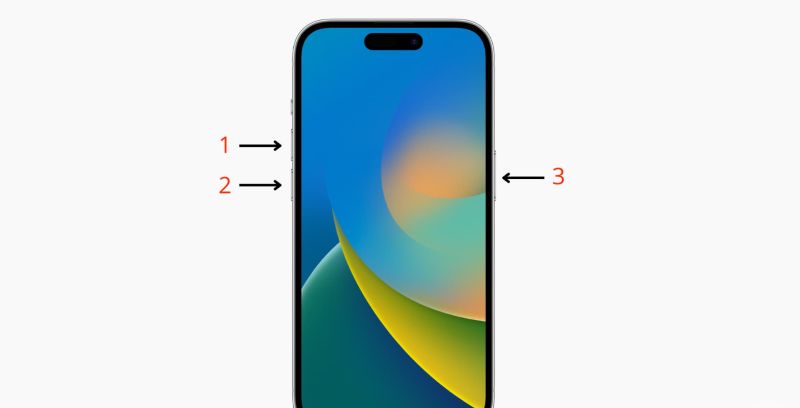
Step 4. On the iPhone, perform this button sequence:
- Press and release Volume Up.
- Press and release Volume Down.
- Immediately press and hold the Side button.
Step 5. Keep holding the Side button until the screen goes completely black.
Step 6. Release the button once the Apple logo shows.
If the process worked, the iPhone should boot normally to the Lock Screen.
Fix 2. Update iPhone Using Nearby Device
This is a new iOS 26 feature (now expanded to even iOS 18 updates) designed exactly for situations like this.
Basically, the recovery assistance screen allows you to use a healthy iOS device (iPhone, iPad) to download a fresh iOS 26 firmware and wirelessly inject it into your stuck device.
This will bypass any corrupt storage on your device that was causing the crash and it will allow you to boot to the normal home screen with iOS 26.
Here are the detailed steps:
Step 1: Plug your stuck iPhone into a wall charger, as this feature is disabled on battery power. Place your other device or your family member's iPhone next to the stuck one.
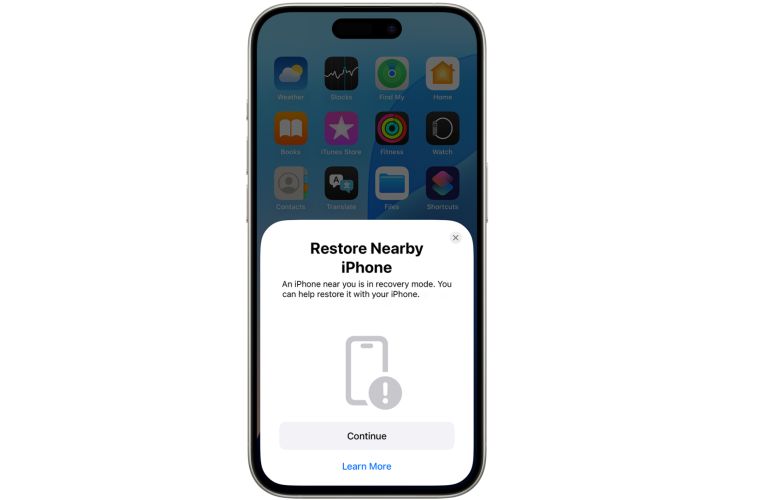
Step 2: You will automatically see the Restore Nearby iPhone card on the helper device.
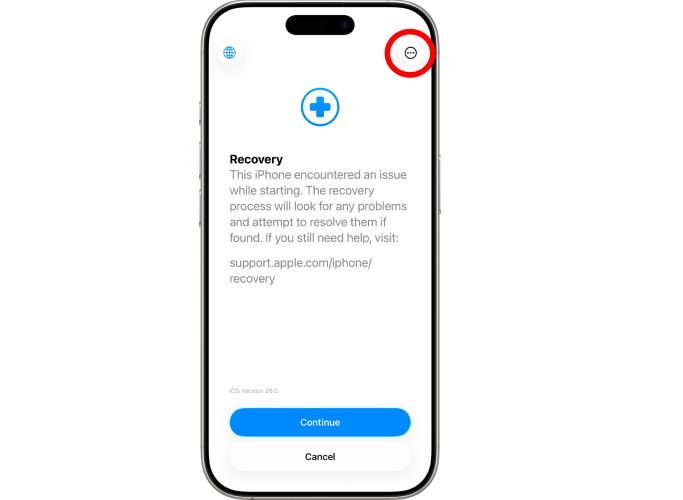
Note:If you do not see it, you can click the three-dot menu (top right) on the stuck iPhone. Then, choose Restore from another device.
Step 3: Tap Continue on the helper device. The stuck iPhone will now show a six-digit code.
Step 4: Enter this code on the helper device to share its Wi-Fi connection and authorize the link.
Step 5: The helper iPhone will show "Downloading software" and then transfer it to the stuck device.
Note: Do not separate the phones during this process. Once the progress fills up, your faulty iPhone will reboot normally into iOS 26.
Fix 3. Install iOS Update on iPhone with iTunes
If the wireless “Nearby Device" method wasn't successful or you don't have a second device, your next move is to use a computer. That is, you can enter Recovery mode. From there, the computer can download and install the new firmware on the stuck iPhone.
Note: You can use iTunes or Apple Devices app on Windows or Finder (macOS). The steps are identical for the three.
Step 1: Plug your stuck iPhone into the computer.
Step 2: While connected:
- Press Volume Up,
- Then Volume Down,
- Then press and hold the Side button, even when the Apple logo appears in this case. Release the side button only when you see a cable pointing to a computer.
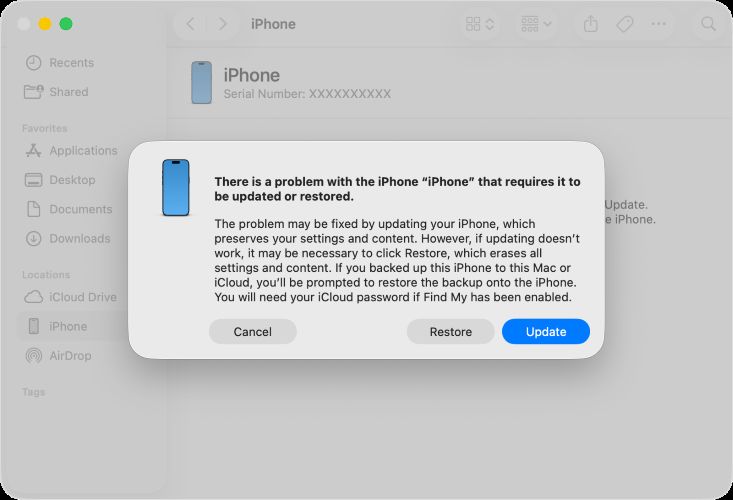
Step 3: Your computer can detect the stuck iPhone now. You’ll see a dialog box in Finder, iTunes or Apple Devices app:
"There is a problem with the iPhone that requires it to be updated or restored."
Step 4: Select Update. This will tell the computer to reinstall iOS 26 without erasing your photos, chats, or apps. The iPhone will be updated and boot to the lock screen.
Fix 4. Use iTunes to Restore iPhone
If the "Update" option didn't work, or your computer flagged error codes like Error 4013 or 9, it means your system files are too corrupted. You will have to wipe the iPhone before you can reinstall the new iOS 26.
Note: If you want to recover your phone data after restoration, locate next part and use Datile iOS Recovery tool to get back your lost images, contacts, etc.
Option 1. Restore iPhone in Recovery Mode
This method performs a full reset. This means everything on the stuck iPhone will be erased — settings, personal data, along with the broken iOS install. After that, a fresh copy of iOS 26 will be installed. Here’s how to do it:
Step 1. Connect the iPhone to your computer.
Step 2. Trigger Recovery Mode on the phone:
- Tap Volume Up, then let go.
- Tap Volume Down, then let go.
- Now keep holding the Side button.
Let go only when the screen shows a cable pointing to a computer.
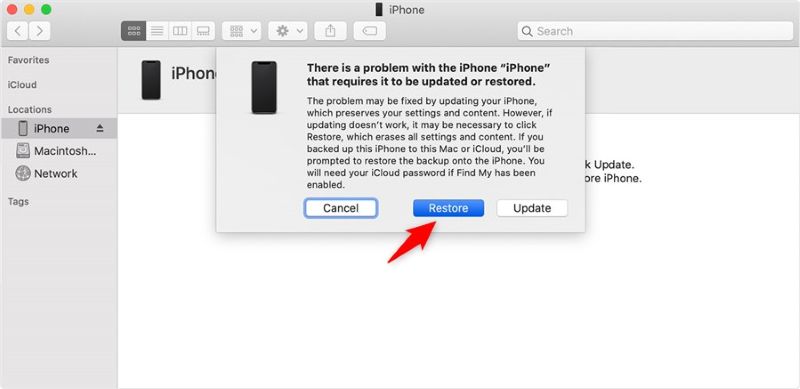
Step 3. Your computer will detect the iPhone. And it will display a message with two choices: Update or Restore.
- Choose Restore this time.
The iPhone will restart and land on the Hello setup screen.
Option 2. Restore iPhone in DFU Mode
This is the lowest-level repair Apple allows. Unlike Recovery Mode, DFU (Device Firmware Update) mode lets iTunes communicate with the iPhone at a firmware level. Follow the steps in order:
Step 1. Plug the iPhone into the computer.
Step 2. Begin the button sequence:
- Quickly tap Volume Up.
- Quickly tap Volume Down.
- Hold the Side button until the screen turns black.
- The moment the screen turns black: keep holding the Side button and hold Volume Down.Count slowly to 5 seconds.
- After five seconds, let go of the Side button.
- Keep holding Volume Down for another 10 seconds.
If done correctly, the iPhone will stay completely black. And you’ll see the prompt on the computer screen asking you to restore the iPhone before it can be used.
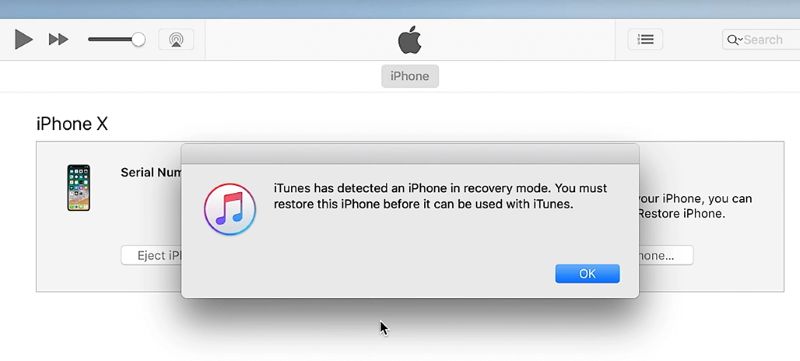
Note: Any logo or cable icon on the iPhone means the timing was off — start again.
Step 3. Click the Restore iPhone option.
The system will reinstall iOS 26 from scratch and reboot the device to the Hello screen.
Fix 5. Downgrade iOS
Some users, while attempting DFU mode in Option 2 above, see their iPhone reverting to iOS 18. This happens: when the recovery assistance loop occurs while installing an iOS 26 beta, recovering through DFU mode may install the stable public releases, for example, iOS 18, rather than continuing with the iOS 26 beta system files.
That behavior is normal. You can continue using the same version, or you can basically update to iOS 26 from iOS 18:
- Directly from the Settings.
- Using a computer.
Note: If you want to manually downgrade to iOS 18 while stuck on the recovery assistant screen, you can use Passvers iOS System Recovery software. Passvers is designed to detect the cause of the recovery loop and offers repair options to fix the issue directly. It also gives you the option to downgrade your iOS version instead of continuing with iOS 26.
How to Recover iPhone Data Lost Due to Recovery Mode Loop After iOS 26 Update
If you are forced to deal with the Recovery Assistant loop by restoring your iPhone, your iPhone’s data will be erased. This becomes much worse when you don’t have a recent iCloud or computer backup. The good news is you can still get your data back using Datile iOS Recovery.
Datile scans the iPhone’s internal storage directly and looks for data that hasn’t been overwritten yet. So even after a restore, iOS keeps files in storage until new data replaces them. As long as that space hasn’t been reused, Datile can give you access to recover those photos, messages, and other content lost due to restoration.
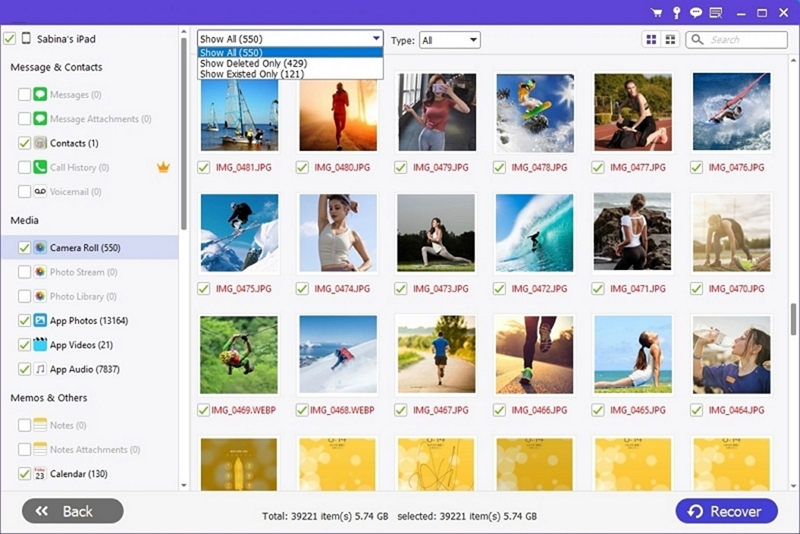
Another important point is that Datile doesn’t dump random files. Everything it finds is organized clearly — photos, videos, messages, notes, contacts, and more, so you can review each category and recover only what you need quickly.
Key Features
- Recover over 36 types of data, including photos, videos, messages, notes, and contacts.
- Scan the iOS device internal storage directly. Or, you can restore selectively from iTunes or iCloud backups.
- Fast scanning engine—thousands of photos can be identified in seconds.
- Support modern and older iOS versions, including iOS 26 and earlier.
How to Recover iPhone Data After Factory Reset
Step 1. Open Datile iOS Recovery on your PC or Mac and connect the iPhone.
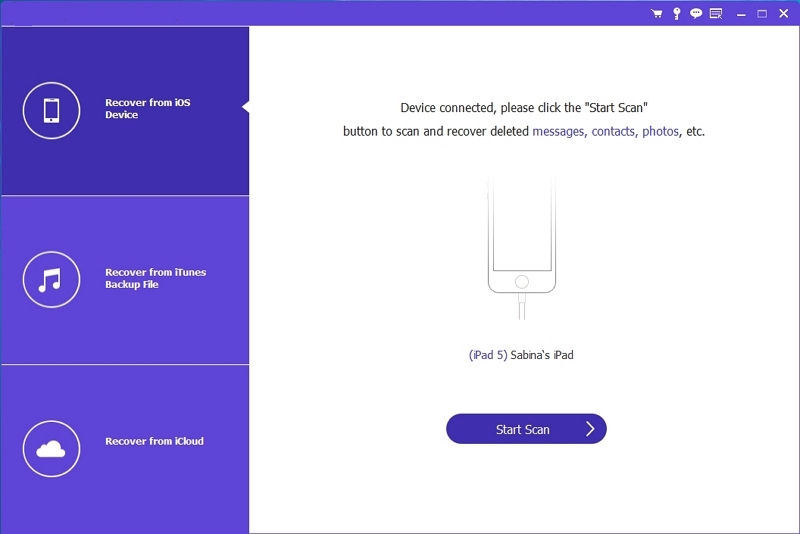
Step 2. Choose Recover from iOS Device, the default option.
Step 3. Start the scan and wait for the results.
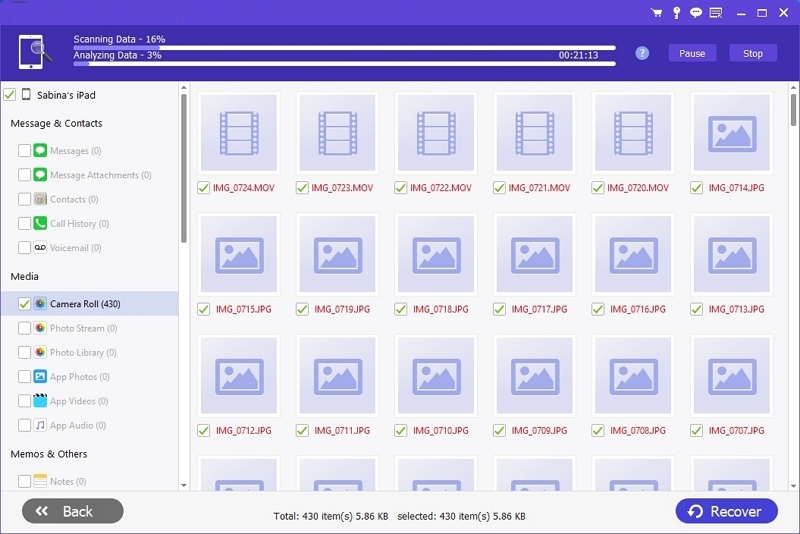
Step 4. Select what you want and save it to your computer.
Final Words
The Recovery Assistant loop was common during the iOS 26 beta release, but even with the stable iOS 26 releases, many users are hitting the same wall. Nevertheless, it is fixable. You can either use the nearby device feature or simply perform a recovery using a Mac to break the cycle.
And if you are forced to use the "nuclear options" - restore your device, remember that your data isn't gone forever. You can always use Datile iOS Recovery to scan the internal storage and pull back your photos, messages and other data safely on your iPhone again.