
Updated on 2026-02-16
views
5min read
Losing an important number often comes with panic. Don’t worry, even if you do not have a backup of the iPhone, there are still reliable ways to recover the deleted contacts and we will share you them here. If you do have a backup from iCloud or iTunes, we’ll walk you through how to restore from them. You’ll also learn how to do it selectively, so you don’t have to erase your entire device.
In short, this guide shows you exactly how to recover deleted numbers on an iPhone. Each way is explained with clear conditions, what you’ll need, and the exact steps to follow. More importantly, all of them apply across every iPhone model, right up to iPhone 17 on iOS 26.
How to Get Deleted Numbers Back on iPhone Without Backup
There are still ways to bring back deleted contacts or phone numbers to iPhone even when no backup exists.
Each method works a little differently. Some will only work if certain conditions were met beforehand. Others don’t come with any preconditions, but they demand that you act quickly. So, let’s go through the options one by one.Way 1. Retrieve Deleted Numbers Directly on iPhone
When to Use
- You deleted numbers directly on your iPhone and didn’t sync them anywhere.
- You have no iCloud, iTunes, or email backup for your iPhone contacts.
- The phone still powers on and can connect to a computer.
- You can stop using the iPhone right away, so the deleted numbers aren’t overwritten.
What You Need
- A computer (Mac or Windows) with internet.
- A USB cable to connect the iPhone.
- Datile iOS Recovery installed on that computer.
Learn about Datile iOS Recovery
Datile scans the storage on your iPhone and finds deleted numbers that aren’t visible anymore. When you delete a number, iOS doesn’t erase it right away but simply marks the space as free. Until something new overwrites that space, Datile can bring the number back. It works if the contacts were deleted by mistake, lost after a system crash, etc.
Since Datile can recover up to 36 types of data, it is also helpful if numbers were stored inside WhatsApp chats, text messages, or notes. Whether there is one deleted number or a full contact list, Datile will allow you to recover them.
Steps to Follow
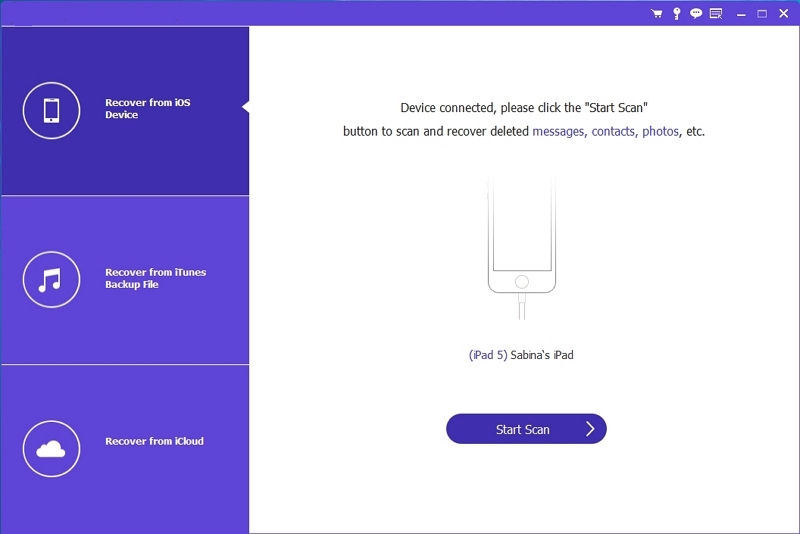
Step 1. Open Datile on your computer and plug your iPhone in. If the phone asks, tap Trust.
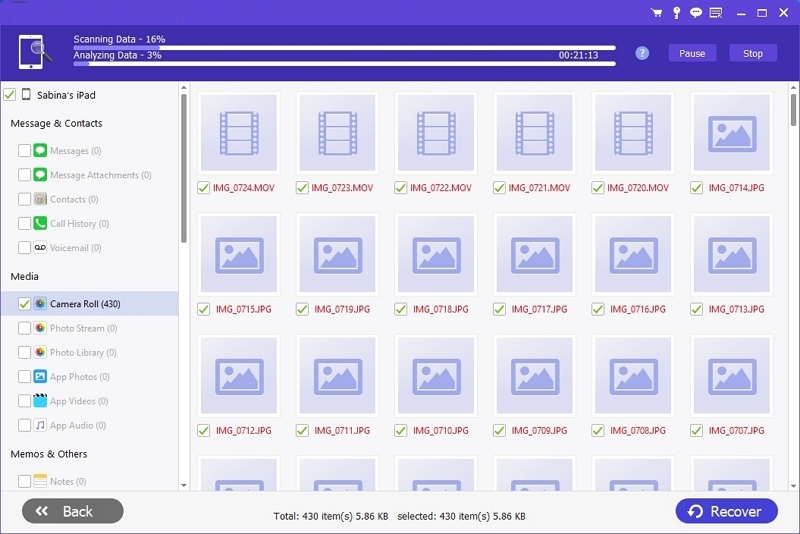
Step 2. Choose Recover from iOS Device and then press Start Scan. Let the tool analyze your iPhone to find out all recoverable content.
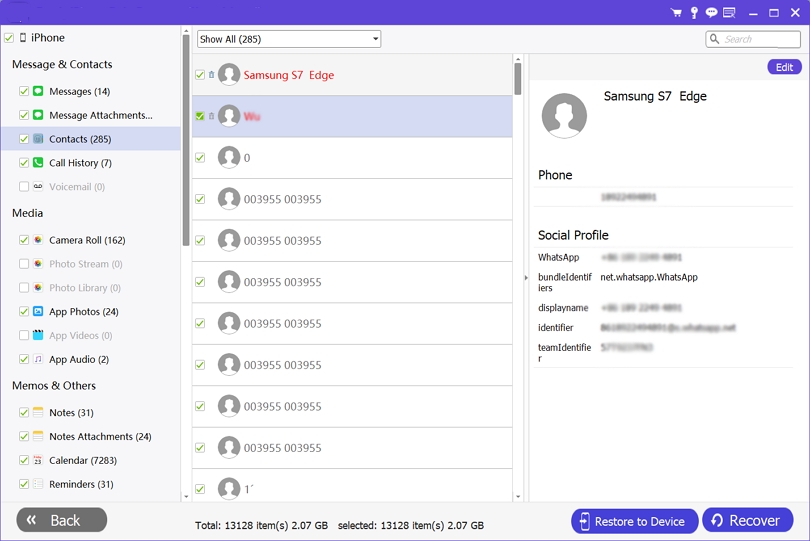
Step 3. After the scan ends, pick Contacts from the sidebar. You’ll see both existing contacts and deleted items.
Step 4. Use the Show Deleted Only toggle above the list to view only deleted numbers.
Step 5. Tick the boxes next to the deleted numbers. Finally, click Restore to Device or click Recover.
Way 2. Check Deleted but Unsaved Numbers Via Carrier App
When to Use
When the number you want to retrieve came from a recent call (in the Phone app’s Recents list), this way is available. For instance, someone called you, but you cleared it from Recents instead of saving it. If that call shows up in your carrier’s logs, you can still recover the number.
Note: Most carriers keep call logs for at least three to six months. So, this method will only help if the number you’re trying to recover was deleted within that time window.
What You Need
- Login credentials for your carrier account (username, password, or registered number).
- Access to the carrier’s mobile app or website.
- Alternatively, their customer support line if you prefer calling directly.
Steps to Follow
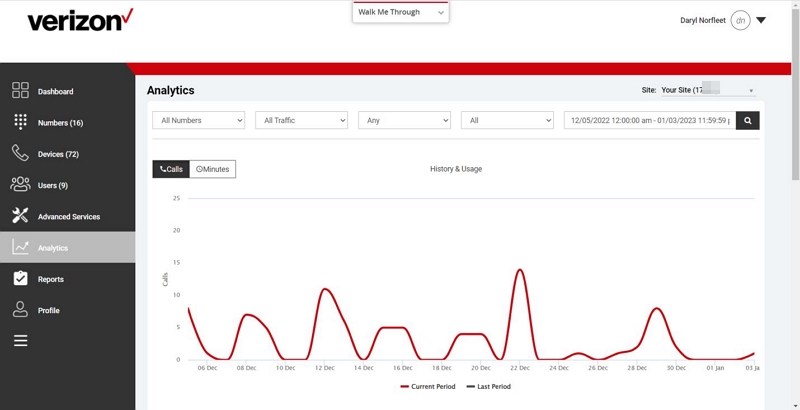
We can take Verizon as an example. The process usually looks similar across carrier websites, though some buttons and labels may differ. If the site feels confusing, you can always call your carrier directly and ask them to send the call details by email.
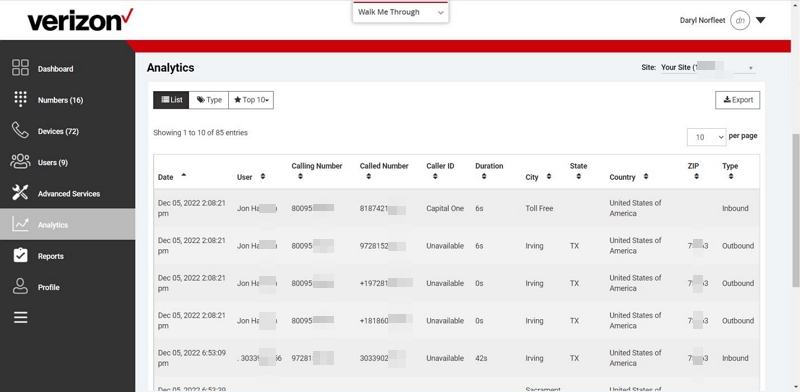
If you want to use the website instead, here’s how it works on Verizon page:
- Head over to the Verizon admin portal and log into your account.
- From the left-side menu, choose Analytics.
- Pick Call Detail Records (CDR).
- A full list of calls will appear, including outgoing, incoming, and missed. You can even find the exact timestamps.
- Note down or export all the contacts as a CSV file and then save target numbers back to your iPhone Contacts.
Way 3. Restore Deleted Contacts on iPhone from Google
When to Use
If a Google account was active on your iPhone or at least linked at the time when the contact got deleted, then there’s a good chance that the contacts were synced with Gmail.
What You Need
- Gmail account and password.
- Internet access on your iPhone or a computer.
Steps to Follow
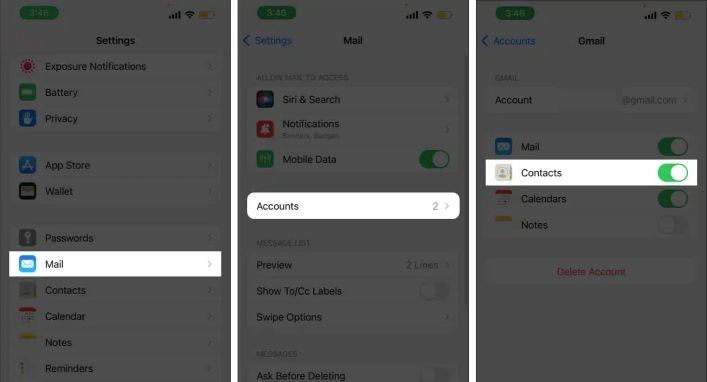
You can either pull the contacts back directly on your iPhone or fetch them from Google Contacts on the web (downloaded as a VCF file and sync with the iPhone manually). Or, on the iPhone, follow these steps:
- Go to Settings and tap on Mail.
- Select Accounts.
- From the list, choose your Gmail account.
- On the account screen, make sure the Contacts switch is turned on.
That’s it, the iPhone will refresh the list. Any numbers synced earlier will reappear automatically.
Way 4. Retrieve Lost Contacts via iPhone Sync
When to Use
iCloud Sync can help in two different cases:
Case 1: Deleted by You
If you manually deleted a phone number, iCloud doesn’t keep it in your active list. However, there is a chance that it has made it to the archived versions kept on Apple’s servers. You can restore these archives from iCloud.com and bring the deleted numbers back.
Case 2: Lost by Accident
If contacts vanished because of a crash or a sync glitch, then you can opt for a fresh re-sync with iCloud right on your iPhone itself.
What You Need
- An iCloud account already linked to your iPhone.
- Internet access.
- For Case 1: Access to iCloud.com on a browser.
- For Case 2: Just your iPhone with the Settings app.
Case 1: Restore Deleted Numbers from iCloud Site
Step 1. Sign in to iCloud.com with your Apple ID.
Step 2. In the dashboard, scroll down to Advanced under Account Settings.
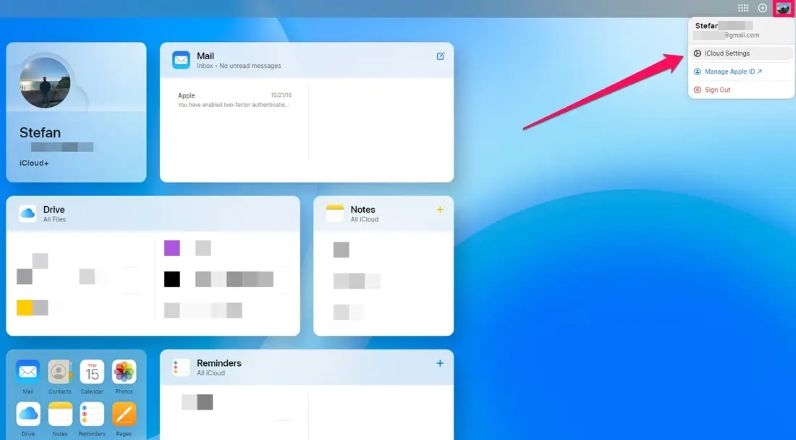
Step 3. Click Restore Contacts. iCloud shows a timeline of archived lists it has kept for you.
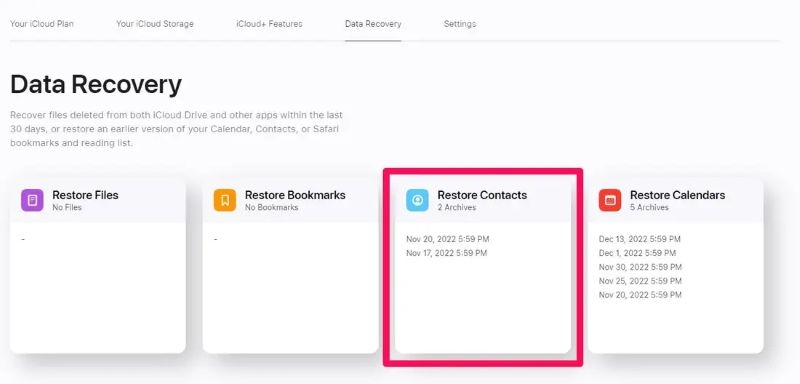
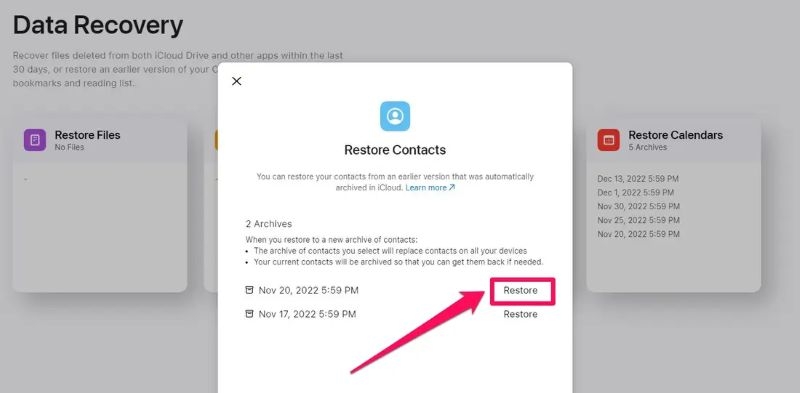
Step 4. Choose an archive dated before the deletion and hit Restore.
Step 5. iCloud replaces the current list with that backup. Numbers you thought gone will come back on all linked devices, though you will lose edits made after that archive date. Still, they will be available on iCloud as an archive, so you can bring them back later.
Case 2: Re-Sync Lost Numbers on iPhone
Step 1. On your iPhone, go to Settings and tap your account banner at the top.
Step 2. Enter the iCloud menu and scroll until you see Contacts.
Step 3. If syncing is disabled, flip it on.
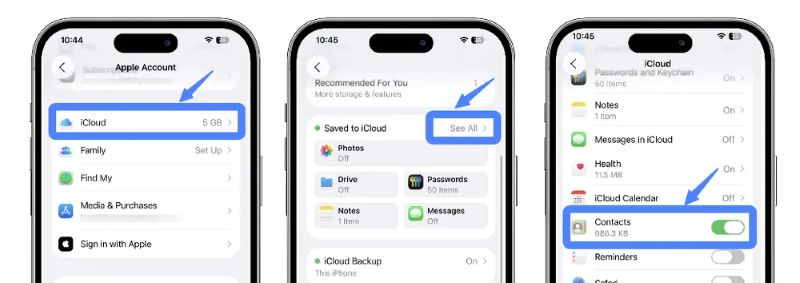
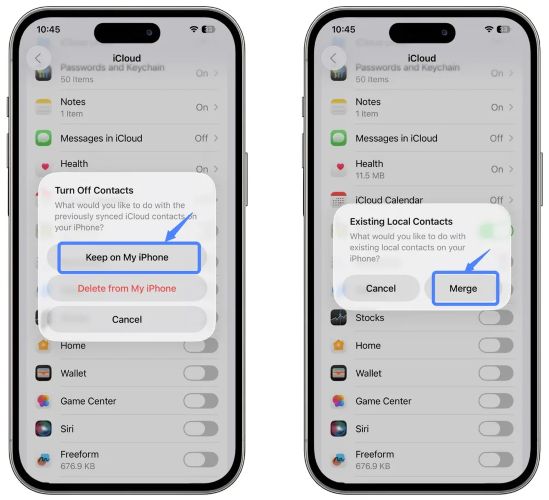
Note: If it’s already active, disable it first. When a prompt appears, choose Keep on My iPhone so nothing vanishes locally. After a short pause, re-enable Contacts. Then, confirm with Merge and wait while iCloud repopulates your list with the server copy.
How to Get Deleted Numbers Back on iPhone with Backup
If you do have an iCloud or iTunes backup that includes those contacts and don’t mind erasing the iPhone completely, then here’s how they work.
Note: If your goal is to bring back deleted numbers without resetting the whole phone from the backups, then you can still use Datile iOS Recovery .
It can scan both iTunes/Finder and iCloud backups and let you pull out only the contacts you want. That way, you don’t need to restore the entire device just for a few numbers.
Way 1. Restore Deleted Contacts from iCloud Backup
Best For:
The method below applies only when you’ve created manual iCloud backups and the Contacts sync toggle wasn’t switched on. In that scenario, the only way forward is to reset the phone and restore the contact from the saved snapshot.
As you might already know, an iCloud backup is a full package, including all the apps, settings, messages, and contacts saved in it. So, restoring from it means your iPhone’s current state will be gone and it will roll back.
Note: When iCloud’s Automatic backup toggle is active, you can use the archived contact lists directly from iCloud settings (as explained earlier).
Steps to Follow
Step 1. On your iPhone, head into Settings > General > Transfer or Reset iPhone.
Step 2. Pick Erase All Content and Settings.
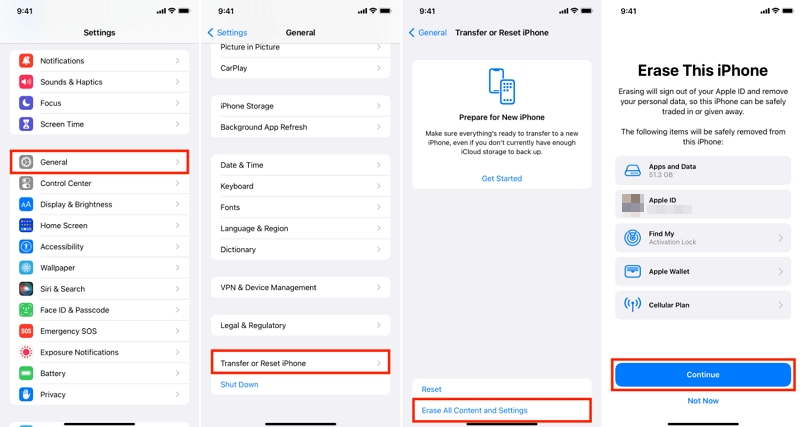
Step 3. Let the device restart. Then move through the setup screens.
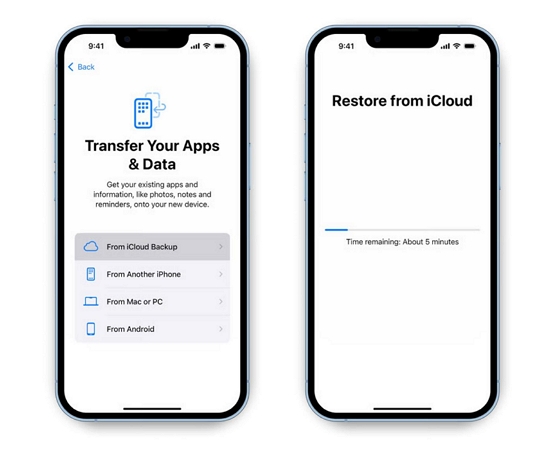
Step 4. On the Apps & Data screen, choose Restore from iCloud Backup.
Step 5. Log in with your Apple ID and pick the backup dated before the contacts went missing.
Step 6. Allow the restore to complete. The phone will return to that saved state where deleted numbers are included.
Tip: Alternatively, you can skip the full restore and use Datile iOS Recovery to scan the iCloud backup directly and pull out only the contacts you need.
Way 2. Restore Deleted Contacts from iTunes Backup
Best for:
Use this when you keep full backups on your Mac. Finder handles backups on macOS Catalina while older macOS uses iTunes.
Note: Like iCloud backup restore, restoring a local backup will also replace the phone’s current state with the saved snapshot, allowing you to bring back the deleted phone number.
How to Use:
Step 1. Connect the iPhone to the computer that holds the backup.
Step 2. Open iTunes. On macOS 10.15+, open Finder instead.
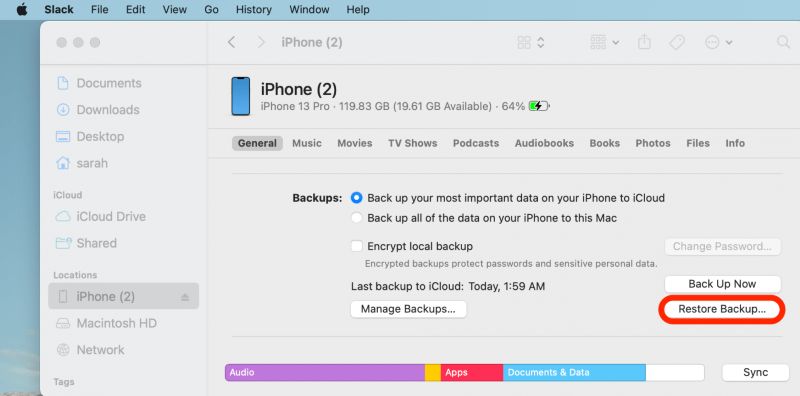
Step 3. Select your iPhone and then go to the Summary tab (iTunes) or the General tab (Finder).
Step 4. Click Restore Backup and choose the backup dated before the deletion.
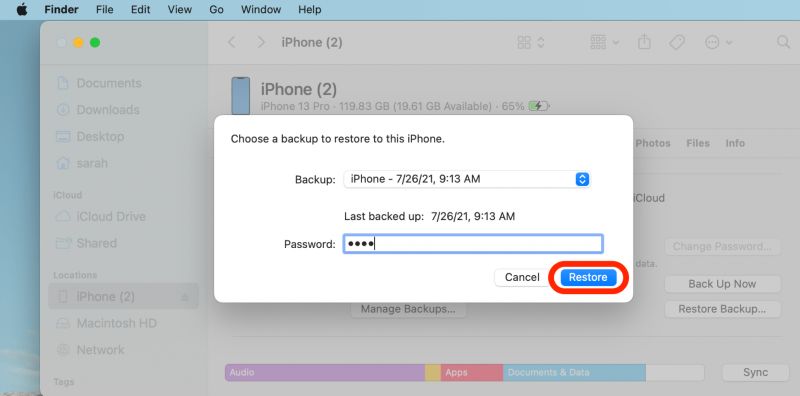
Step 5. Enter the password if the backup is encrypted and confirm.
Step 6. Let the restore complete. The phone will reboot into the saved state and the missing contacts will return.
Tip: As with iCloud, you don’t need to reset the phone entirely. Datile iOS Recovery can scan your iTunes/Finder backup and let you restore contacts selectively.
Final Words
That’s everything on how to get your deleted numbers back on the iPhone, with or without a backup. iCloud, iTunes, Gmail sync, or even your carrier’s log can help in some cases, but each comes with strings attached.
Datile iOS Recovery removes those strings. It scans your iPhone storage or even an iCloud/iTunes backup and lets you pick the numbers you want, easily and selectively. However, it requires quick action so that the deleted number on the iPhone doesn’t get overwritten. It’s simple to use and can recover other types of data on the iPhone.