
Updated on 2026-02-28
views
5min read
The first thing to do when an important email goes missing from your inbox is simple — ask the sender to send it again. Sometimes, though, that’s not possible, maybe it was a college offer, an automated receipt, or the sender is simply unreachable.
Don’t worry. We’ll show you how to perform deleted email recovery on iPhone, whether the message disappeared days ago, weeks ago, or even months ago. You’ll find reliable ways, including Datile iOS Recovery, to recover the emails back on your iPhone along with any attachments they contained.
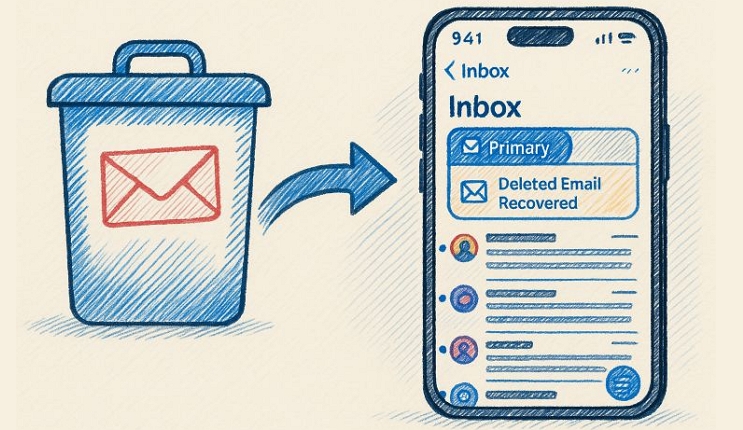
How to Recover Permanently Deleted Emails on iPhone After 30 Days
“After 30 days” means the deleted emails will no longer be present in the Bin or Trash folder. However, there are still two methods that are known to work and can definitely help.
Way 1. Contact Email Service Provider for Help
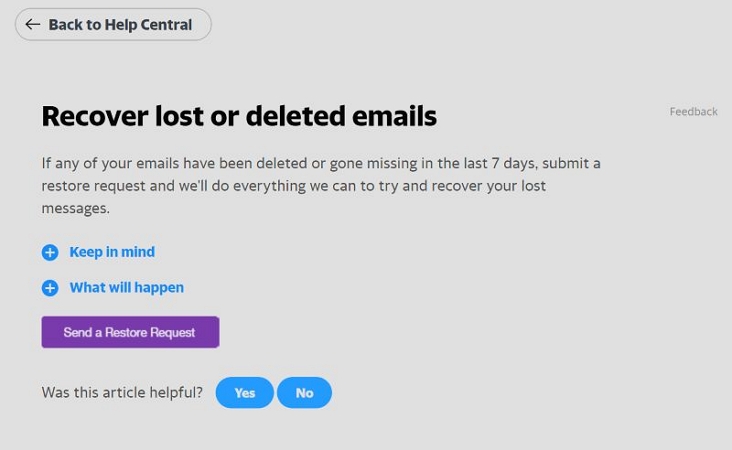
When the usual recovery windows have passed, contacting the email service provider directly can help sometimes. Some providers, like Google for Gmail and Google Workspace accounts, offer limited or extended recovery windows.
For normal email accounts, recovering deleted messages in this manner usually doesn’t work. It typically stays only in the Trash folder. Still, you can reach out to your provider if you want to try.
Provider Recovery Options
| Provider | Recovery Window | Contact or Request Link | Notes |
|---|---|---|---|
Gmail (Google) |
Up to 30 days after Trash deletion | accounts.google.com/signin/recovery | Usually, Google doesn’t support free accounts for this recovery. |
Yahoo Mail |
Up to 7 days for consumer accounts | Yahoo Restore Request Form | You can ask Yahoo to restore emails deleted within the past 7 days. |
Outlook/Microsoft |
Favors business accounts for longer retention | Microsoft Support Site | Consumer accounts have shorter recovery limits. |
How to Contact Email Service Provider for Email Recovery
Open a browser and visit the respective recovery or support link. Sign in with your account credentials. If eligible, the provider will help you recover the messages. Here’s how recovering from works:
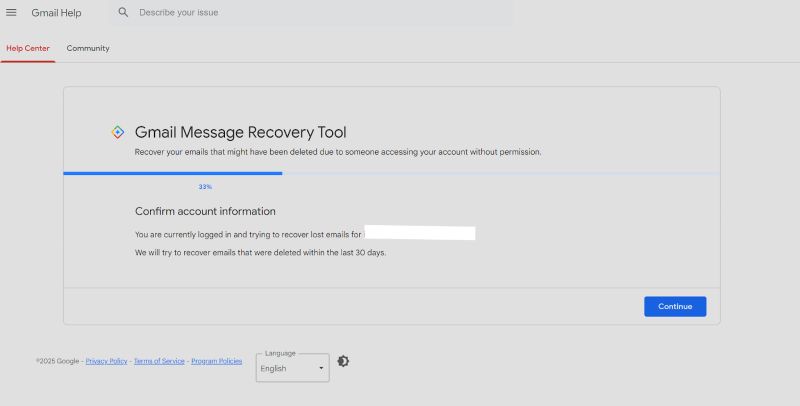
- Go to the Gmail Help Center. Make sure the correct account is selected.
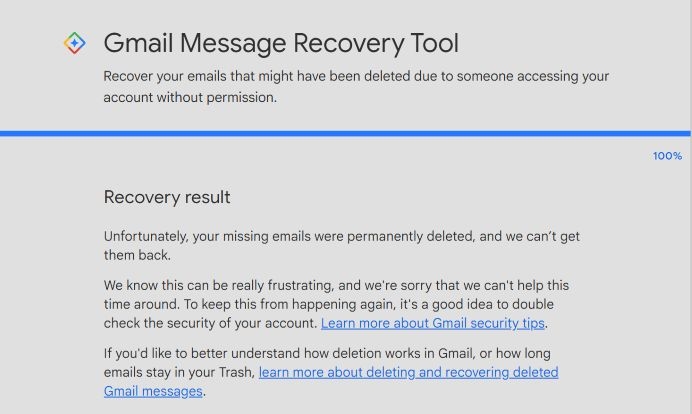
- Click Continue. Then fill in all requested details about the missing emails. You will either get your messages back or see a message saying “Unfortunately, your missing emails were permanently deleted.”
- If recovery works, the emails are restored directly into your Inbox.
Way 2. Use Data Recovery Tool
A data recovery tool like Datile iOS Recovery scans your iPhone’s internal storage, finds deleted emails, and allows you to recover them easily.
Permanently deleted emails just get hidden from your view and you couldn't find them in the Trash folder. However, the deleted email sits inside the iPhone’s storage sectors actually until new data overwrites it. That overwriting process can take days, weeks, or even months. Datile iOS Recovery takes advantage of that period.
Datile scans the internal storage your iPhone hides from view and brings those emails back. It can restore messages deleted from any email service, such as Gmail, Apple Mail, Hotmail, Outlook, or any other.
The tool is simple to use too. You don’t need any technical steps or complex commands. It scans your storage, sorts them automatically and lets you preview and recover the deleted emails quickly.
Key Features
- It can recover over 36 types of deleted data from your iPhone. That includes contacts, notes, photos, WhatsApp messages, deleted conversations, and much more.
- It’s fully compatible with the latest devices, up to iPhone 17 models and iOS 26.
- Even if your emails are stored inside an iTunes or iCloud backup, it allows you to selectively restore them without rolling back your device.
- It’s one of the best tools available, ensuring your data safety and offering nearly 100% recovery success.
Steps to Use Datile to Recover Deleted Emails on iPhone:
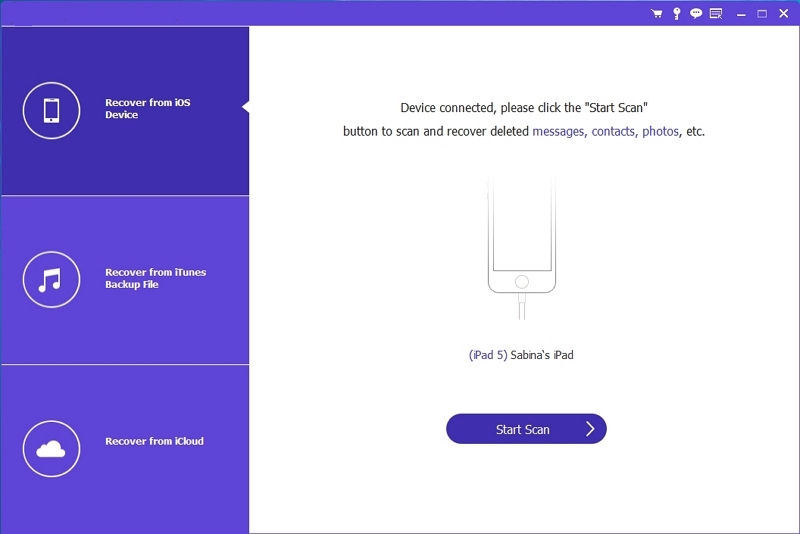
Step 1. Launch Datile iOS Recovery on your Mac or Windows and connect your iPhone to the computer. From the main screen, select Recover from iOS Device on the left side. Click Start Scan.
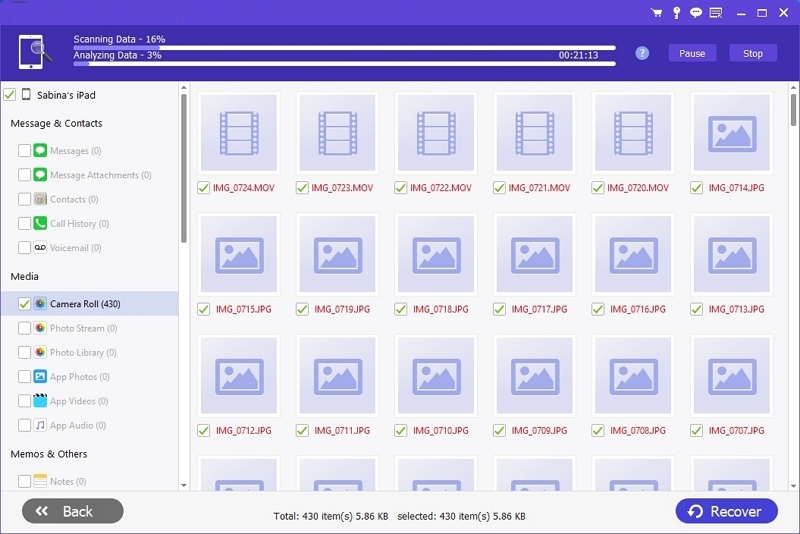
Step 2. Datile will show recoverable data in a few minutes. From the list on the left, select Mail. You will also find any related attachments.
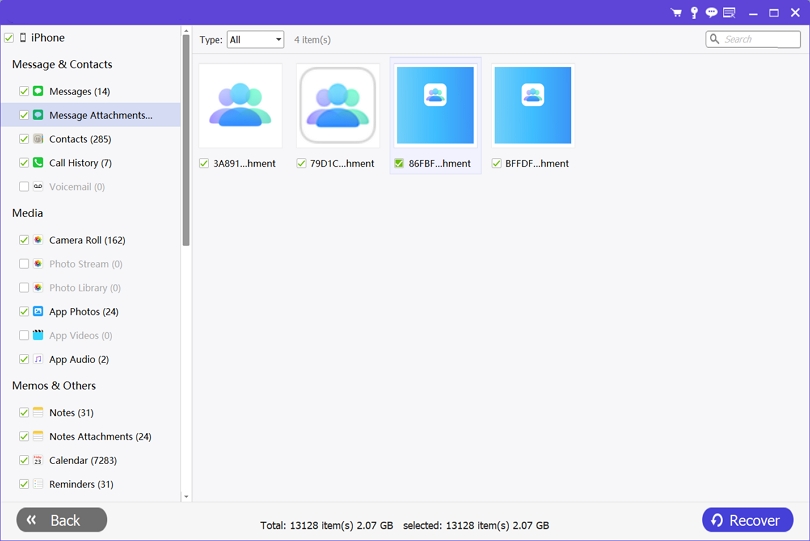
Step 3. Choose the emails you want to bring back. Also, select all the recovered files. Click Recover to save them to your computer/iPhone.
3 Ways for Deleted Email Recovery on iPhone [Apple Mail App]
When the deleted email belongs to the iPhone’s Mail app, there are multiple ways to bring it back. It’s even possible to recover the ones that were deleted weeks or even months ago. Yes, because of improper settings, many users can get their emails back very easily. So here’s what you have to know.
Way 1. Shake Your iPhone
When to Use
When the Shake to Undo feature under Touch in the Accessibility menu is turned on. If it’s not, do it first.
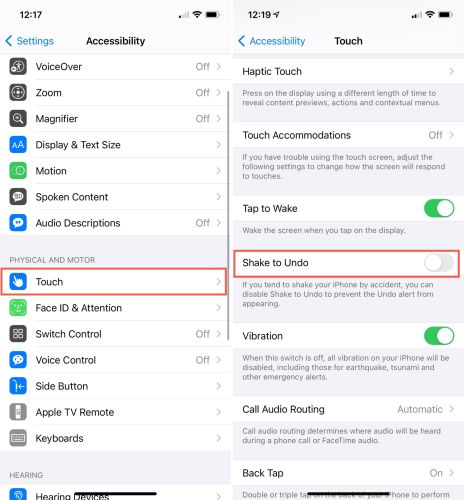
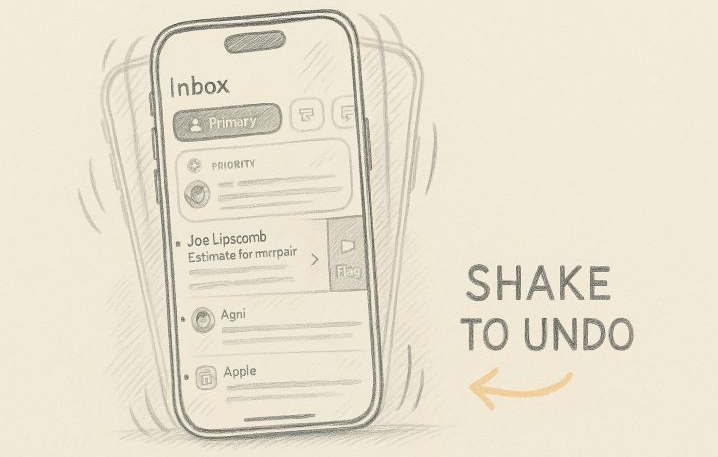
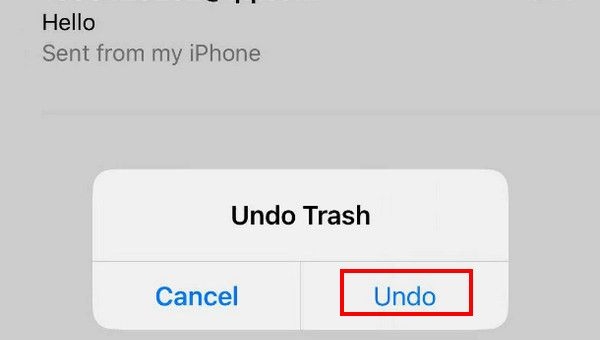
The iPhone’s Shake to Undo feature is one of the best ways to revert your last action. Under normal conditions, it simply undeletes the last email, the one deleted immediately. However, it can sometimes roll back several emails deleted within the past week and many users have seen that happen.
How to Use
Well, there’s not much mystery to it:
- Within the Mail app, shake your iPhone once.
- A small window will appear, choose Undo. This should either undelete just the last email or multiple threads deleted weeks ago.
Way 2. Check Archive Mailbox or Trash
When to Use
When you delete an email and it’s either sits in your Trash or Archive folder.
Anything you delete usually stays in your trash for 30 days, whether it’s Apple Mail, Gmail, or even Outlook. On iPhone, there’s one interesting thing. Deleted conversations can either go to the Archive Mailbox or the Deleted Mailbox, depending on your Settings.
- If it is set to go to Trash: you can get back the ones deleted within the last 30 days.
- If it’s set to Archive: the deleted mails will remain there indefinitely.
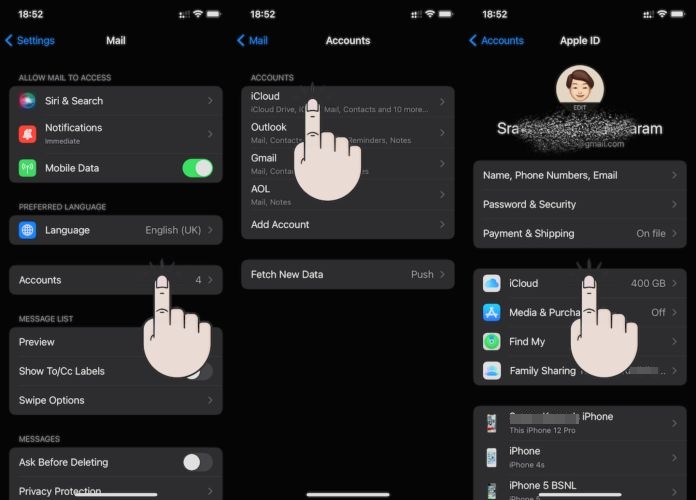
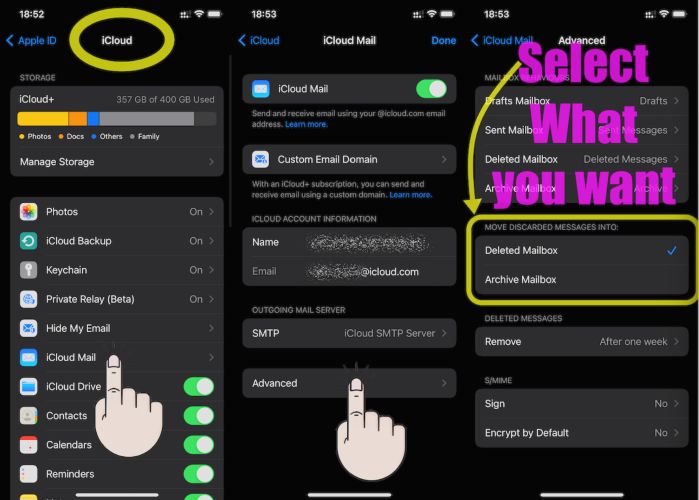
First, check where your mail goes.
- Open Settings.
- Select Mail and then Accounts.
- Choose your account — iCloud, Gmail, or Outlook.
- Tap Account again and open Advanced.
- Under Move Discarded Messages Into, check whether it’s set to Deleted Mailbox or Archive Mailbox.
- Make a note of it.
How to Use
Depending on where the deleted mail goes on your iPhone and how long it has been deleted, follow these steps.
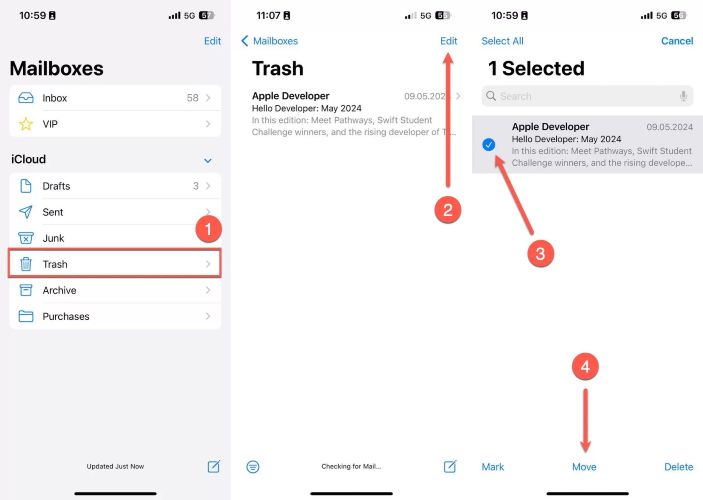
- Open the Mail app.
- Tap Mailboxes in the upper-left corner.
- Open Bin/Trash or Archive.
- Find your email. Select it and then move it back to your Inbox. Your deleted email should now appear in its original place.
Way 3. Restore iCloud Mail
When to Use
Use this method when your iCloud email is missing completely from the Mail app.
iCloud-hosted email addresses (@icloud.com, @mac.com) are stored on Apple’s iCloud server. Even if you delete something or the Trash folder looks empty, it still sits on the server side. Apple’s server gets cleared after some time because of the automatic purge window.
How to Use
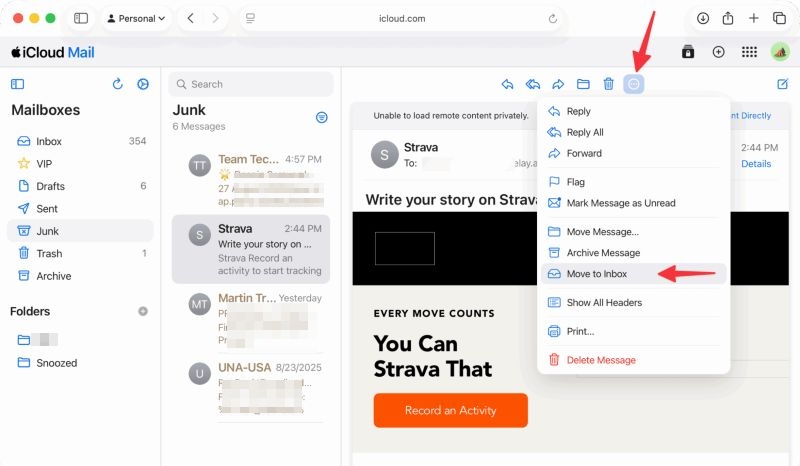
- Visit iCloud.com/mail. Select Mail.
- Click Sign In and enter your email or phone number and password.
- Check your messages. The missing mail will appear in the Junk folder.
- Select the message and choose Move to bring it back to your Inbox. It will show up in your Mailbox after a short while.
How to Restore Deleted Gmail Emails
When Gmail is in question, recovering its deleted emails works almost the same way. Still, for clarity, this part will discuss the available options.
Way 1. Use Undo Option
When to Use
When you have deleted an email within the last 5 to 30 seconds.
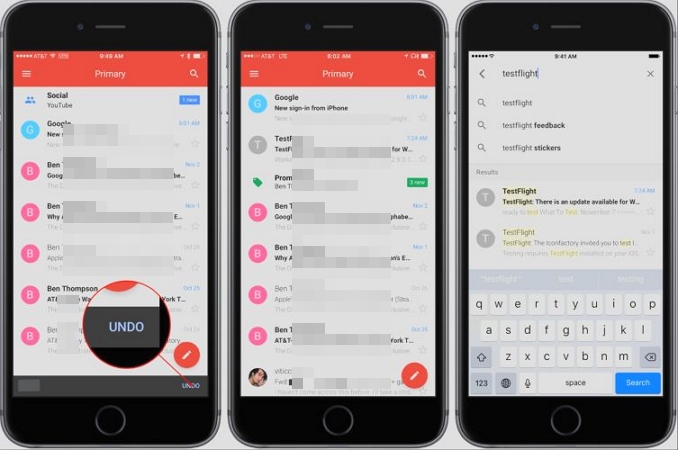
Any action in Gmail, like sending a message or deleting one, triggers a small Undo bar. It stays visible for 5 to 30 seconds and lets you undelete the mail.
How to Use
Within the Mail app:
- If you just deleted a message, you will see a visible bar at the bottom.
- Select Undo and it will bring back the deleted email immediately. That’s it.
Way 2. Restore Trash
When to Use
When the messages were deleted within the last 30 days. Or when they are sitting in the Archive folder — even the ones deleted months ago will be recoverable.
The Trash or Archive folder will again include your deleted messages. You can check whether they’re in the Archive or Trash folder and bring them back easily.
How to Use
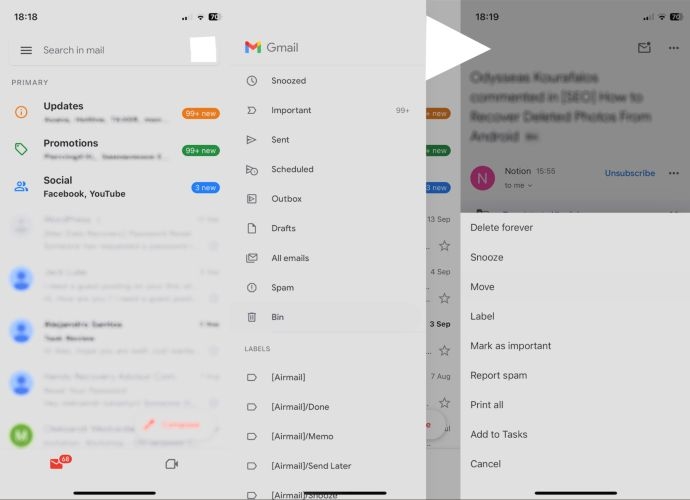
Open the Gmail app on the iPhone or desktop:
- Click the three horizontal lines (menu icon) in the upper-left corner.
- Select Bin.
- Find the mail in question.
- Choose Move and then select Move to Inbox. Your email will return to your main mailbox.
FAQs
Here’s more know-how on recovering deleted emails, fixing glitches, or restoring missing email accounts on iPhone.
1. How to Recover a Deleted Email Account on iPhone?
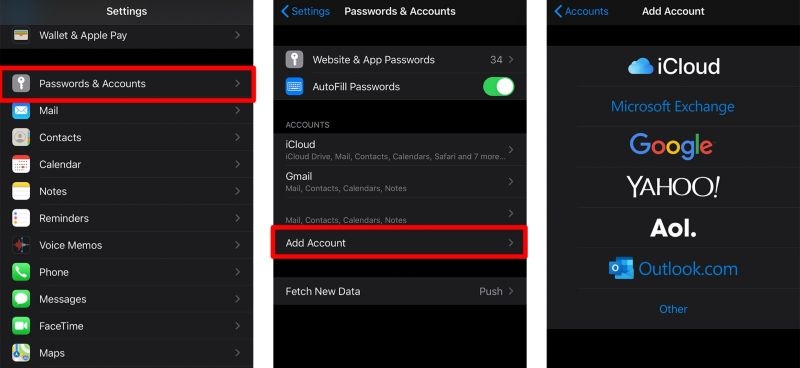
You can simply add the account back. Since the server-side data isn’t deleted, all your emails, settings, and folders will reappear as they were. Here’s how:
- Go to Settings > Mail.
- Choose Accounts and then Add Account.
- Pick your email provider, enter your details and sign in.
2. Why Do Deleted Emails Reappear on iPhone?
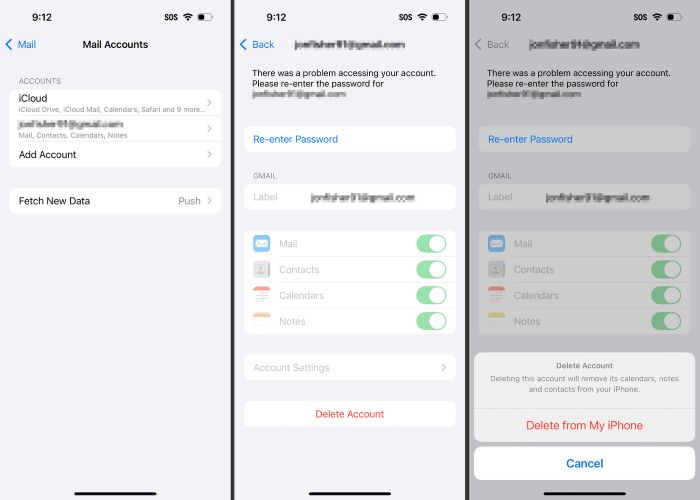
It happens because of a simple syncing issue. First, ensure that the discard behavior is set to Deleted Mailbox but not Archive Mailbox (as discussed above).
If the deleted emails keep reappearing, here’s what to do:
- Remove the email account.
- Then add it again.
Once re-added, the sync usually works properly.
3. I Lost the Mail Icon on My iPhone. How to Fix It?
There are two reasons:
- You removed the app from your Home Screen.
- You accidentally deleted the app.
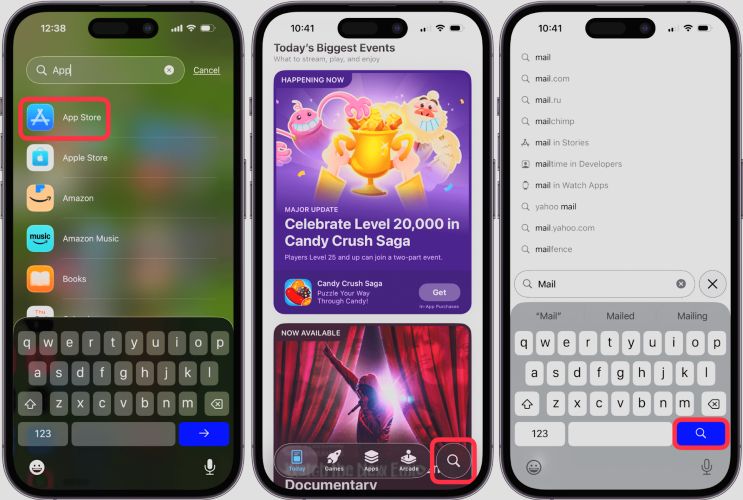
Here’s how to restore the Mail app:
- Open the App Store.
- Search for Mail.
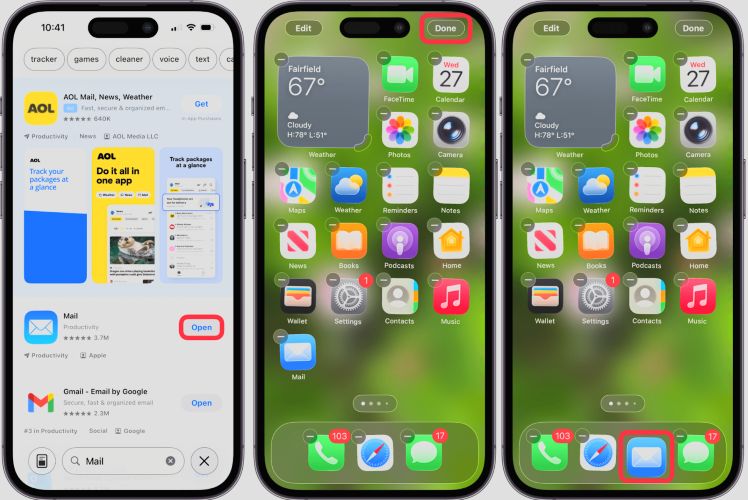
- Select Open.
It will reappear on your Home Screen. Move it to the location you want.
Final Words
Most email services let you recover deleted emails on iPhone for up to 30 days. They stay in the Trash for that duration. Also, because of improper settings, deleted emails may get sent to the Archive folder. That means you can sometimes recover messages deleted even months ago.
And when none of these options work, Datile iOS Recovery is the answer. It scans your iPhone’s storage directly, finds every trace of deleted emails, and lets you recover them quickly.