
Updated on 2026-02-11
views
5min read
Losing data on an Android phone is one of those moments that creates instant panic. Photos disappear. Messages are gone. Important files vanish after a system update or a factory reset. At that point, most guides on the internet promise the same thing: “Yes, your data can be recovered.”The reality in 2026 is more complicated.
Modern Android devices — especially Samsung Galaxy and Google Pixel phones — use advanced encryption, storage isolation, and background cleanup mechanisms. These technologies greatly improve security, but they also make data recovery very different from what it was just a few years ago.
This guide is not here to sell false hope. It is here to help you understand what is realistically possible, what is not, and how to make the least risky decision.
Quick Reality Check: Can Android Data Really Be Recovered in 2026?
Short answer: Sometimes.
Honest answer: Only in specific situations—and timing matters more than tools.
Modern Android devices use:
- Full-disk or file-based encryption
- TRIM-enabled internal storage
- Scoped Storage restrictions (Android 10+)
Together, these technologies improve security—but drastically reduce recovery success once data is deleted or a device is reset. That’s why two users can lose the same photo and get completely different outcomes.
This guide will help you figure out which category you fall into before you waste time or money.
How Android Data Deletion Actually Works
“Deleted” Does Not Always Mean “Gone”—But Not for Long
When you delete a file on Android:
- The system removes its reference
- The physical data may still exist temporarily
- New data can overwrite it at any time
Once overwritten, no software can bring it back.
Internal Storage vs SD Card: A Critical Difference
Internal storage
- Encrypted
- Actively cleaned by TRIM
- Extremely difficult to recover from
SD cards (if supported)
- Less aggressive cleanup
- Often recoverable using standard tools
- Much higher success rate
This alone explains why many “success stories” come from older Samsung models—not Pixels.
Samsung vs Google Pixel: Why Recovery Results Are So Different
| Feature | Samsung Galaxy | Google Pixel |
|---|---|---|
| Encryption layer | Knox + Android FBE | Pure Android FBE |
| SD card support | Some models | Almost none |
| Backup options | Smart Switch + Google | Google Backup only |
| Post-reset recovery | Rare but sometimes possible | Nearly impossible |
| Overall recovery chance | Low to moderate | Very low |
Google Pixel phones are intentionally restrictive by design. Once data is deleted or a factory reset is performed, recovery is usually blocked at the system level.
Common Android Data Loss Scenarios (And What Actually Works)
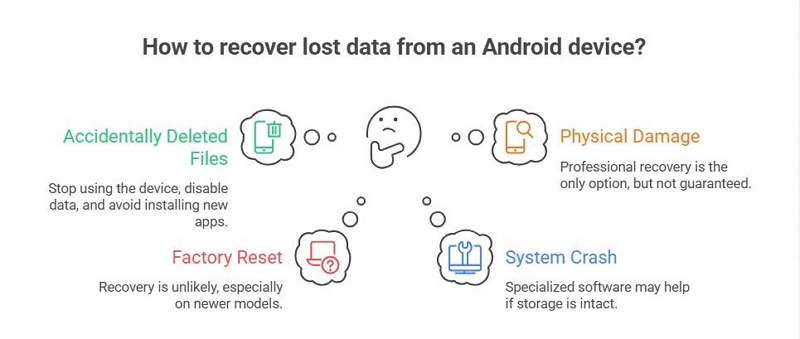
| Scenario | What This Usually Means | Recovery Chance | Should You Even Try Recovery Software? |
|---|---|---|---|
| 1. Accidentally deleted photos or videos | File reference is removed, data may still exist temporarily | Low to Medium (depends on time and usage) | Yes (if deletion was recent and phone hasn’t been used much) |
| 2. Factory reset without backup | Encryption keys are destroyed and storage is reinitialized | Pixel: Almost none; Samsung: Very low (older models only) | No |
| 3. System crash, bootloop, or frozen screen | Data may still exist, but Android cannot boot normally | Low to Medium (only if storage is intact) | Probably Yes (only if you avoid factory reset) |
| 4. Physically damaged or dead phone | Storage or logic board may be damaged | Very low | No |
Consumer recovery apps will not work. Your only option is professional data recovery — and even that is not guaranteed.
What to Try First (Before Any Recovery Software)
This should always be your first step. Many users recover everything here without using any recovery software.
1. Google Account Backup (Pixel & Samsung)
Check if your data already exists: Google Photos, Google Drive, Google Contacts, App backups. Many users recover everything here without realizing it.
Step 1: Check Google Photos
- Open Google Photos app or go to photos.google.com
- Sign in with your Google account
- Check: Photos tab, Trash / Bin (kept for 30–60 days)
- Search by date or keyword (e.g., “Screenshot”, “Camera”)
If your photos are here, they are already recovered.
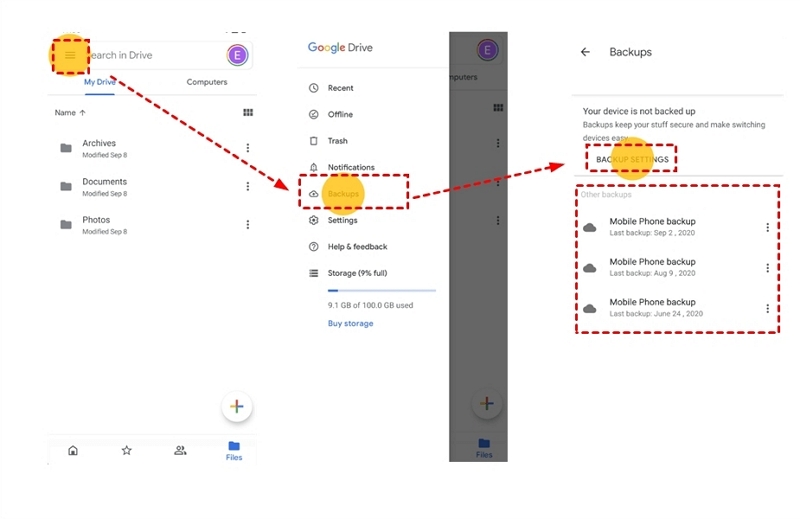
Step 2: Check Google Drive
- Open Google Drive app or go to drive.google.com
- Check: My Drive, Backups (or Settings → Backups)
- Look for: Device backups, App data backups, Uploaded files
Step 3: Check Google Contacts
- Go to contacts.google.com
- Make sure you are logged into the correct Google account
- Check: Contacts list, “Fix & manage” → “Undo changes” (if recently deleted)
2. Samsung Smart Switch (Samsung Only)
Smart Switch can restore: Contacts, Messages, Photos, App data (in some cases). But it cannot recover deleted files that were never backed up.
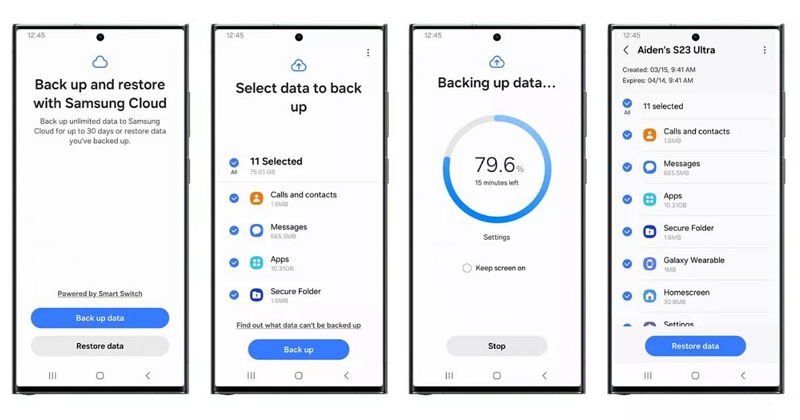
Case A: Restore from Samsung Cloud
Step-by-Step:
- Open Settings on your Samsung phone
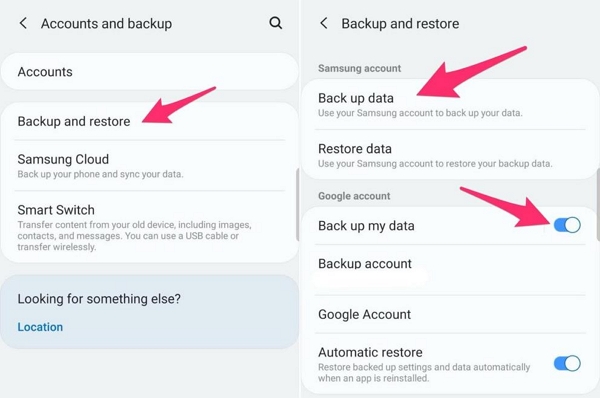
- Go to Accounts and backup → Samsung Cloud
- Tap Restore data
- Select the data types: Contacts, Messages, Photos, Apps (limited)
- Tap Restore
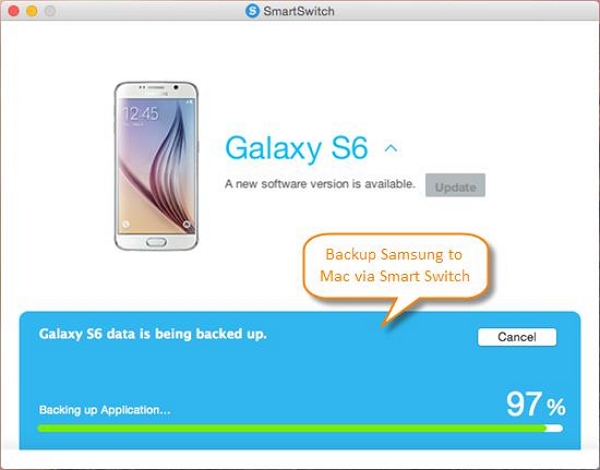
Case B: Restore from a PC or Mac Backup
Step-by-Step:
- Install Samsung Smart Switch on your computer
- Connect your Samsung phone via USB cable
- Open Smart Switch
- Click Restore
- Choose the backup file
- Select what you want to restore → Start
3. Cloud Services & App Trash Folders
- Google Photos trash (30–60 days)
- WhatsApp backups
- OneDrive / Dropbox recycle bins
Always check these before attempting deep recovery.
Android Data Recovery Software: What They Can and Cannot Do
Rooted vs Non-Rooted Devices
| Without Root | With Root |
|---|---|
| Cache-level scans | Deeper access |
| Thumbnails | Higher risk |
| Very limited | Still no guarantees |
Rooting does not bypass encryption.
File Types With Real Recovery Potential
| Data Type | Recovery Chance |
|---|---|
| Photos / Videos | Low to Medium |
| Contacts | Low |
| Call logs | Low |
| Messages / WhatsApp | Very low |
| App data | Almost none |
The Best Android Data Recovery Tools
These tools are not magic. On many modern phones, they will find nothing. That is normal. Choose tools based on your device and situation, not marketing promises.
A. Older or Mid-Range Samsung Devices
Many older or budget Samsung phones were never fully backed up. In these cases, recovery is usually limited to:
- SD card data
- Cached photos or media
- Some accessible user storage areas
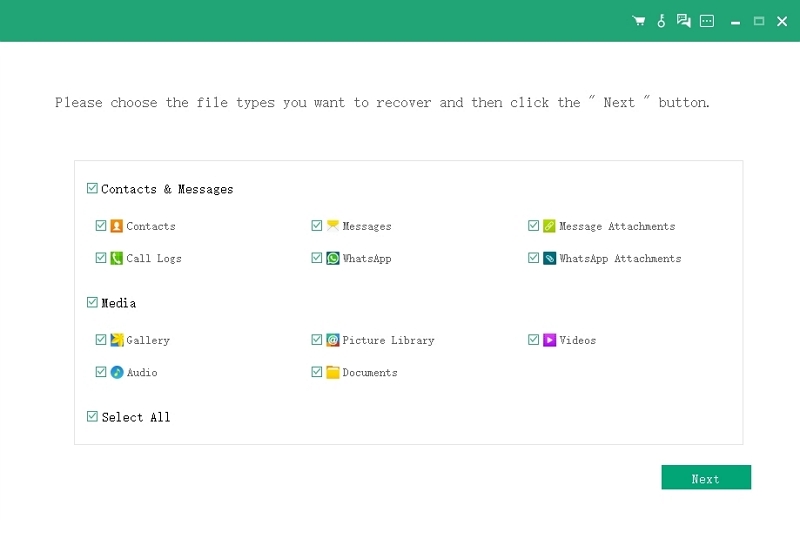
1. Datile Android Recovery
Designed with a clear, guided workflow and a strong focus on data safety. Datile Android Recovery is suitable for non-technical users who want to attempt a careful, low-risk recovery first.
How it works: Datile Android Recovery uses a step-by-step scanning process that first checks accessible storage partitions without requiring root access. It prioritizes recently deleted files that haven't been overwritten yet. The tool creates a read-only scan, meaning it won't accidentally damage existing data during the recovery process.
Best for:
- Users who accidentally deleted photos or messages within the last few days
- Samsung devices running Android 9 or earlier
- Situations where you need a safe first attempt before trying more aggressive methods
Limitations: Like all Android recovery tools, if the data has already been overwritten by new files or system updates, the chance of successful recovery is very limited. Modern Samsung devices with Knox security may block deep storage access entirely.
Technical note: Datile Android Recovery cannot bypass Android's file system encryption on devices that have it enabled (most phones from 2016 onward). It works best when the phone is still functioning normally and hasn't been factory reset.
2. Dr.Fone – Data Recovery (Android)
Can scan both internal storage (where permitted) and SD cards for photos, videos, messages, and other files. Works better on rooted devices. On non-rooted phones, recovery results are limited by Android system permissions.
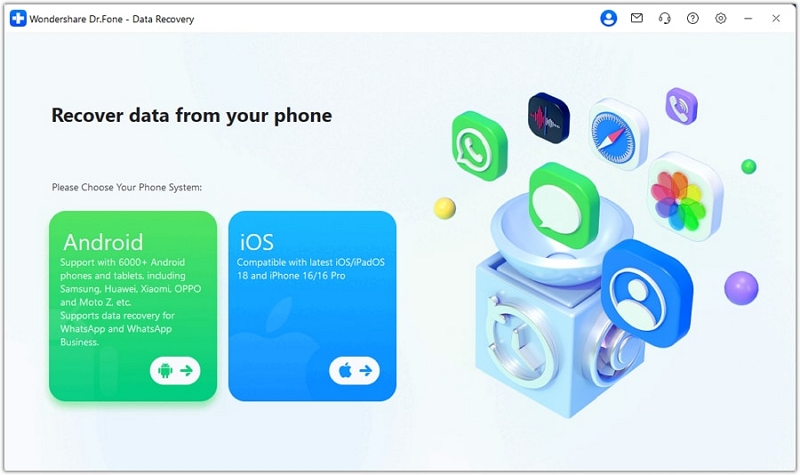
How it works: Dr.Fone connects to your Android device via USB and attempts to scan accessible storage areas. On rooted devices, it can access deeper system partitions where deleted file remnants may still exist. For non-rooted phones, it relies on Android Debug Bridge (ADB) to scan what the operating system allows.
Best for:
- Recovering WhatsApp messages, SMS, and contacts
- Devices that are rooted or can be rooted safely
- Situations where you have access to the original device and it's still bootable
Limitations:
- On Samsung devices with Knox triggered (warranty void flag), scanning depth is severely reduced
- Cannot recover data from encrypted storage without the decryption key
- Success rate drops dramatically if the phone has been used heavily after data loss
- Requires USB debugging to be enabled (which you can only do if the phone is unlocked and working)
3. DiskDigger Photo Recovery
Focuses mainly on recovering deleted photos and video caches. Deep scanning requires root access. Without root, results are usually limited to thumbnails or cached files.
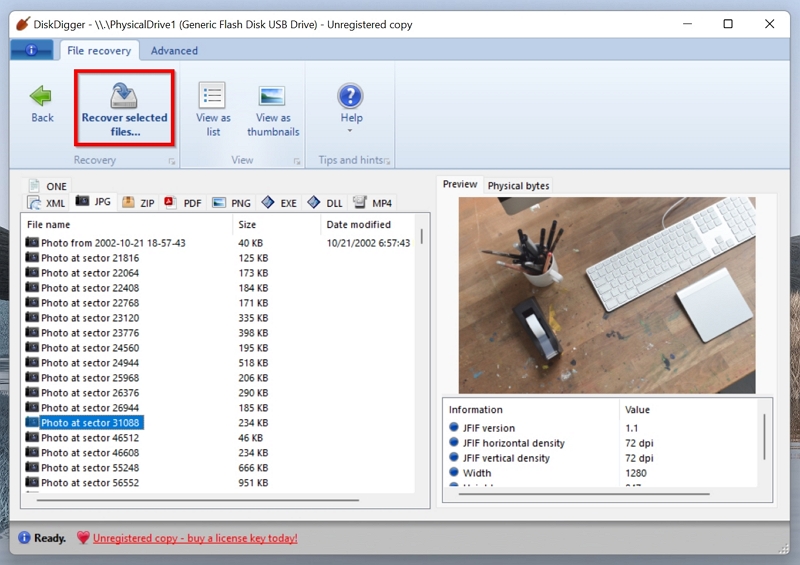
How it works: DiskDigger operates in two modes:
Basic scan (no root):
- Searches app caches, thumbnail directories, and temporary storage
- Often recovers lower-resolution versions of photos
- Can find images from messaging apps (WhatsApp, Telegram) that cache media locally
- Fast but limited in scope
Full scan (root required):
- Direct low-level access to storage partitions
- Can recover full-resolution photos that were deleted weeks or even months ago
- Scans the raw storage device for JPEG and PNG headers, then reconstructs files
- Much slower but far more thorough
Best for:
- Quickly recovering recently deleted photos without technical knowledge
- Rooted devices where you need maximum recovery depth
- Situations where you just need photos back, not other file types
Limitations:
- Video recovery is inconsistent and often produces corrupted files
- Cannot recover photos from apps that use encrypted storage (like Signal)
- On newer Android versions, even the root scan may be blocked by system protections
- Free version has ads and limits recovery quantity
Technical advantage: Unlike many recovery tools, DiskDigger has both a PC version and a mobile app. The mobile app is useful for quick recovery attempts without needing a computer, though the PC version is more powerful.
B. Google Pixel & Newer Android Phones
On newer Android devices (especially Google Pixel and Android 12+), the system security model is much stricter. Full storage encryption and sandboxing mean recovery is only realistic if the data was deleted recently and has not been overwritten.
Why recovery is harder on modern devices:
- File-based encryption (FBE): Each user profile and app has separately encrypted storage. Deleted files are encrypted garbage without the key.
- Scoped storage (Android 10+): Apps can only see their own files. Recovery tools cannot access other apps' data.
- Verified boot: System partitions are cryptographically signed. You can't modify the OS to grant recovery tools deeper access without triggering security warnings.
- Hardware-backed keystore: Encryption keys are stored in a secure chip (like Titan M on Pixel), making it impossible to decrypt data without the original phone in an unlocked state.
1. EaseUS MobiSaver for Android
- Can recover messages, contacts, and photos in some cases — mainly when deletion is recent and the data is still physically present.
- On Pixel and newer Android versions, system restrictions heavily limit what can be scanned.
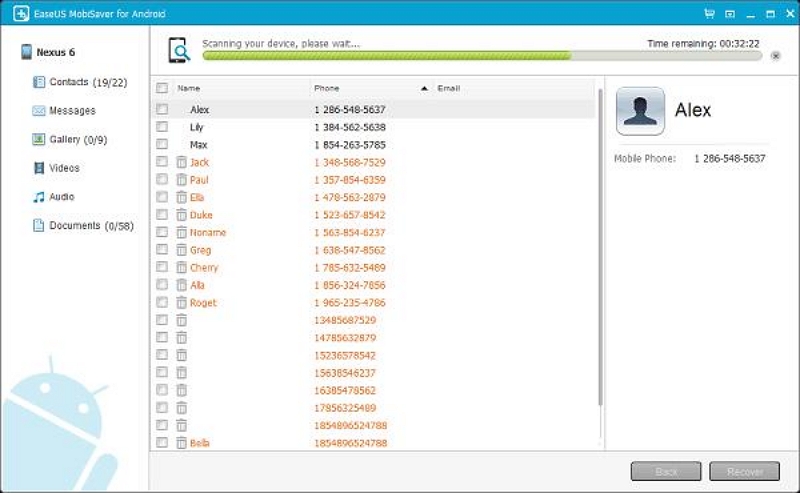
How it works: MobiSaver attempts to use Android's content provider system to access deletable data before it's permanently erased. It scans:
- SQLite databases where contacts and messages are stored
- Media store database for recently deleted photos
- App-specific storage (if accessible via ADB)
Best for:
- Recovering text messages deleted within the last 24-48 hours
- Contacts accidentally removed from the phone (but not synced to Google)
- Photos deleted from the Gallery app (not Google Photos cloud)
Limitations on Pixel and modern Android:
- Cannot bypass Google Photos trash: If photos were deleted from Google Photos app, they're in the trash for 60 days but encrypted. MobiSaver cannot access this.
- Cannot read encrypted backups: If you have a local backup encrypted by Android, MobiSaver cannot decrypt it.
- Cannot recover from factory reset: Once the device is wiped, the encryption keys are destroyed and data is unrecoverable.
- Requires USB debugging enabled beforehand: If your screen is broken or the phone is locked, you cannot enable debugging and MobiSaver won't work.
Success rate reality: On Pixel phones, expect a 5-15% success rate for internal storage recovery. The tool is more reliable for SD cards or older devices.
2. Tenorshare UltData for Android
- Easy to use and supports many Android brands.
- Cannot recover data that has already been fully overwritten or encrypted beyond access.
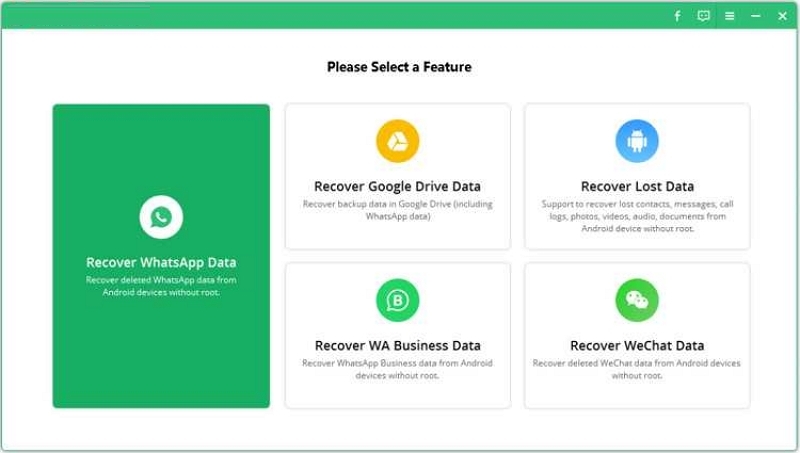
How it works: UltData uses a combination of ADB access and (on some devices) a temporary custom recovery environment to scan for deleted data. The process varies by device:
For standard devices:
- Connects via ADB and scans accessible partitions
- Reads database files (contacts, messages, call logs)
- Scans media storage for photo and video remnants
For some Samsung/Xiaomi devices (older models):
- Can temporarily flash a recovery module to gain deeper access
- Performs a low-level scan of storage partitions
- Attempts file carving to reconstruct deleted files from raw data
Best for:
- Non-technical users who want a guided, simple interface
- Recovering WhatsApp chat history and attachments
- Devices that are still functional and accessible
Important Reminder: For devices like Google Pixel, only attempt recovery if the data loss just happened and the phone has not been used much since. Every time you use the phone:
- New photos, app data, and system logs are written to storage
- Deleted file space gets overwritten with new data
- Cache files continuously refresh and overwrite old space
- The chance of recovery drops exponentially
What "recently deleted" means:
- Within 1-2 hours: 60-70% chance for some recovery
- Within 24 hours: 30-40% chance
- Within 1 week: 10-15% chance
- After 1 week of normal use: <5% chance
Critical limitation: UltData cannot recover from encrypted storage on Pixel devices unless the phone is unlocked and you have USB debugging enabled. If your Pixel's screen is broken or it's locked, recovery is nearly impossible without professional forensic help.
3) SD Card Recovery (Desktop Tools Work Better)
If your lost data was stored on an SD card, desktop recovery tools are usually far more effective than mobile apps.
Why desktop tools are better for SD cards:
- Direct sector-by-sector access to the card
- More powerful algorithms for file reconstruction
- Can handle corrupted file systems that phones cannot read
- No Android permission restrictions
1. PhotoRec / TestDisk (Free & Open Source)
- Very powerful for scanning SD cards, USB drives, and other removable storage. Supports many file formats.
- No graphical interface and not beginner-friendly, but technically very capable.
How it works: PhotoRec ignores the file system entirely and scans the raw storage device looking for known file signatures (file headers).
When PhotoRec finds these signatures, it attempts to reconstruct the entire file by reading forward until it finds a valid end marker or detects corruption.
What makes PhotoRec powerful:
- Ignores deleted file table: Works even if the file system is completely corrupted
- Supports 400+ file formats: Including obscure formats that other tools miss
- Free and open source: No hidden costs or trial limitations
- Works on Linux, Windows, Mac: Highly portable
Limitations:
- No original filenames: Recovered files are numbered sequentially (IMG_001.jpg, IMG_002.jpg)
- No folder structure: All files are dumped into a single directory
- Command-line only: Steep learning curve for non-technical users
- No preview before recovery: You get all or nothing
Best for:
- SD cards that were accidentally formatted
- Cards that show "unsupported file system" errors
- Situations where you need maximum recovery depth and don't care about organization
- Users comfortable with terminal/command prompt
Companion tool - TestDisk: TestDisk (same package) can sometimes repair corrupted file systems and partition tables. If your SD card suddenly shows as "unformatted," try TestDisk first to repair the partition. This often makes the card readable again without needing file-by-file recovery.
2. Recuva
- A simple Windows tool for recovering SD cards and external drives.
- Struggles with heavily fragmented or badly damaged cards.
How it works: Recuva reads the file allocation table (FAT/exFAT/NTFS) on the SD card and looks for entries marked as "deleted." Unlike PhotoRec, it tries to preserve:
- Original filenames
- Folder structures
- File timestamps
Recovery modes:
- Wizard mode: Simple step-by-step interface for beginners
- Advanced mode: Manual control over scan depth and file filtering
- Deep scan: Slower but more thorough, similar to PhotoRec's approach
Health indicator system: Recuva shows a colored dot next to each file:
- Green: Excellent chance of recovery (file not overwritten)
- Orange: Partial overwrite, may be corrupted
- Red: Heavily overwritten, unlikely to recover successfully
Best for:
- Quick recovery attempts on SD cards that still have a working file system
- Users who want a simple graphical interface
- Situations where you need to preview files before recovering
Limitations:
- Cannot handle severe corruption: If the file system is completely destroyed, Recuva often fails
- Fragmentation issues: On badly fragmented cards, recovered files may be incomplete or corrupted
- Slow deep scan: Can take several hours on large cards
- Windows only: No Mac or Linux version
Pro tip: Enable "Deep Scan" for better results, but be prepared to wait. On a 64GB SD card, deep scan can take 3-6 hours.
3. Stellar Data Recovery Professional
- Better for complex file types and more serious card corruption cases.
- Paid software, more suitable for important or high-value data.
How it works: Stellar combines multiple recovery techniques:
- File system analysis: Reads the directory structure like Recuva
- Signature-based scanning: Searches for file headers like PhotoRec
- RAID reconstruction: Can handle multi-partition and complex storage configurations
- Media repair: Attempts to fix corrupted photos and videos during recovery
Advanced features:
- Preview before recovery: See thumbnails of photos and first frame of videos
- Selective recovery: Choose individual files instead of recovering everything
- Disk imaging: Create a sector-by-sector backup of the failing SD card before attempting recovery
- Supports 300+ file types: Including RAW photo formats (CR2, NEF, ARW)
Best for:
- Photographers with RAW image files on SD cards
- SD cards with physical damage (bad sectors)
- Situations where you need to recover specific files, not everything
- Users willing to pay for higher success rates
What makes it better than free tools:
- Better video recovery: Can reconstruct fragmented MP4 and MOV files more reliably
- Photo repair module: Fixes corruption in JPEG headers
- Technical support: Email and chat support included
- Regular updates: Database of file signatures updated frequently
Limitations:
- Expensive: Professional version costs $80-100
- No magic: Still cannot recover data that's been fully overwritten
- Slower than PhotoRec: More thorough but takes longer
- Resource intensive: Requires a fairly modern PC to run smoothly
Step-by-Step: How to Recover Android Data Safely
This process focuses on maximizing your chances and minimizing further damage.
Step 1: Stop Using the Device Immediately
Any new activity may overwrite the deleted data. Taking photos, installing apps, or even normal usage can permanently destroy recoverable files.
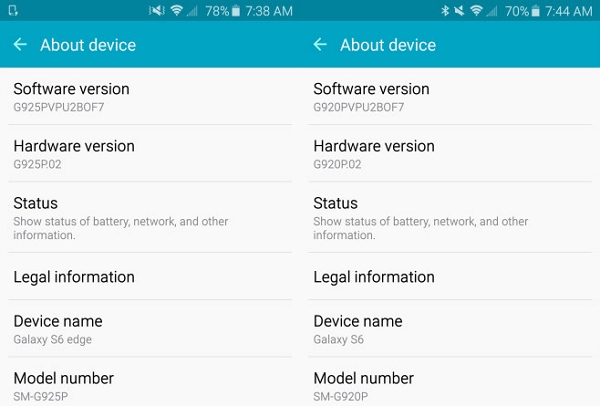
Step 2: Identify Your Phone Model and Android Version
Different brands and Android versions have very different permission and encryption rules. Pixel, Samsung, and other brands all behave differently when it comes to data access.
Step 3: Check All Backup Sources First
A backup is always more reliable than any recovery scan.
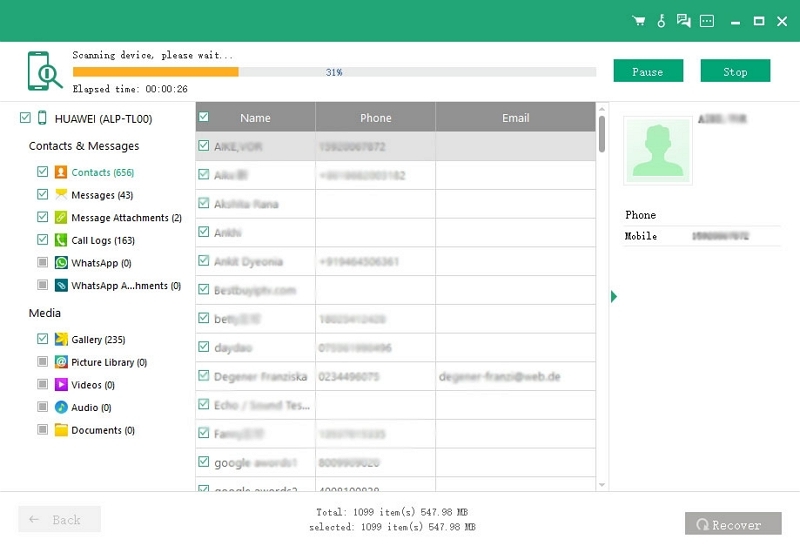
Step 4: Attempt Recovery Once — Not Repeatedly
Repeated scanning increases the risk of permanent data loss.
Step 5: Save Recovered Files to a Different Device
Never save recovered files back to the same phone.
Common Myths
- There is no such thing as “100% recovery” software.
- If the phone has been used for a long time after deletion, recovery is often no longer possible.
- Constantly switching tools and rescanning usually makes things worse, not better.
How to Prevent Android Data Loss Going Forward
- Enable automatic Google backups
- Use Google Photos or equivalent
- Back up locally before system updates
- Export important data manually
- Don’t rely on internal storage alone
Prevention is the only reliable solution.
Conclusion
Android data recovery in 2026 is less about finding the “best” tool and more about understanding what is technically possible. On modern devices, especially Google Pixel and newer Samsung phones, encryption and system cleanup mean many deleted files are gone permanently. Sometimes recovery works, but often it does not—and that is usually because of how Android is designed, not because you chose the wrong software. If data loss just happened, a careful attempt may be worth trying. In the long run, however, backups—not recovery tools—remain the only truly reliable protection.